Aconex High Compliance Release 26.02.100

This release brings many updates to Oracle Aconex Federal Government (ACXGOV) and Aconex for Defense (USDOD). These instance will be updated from Release 23.12 to Release 26.02.

There's lots of new features and updates in this release. 


Documents

Update your document field labels

  • Project owning organizations can now update the labels and tooltips for document fields, including their translations.
  • This allows you to quickly make a document field available for use on the project with its correct label.
  • You'll need to have the Re-label Document Fields permission granted to your user role to perform this action. This ensures you can limit who can unlock the document field labels and update them. This permission is granted to Org Admins by default.
  • You no longer need to contact Oracle Support to request this, saving you time and errors.
  • Important: Document uploads are blocked while document fields are unlocked for editing. Make sure you update them at a suitable time and remember to lock the fields after you're done. 
 

Use Bulk Processing to upload multiple versions of documents

  • We're making a change to the way you can upload multiple versions of documents.
  • The Add/Update Documents function no longer supports uploading multiple versions of the same document at once.
  • The Bulk Processing tool is the only method available to upload multiple versions of a document in a single flow. 


Change to a user role permission asset name

  • In user role configuration, we've renamed the Edit Project Field select-list values Asset to Edit Project Field select-list values on upload/update. This name matches the corresponding asset for Document Fields.
  • We've made this renamed asset independent of the Create and Edit Project Field asset. Even if the first asset is not granted, the second one will work when granted. 


Delete searches created by inactive users

  • You can now delete saved searches that were created by a user who has left the project or had their account deactivated.
  • You'll need to have the Edit/delete saved searches permission granted to your user role to perform this action.


Menu label update for opening office files

  • We've updated the menu label for opening Office files from the Document Register. The label Open in Office Online is now Open in Microsoft 365.


Refresh your hierarchies once

  • After successfully refreshing your cascading metadata or project field hierarchies, the refresh option will be greyed out to avoid it being clicked multiple times. You only need to refresh once.


Packages

Export with hierarchies

  • If you use package hierarchies on your project, you can export your packages while preserving the hierarchical folder structure.
  • The hierarchical export matches the package hierarchy on your project, with each folder nested under its parent.


Tidying the package management menu

  • The package management menu is loaded with features, so we've grouped them to make them easier to find.
  • The new groupings are Create, Edit and Export.


Send packages in bulk

  • Package users, we've heard you.
  • Save time and send up to 10 packages in one go.
  • You'll find this new feature under the Package Management menu.


Package transmittal notifications

  • We've saved you some time. Now when you send a package you don't have to wait for it to complete.
  • You can move onto your next task in Aconex and we'll let you know once your package has been sent. 
  • You'll see a red notification on the bell icon once the send process completes. Click it to see if your transmittal was sent or not.


Restrict editing of package numbers

  • Now, Project Admins can prevent packages numbers from being edited on the project.
  • This is helpful for projects that require stricter controls around package numbering.
  • The new project setting applies to all organizations on the project. By default, it allows package numbers to be edited.
  • With the restriction configured, users creating packages will see a message that the package number cannot be changed.
  • You can turn this setting on or off at any time. 
  • Note: As before, packages numbers created by autonumbering cannot be edited regardless of this setting.


Updates to Package Administrator permission

The Package Administrator permission has been updated and is being made available to all organizations. There is no need to make a special request to have this user role permission enabled in your organization and no need to sign a disclaimer.

Users with the Package Administrator permission can:
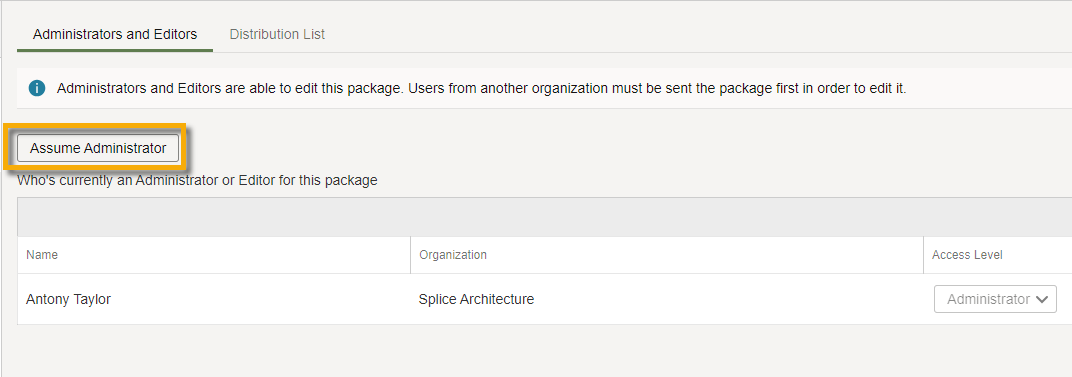
  • Add a new Administrator for packages administered by their own organization.
  • Assume the Administrator role on packages administered by another organization on a package-by-package basis if the following conditions are met:
    • The user making the change is from the project-owning organization.
    • The organization(s) that previously administered the package are set to Archive status on the project.


A new look for creating and editing packages

  • It's easier to create and edit packages with this modern update.
  • Instead of scrolling through a long list of fields, now you can quickly navigate and enter the package details across four tabs:
    • The Properties tab contains details such as the type, title, package number and revision.
    • The Documents tab is where you add and update documents in the package.
    • The Parent Package tab is visible if package hierarchies is enabled on your project.


A new look across package screens

We continue to work towards providing a consistent experience when navigating through packages.

  • Improved the appearance of the Documents screen so it's easier to find the information you need.
  • Updated the Document Comparison screen so it's easier to see the changes before updating documents.


Mail

Share your mailing groups

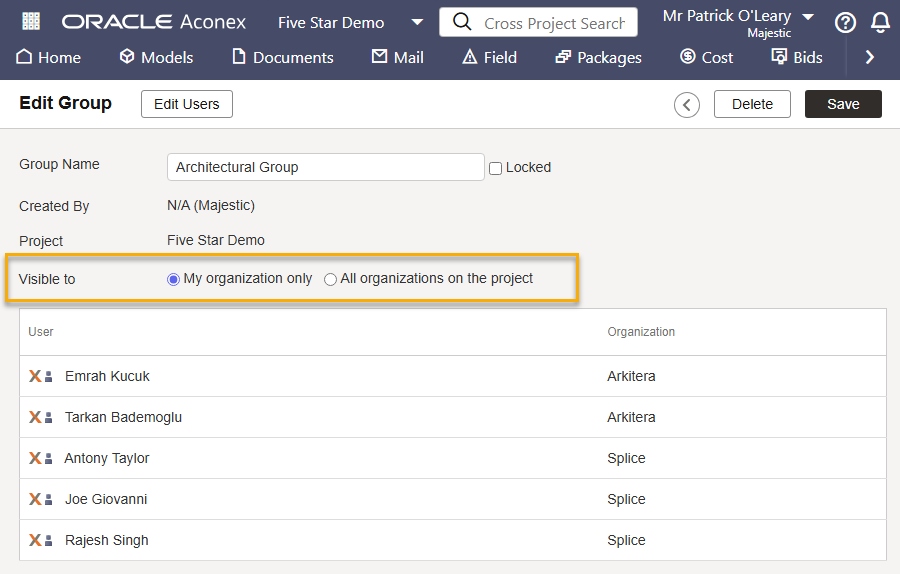
  • Thanks to your feedback, you can now share your mailing groups with all organizations on project.
  • This saves time and helps everyone communicate with the right people on the project. 
  • Each organization no longer has to create and maintain its own copy of the mailing groups.
  • Mailing groups are shared as read only, which means only the creating organization can add or remove users to them.
  • A shared mailing group can be used when sending a mail, managing a package distribution list, creating a workflow template, or a supplier document package. 
  • You'll need to have the Share Mailing Group With Organizations on Project permission granted to your user role to share a mailing group.
  • If required, project owning organizations can prevent other organizations from sharing mailing groups. Enabling the project preference Allow only Project Owner to share/unshare mailing groups means only the project owner can share them.


Select multiple users from the directory
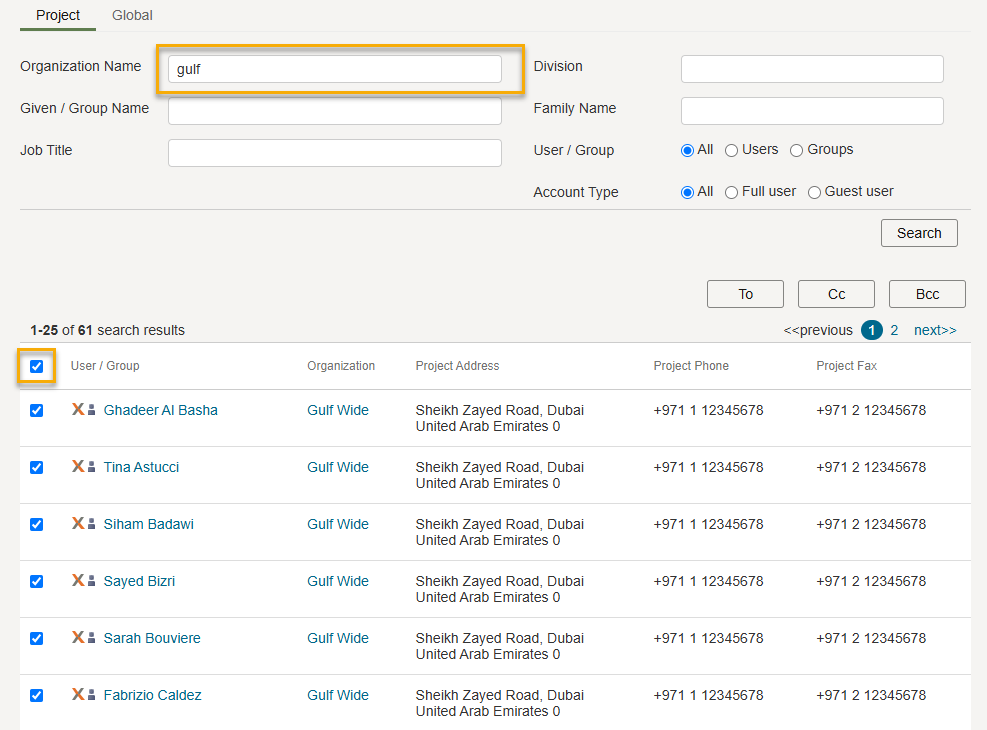
  • We've made improvements to save you time and clicks when adding users to a mail or group.
  • Now you can search for users and check a box to select all results on the page. No more clicking each person one at a time!
  • You must first run a search to enable the checkbox.
  • To select users across multiple pages of results you need to check the box on each page.
  • You'll need to have the Select All Users on Page permission granted to your user role to perform this action.

Select multiple results from the directory


Mark a mail as 'No Action Required'

  • Sometimes an organization leaves a project without closing out their mail. This can leave you with outstanding mail stuck in your tasks that you're unable to reply to, or close out yourself.
  • The new No Action Required mail status effectively allows you (as the recipient organization) to close off the mail. It will no longer appear as an outstanding task. This option is available to all recipient organizations.
  • You'll need to have the Mark a mail as No-Action Required permission granted to your user role to perform this action.
     

View a users mailing groups

  • You can now quickly see all mailing groups created by your organization that a user has been added to for the current project.
  • Click on the user's name from the project directory, and see their mailing groups listed in alphabetical order at the bottom of the page.
  • This helps you check your users are in the correct groups, particularly if you want a new user to be in the same mailing groups as another user.
  • You'll need to have the Show Mailing Groups on User Page permission granted to your user role, available at the org and project level.
 

Add or remove a user from multiple mailing groups
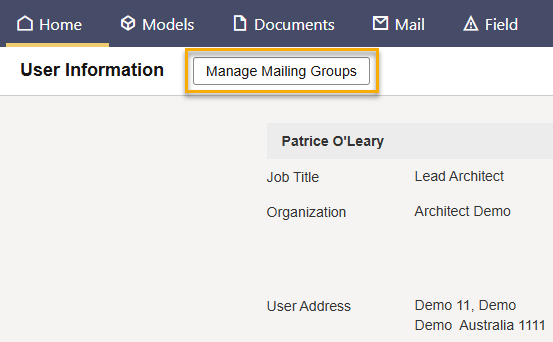
  • Many of you let us know the time consuming process of adding or removing users from multiple mailing groups, one click at a time. We've made this process easier.
  • After clicking on a user from the project directory you can add or remove them from mailing groups created by your organization. No more clicking through each mailing group!
  • You'll need to have the Bulk Edit Mailing Groups of User permission granted to your user role to see the Manage Mailing Groups button.
  • Keep in mind that changes to mailing groups only apply to your currently selected project.


An easier way to find users in the directory

  • Thanks for letting us know that finding users was a tedious task if you had lots of mailing groups.
  • A new filter helps you hide mailing groups, so you only see the list of users. 
  • Conversely, you can filter out users if you only want to see mailing groups.


New buttons when creating a transmittal

  • We've added new buttons when creating a Transmittal.
  • View File Properties shows both the document properties and the project fields of the attached documents before sending the Transmittal.
  • You can now select one or more documents and delete them or view their file properties.

Note: These features are ONLY available for registered documents on a Transmittal, NOT for mail attachments. Applies to the Transmittal mail type only. Does not apply to other transmittal types (Workflow, Supplier Document, Package, or Tender transmittals).


Restrict selections in project field hierarchies

  • If your project contains project field hierarchies, currently any user can select any available option. 
  • Thanks to your feedback, Project Admins can now decide which values are available to different groups of users. 
  • This provides greater control over form selections and helps to reduce errors.


Adding commas to currency

  • Thanks to your feedback, Project Admins can now choose to show comma separators when viewing currency values, such as 100,000. This makes larger values easier to read.
  • Values should still be entered as normal without the commas (ie 100000) but when viewing or exporting the mail, the commas will be added automatically.
  • The new project level preference is Use comma style to display currency fields, available from your project preferences under the Setup menu.


Field

Retiring Classic Issues

  • We've retired the classic Issues view and will continue developing features in the new Issues view.
  • Thanks to your feedback, we've added summary details in your issues list. Click the new Summary option in the menu to see the overall status of your issues at a glance. 


More control in Field roles

  • We've split the Issues and Inspections Role in Field into two separate roles. You'll now see one role for Issues and one role for Inspections. 
  • This gives you more control over who can manage issues and inspections in your organization.
  • The list of individual roles (such as Assignee, or Inspector) are the same in both the Issues and Inspection role sets. 
  • If you have an Admin role in either set, you can add users to the Field directory as before.
  • Existing configurations will not change. If you were an Inspector in the Issues and Inspections set, you'll be an Inspector in each of the Issues and Inspections sets.


Add comments that everyone involved can see
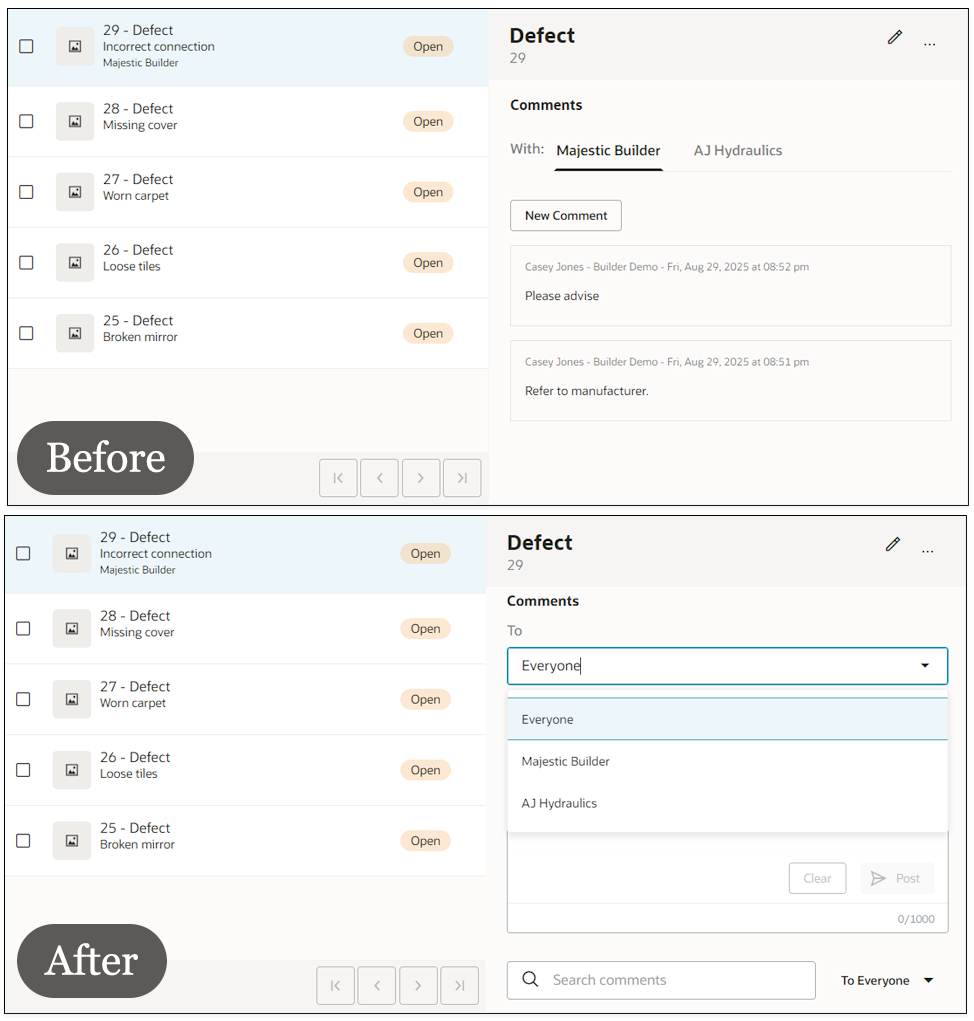
  • You let us know you needed greater visibility of issue comments.
  • Now Assignees (or roles above) can add public comments to an issue by selecting Everyone in the To field. Comments posted to everyone are visible to all organizations working on the issue.
  • This improves collaboration on issues that require open conversation between all parties such as the general contractor, owner, and subcontractors. 
  • Public comments can be added from the web or Oracle Aconex Mobile.
  • We've also given the comments section a visual update, to make it easier to add, view, and filter your comments.

Add comments that everyone involved can see
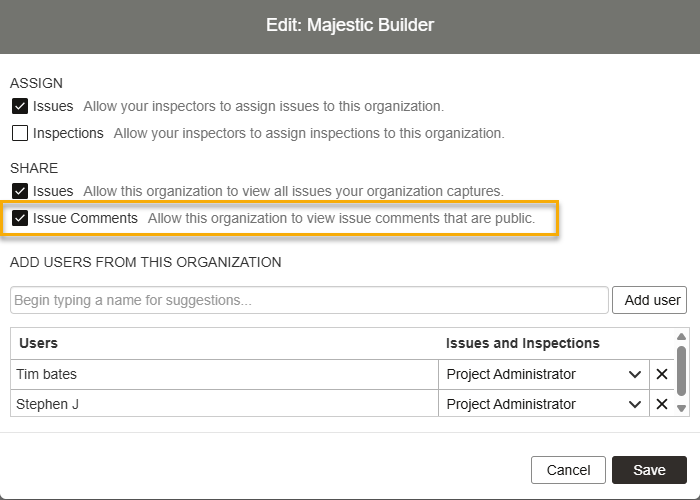
  • You can choose to share all your public issue comments with additional organizations from the Organizations you work with screen.


Export more inspections

  • You can now export inspections to CSV. This allows you to export large data sets as CSV has no limits on the number of rows.


Clarifying menu options

  • We've relabeled some menu items on the issues screen to make them clearer.
  • These options have also been moved under a three dots menu to keep the main toolbar free from clutter:
    • Send has been renamed to Send on Mail.
    • Move has been renamed to Move to Punchlist.
    • Remove has been renamed to Remove from Punchlist.
  • The Export option on the menu is also now enabled by default and will export all issues if you haven't made a selection.


Clarifying issue filters

  • Thanks for letting us know some issue filter options were unclear. We've renamed these to help you understand what they do.
  • Status changed on has been renamed to Status of your issues changed on.
  • Assigned On has been renamed to Assigned to you or your org on.


More details in issue exports

  • You’ll see the following fields when you export issues to Excel or CSV:
    • Pinned to Doc Number: The document number of the drawing that the issue is pinned to.
    • Doc Title: The title of the drawing that the issue is pinned to.
    • Source: The inspection or punchlist where the issue was created.
    • Listed In: The punchlist where the issue is listed.
  • These new fields are available on web and mobile. Some fields have been reordered in the exported file to make room for the new fields.


More issue events

  • The issues event log now tracks even more information, so you can see who did what, and when.
  • See who added or updated any field (including project fields) on the issue, plus any added files or photos.
  • These new events will begin tracking from this release, and are only visible in the New Issues view. You can switch back to Classic issues at any time, but you will not see these new events until you switch to New Issues.


Improvements to QR code printing

Print QR codes faster for all your areas and sub-areas. When you select an area to print QR codes, you'll see two options:

  • Print the selected area and next level below - This downloads a PDF with QR Codes for the selected area and the immediate level below (this is the current behavior). 
  • Print the selected area and all levels below - This downloads a PDF with QR Codes for the selected area and ALL sub-areas under the selected area. When the file is ready for download, it can be found in Temporary Files.


Track inspection completion

  • The completion percentage for inspections are now shown in two decimal places (for example, 16.25%).
  • This helps you accurately track and report on your inspection progress.
  • The new format applies to newly created inspections or when an existing inspection is edited.
  • The percentage is also shown when exporting inspections to Excel, CSV and PDF.


Add descriptions to any issue attachments

  • You can now add a description to any files (including images) you attach to an issue.
  • We've also updated the label from Comment to Description to clarify its purpose.


Enhance your issues report

  • Issues exported to PDF now provide up to 25 high resolution images to help you see important details.
  • We've also updated the layout of the report to align with the issue details you see on screen. This makes the report easier to read.


Setup

Increasing project information attachments
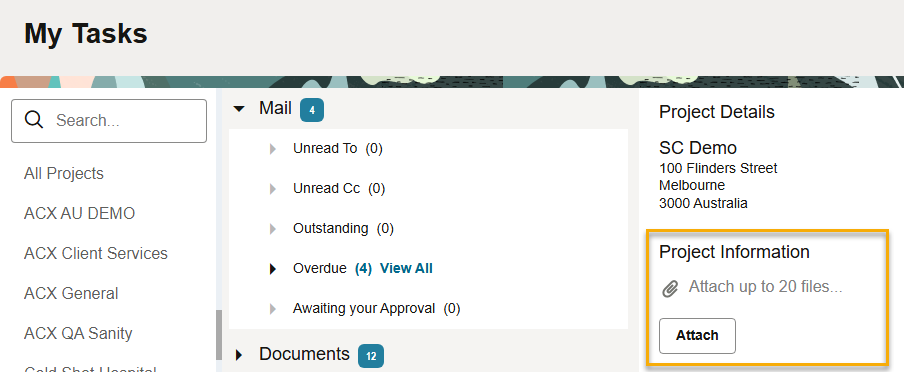
  • We've increased the limit of project information attachments to 20 files.
  • These attachments are visible to everyone on the project from the home screen and handy to share important guidelines.

Increasing project information attachments


Hide projects for all users
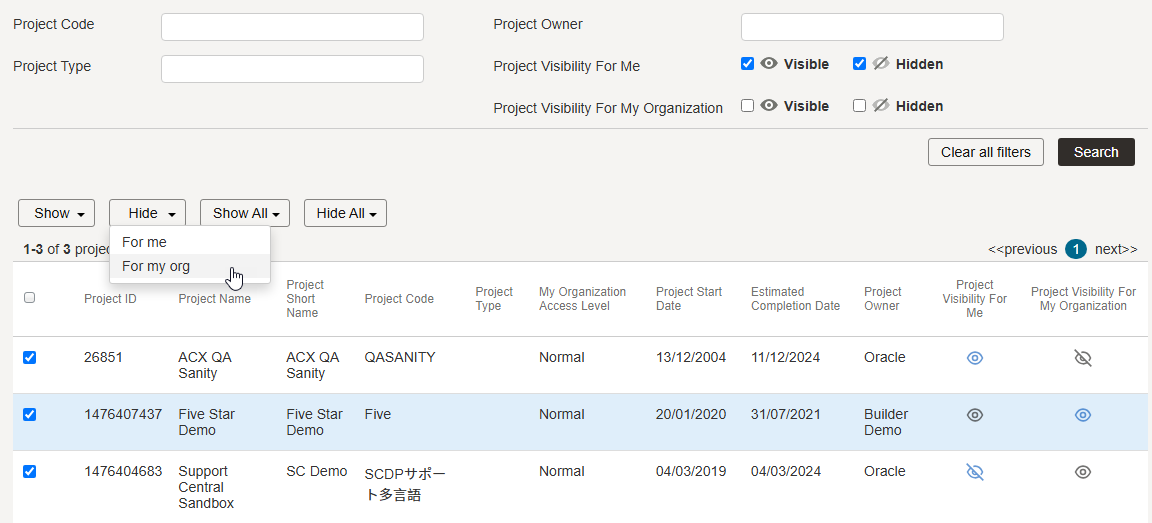
  • Org Admins can now tidy up the project list on behalf of all their users.
  • Currently a user can hide projects themselves to keep their list of projects focussed. If this hasn’t been done for a while, you may have lots of users that need to hide a lot of projects.
  • Now, you can select projects in bulk and hide them for everyone in your organization in one go. This means they’ll only see projects they’re actively working on.
  • But don’t worry, a user can still choose to override this and show and hide projects themselves. 
  • You must have the Set project visibility for organization permission granted to your user role to use this feature.
  • As a user with this permission, you'll see the eye icon turns to blue, to help you see which setting applies to your own project list.
  • You can only hide and show projects that you've been invited to.

Hide projects for all users


A new look for mail type settings
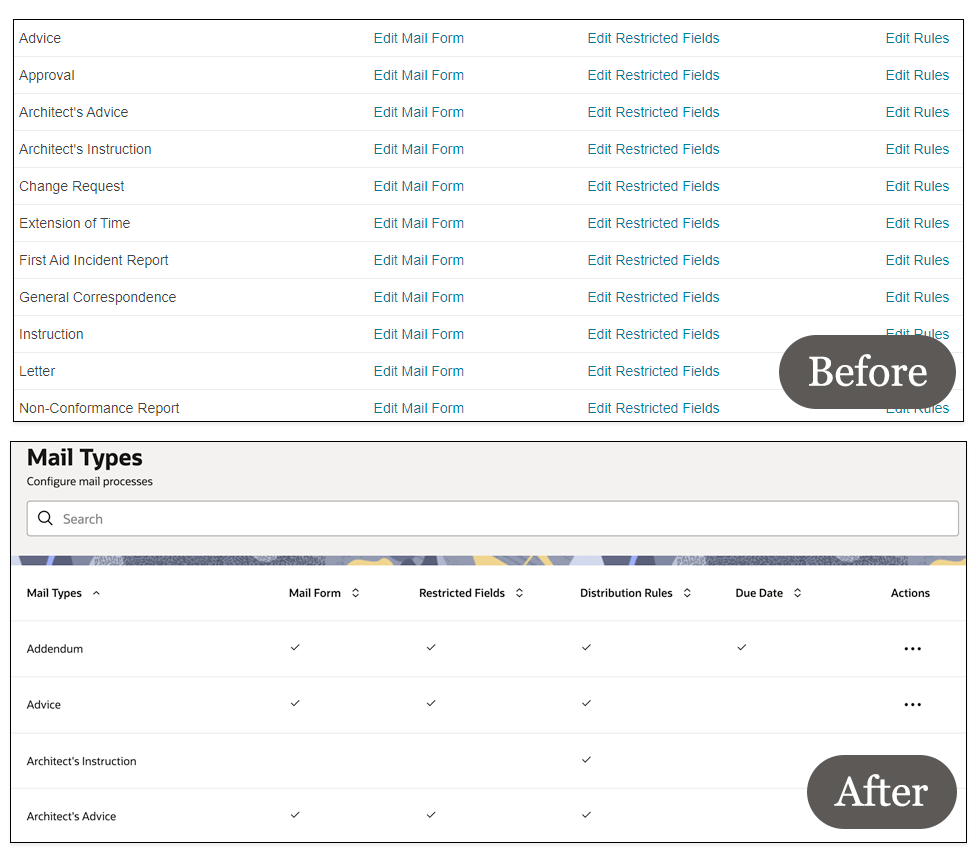
  • We've updated the mail types screen in project settings so it's easy to see what's been configured for each type.
  • For each mail type you'll see a tick if it's configured with either mail forms, restricted fields, distribution rules, or due date. This helps you identify where you need to make changes.
  • Click the three dots menu under the actions column to add or change the configuration.
  • A new search field at the top helps you find the mail type you want to configure quickly, rather than scrolling down the page.
  • While configuring a mail type you can quickly switch to another one, without going back to the full list.

A new look for mail type settings


Find projects faster
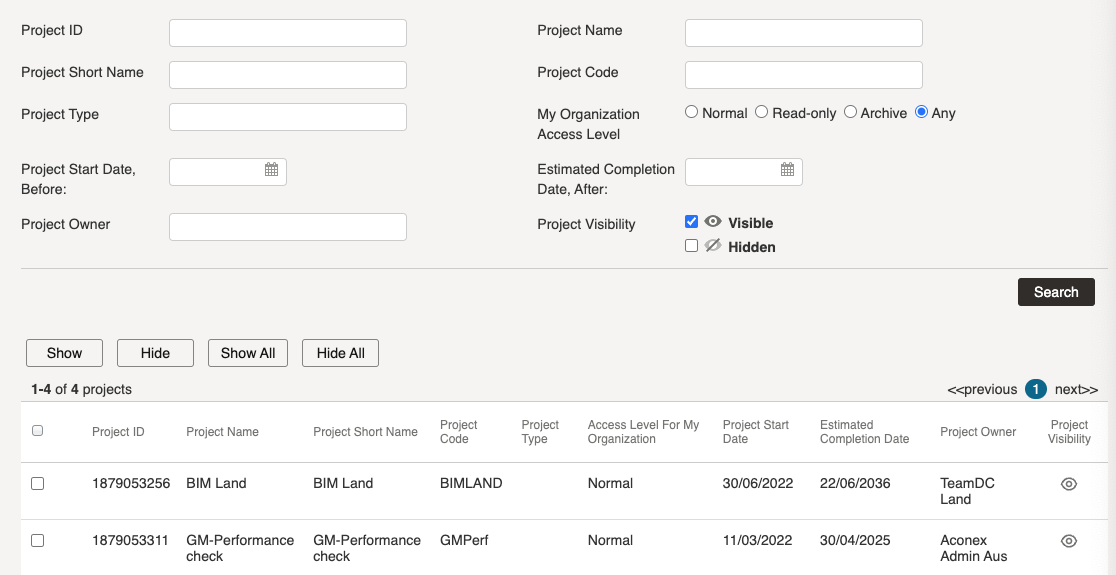
  • We've done some housekeeping on the List My Projects screen to help you find projects fast. 
  • We added a bunch of new search fields including Project ID, Project Code, Project Type, Organization Access Level, Project Start Date, Estimated Completion Date, and Project Owner.
  • To make space for these new fields, some less used fields including Address, Phone and Fax were removed.

Find projects faster


Close projects in bulk
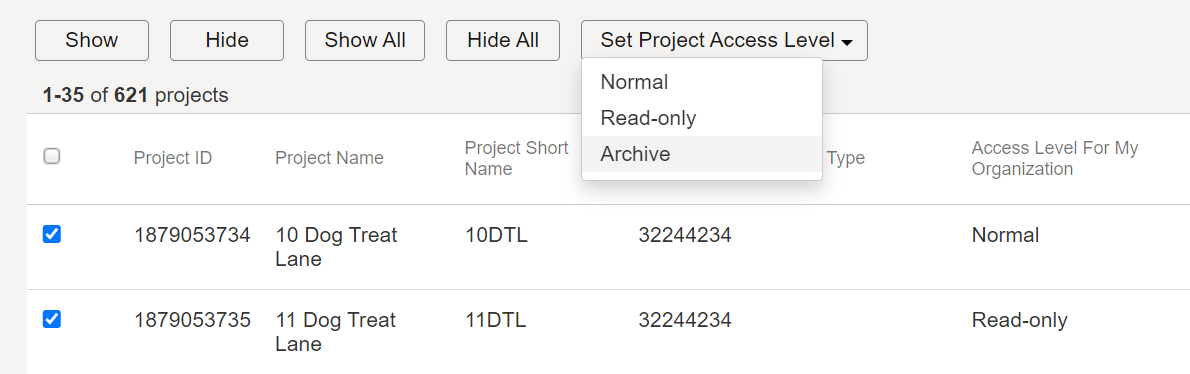
  • If you're a project owner with lots of projects to archive, we've saved you some time.
  • Now you can select multiple projects and set them to archive access in one go. 
  • Click Project Owner Tools from your list of projects to access the new feature. You'll see all projects your organization owns (where you are a Project Admin for the Aconex project-owning organization).  
  • After selecting projects, click Set Project Access Level and choose an option as required.

Close projects in bulk


See projects hidden by Oracle at a glance
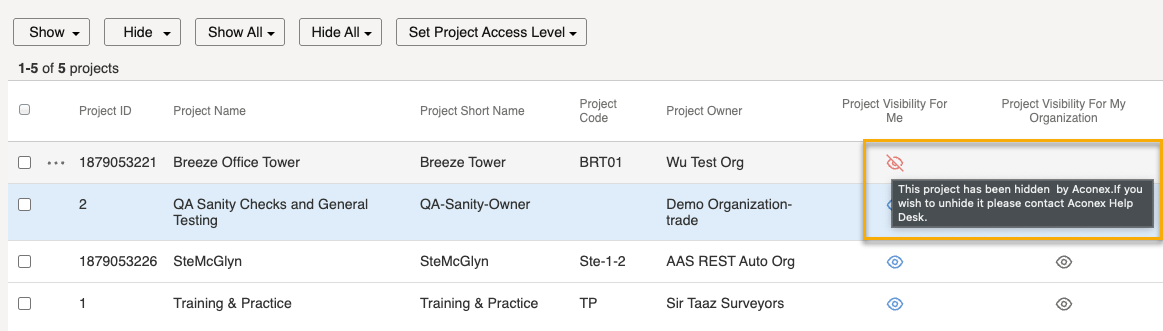
  • We've made it easier to see if a project has been hidden by Oracle. This usually occurs when a contract ends.
  • These projects will display the eye icon in red.

See projects hidden by Oracle at a glance


Workflows

Links to workflow transmittals

  • Thanks to your feedback, you can now add the Workflow Transmittal In and Workflow Transmittal Out columns when searching workflows.
  • This gives you quick access to view the transmittals that were sent for each workflow.


Filtering for documents

  • If you've filtered the workflow search screen, and click to review a document, your filters will now remain in place, so you only see the documents that you filtered.
  • Previously, all documents in the workflow would show, regardless of your chosen filters.


See who created a document

  • Thanks to your feedback you can now add the Document Created By column when searching workflows.
  • This helps you see the name of the organization that created the document.
  • The Project Admin can also set this as a default column for the project from project preferences.


More characters for review labels

  • You asked to enter more in the review status label field. You've got it.
  • We've doubled the number of characters you can enter from 50 to 100.
  • This is helpful for projects with specific wording requirements for reviews.


Tenders

Attach package documents to a tender

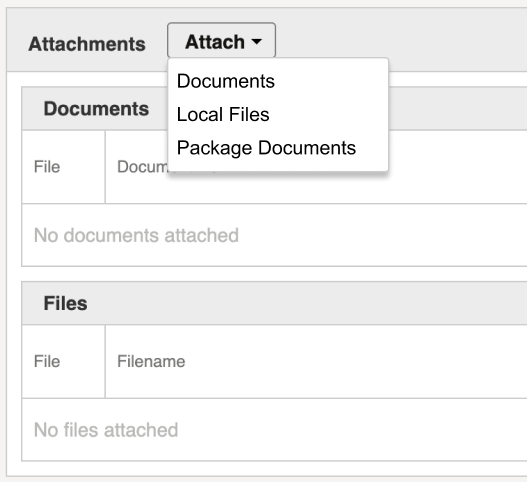
  • If you manage specific sets of documents in your packages, you can now add them directly to your tenders, saving you time and helping you to attach the correct documents.

Attach package documents to a tender


More documents in your invitation

  • Thanks for letting us know you wanted to work with more documents in tenders. 
  • Now you can send up to 3,000 documents on a tender invitation.
  • We also removed the 200 document limitation on zip downloads, so you can download all the documents from the tender in one go.


Tasks

A new look for Tasks

  • We added a little space and some color to the Task page.
  • We've renamed the Tasks menu to Home to prepare for a new experience on your Aconex home screen.


Mobile

Keep your device updated

  • To ensure you have the best possible experience, we'll now let you know if an update is available for a particular module in the mobile app.
  • We no longer support older mobile operating systems (either iOS or Android).  For Apple devices, if your version of iOS is more than three major versions behind, you'll be prompted to update to the latest version. For Android devices, if your version of Android is more than four major versions behind, you'll be prompted to update to the latest version. 
  • We no longer support older versions of the Oracle Aconex mobile app. If your app is more than two versions behind, you'll be unable to use the app and must update to the latest version. An alert will appear for you to take action.
  • If your iPhone or iPad has an unauthorized modification (also known as jailbreaking), you won't be able to use the app. You'll receive a message that all Aconex data will be deleted for security. 
  • We encourage you to keep your app updated, giving you access to the latest features, improvements and performance enhancements.


See an issue’s source

  • In Aconex web you can see if an issue was created from an inspection or punchlist, by viewing the Source field. The Listed In field gives you the name of the punchlist.
  • Now you can see these details when viewing issues from your mobile device.
  • We've added these fields as search filters too, so you can find issues that were created from a particular process.
  • This helps you find issues to close from a specific punchlist or inspection.


Filter issues captured by other users

  • The Captured By filter now allows you to find Field issues captured by multiple different users. This provides flexibility to help you find the issues you need to work on.


API

Integrate with Supplier Documents

  • The wait is over. The API for Supplier Documents is now available to help you connect more data in Aconex.


Supporting mail marked as No Action Required

  • The Mail API has been updated so you can retrieve information on mail marked as No Action Required.


Manage package distribution lists and transmittals with APIs

​We've added APIs to help you work with packages.

  • Package Distribution List DELETE allows you to delete a user or group from a distribution list.
  • Package Distribution List PUT lets you add a user or group to a distribution list.
  • Transmit Package POST helps you transmit the current version of a package to the package distribution list.


More data in Package APIs

  • The Package GET API has an include parameter to help you request additional data separated by commas.
  • A new API returns the total volume of all package attachments for a given projectID.
  • The package Events GET API includes deletion and no longer in use events.
  • The Packages Transmittal History GET (list all) API now returns all sent and received package transmittals for a package. Previously only sent transmittals were returned.
  • The Package Events API now includes the PACKAGE_NO_LONGER_IN_USE and PACKAGE_DELETED events, to help you filter packages.


Copy workflow templates

  • There's a new Worlflows API to help you copy workflow templates in bulk.
  • By integrating with the workflowTemplates API you no longer have to manually copy templates one by one.

  •  

Search by workflow number

  • Use the Search Workflows By Workflow Numbers API to request workflow details for specific workflow numbers.


Get project owner details from the Projects API

  • API integrations can now get the Project Owner Organization Name and Project Owner Organization Trading Name in the List Projects for User API response.
  • You no longer need to make a separate API call to get this information.


Supporting large file uploads in the Register Document API

  • If you've tried uploading a large file (1.2GB and above) using the chunk method you may have encountered an error.
  • To resolve this we've modified the filesize attribute to accept decimal values as well as integers.

  •  

Improvements to the All Filters List Documents API

  • The All Filters List Documents API was failing for some users due to large amounts of data being returned.
  • We've added the returnTransmittalInfo request attribute to help this API perform faster.
  • With this boolean value is set to True, the response only contains documents that have a transmittal history. It will not contain any extra data type metadata which was generating a large response.

  •  

Updating large files

  • The Supersede API for documents now allows you to update files up to 100MB. Previously the limit was 5MB. 
     

Removing invalid characters with Documents APIs

  • We've introduced a new parameter in Documents APIs to help you remove invalid characters from your metadata.
  • This ensures your API requests are completed successfully without errors.
  • Make sure you include sanitizeInvalidXmlCharacters=true in your request to ensure invalid XML characters are replaced with a whitespaces.


Invite users, get user details, or manage mail groups with the Directory API

  • Great news if your project has been set to explicit invitation mode, and you want to invite users in bulk. Now you can use APIs to invite your users. 
  • The List Organisation Users API now returns email addresses for users in your organization.
  • Mail groups can be managed externally without logging into Aconex. You can create, update, delete, read, add or remove users from a mail group.