Exporting photos and metadata for issues exported to PDF.
PDF printouts are still widely used in construction for a variety of reasons. For example, PDF issues lists are handed out on site for issue progression and resolution, and are also needed for reporting and compliance. However, the thumbnail photos used in the reports, and the accompanying metadata, are not always of sufficient quality and are not always as helpful as they could be.
Instead of using thumbnails, you can choose 25 high resolution photos instead, along with their accompanying metadata. The latter gives you the ability to audit issues as they progress.
See also:
When you're exporting issues to PDF, you can export their associated photos as either thumbnails or high resolution photos (for the latest 25). Depending on the options you've chosen for photos and issues count, the exported PDF is then downloaded to your desktop or uploaded into Docs Register/Temporary files.
The PDF file is downloaded to your desktop if you have an export of:
In all other cases, the export files are uploaded into Docs Register/Temporary files. You'll be notified by email once the upload is complete. The email will include a link to download the exported file.
Each of the 25 most recent high resolution photos exported:
If you want to export more than 25 photos per issue, these can only be exported as thumbnails of 120 pixels.
For each photo you'll see the:
If no description is provided, the remaining metadata is displayed below the image thumbnail.
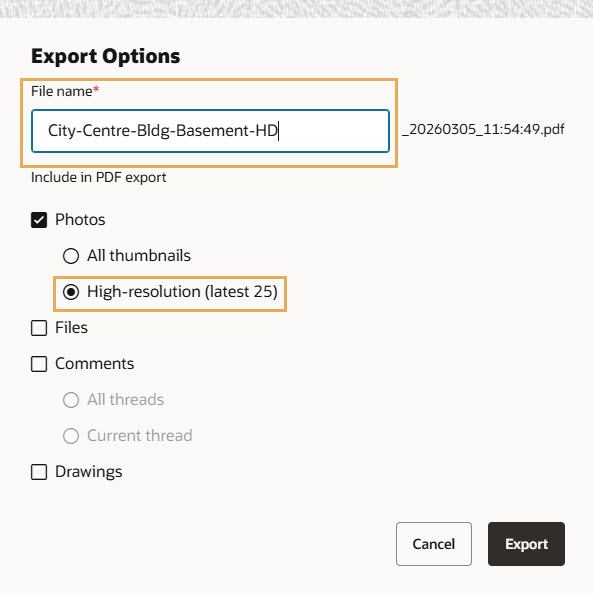
To make it easier to find files, you can enter a custom file name in the File Name field when exporting an issue via the Export options window.
When you run an export, you can choose between All thumbnails or High-resolution.
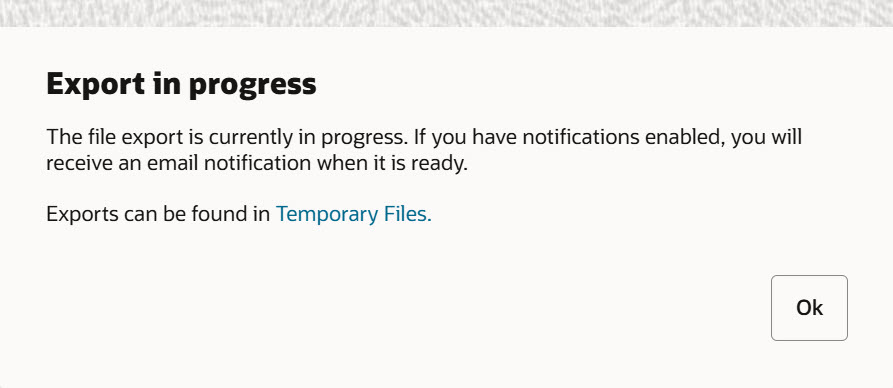
If you’re making large numbers of exports, you’ll see messages with updates about progress and export times.