Using Navisworks with Aconex

Use Navisworks to test for clashes and to create and assign issues. Data created here is automatically shared with Aconex.

Use the Model coordination plugin from Navisworks Manage and Navisworks Simulate to create and manage design issues.

From Navisworks Manage you can publish clashes from Clash detective to Aconex directly.

Data created and managed in the plugin is automatically synced with Aconex.

Required User Role Permissions

  • Access Models - General access to the plugin is enabled by this permission
  • Create Design Issues 
    • Create New issue
    • Create Issue from clashes
    • Create issue from viewpoint
  •  Create Issue sets - Controls Create Issue set tool
  • Model Coordination Administrator - Allows editing of design issues owned by other users

Your Organization Administrator may need to grant these permissions to your user role.
Connecting to Aconex from Navisworks

  1. Download and install the latest version of the Model Coordination plugin.
  2. Click on the Oracle Aconex tab in the program’s menu ribbon.
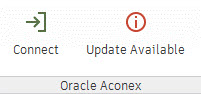
  3. If an update is available for the plugin, you’ll see Update Available in the top ribbon bar. Click it to download the latest version.
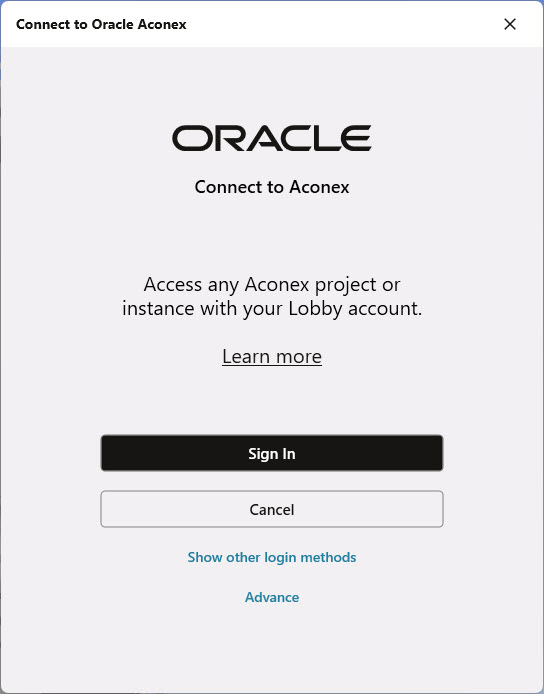
  4. Click Connect to begin the login process in your project location.

Tip!

The plugins use the Lobby for signing in. Find out more about the Lobby.
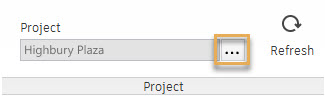
  1. In the ribbon menu, select a project by clicking the ellipsis menu icon.


  1. The ribbon menu buttons will become available once you are successfully connected to a project.

Tip!

Click the Refresh button to get the latest data from Aconex.

Upload a model revision to the Document Register

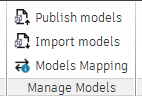
  1. Click Publish models to upload to the Document Register.
  1. You'll be taken to the upload screen in Aconex. The upload process is similar to uploading documents to Aconex.
  2. After you click Register in Aconex, you'll see a success message. You can close the window to go back to the plugin.
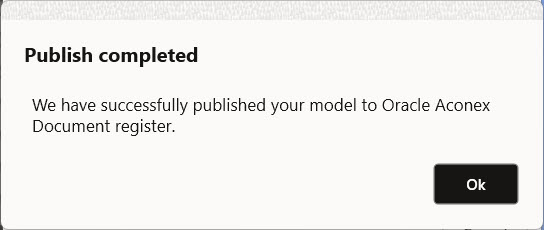
  3. Navisworks will keep uploading to Aconex. You'll see a confirmation message once it's done.

Models auto-association

Speed up issue creation by mapping models in Navisworks to models that have been added to Model Explore. This option is enabled when at least one model is added to Navisworks.

Models with confirmed mapping save you time and increase accuracy for:

  • Ad-hoc design issues to all unhidden models at the moment of issue creation
  • Issues from viewpoints to all unhidden models at the moment of issue creation
  • Issues from clashes to all models used in the clash test.
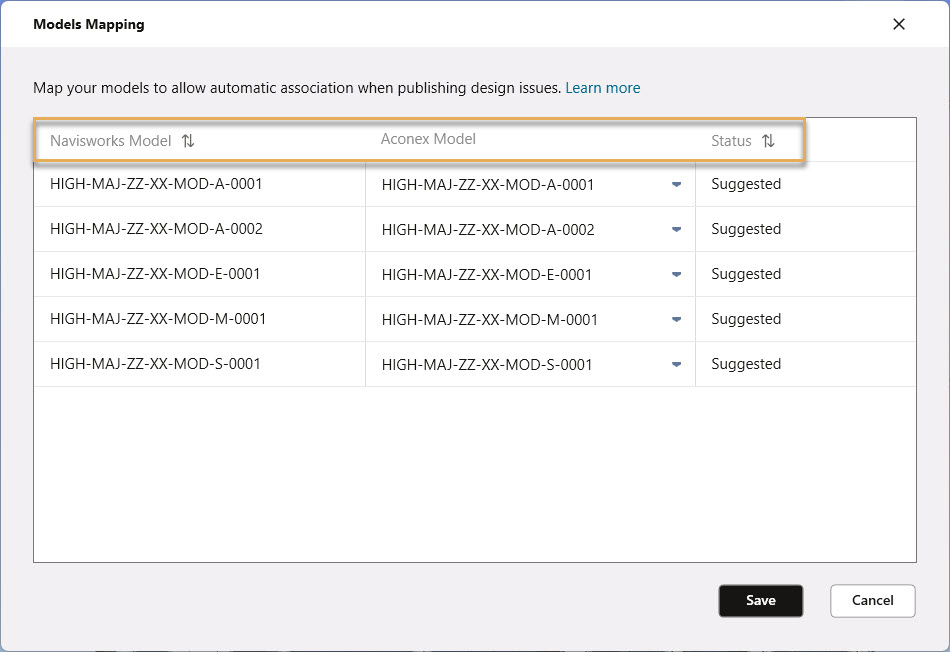
  1. Click Models Mapping. A dialog will open, showing:
  • Models added to Navisworks
  • Models added to Model Explore in Aconex
  • The current mapping status between Navisworks and Aconex.

Tip!

  • A blue icon on the Models Mapping icon means there are mapping updates that require review.
  • Matches are shown with a Suggested status. If no matches are found, the status shows Unmatched. Only the model name is matched for local file models.
  • Only Confirmed models will be automatically associated when creating a design issue.
  1. Review all the suggested mappings and make any necessary changes. Select additional mappings manually as required. The plugin checks for exact matches on Document No. or Title, depending on the selection made in Setup > Project Settings > Models for Field 1.
  2. Click Save. The mappings will now have the status Confirmed.
  3. When creating an issue, confirmed models are now automatically selected as the associated models and appear at the top of the list.

Import a model from Aconex to Navisworks

Models can be imported into Navisworks from the Document Register.
  1. Click Import models from the ribbon menu.
  1. Choose a folder to download the model file to.
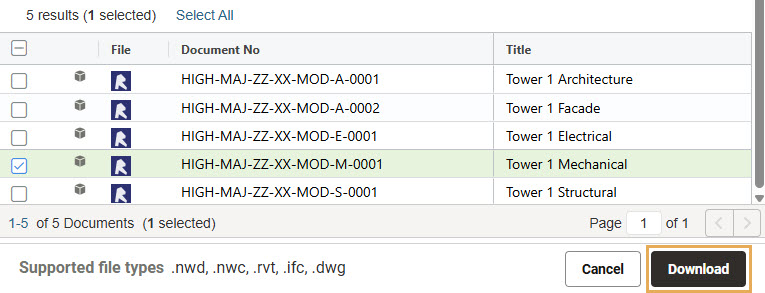
  2. Select a model from the Document Register and click Download.
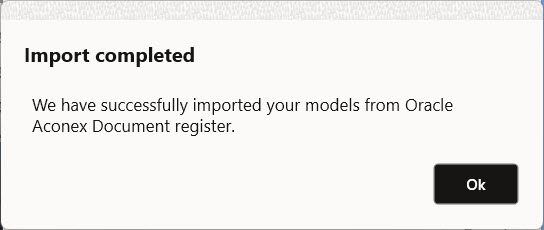
  1. A notification will show once the model has opened.

Create Design Issues

  1. Prepare the model to display your design issue in the most effective way and click Add Issue. 

Tip!

Perspective and Orthographic view of the model can be used. The same view will be used in Aconex.
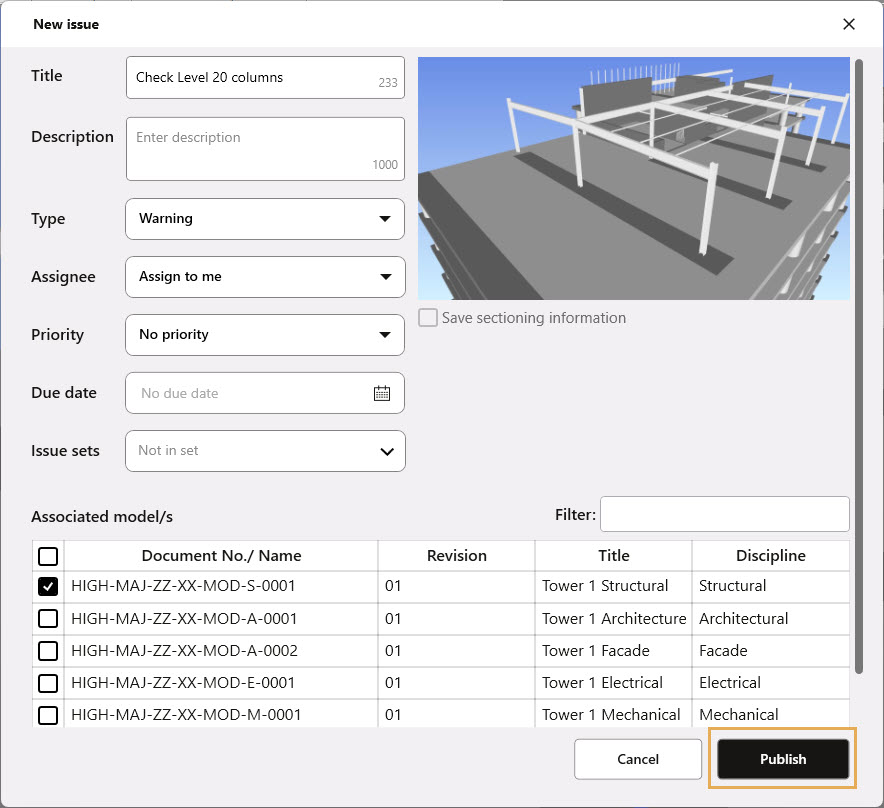

  1. In the pop-up, enter information about your design issue, including mandatory fields such as Title.
  2. Select the associated model(s) to display the model viewpoint in Aconex. Otherwise, the model viewpoint will not be loaded automatically in Aconex.

Tip!

If you have already mapped models, then models will be automatically selected and appear at the top of the list.
  1. If the 3D model contains sectioning, check the box Save sectioning information. This allows you to keep the same 3D view in Aconex. Alternatively uncheck the box to display the complete model for your design issue.
  2. When all necessary information is entered, click Publish to add the issue to Aconex.

View issues

  1. Click View and Edit Issues in the top ribbon bar
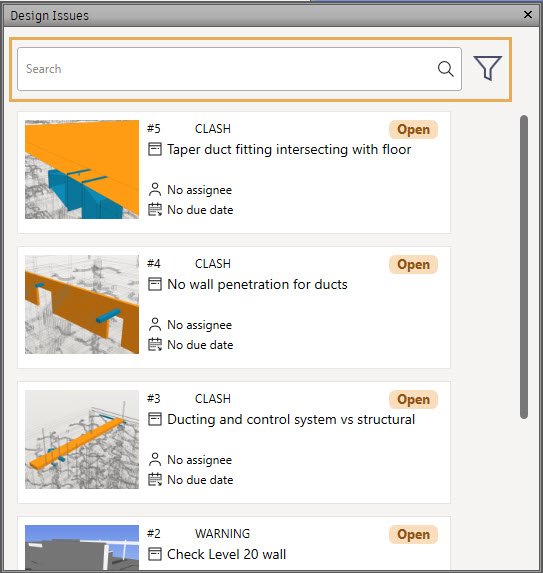
  1. The Design Issues panel will open. You can narrow issues in the list using the keyword search field or creating a filter by clicking the filter button.
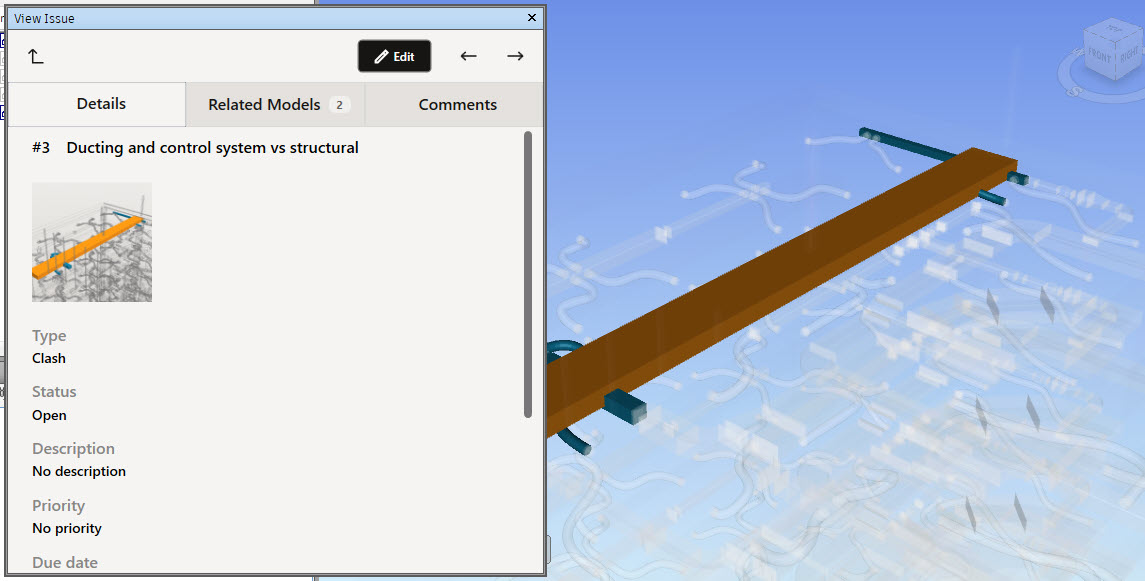
  1. Click an issue in the list to open a model viewpoint.

Tip!

Use the up arrow in the top left corner of the panel to return to the issues list. Use the left and right arrows in the top right corner to quickly move between issues.

  1. Select a Viewpoint to load the model viewpoint to the scene.

Tip!

In Navisworks, you can view all of the sections that have been created for the model in Aconex.
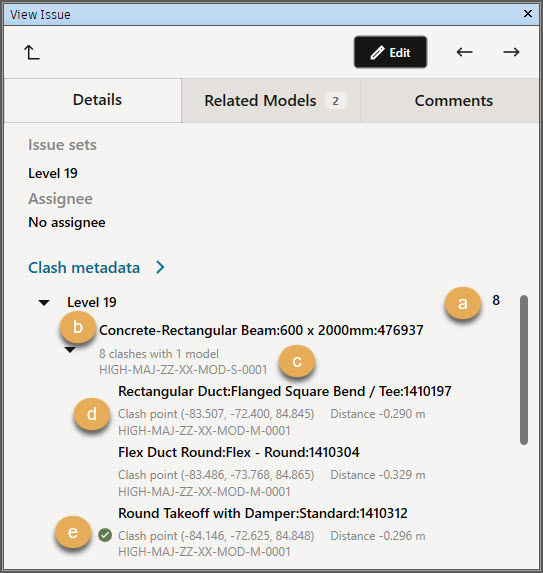
  1. Hover over the thumbnail and click the Preview text to open a viewpoint snapshot for the issue.
  2. Clash in the Cloud: Issues created from Clash in the Cloud show detailed information under the Clash Metadata heading. A green tick will appear beside a clash when it has been resolved.

Tip!

Clashes cannot be resolved through the plugin. Model authors must correct the clash and upload a new revision of the model to Aconex.

Edit an issue

  1. Click on an issue in the list to open it.
  2. Click Edit in the top right corner to enter editing mode (you will need editing permissions).
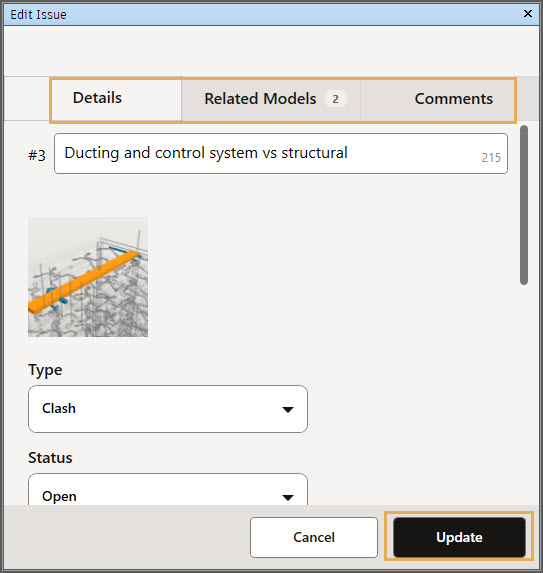
  3. Then, click the Details or Related Models tab to make changes to the issue.
  4. Click the Comments tab to leave a comment.
  5. Click Update when you are done.

Create an Issue set

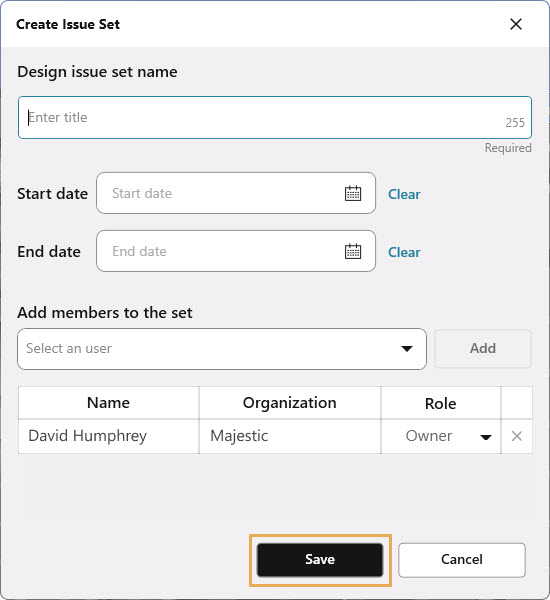
  1. Click Create Issue Set.
  1. Enter the set name (mandatory).
  2. Define start and end dates for your set.
  3. Add members to provide access to the issues within the set.
  4. Click Save when you are done..

Tip!

By default,the issue set creator is the Owner of the set, allowing you to edit all issues in it. Added users are Viewers in the set - they can only view the issues. Users can be set to Contributors to create issues in the set. Users with the Aconex permission Model Coordination Administrator can edit all issues relating to their organization on the project. 

Create issues from Viewpoints

  1. Click Issues from Viewpoints.
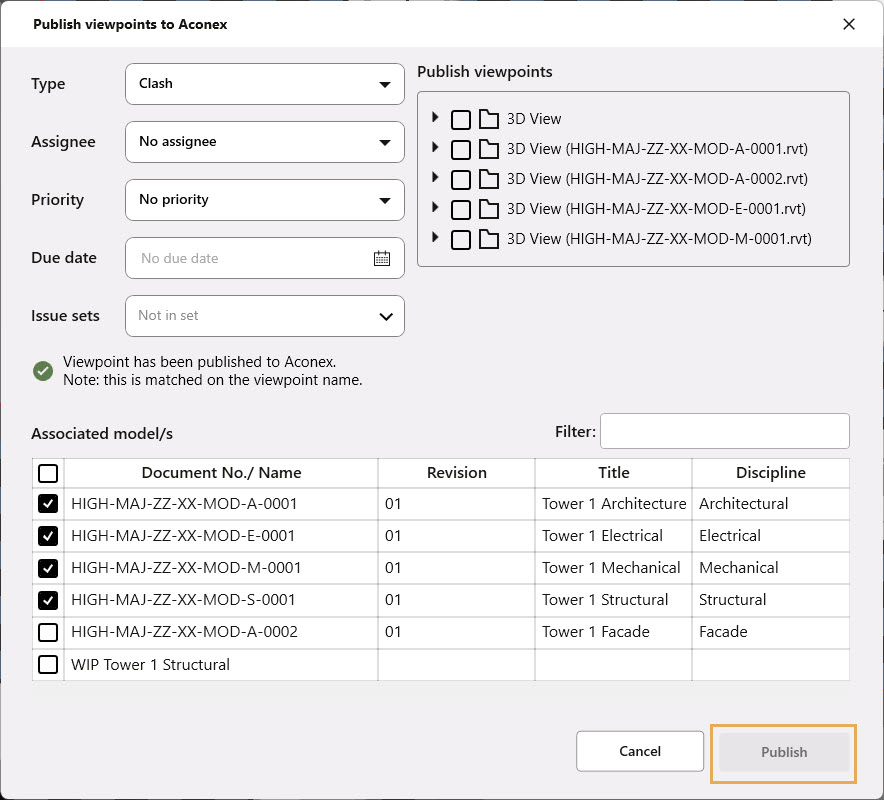
  1. Select a viewpoint to be sent to Aconex with design issues.
  2. Enter all required information for the design issue.
  3. Click Publish to share the issue with Aconex.

Tip!

The viewpoint name will be used as the Design Issue title. Multiple viewpoints can be published resulting in the same number of design issues in Aconex.

Create issues from clashes

Publish clashes from Clash detective directly to Aconex using Navisworks Manage.
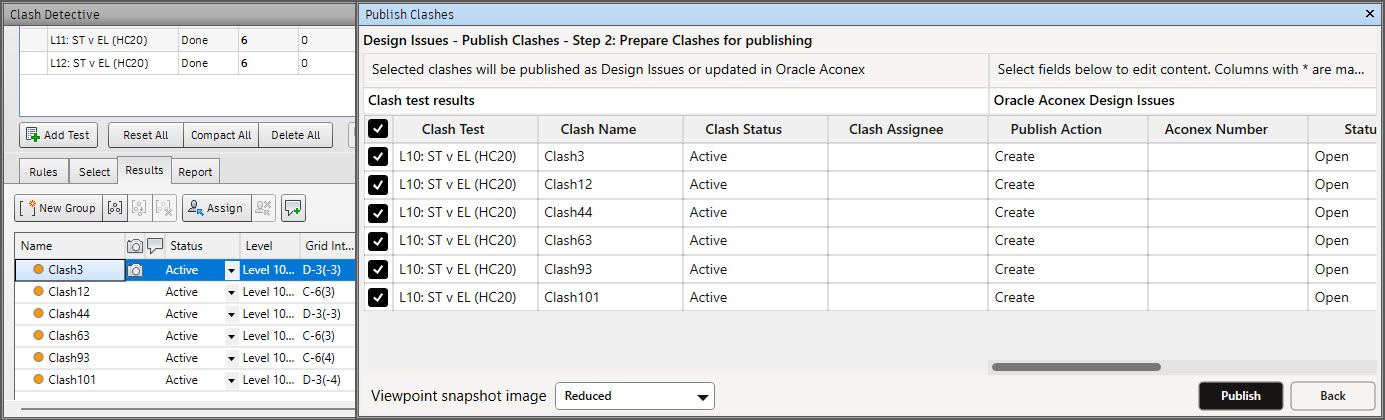
  1. Run the clash test based on your requirements. 

  1. Click Issues from Clashes.
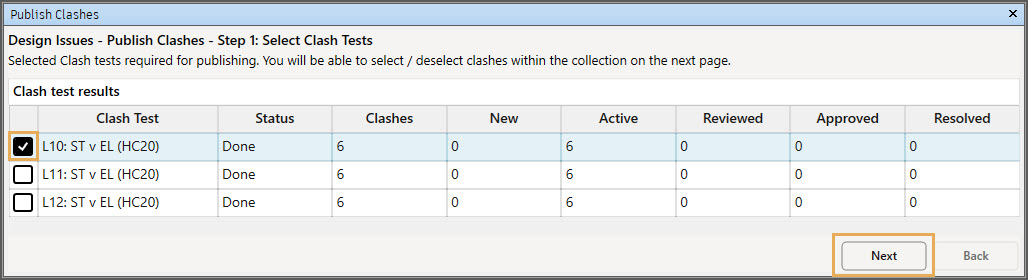
  1. Select clash test results you would like to share with Aconex, and click Next.
  1. You will see all the clashes with the same parameters in Clash Detective.
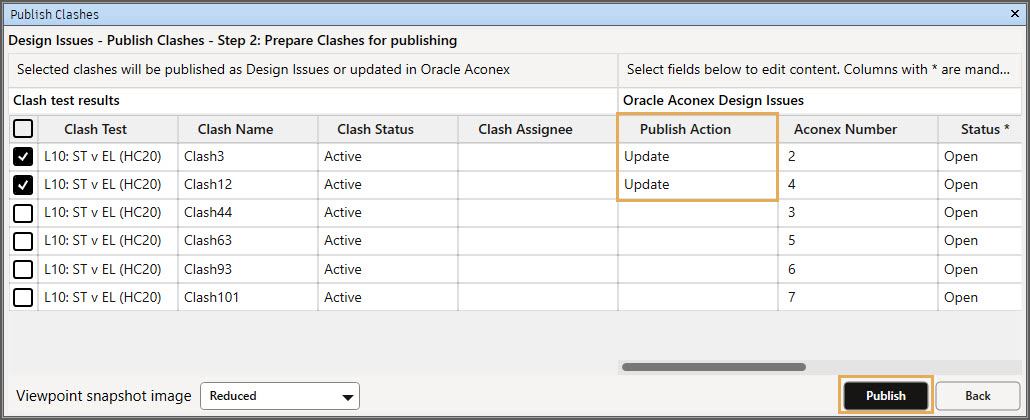
  2. The Publish Clashes table splits into two parts: Clash test results and Oracle Aconex Design Issues.
  • The Clash test results provide information from the Clash Detective. You can manually change the clash status to update it in Clash detective when published.
  • Oracle Aconex design issues provides information about:
    • Publish actions available for each specific clash, or group of clashes.
    • Aconex issue number (for published clashes only).
    • Aconex issue parameters: status, type, assignee etc.
  1. Filter and sort clashes in the table as desired. To apply a filter to a column, click the filter button that appears when you hover over a column name. Click on a column name to sort clashes in ascending or descending order.
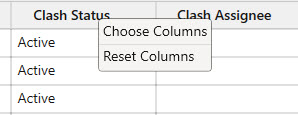
  2. Click the right mouse button on any column name to add or remove columns or reset to the default columns view.

Tip!

There are specific columns that are default and can’t be hidden from the table – Publish Action; Aconex Number; Status; Type.
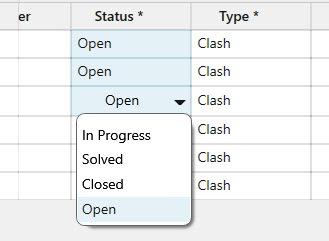
  1. Edit clashes in bulk by holding the Shift key and selecting a range of cells. Continue holding the Shift key and single-click the last highlighted cell to show the editable details. Any changes made to one clash will apply to all highlighted clashes.
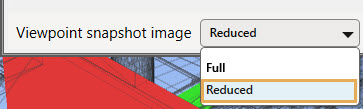
  1. Select snapshot size for your design issues. Click the drop-down list at the bottom of the pop-up to select the required snapshot size. Select Reduced to publish issues faster.
  1. To publish clashes as issues in Aconex, select the clashes or groups, then click Publish. The progress screen shows how many issues are being published.
  2. Refresh the clash test to see the Aconex issue numbers of the published clashes
  3. For any clashes that have been updated in Navisworks and can be published to Aconex, you will see Update in the Publish Action column.
  4. Select a clash you would like to update in Aconex and click Publish.