Export test plans on Mobile

Export test plans and all contents as a zip file for handover, or export the register to Excel from your mobile device.

You can export your test plans as zip file to retain a record of files and evidence or to use as handover documentation. Exported test plans include inspections, attachments and linked documents within the activities.​ You can export up to five test plans at a time. This includes test plans created by your organization, shared with your organization, or those where your organization is a participant. 

You can also export your list of test plans to Excel to get an overall progress report for your ITPs.
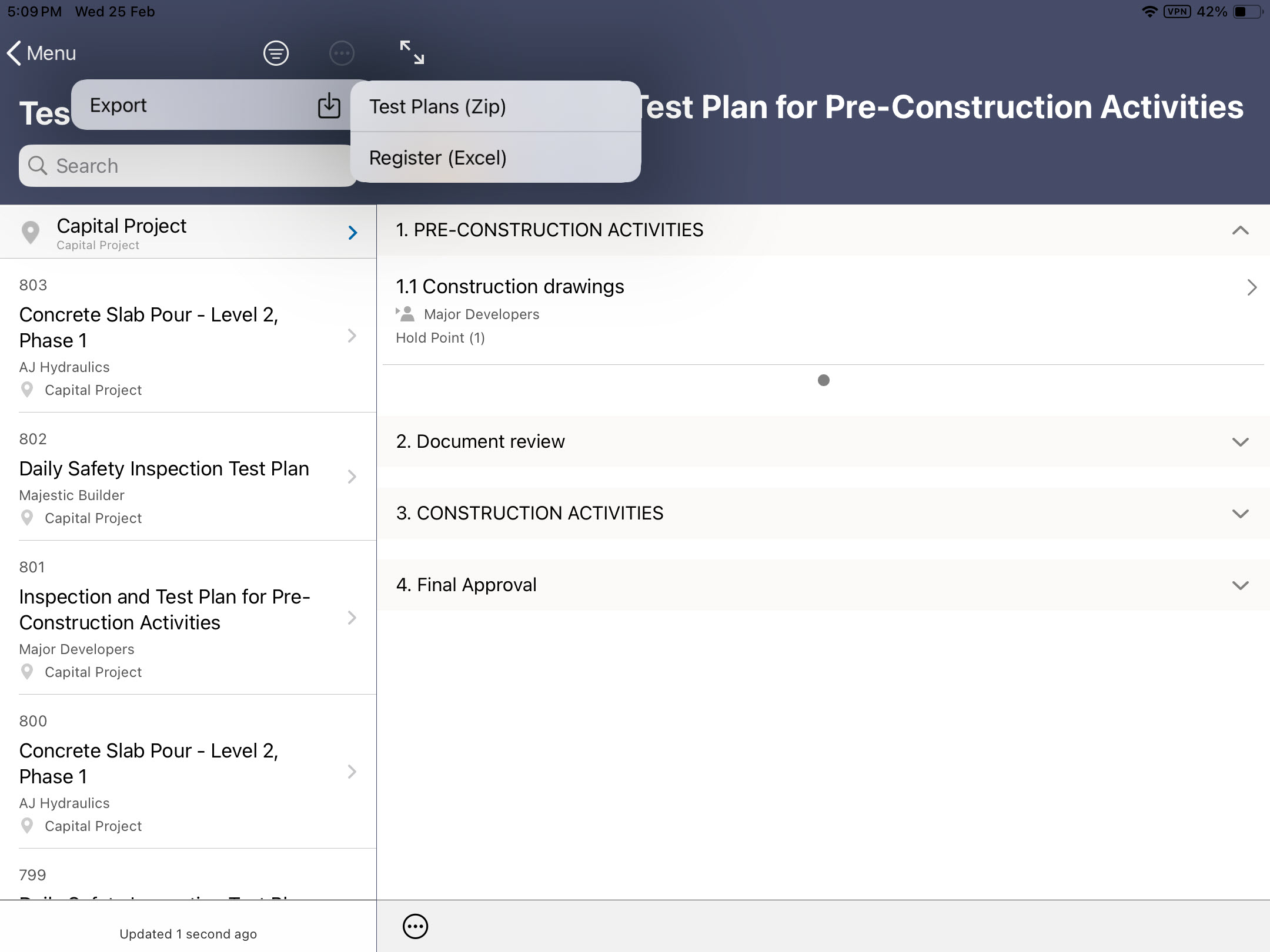
Export as a zip

  1. Log in to Oracle Aconex Mobile and select your project.
  2. Tap Test Plans.
  3. On the test plan list page, search and filter your test plans as required.
  4. Tap the three dot menu at the top of the screen.
  5. Select Export to open the dropdown menu and tap Test Plans (Zip).
  6. Choose up to five test plans to export.
  7. Tap the download icon to start the export.

Tip!

A notification will indicate that the export is in progress. You will receive an email once the export is ready. The files can also be accessed from Temporary Files in the web application. Ensure your email notification preferences are enabled, otherwise you will not receive export notifications.

Export to Excel

Export your list of test plans to Excel to get an overall progress report for your ITPs.
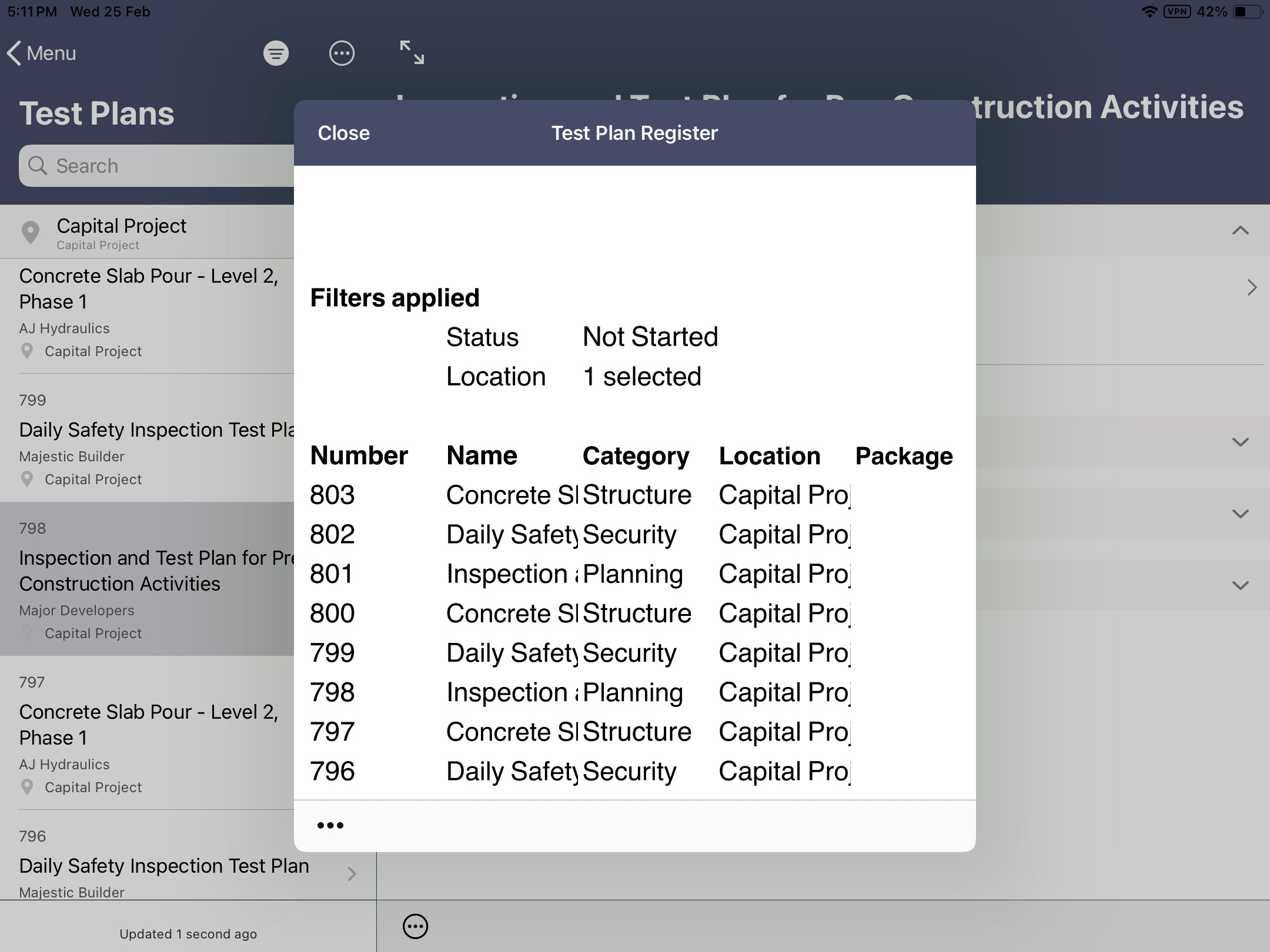
  1. On the test plan list page, search and filter your test plans as required.
  2. Tap the three dot menu at the top of the screen.
  3. Tap on Export and select Register (Excel).
  4. Tap the three dot menu at the bottom left of the screen and select Send with Mail, Share or Cancel.
  5. Follow the prompts to send the file via Mail or share it using another app. The file is exported as an .xls attachment.
