
サポートセントラル
Explore the options in printable reports.
You can search and filter the reports based on the report name and report metadata.
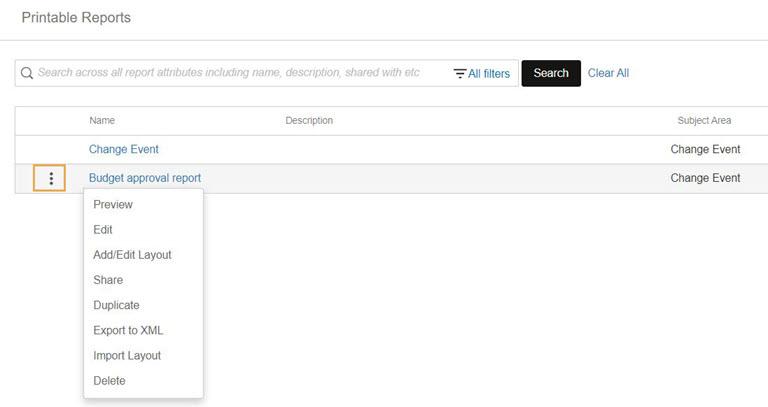
You may not see all options on every report. They are based on the report type and your access permissions. Predefined reports can only be previewed or duplicated.
Click on the report name or select Preview from ellipsis menu. The report will load and you can select the desired layout from the Layout Selector (if multiple layouts exist). You must input a unique field value, for example Contract ID, using the option available on the preview page.

Options on this screen are available based on your access permissions, access to subject areas of the corresponding module (for example Cost), and the report type.
From the report preview page, click Set Default Layout. The currently selected layout will be set as default for the given report.

Use this option to create a slightly different report layout, which you can edit later. This allows you to create many different layouts to display your data in different ways.

Use the duplicate option for predefined/out of the box or shared reports, to make changes and share them.

Exporting to CSV will export the entire data set defined in your Data Model, including filters. However, any filters set in your Layout will be ignored. Follow the steps below to export a layout to CSV.
Follow these steps to enable CSV exporting for a report layout.
This will enable CSV exporting for the selected layout only. You'll need to repeat these steps for any other layouts you want to export to CSV.
Avoid changing any other options here, as doing so may result in errors with your report.
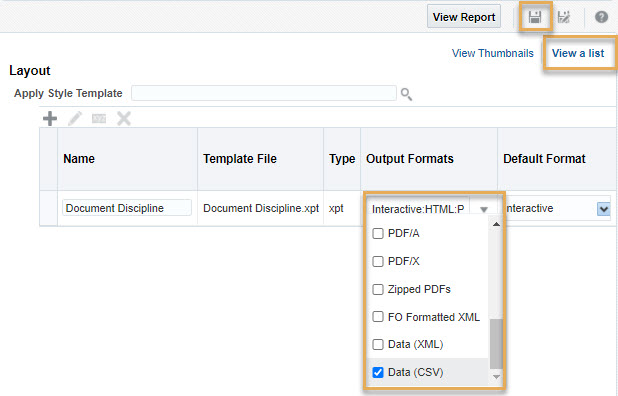
If you don't have permission to edit the layout then you’ll need to ask the creator of the report to enable this option.


