Using Revit with Aconex

Use the Model coordination plugin from Revit to create and manage design issues

Use Revit to create and manage design issues, and upload model revisions directly to Aconex. Data created and managed in the plugin is automatically synced with Aconex.

The plugin supports Revit 2019 and onwards.

Required User Role Permissions

  • Access Models - General access to the plugin is enabled by this permission
  • Create Design Issues 
    • Create New issue 
    • Create Issue from 3D view
  • Create Issue sets - Controls Create Issue set tool
  • Model Coordination Administrator - Allows editing of design issues owned by other users

Your Organization Administrator may need to grant these permissions to your user role.

Connecting to Aconex from Revit

  1. Download and install the latest version of the Model Coordination plugin.
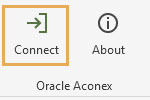
  2. Click on the Oracle Aconex tab in the program’s menu ribbon.
  3. If an update is available for the plugin, you’ll see Update Available in the top ribbon bar. Click it to download the latest version.
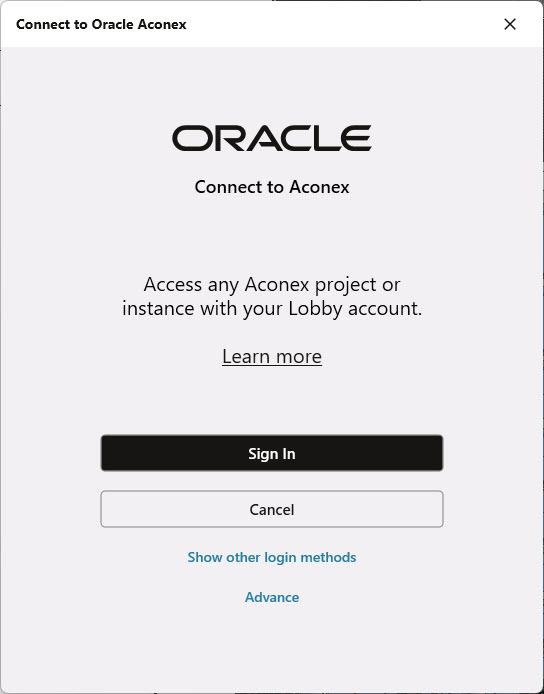
  4. Click Connect to begin the login process in your project location.

役立つ情報・アドバイス

The plugins use the Lobby for signing in. Find out more about the Lobby.
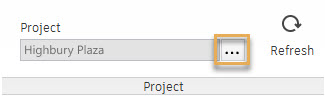
  1. In the ribbon menu, select a project by clicking the ellipsis menu icon.


  1. The ribbon menu buttons will become available once you are successfully connected to a project.

役立つ情報・アドバイス

Click the Refresh button to get the latest data from Aconex.

Upload a model revision to the Document Register

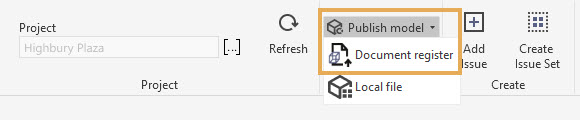
  1. Click Publish model and then choose Document Register.
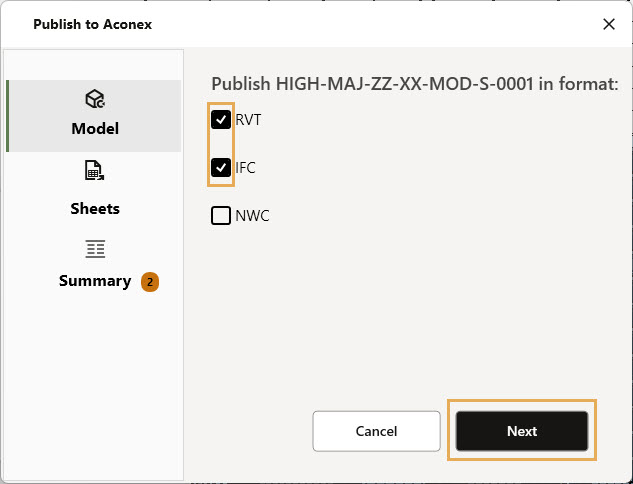
  1. Select the Model format to publish to Aconex and click Next.

役立つ情報・アドバイス

To publish to NWC you will need to install the Navisworks Export plugin for Revit.
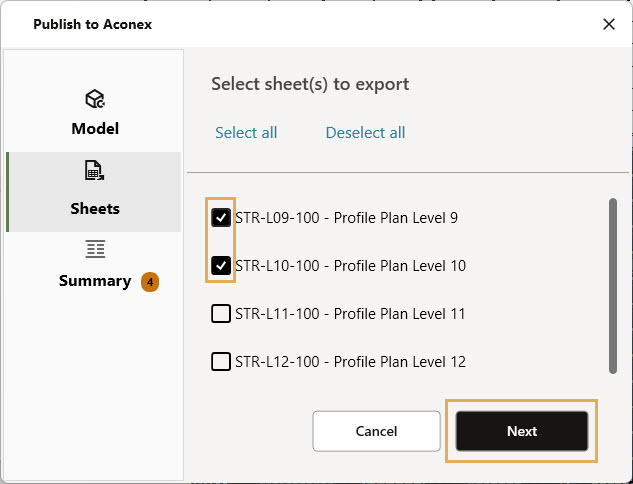
  1. Select the sheet(s) you want to publish to the document register and click Next.
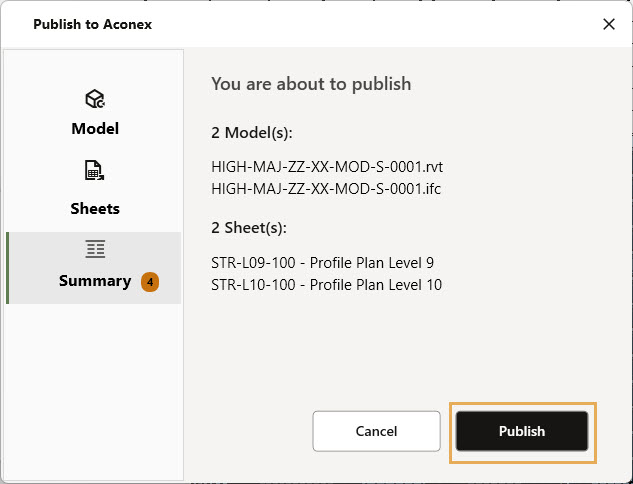
  1. Review your selections in the Summary section and click Publish.
  1. You'll be taken to the upload screen in Aconex. The upload process is similar to uploading documents to Aconex.
  2. After you click Register in Aconex, you'll see a success message. You can close the window to go back to the plugin.
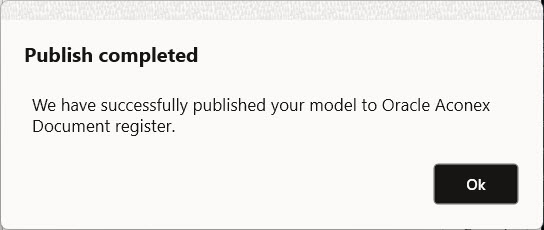
  3. Revit will keep uploading to Aconex. You'll see a confirmation message once it's done.

Upload a local file model revision

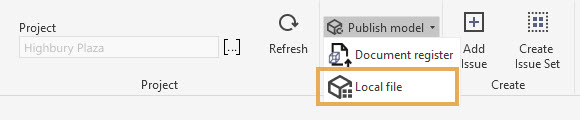
  1. Click Publish model, then select Local file.
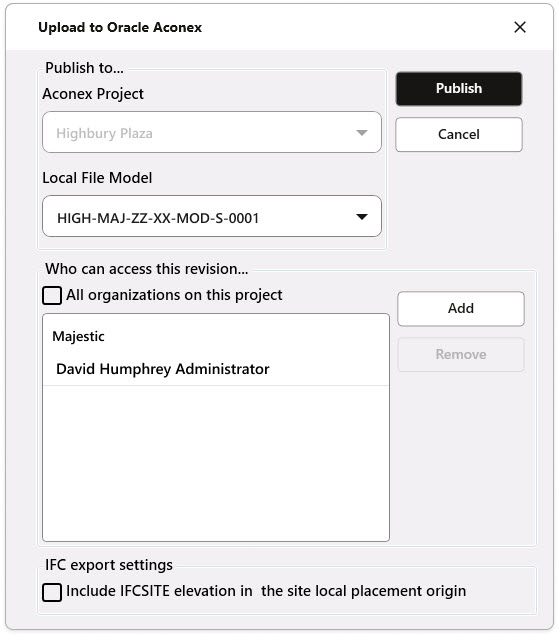
  1. Select the desired local file. When selecting a model, a list of people with access to the revision is displayed by default.

役立つ情報・アドバイス

By default, the new version is available for selected users only.
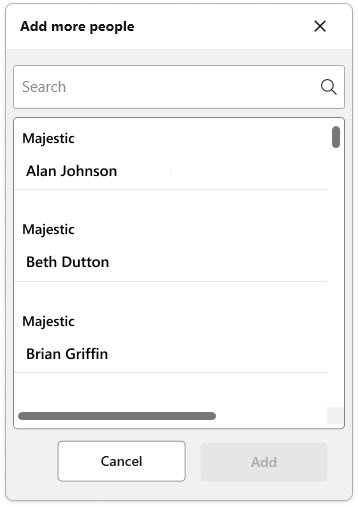
  1. To add more people who you want to share the version with, click Add. Use the search field to quickly find users to select.
  1. To make the new version available to all members of the project, check All organizations on this project.
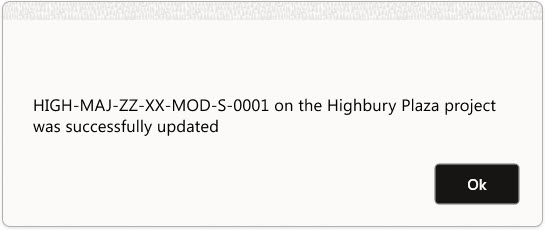
  2. Then, click Publish. The plugin automatically converts the file to the IFC format and uploads the new version. You’ll see a notification that the model has been published.

Import a model from Aconex to Revit

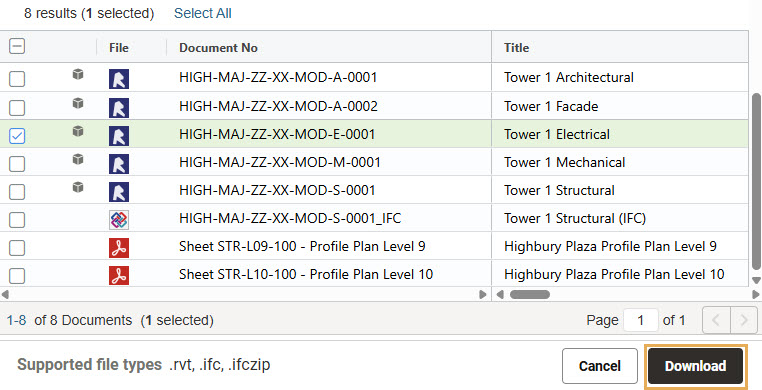
Models can be imported into Revit from the Document Register.
  1. Click Import models from the ribbon menu.
  1. Choose a folder to download the model file to.
  2. Select a model from the Document Register and click Download.
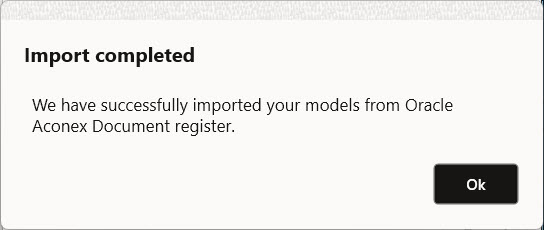
  1. Follow the prompts in Revit to open the model.
  2. A notification will show once the model has opened.


Working with 3D views and Aconex

Aconex will process the Revit native geometry to display models in the viewer and uses 3D views to define what is visible or included in the model.

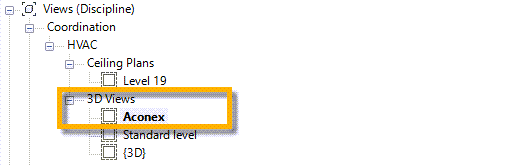
By default, Aconex will look for a 3D View called “Aconex” or “Oracle” in the Revit file. It will apply the same setting and configuration defined by this view to render elements in the models. If objects are hidden in the Aconex view, they will not appear in Aconex Models.

You can apply Visibility/Graphics overrides to this view to specify which elements are visible, or you can use the phase filter to hide objects in the view.

When a Revit model doesn’t have an Aconex 3D view, Aconex will use the default 3D view in Revit.

Create Design Issues

  1. Prepare the model to display your design issue in the most effective way and click Add Issue

役立つ情報・アドバイス

Perspective and Orthographic view of the model can be used. The same view will be used in Aconex.
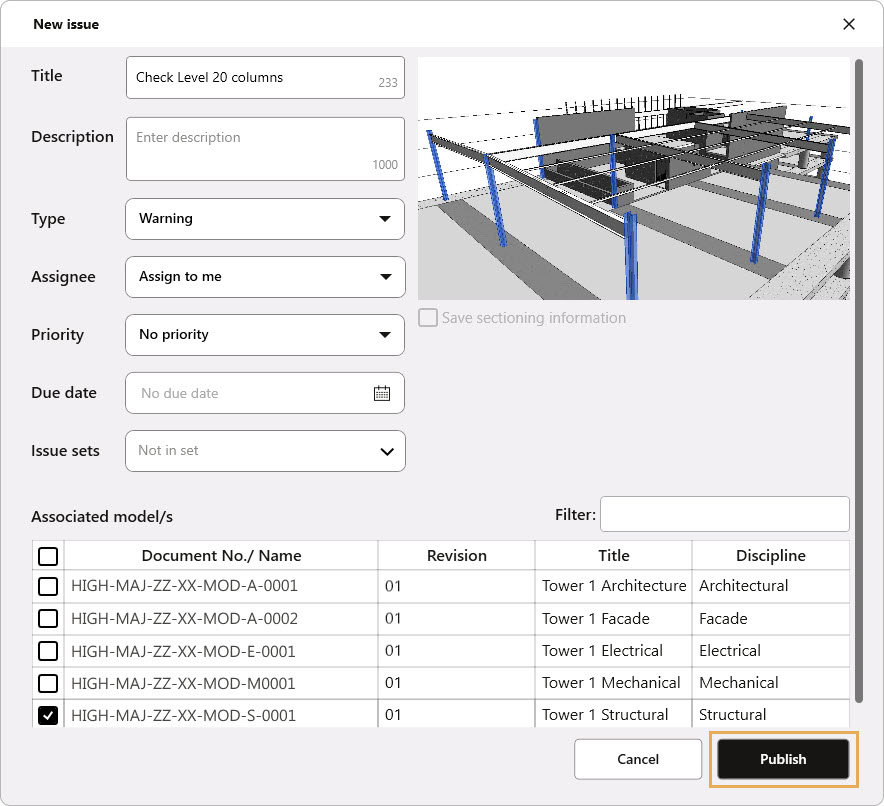
  1. In the pop-up, enter information about your design issue, including mandatory fields such as Title.
  2. Select the associated model/s to display the model viewpoint in Aconex. Otherwise, the model viewpoint will not be loaded automatically in Aconex.

役立つ情報・アドバイス

When a viewpoint of an issue is created in Revit, information such as shared coordinates, object selections and object visibility will be captured for display in Aconex.
  1. When all necessary information is entered, click Publish to add the issue to Aconex.

View issues

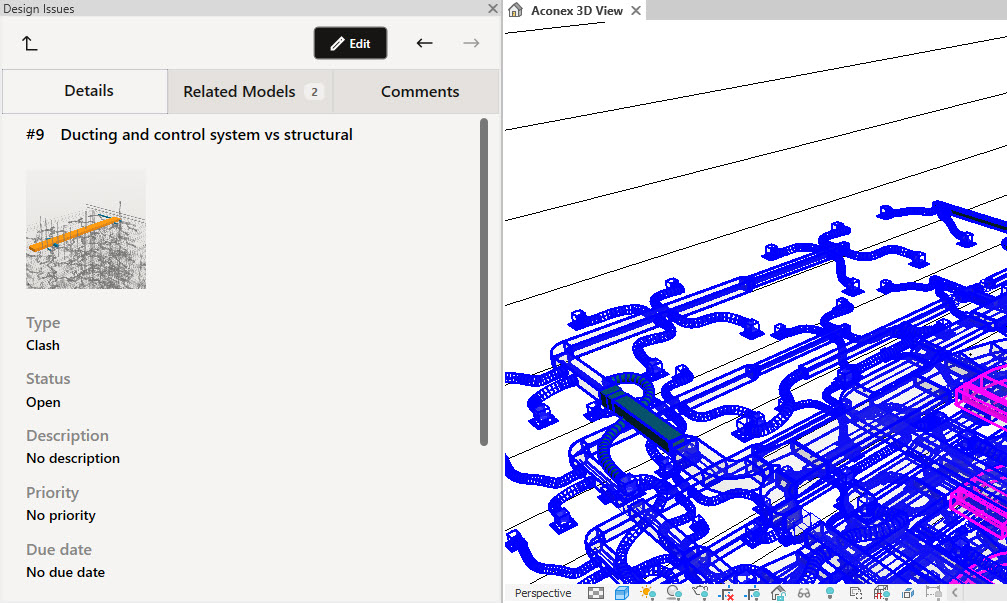
  1. Click View and Edit Issues in the top ribbon bar.
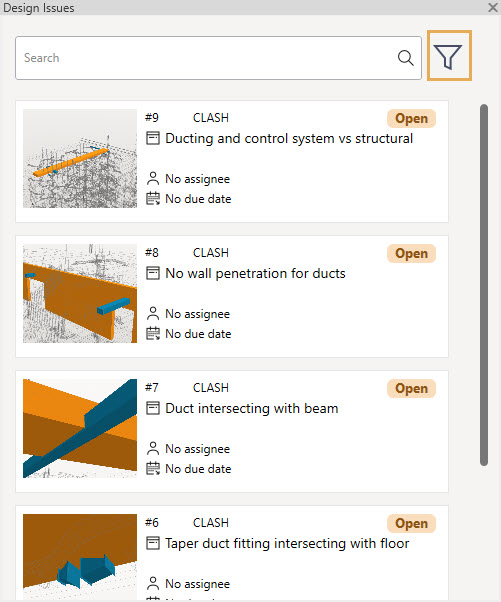
  1. The Design Issues panel will open. You can narrow issues in the list using the keyword search field or creating a filter by clicking the filter button.
  1. Click an issue in the list to open a model viewpoint.

役立つ情報・アドバイス

Use the up arrow in the top-left of the panel to jump back to the issue list. To quickly move between issues, use the left/right arrows in the top-right.
  1. Select a Viewpoint to load the model viewpoint to the scene.

役立つ情報・アドバイス

You can view sections made to the model in Aconex that are aligned with the section box in Revit.
  1.  Click the Preview text when hovering over the thumbnail to open a viewpoint snapshot for the issue.
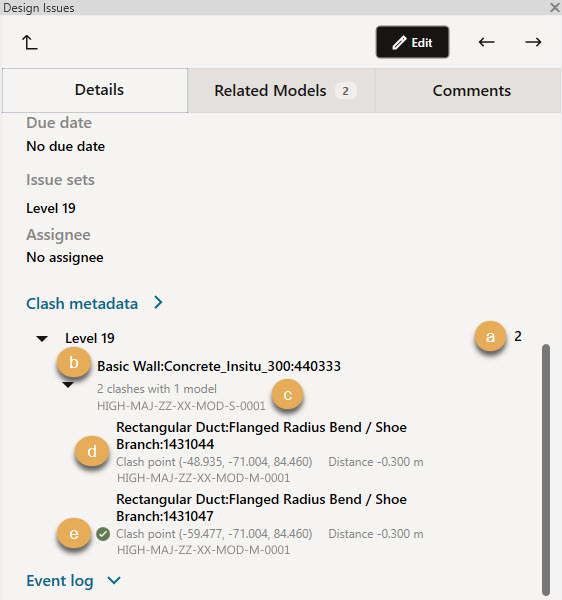
  1. Clash in the Cloud: Issues created from Clash in the Cloud will show detailed information under the Clash metadata heading. A green tick will appear beside a clash when it has been resolved.

役立つ情報・アドバイス

Clashes cannot be resolved through the plugin. Model authors must correct the clash then upload a new revision of the model to Aconex.

Edit an issue

  1. Click on an issue in the list to open it.
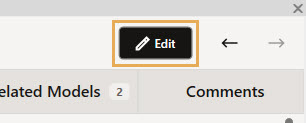
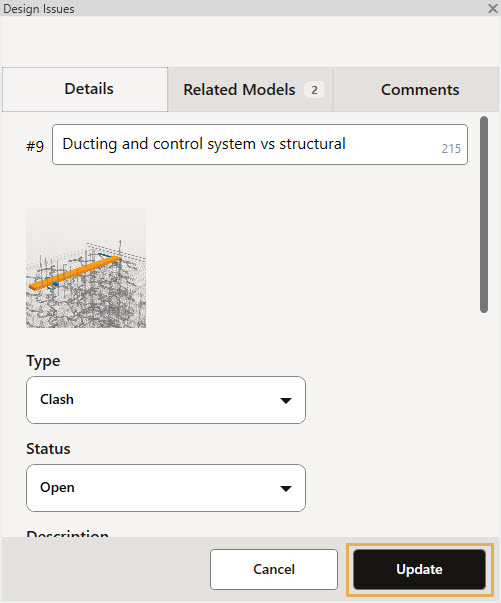
  2. Click Edit in the top right corner to enter editing mode (you will need editing permissions).
  1. Click the Details or Related Models tab to make changes to the issue.
  2. Click the Comments tab to leave a comment.
  3. Click Update when you are done.

Create an Issue Set

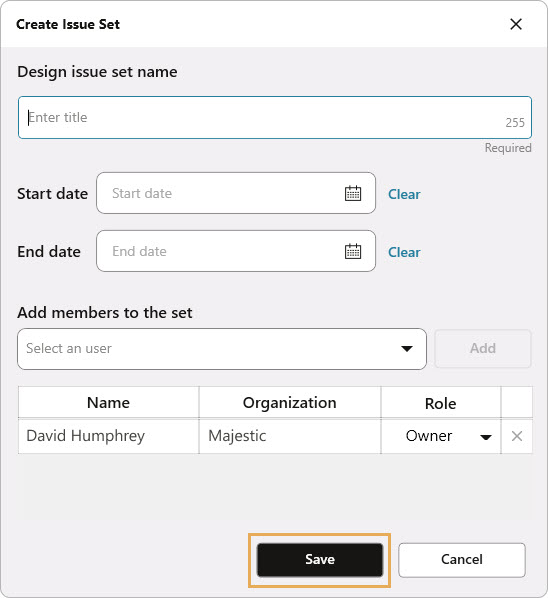
  1. Click Create Issue Set.
  1. Enter the set name (mandatory).
  2. Define start and end dates for your set.
  3. Add members to provide access to the issues within the set.
  4. Click Save when you are done.

役立つ情報・アドバイス

By default, the issue set creator is the Owner of the set, which allows them to edit all the issues in it. Added users are Viewers in the set - meaning they can only view the issues. Users can be set to Contributors to allow them to create issues in the set. Users with the Model Coordination Administrator Aconex  permission can edit all issues relating to their organization on the project.

Create issues from 3D views

Export 3D views with design issues to Aconex.

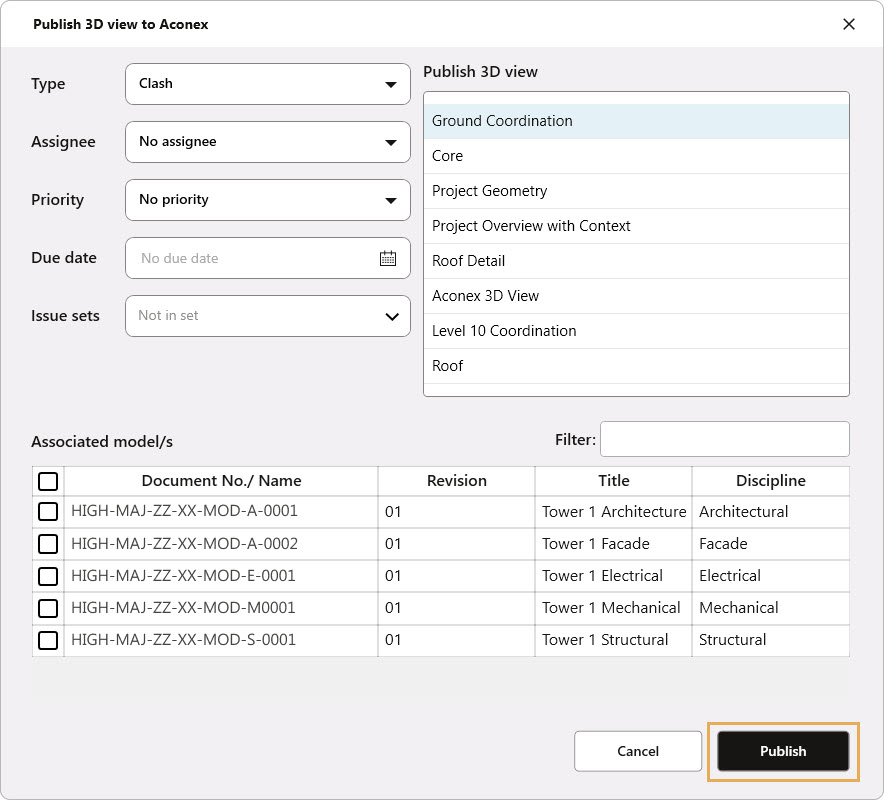
  1. Click Issues from 3D Views.
  1. Select a 3D view to be sent to Aconex with design issues.
  2. Enter all required information for the design issue.
  3. Click Publish to share the issue with Aconex.