Flatten markups in the Online Viewer

Flatten your markups to protect your documents from unintended changes.

Markups such as highlights, comments, shapes, and stamps which normally reside on an annotation layer, can be flattened into the static content layer. This locks markups in place to preserve the integrity of the document, ensuring that markups do not get accidentally changed. 
 

Things to note:

  • Only PDF files are supported.
  • Select up to 200 documents to be flattened.
  • Only the latest version of the document can be flattened. If you select a historic version for flattening, the system will automatically select the current version.
  • Files that do not contain markups, are already flattened, do not follow PDF standards, or have corrupt markups will not be flattened.
  • Digital Signatures are not flattened. This ensures the integrity of the certificate.

Automatically flatten markups

You can configure workflow templates to automatically flatten markups after a review completes. This is set for each template, so you can decide which reviews it applies to.

Automatic flattening will apply to workflows initiated after the setting was enabled on the template. The user who submits the last step of the workflow will see a message that the document is being flattened. They'll receive an in-app notification once the flattening process is completed. A summary sheet confirms if the flattening was successful. Files will be flattened regardless of the final outcome (either approved or rejected).

役立つ情報・アドバイス

The final workflow transmittal includes the flattened version and the previously un-flattened version of the document in case further changes are required.

Manually flatten markups

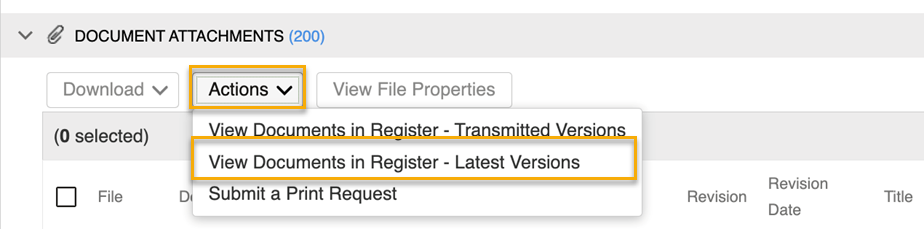
  1. From your workflow transmittal, view the documents in the register by clicking View Documents in Register - Latest Versions.

役立つ情報・アドバイス

Alternatively you can search for the documents you want to flatten and select them.
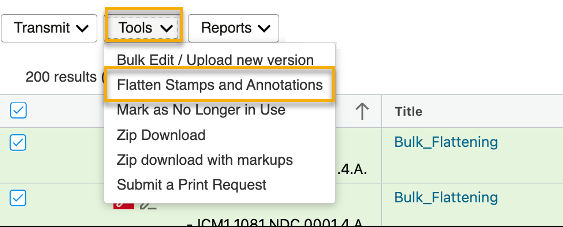
  1. After selecting the documents, click Tools and select Flatten Stamps and Annotations.
  1. You'll see a confirmation message. Click Proceed.
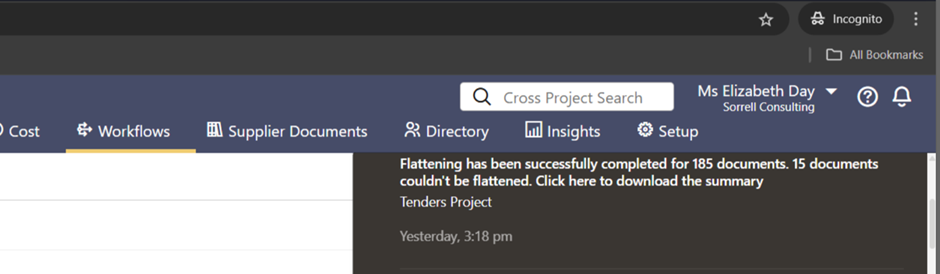
  2. You'll receive an in-app notification once the process completes.
  1. Click the notification to view the Excel summary to see which documents were successfully flattened. A new version will be created for the successfully flattened documents.