Support Central
Find out how to attach and share files to contracts.
Change Requests and Change Orders can have documentation associated with them that supports the change and helps in the review and approval process. These include, for example:
As Aconex generally contains all the documents and mails associated with a change you can link them to Change Events. However, you can also attach documents that are not registered in Aconex to Change Events.
You can link all three of these items directly in the Change Events – Attachments detail pane. Let’s show you how.
You use the Attachments tab on the Contracts page to link to mail and documents directly from within Aconex, and to upload your locally held files, to the contracts selected. When you do this, the attachments that are saved can only be seen by your organization.
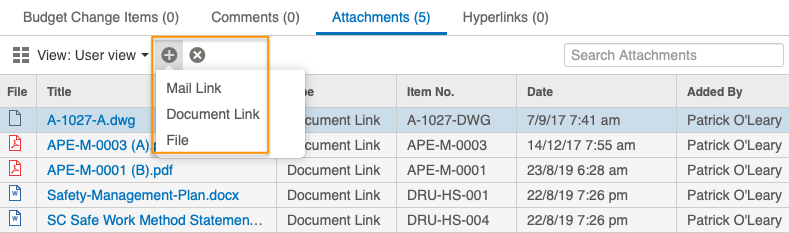
To attach or link files, select the Attachment tab, then click on the Plus icon. You can then choose one of three options:
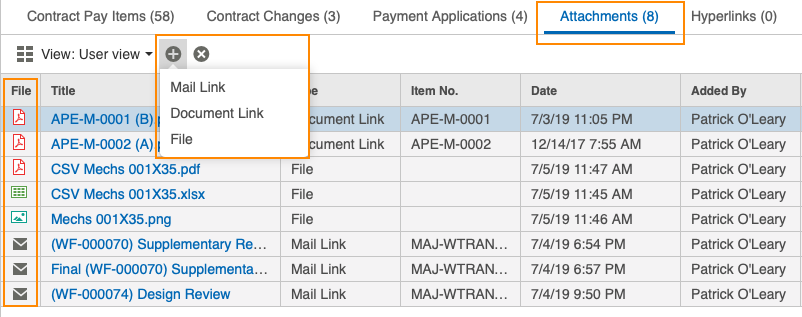
Once attached, you can see the files in the grid, listed by their file types, for example PDF, PNG and Word, in the File column.
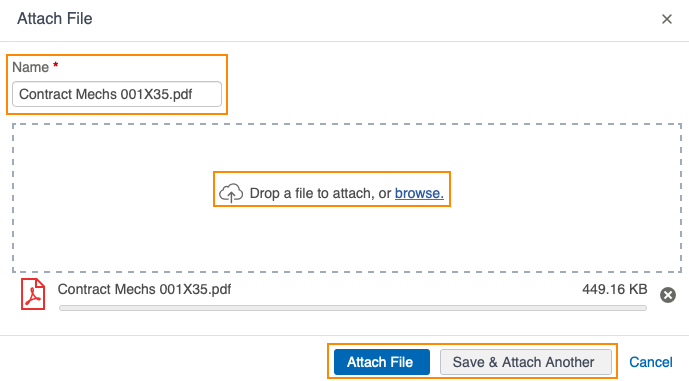
The Attach File window is used to upload files directly from your computer or network.
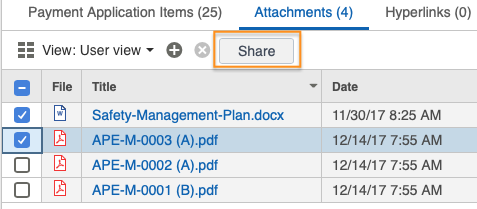
If you're collaborating with users in other organizations on Contract Change and Payment Application drafts, you can share files that are attached or private, with them when they share the Contract Change or Payment Application.
You can also add attachments via Change Management/Budget Changes screen using the Attachments tab in the lower grid.