
Add reviewers into active reviews in Document Processes

Bring more reviewers into a review process to collaborate and raise issues.

As a process owner, you can add more reviewers (or lead reviewers) to current or future steps on any deliveable. 

If you're a reviewer on a specific deliverable, you can add more reviewers.  Similarly, lead reviewers can choose to add reviewers or lead reviewers.

This is handy if a reviewer (or lead reviewer) is unavailable to complete a step and you don't want to terminate the review.
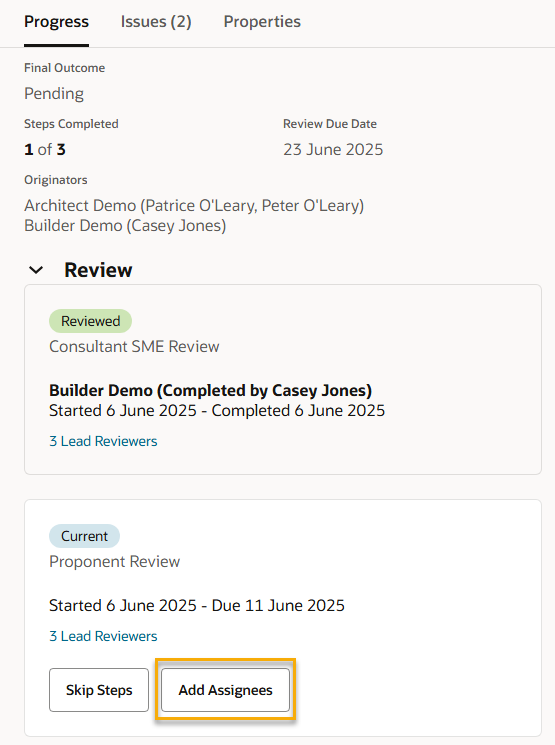
Add reviewers

  1. From the deliverables register, search for the document you want to manage.
  2. Click the document number to see more details about the review. 
  3. Click Add Assignees on the step you want to manage.
  4. Type the name of the person you want to add to the step, and make them a reviewer or lead reviewer. You can add as many people as required.
  5. Click Add Assignees.

Add reviewers in bulk

You can add reviewers (or lead reviewers) to multiple steps at once. If you have multiple reviews stuck because someone is away you can quickly add additional reviewers (or lead reviewers) to those steps to allow the review to proceed.
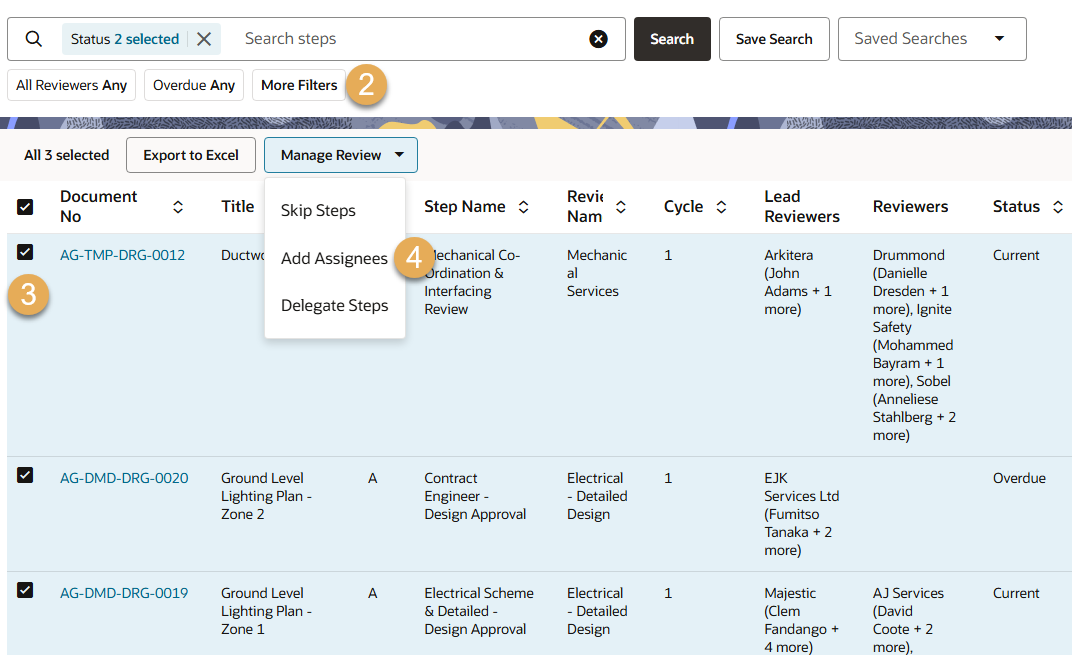
  1. From the main navigation menu, click Document Processes and select Review Steps.
  2. (Optional) Use the filters to find the steps you want to add reviewers to. For example, you can filter by current and overdue steps that are assigned to a specific lead reviewer.
  3. Select the review steps to add the reviewer(s) to.
  4. Click Manage Review and choose Add Assignees.
  5. Type the name of the person you want to add to the steps, and make them a reviewer or lead reviewer. You can add as many people as required.
  6. Click Add Assignees.