Provide a QA Outcome in Document Processes
Perform a QA check to allow a deliverable to proceed into review.
Erforderliche Berechtigungen
After a review is started but before reviewers can begin adding comments, the Process Owner needs to check the document is the correct version for the review.
QA check a single deliverable
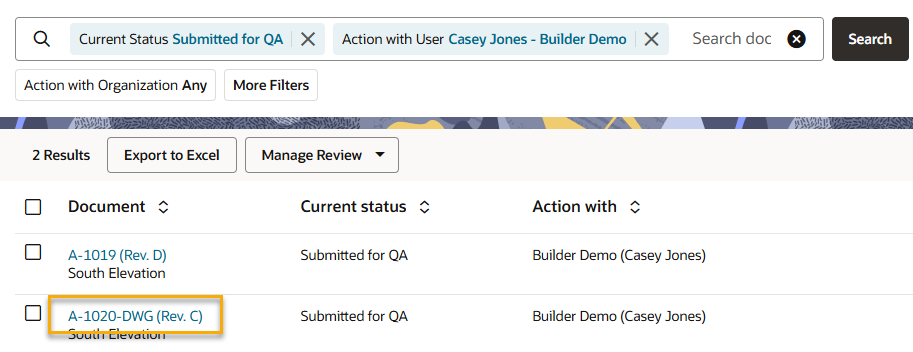
- Navigate to the deliverables register.
- Filter the Current Status column by Submitted for QA to show all deliverables waiting a QA check.
- Filter the Action with column as yourself, to see QA checks that you need to perform. You can make this a saved search for easy access.
- Click on the document you want to check.
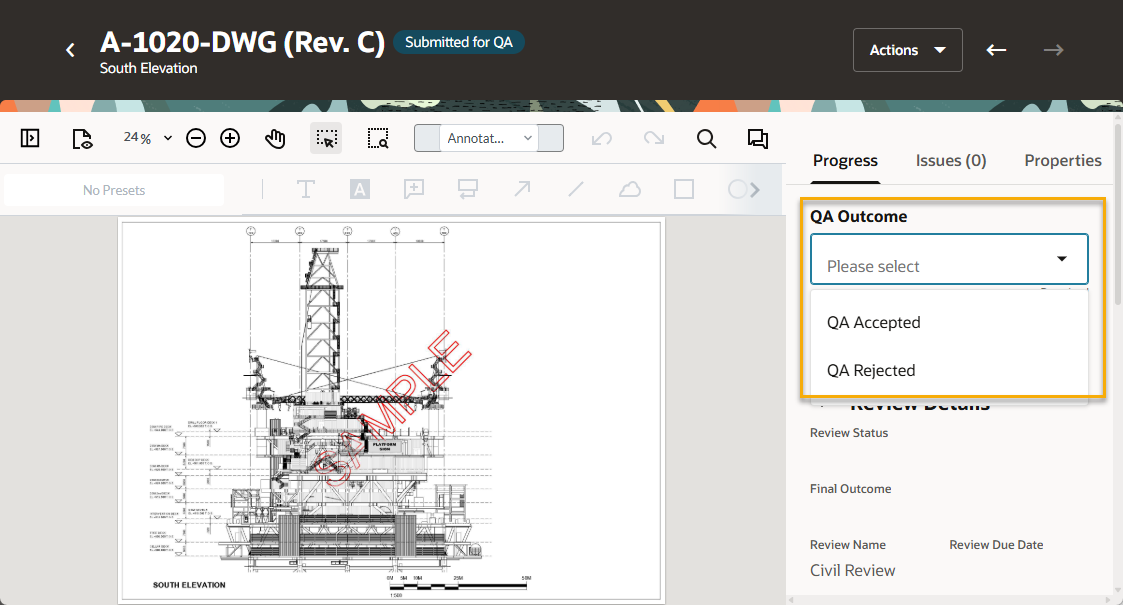
- Check the document is the correct version for this review. Note: The document is unlocked at this point so you can update the metadata or the associated file if you need to.
- Select the QA Outcome:
- Choose QA Accepted to allow the review to proceed. The document is locked in the process owner's organization only. It can be unlocked by the process owner or anyone with unlock any document permission. The reviewers will receive a notification that they have a review to complete, where they can start adding feedback.
- Choose QA Rejected and provide a reason why the review cannot proceed. A notification with your feedback is sent to the process initiator.
QA check in bulk
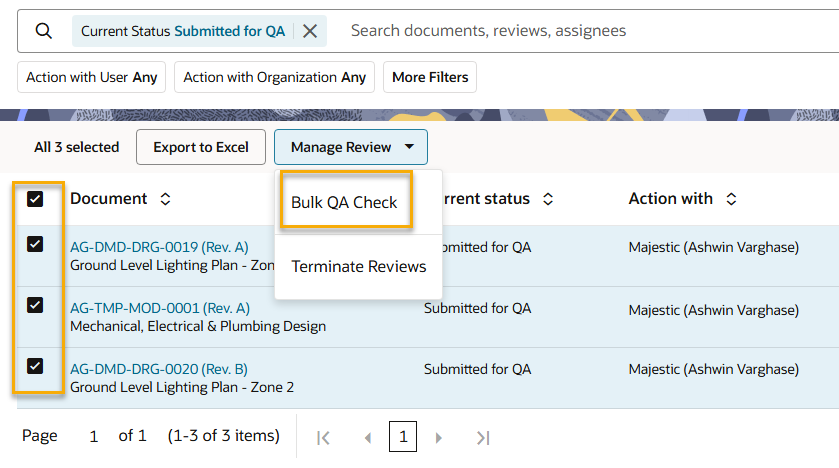
- Navigate to the deliverables register.
- Filter the Current Status column by Submitted for QA to show all deliverables waiting a QA check.
- Filter the Action with column as yourself, to see QA checks that you need to perform. You can make this a saved search for easy access.
- Check documents are correct for review. Note: The documents are unlocked at this point so you can update the metadata or the associated file if you need to.
- Select the documents you want to QA in bulk.
- Click Manage Review and select Bulk QA Check.
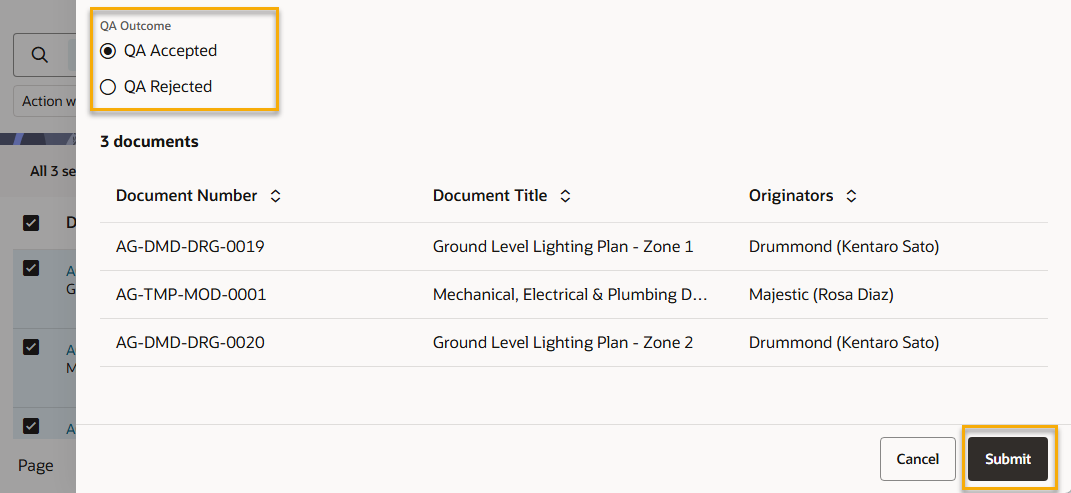
- Select the QA Outcome for the selected documents.
- Click Submit.