Save your frequently used markup settings

Your favorite markup settings are saved as presets to use again later.

If you change the style of a markup such as it's color, size or stroke, the online viewer automatically saves the style as a preset for you. This preset will be remembered the next time you use that markup, even if you log out. This means you don't have to customize your markup each time you want to review a document - it will be ready for you to select and use.
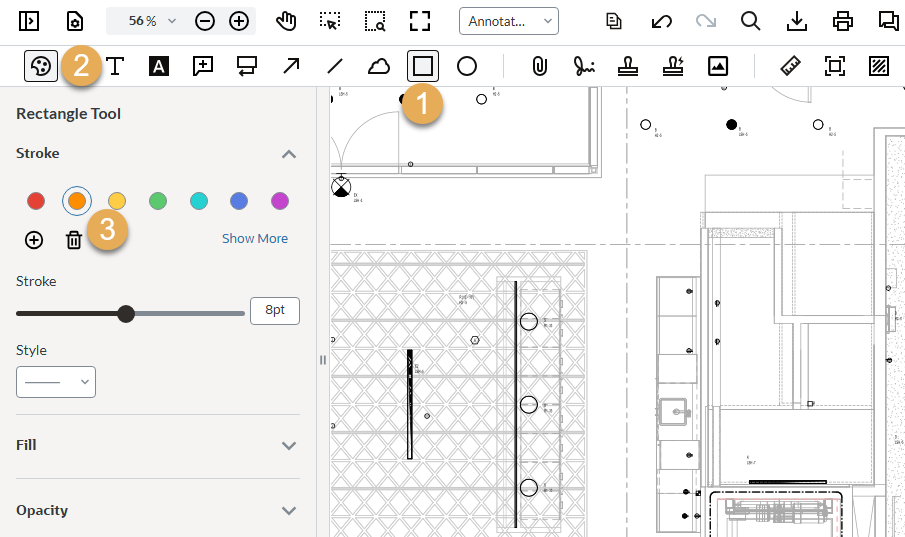
Using presets

  1. Select the markup tool (such as cloud, rectangle or circle)
  2. Click the Style button to open the styling options.
  3. Set the style for your markup. For example, change the color and size.
  4. Add your markup.
  5. The style for that markup will be remembered the next time you use that markup, even after you log out. 

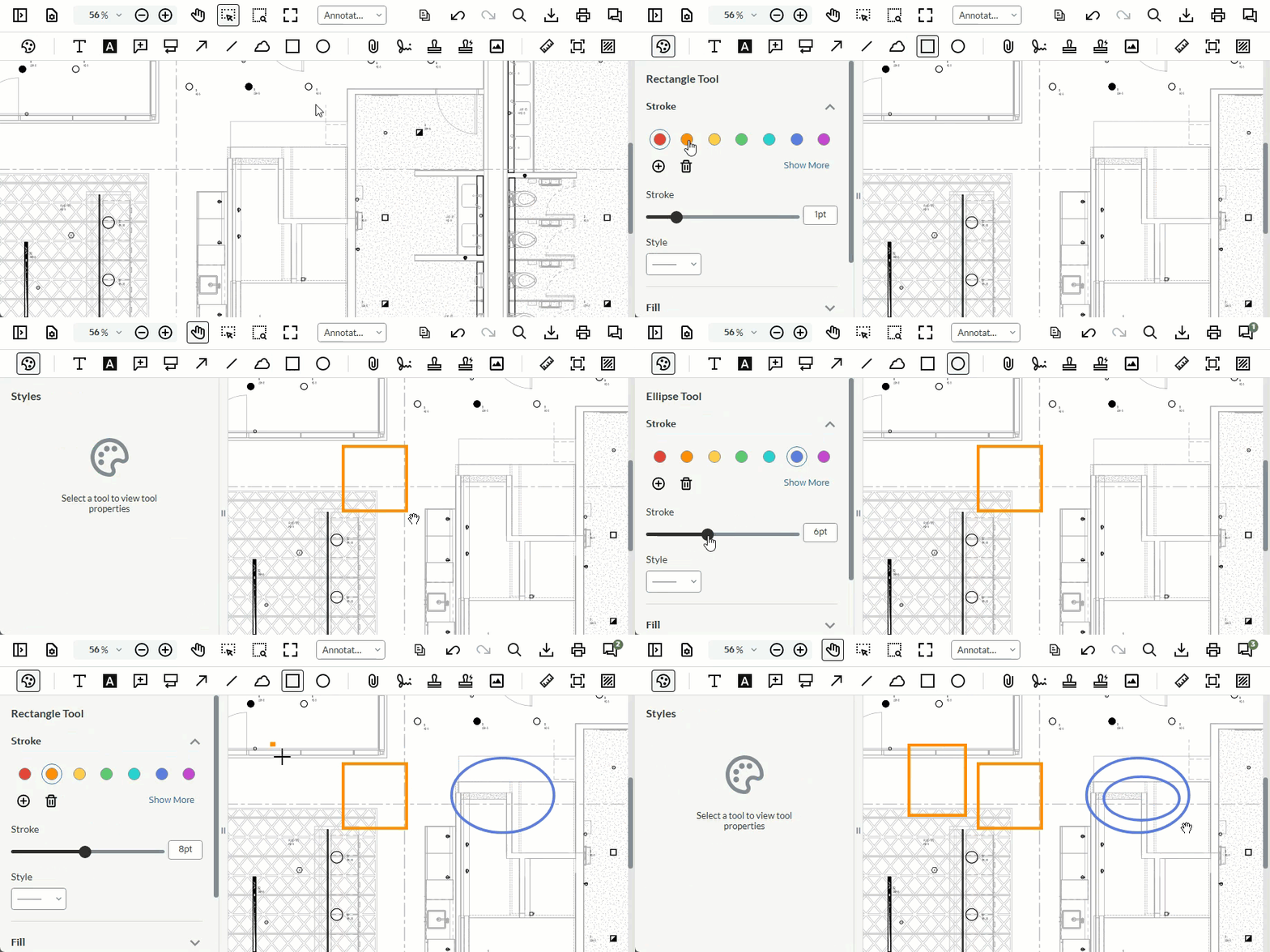
Presets demonstration

Below is a short animation showing you how styling presets are saved for each tool.
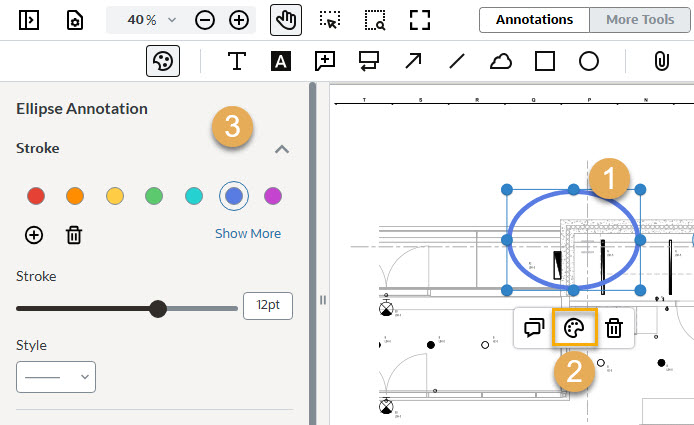
Change the style of a markup

  1. Click on the markup you want to update.
  2. Click the Style icon to open the style panel.
  3. Make your changes to the markup.

Hinweis

When the style panel opens on the left of the viewer, your document view may shift slightly.

Supported markups

Presets are supported for the following markup types:

  • Sticky Note & Callout
  • Text, Text highlight, Underline, Squiggly, and Strikeout
  • Shapes (Square, Rectangle, Arrow, Cloud, and Polygon)
  • Freehand drawing
  • Signature (save up to 10 signature presets)
    • Draw - Create a freehand signature
    • Type - Create a text signature prefilled with your name. Edit the text as required.
    • Upload - Create a signature from a file on your computer Supported filetypes are bmp, png, jpg, and jpeg
  • Image-based Stamps (.png, .jpg, and .gif)
  • Rubber stamps
    • Predefined Rubber stamps
    • Customizable stamp – Customize values such as name, color, and timestamp with this stamp
  • Measurements - units and line styles