Respond to issues in Document Processes

Once a review is completed and issues are assigned, you can respond to the issues assigned to you.

Follow these steps to find and respond to issues you've been assigned. By default, originators are assigned issues after a review completes. Additional assignees can be added to an issue to provide feedback on it.

You can view an issue if anyone from your organization is involved with the review, or assigned to the issue.

Add an issue response

Only an assignee can add an issue response.
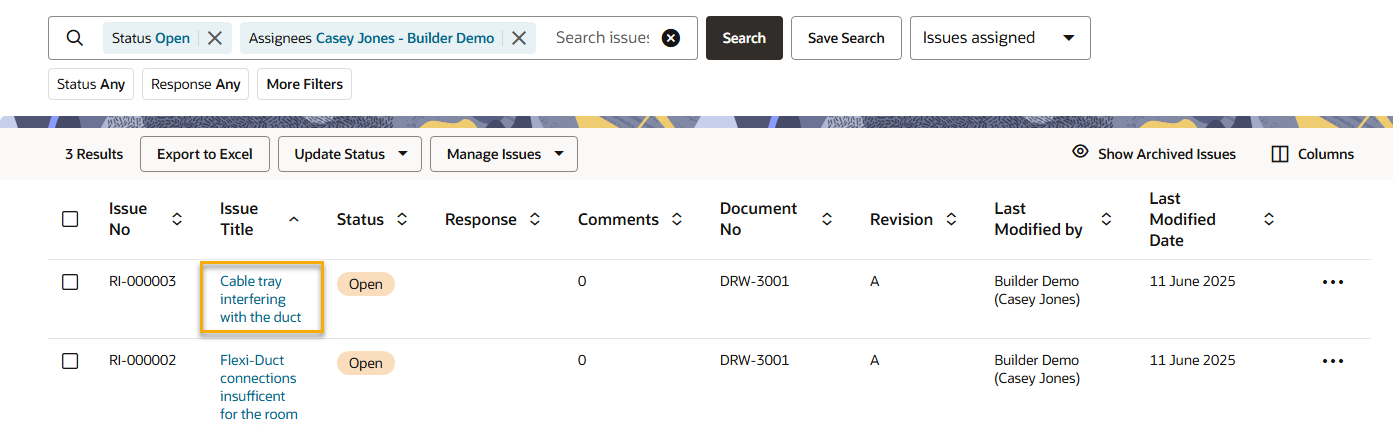
  1. From the main navigation menu, click Document Processes and select Issues assigned to me.
  2. (Optional) Add any additional search terms or filters to find issues. 
  3. Click on the issue you want to respond to.
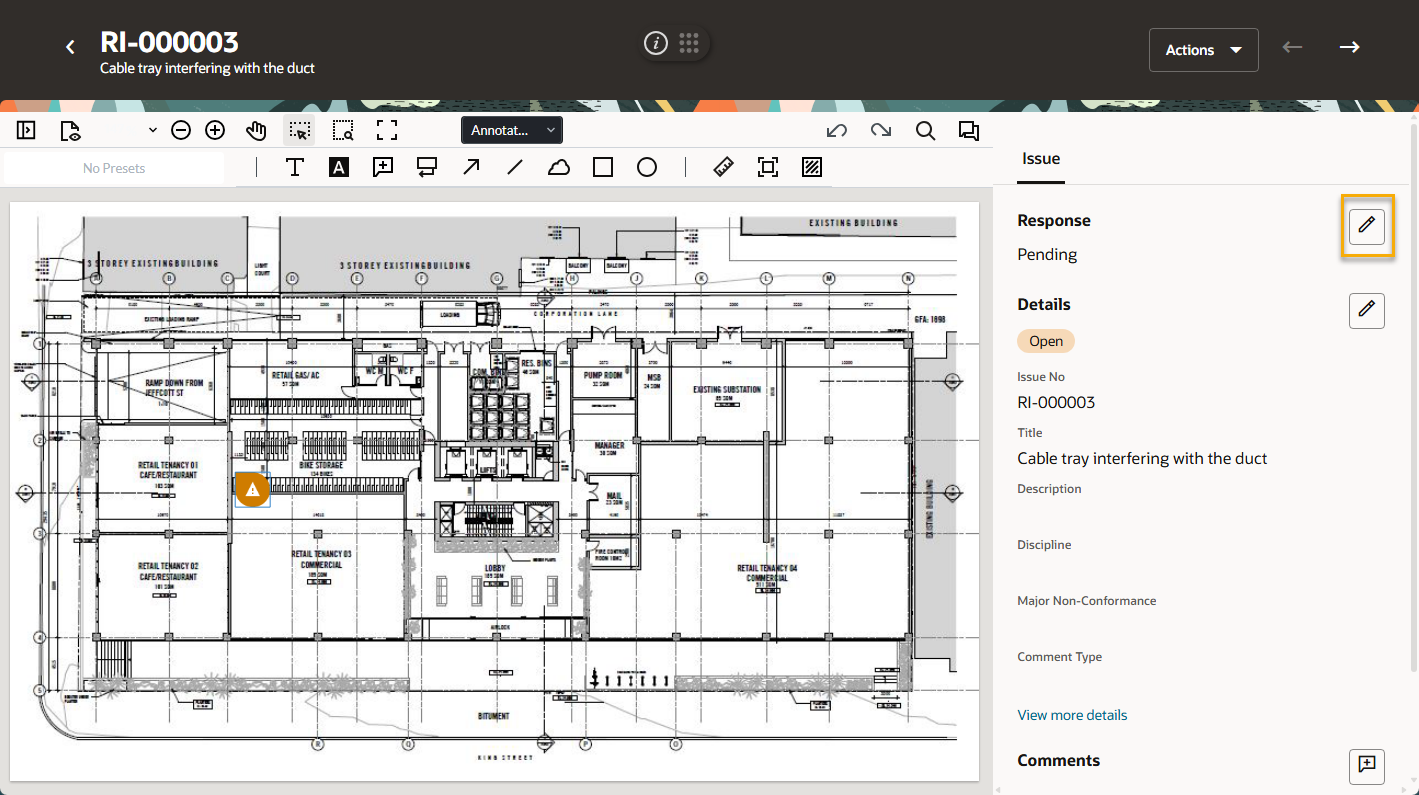
  1. Click the pencil icon next to Response.
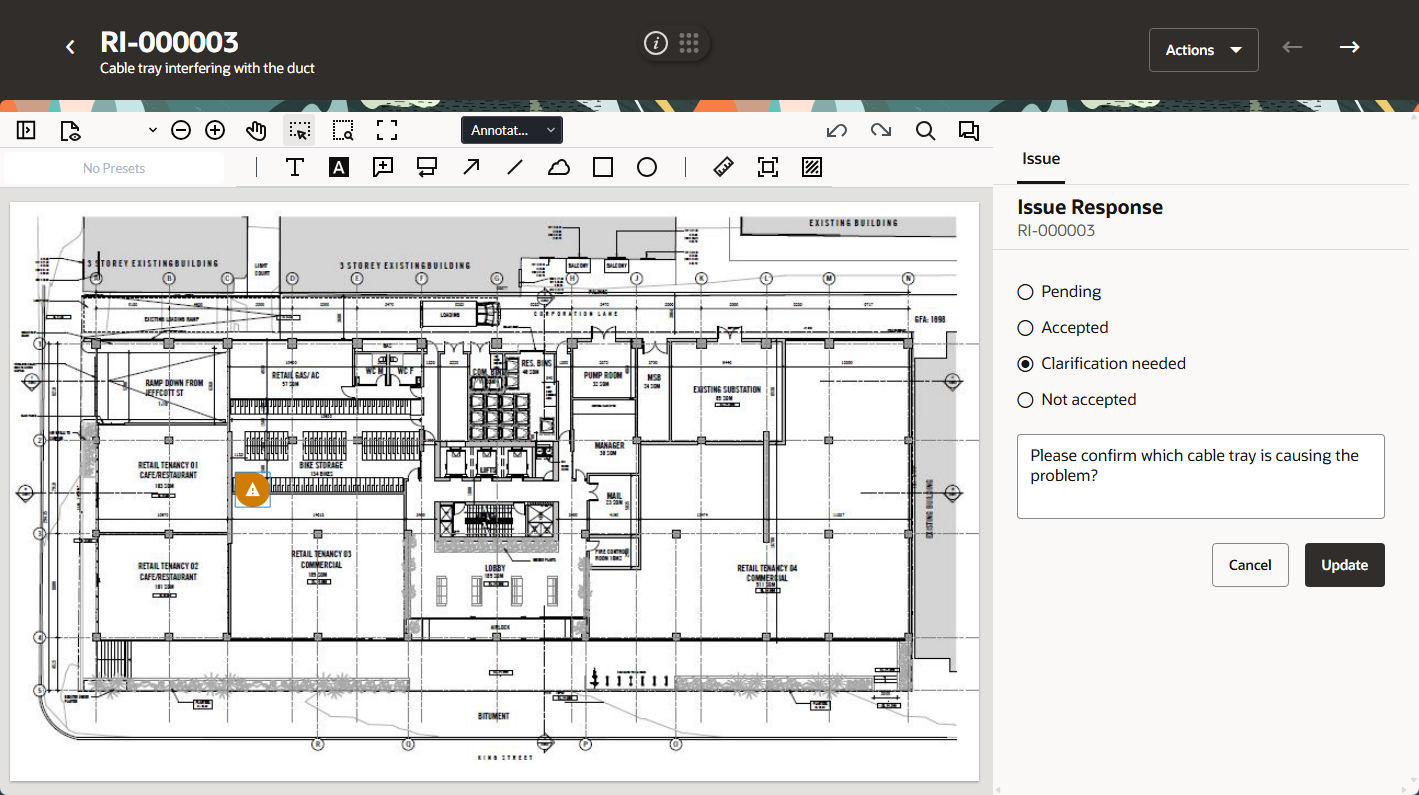
  1. Select a response.
  2. (Optional) Enter a comment.
  3. Click Update to update the response.

Nota

The issue response can be updated. Any changes or comments will be added to the event log of the issue.

Adding a comment to an issue

Add comments to an issue to have a conversation with others about it. You can add and view comments on any issue that you can see.
  1. From the main navigation menu, click Document Processes and select Issues.
  2. Find the issues that you want to add a comment to.
  3. Select an issue to open the issue.
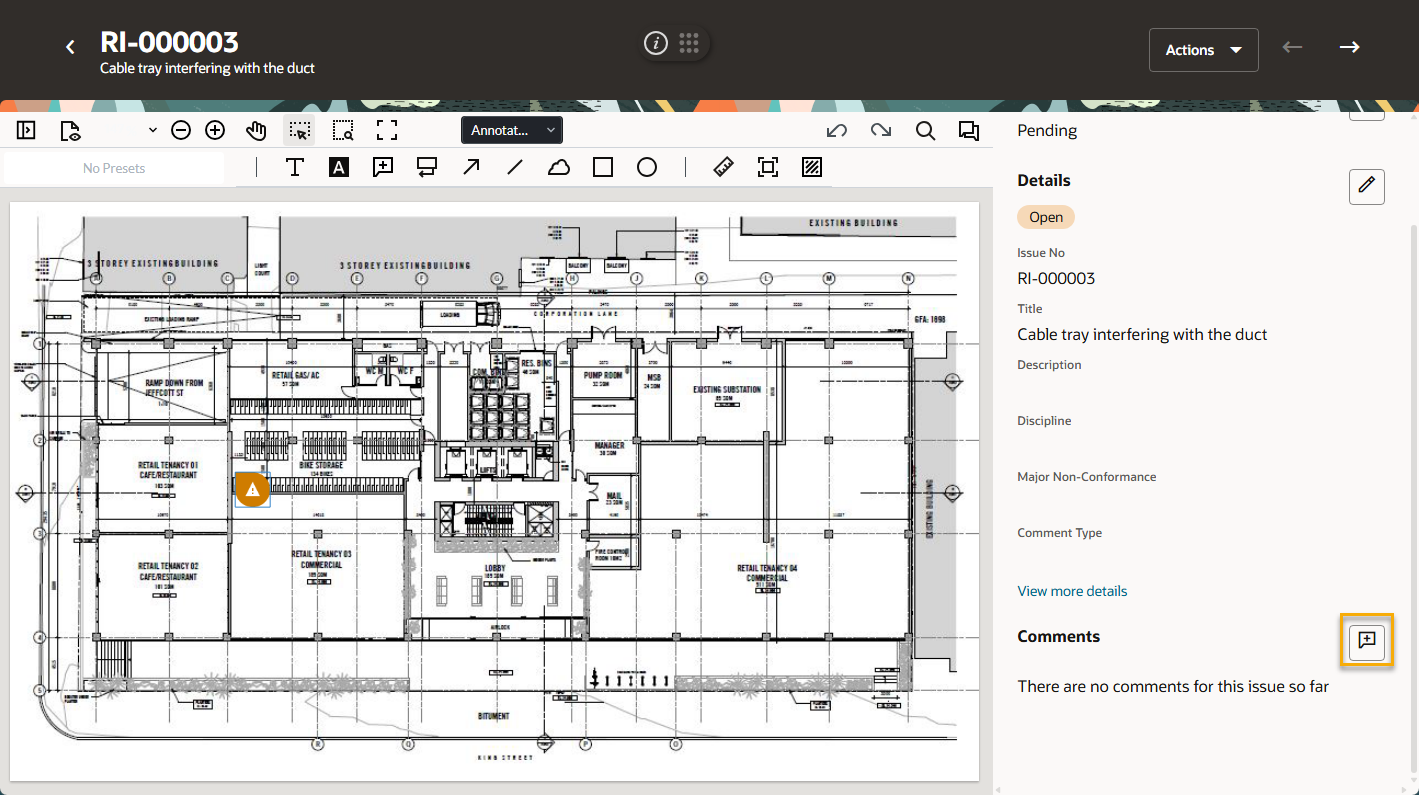
  4. Click the comment icon next to Comments.
  1. Add a comment
  2. Click Post.

Adding an issue assignee

As an assignee of an issue you can allow additional people to review and respond to feedback. You can add anyone from the project to work with you on the issue. Note that their entire organization will be able to see the issue once you assign them to it.
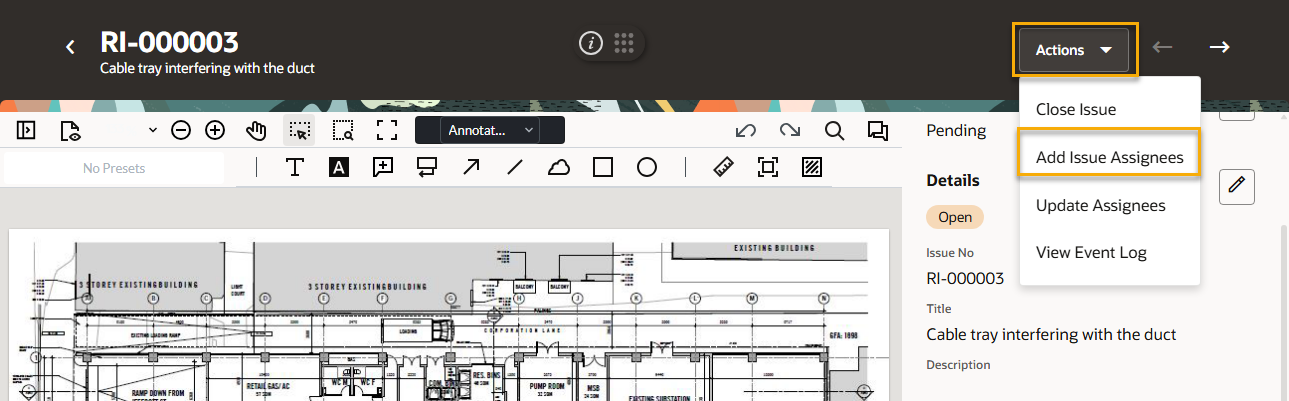
  1. From the issue click Actions and then select Add Issue Assignees.
  2. Enter the person's name and click Assign.