
Central de Asistencia
Export all or selected inspections to view them in Excel, CSV or ZIP format.
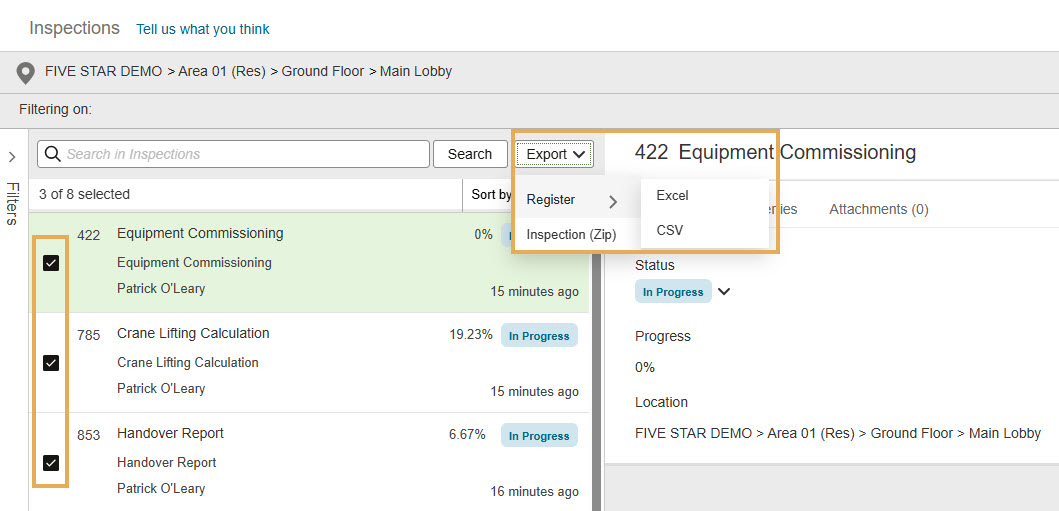
The Download as PDF option under Actions only downloads the individual inspection you're viewing. To export multiple inspections or related files, use Export from the Inspections List.
After you select Register and choose Excel or CSV, the Export in progress window opens.
You can choose one of the following options:
You can continue working in Inspections while your export is being processed. When the export is complete, the file is added to Documents > Temporary Files.
If you have Notifications enabled, you’ll receive an email confirming that the export is complete. The email includes a link to Documents. From there, go to Temporary Files and search for the exported file.
After selecting the inspections you want to export, click Export, then select Inspection (Zip).
You can export up to 25 selected inspections as ZIP files. You can select inspections across multiple pages. The selected count appears at the top of the list.
Each ZIP file includes the inspection PDF, inspection-level attachments, line-item attachments, and linked issue PDFs with their attachments.
Line-item folders are included even if they don’t contain attachments or issues, so you know no content was removed. Exported PDF forms do not include line-item folders.
ZIP exports run in the background. When the export is complete, the ZIP files are available from Documents > Temporary Files.
You’ll also receive an email when the export is complete. The email includes:
A summary of inspections that were exported successfully
A summary of inspections that were not exported, so you can identify any inspections that need to be exported again
A link to Temporary Files.


