Create groups for project roles (User Management)
Assign a role to a group of people across different organizations
Autorizaciones necesarias
In User Management, Project Admins can create groups that contain people from different organizations and assign a project role (with specific access for that role) to the group. This allows you to assign specific mail types, document types, document statuses, and review statuses to those users.
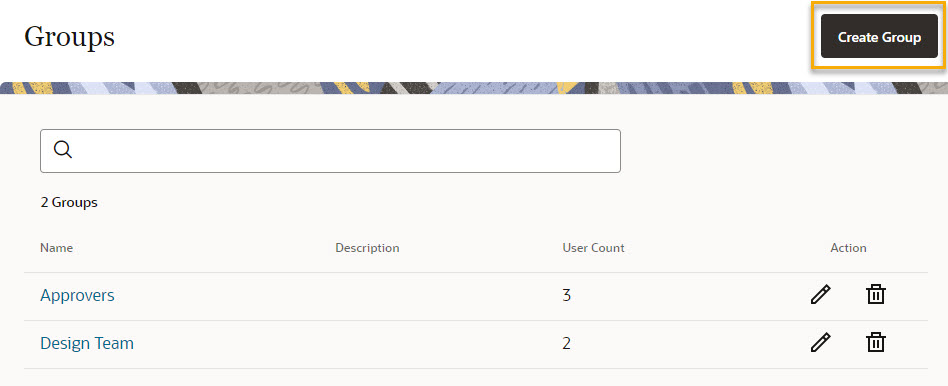
Create a group
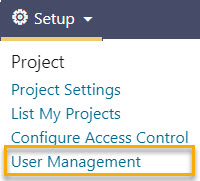
- Go to Setup for your project and select User Management.
- Give the group a name and a description if required.
- Click Save.
Add members to the group
- Once saved, you will see the group listed in Groups.
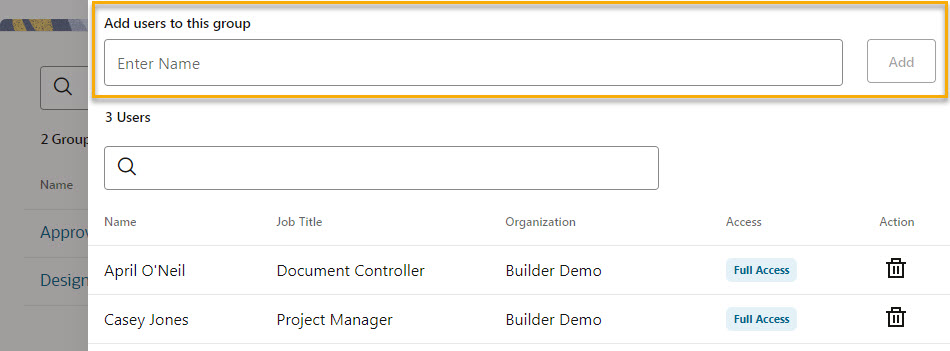
- Click on the name of the group to add users. As you type the name of invited members, you will see a list of names to choose from.
- Click on the name of the person you wish to add and they will be added to the group.
Assign project roles to a group
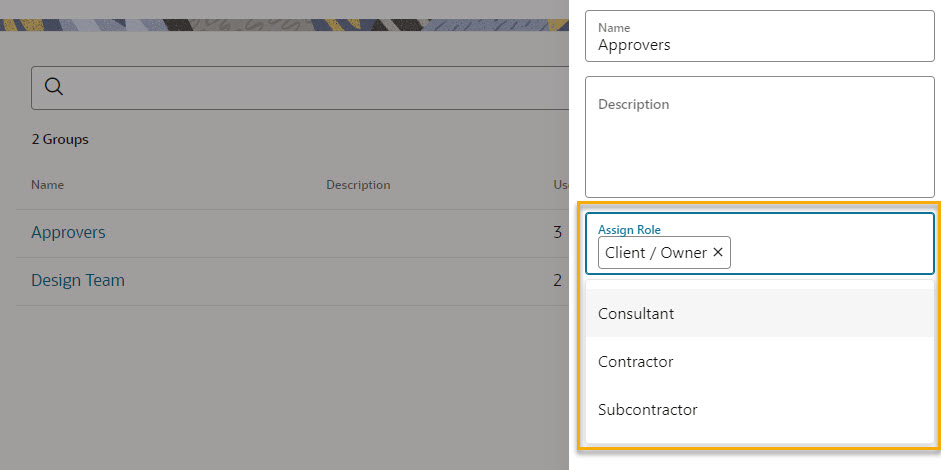
- Click on the pencil icon to add or remove roles.
Nota
You can add a person to more than one group, and you can assign more than one role to a group.
- Select roles from the Assign Role field and click Update.
- Your group now has access associated with that role.