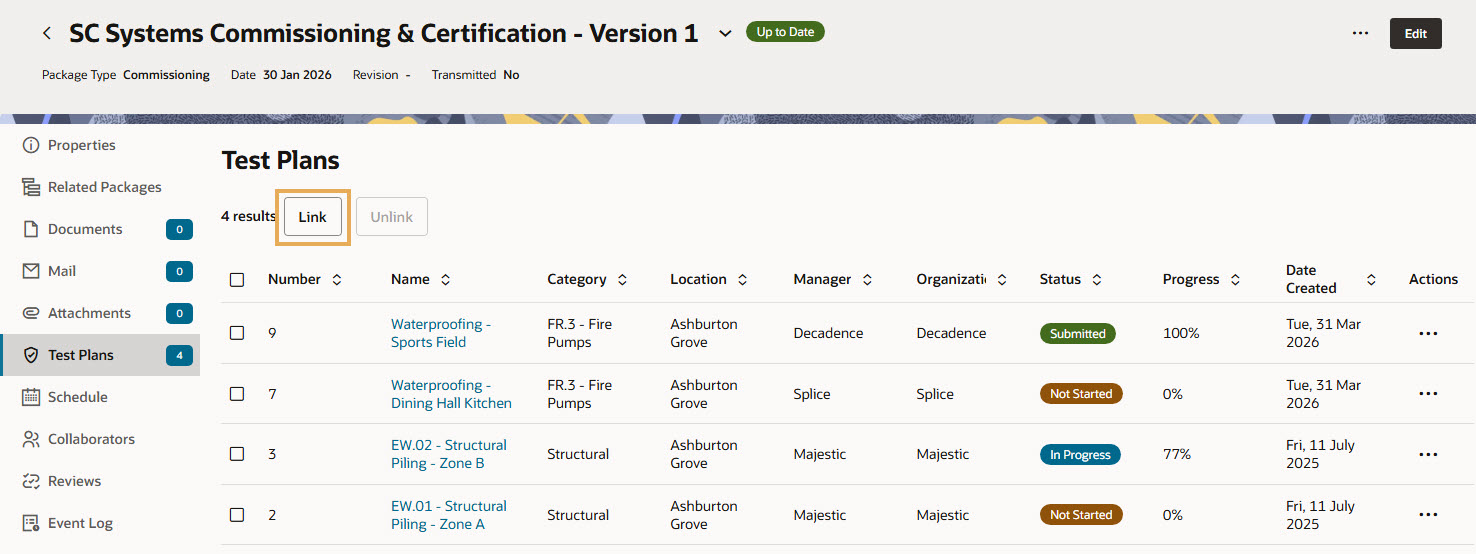
Track test plans from packages

Track and manage test plans directly from your package.

If your project is working with test plans, you can link them to your packages to track their progress. This helps you track and manage a specific set of test plans within each package.

To save time you can access a test plan directly from the package and make updates or complete activities as required.

Allow test plans to be linked to a package type

If you want to link test plans to your packages you first have to enable it for the appropriate package types in your project settings.
  1. From the main navigation menu click Setup and select Project Settings.
  2. Click Packages and select Package Types.
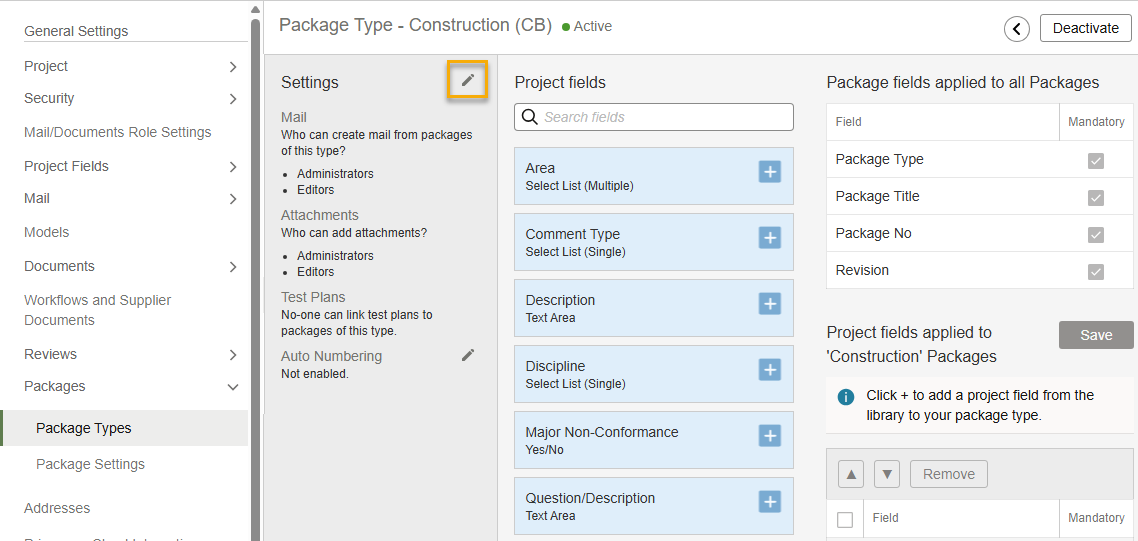
  3. Click the package type you want to allow test plans to be linked to.
  4. Click the pencil icon to change the settings.
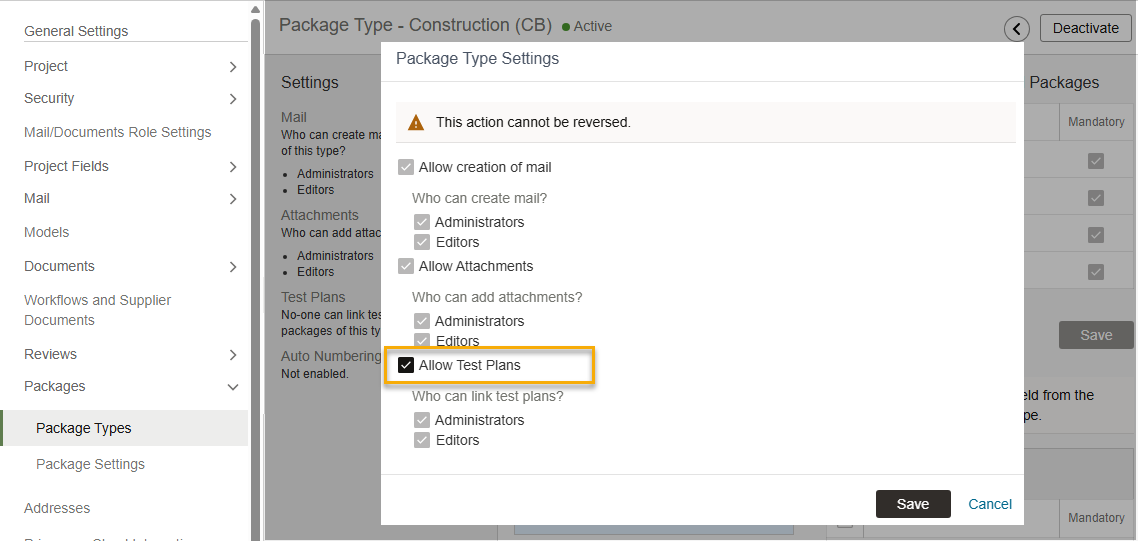
  1. Enable the Allow Test Plans option.
  1. Click Save.
  2. You can now link test plans to packages of that package type.

Link test plans to a package

  1. From the main navigation menu click Packages and select Packages.
  2. Click the package you want to link test plans to.
  3. Click Test Plans.
  4. Click Link.
  1. Select the test plans to link to the package and click Link.
  2. You can now see your selected test plans within the package. If you need to, you can select an unlink test plans that you no longer need to see in the package.
  3. Click on a test plan to view the activities and make updates as required (if you have permission).

Test plan visibility in packages

If you send a package with linked test plans to another organization, but you haven't shared your test plans with them, they may see a message that some or all test plans are not visible to them (see example in the image below).

To resolve this you'll need to share your test plans with the organization. Once shared, they will be able to see the test plans in the package.