Support Central
Some organizations have specific requirements to manage passwords and two-step verification (2SV).
By default, passwords have a standard expiry and users are prompted to set up 2SV when they first sign in. If you're a Lobby Admin you can reset passwords and 2SV for users in your organization.
Some organizations prefer to have a different password expiry for their users. Some want to configure additional methods for two-step verification. And some organizations prefer their users are not prompted to configure 2SV at all.
To achieve this, your organization must create and manage its own Identity Domain. The steps to get an Identity Domain are technical. You may need assistance from your organization's IT department.
Who needs to be involved?
Requirements:
An Identity Domain is required to either configure SSO for your organization, or configure authentication policies without using SSO. To get an Identity Domain you need an Oracle Cloud account.
Different processes apply for each paying and non-paying organizations.
An Identity Domain (sometimes referred to as an IDCS Stripe) is included with all Oracle Cloud Accounts. From December 2025 all new Aconex paying customers are required to activate their Aconex subscription into an Oracle Cloud Account, which also includes an Identity Domain.
If your organization uses other Oracle products, such as P6, OPC, Unifier, ERP, you may already have an Identity Domain. Determine if you can use your existing Identity Domain or if you need to create a new one.
Follow the instructions to create a password policy in your Identity Domain.
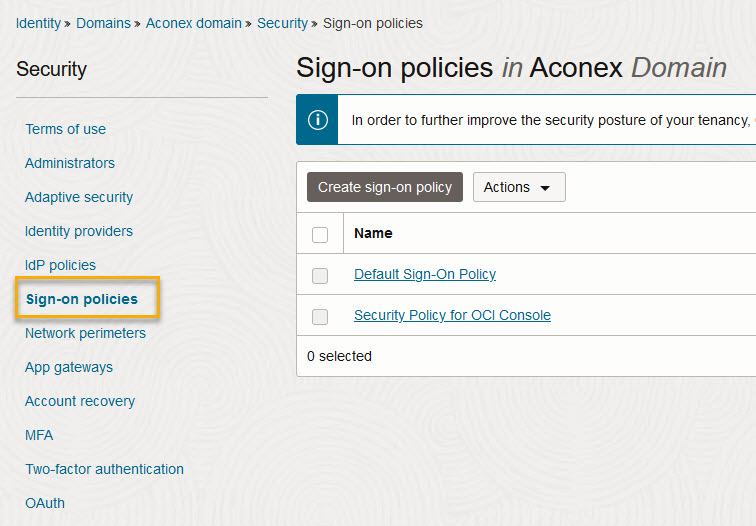
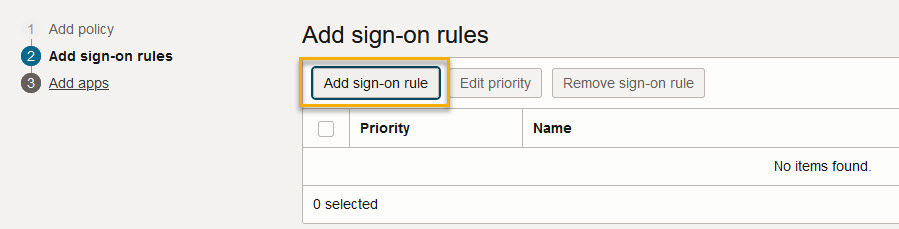
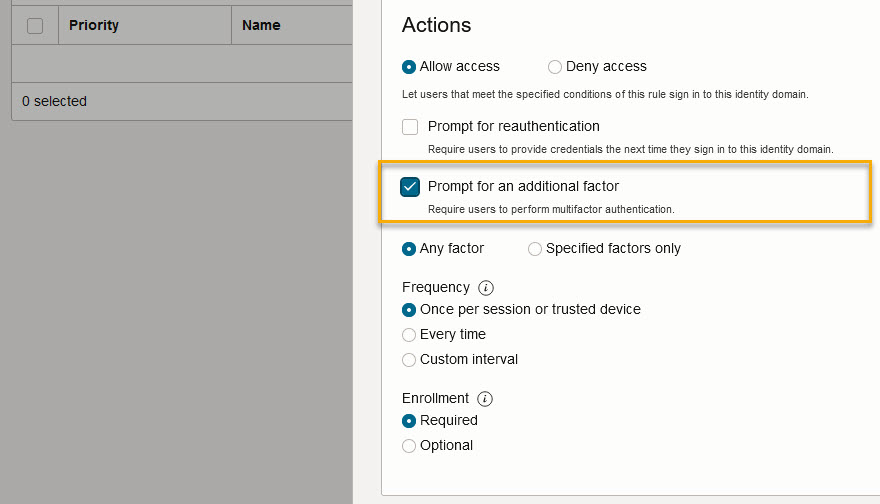
Follow these steps to configure which 2SV methods are available to users in your organization. Note: If you don't want users in your organization to use two-step verification at all, then do not complete these steps and do not create a sign on policy.
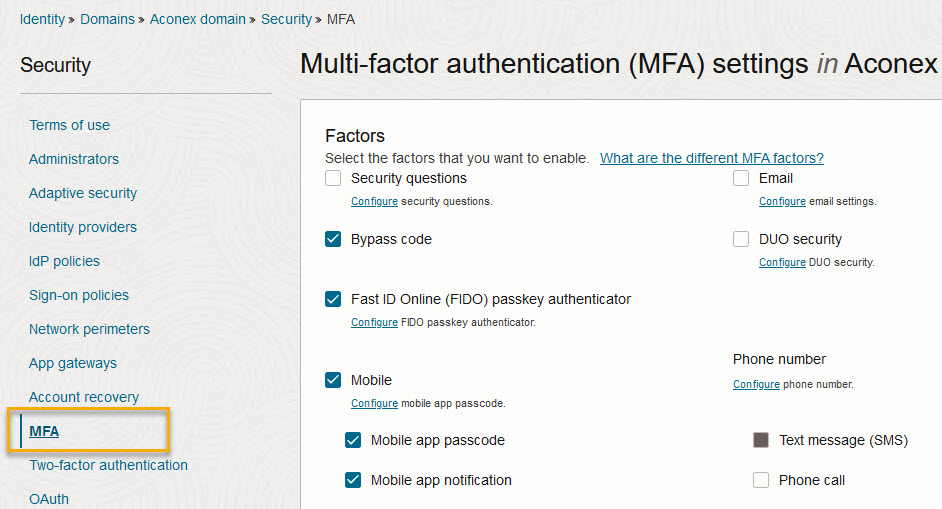
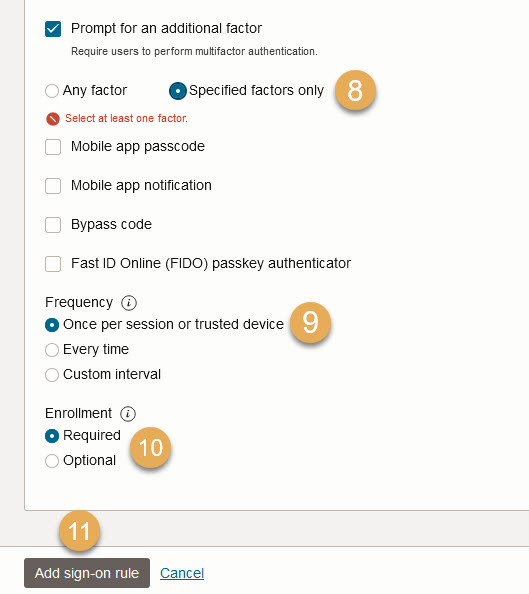
Here, you can select the two-step verification methods you want to use. Several may have been enabled for you by Oracle. You can uncheck those you do not wish to use, and check additional ones. For detailed instructions see Configuring Multifactor Authentication Settings.
Also see Configuring Authentication Factors for details about the available methods.
Note: Fast ID Online (FIDO) is not supported by the Lobby. If this is enabled and your users see an empty screen after entering their password, then you will need to remove this method.