Support Central
Follow these steps to configure your Identity Domain as part of the SSO setup for your organization.
The exact process in this step depends on your identity provider (IdP), such as Microsoft Entra ID, Microsoft Active Directory Federation Services (AD FS), or Okta. However, the general process is similar for all SAML integrations.
Note: Your IdP will require the Entity ID and Reply URL for your Oracle Identity Domain before it can generate its Federation Metadata XML file. Depending on your IdP, you can either:
You can construct the Entity ID and Reply URL from your Identity Domain URL. For example:
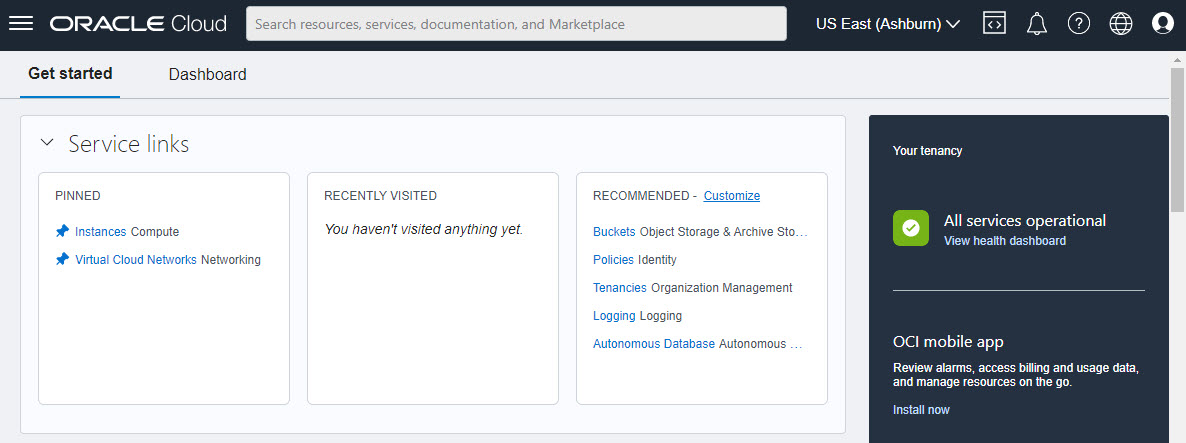
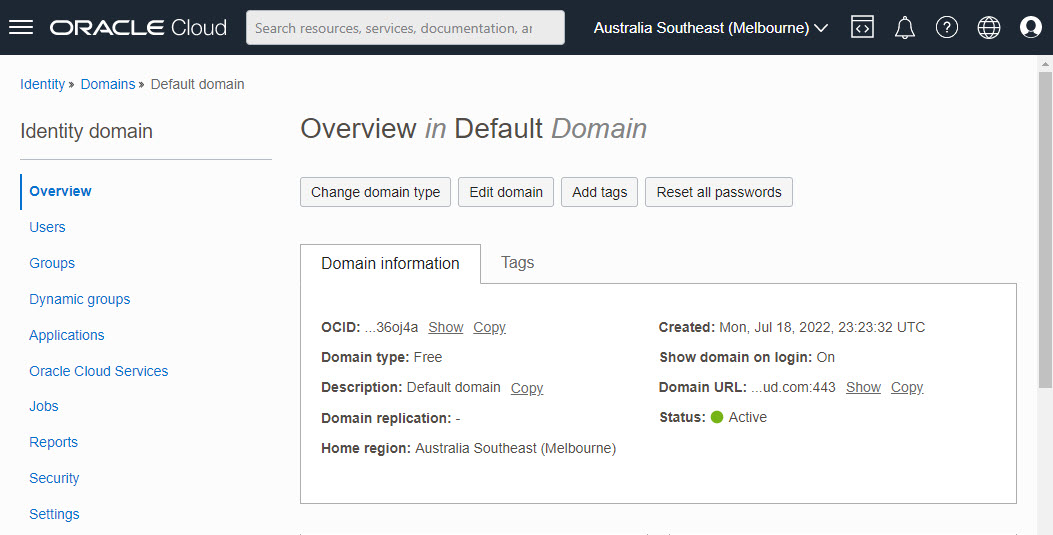
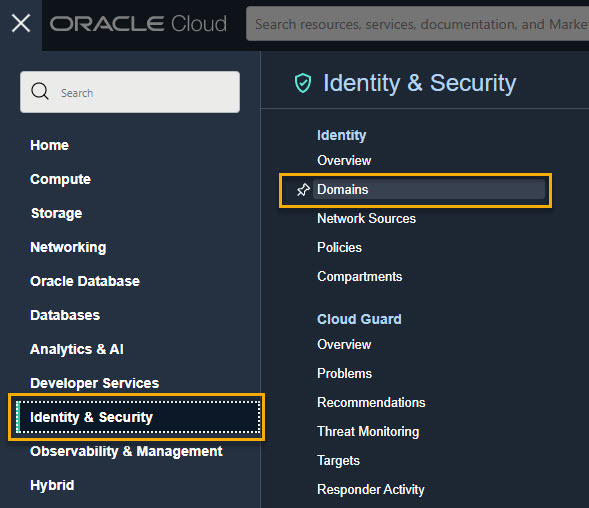
If you already see this details screen, you can skip to the Identity Domain Configuration section below.
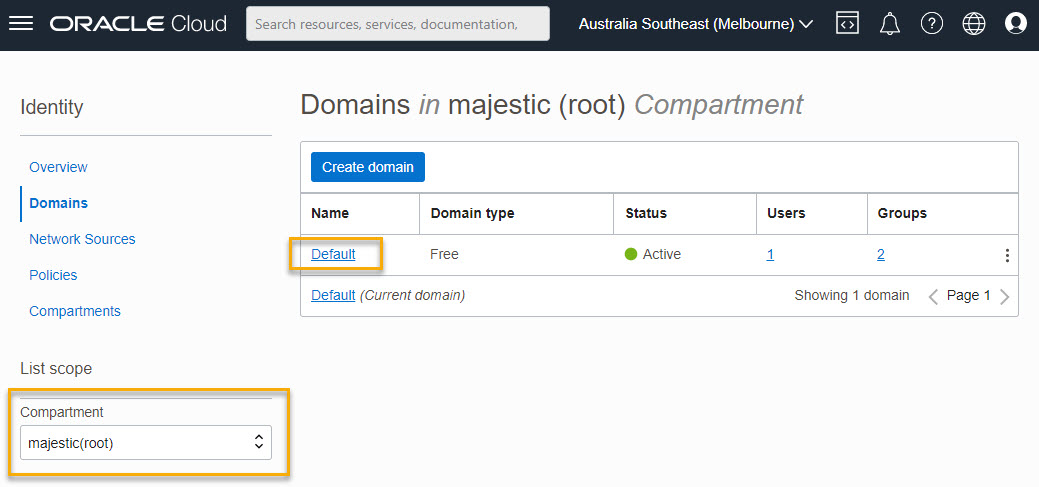
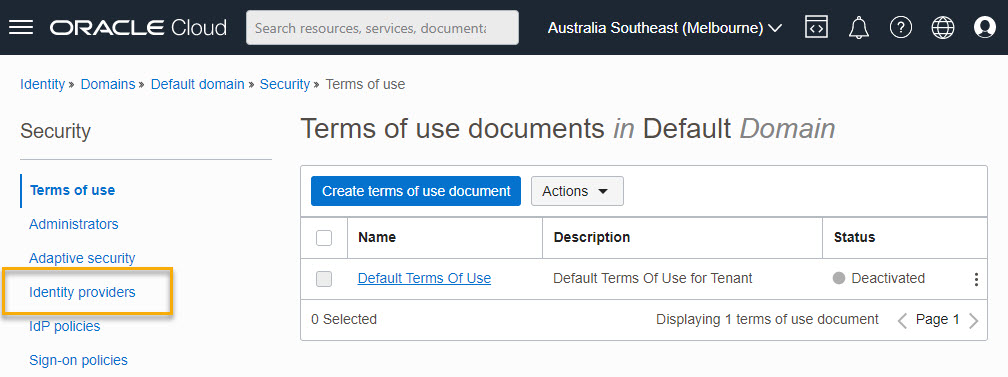
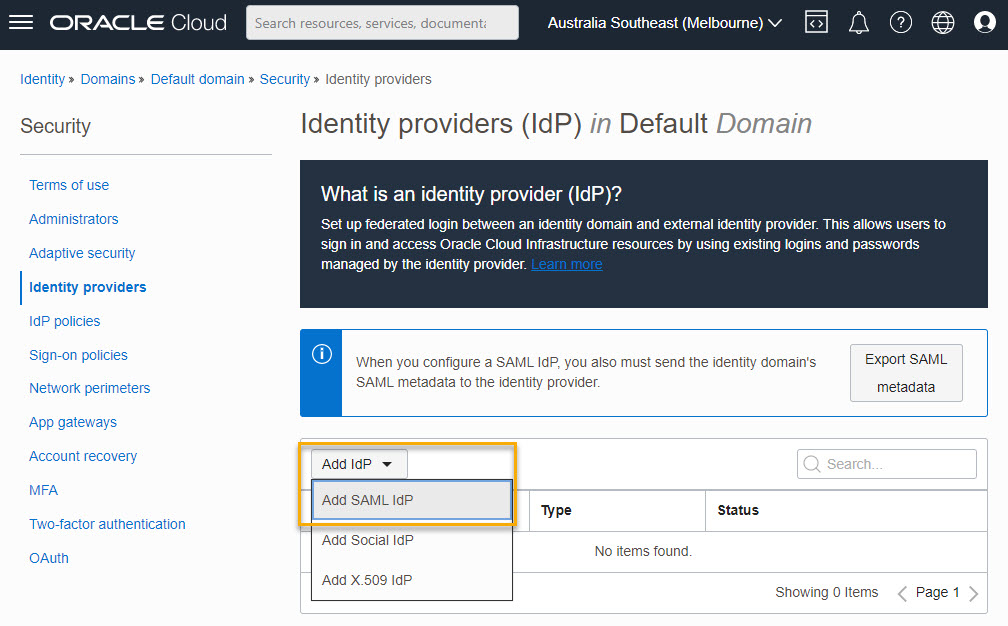
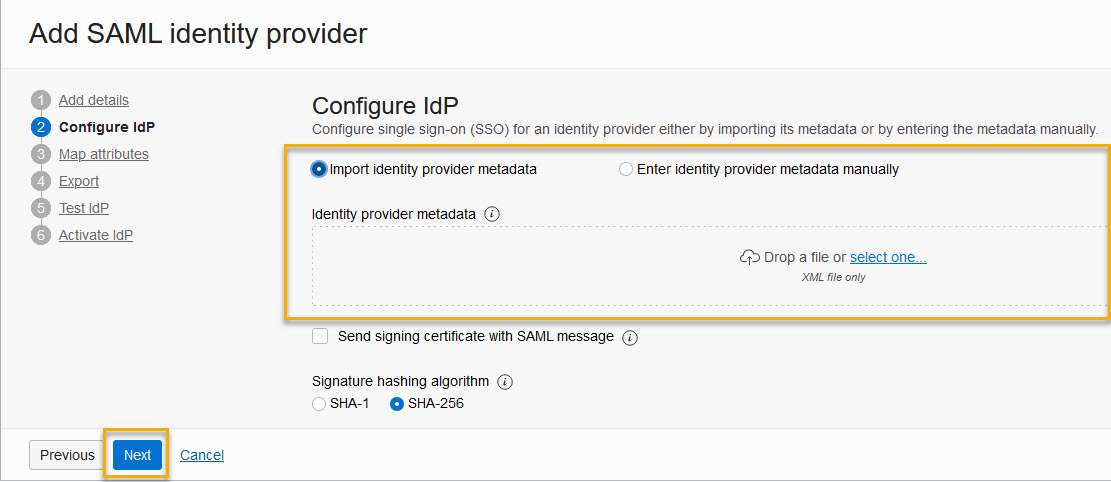
This is the XML file you need to import into your identity provider (IdP).
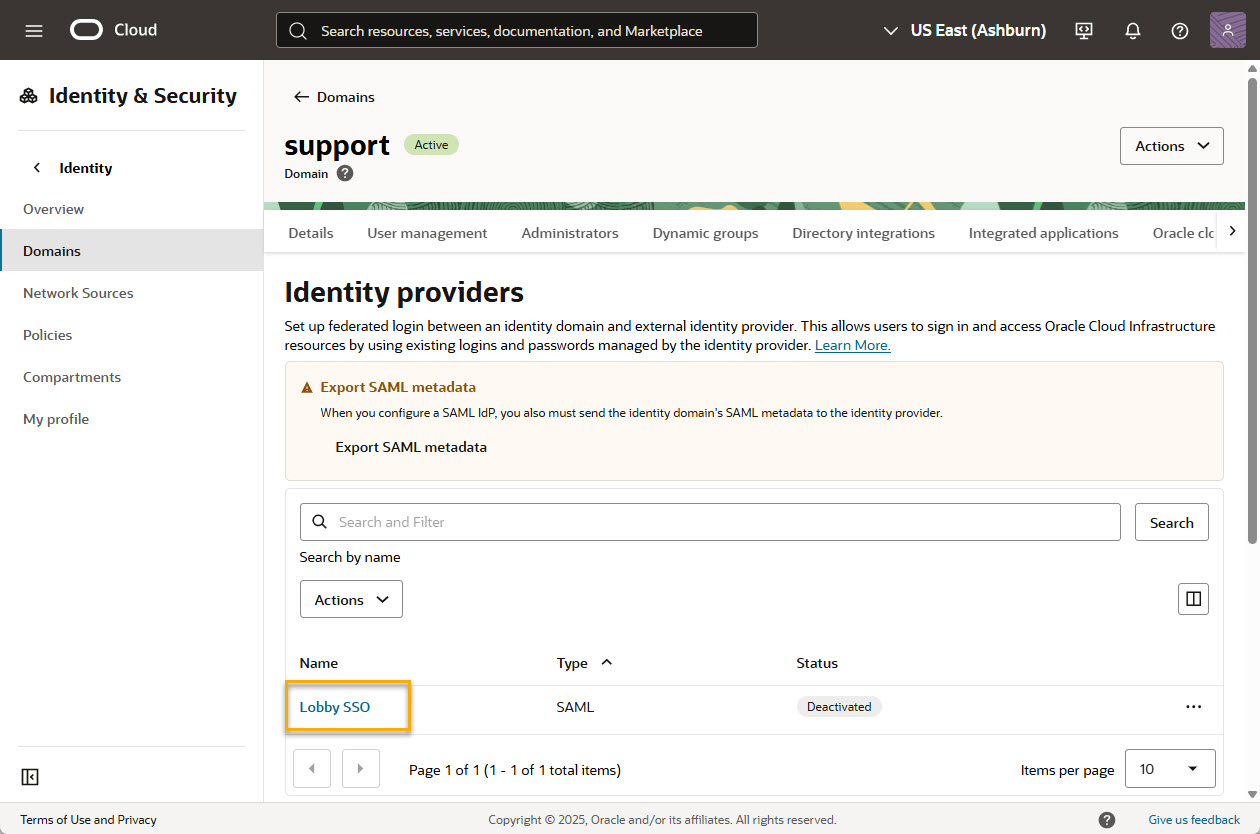
Click Export SAML Metadata.
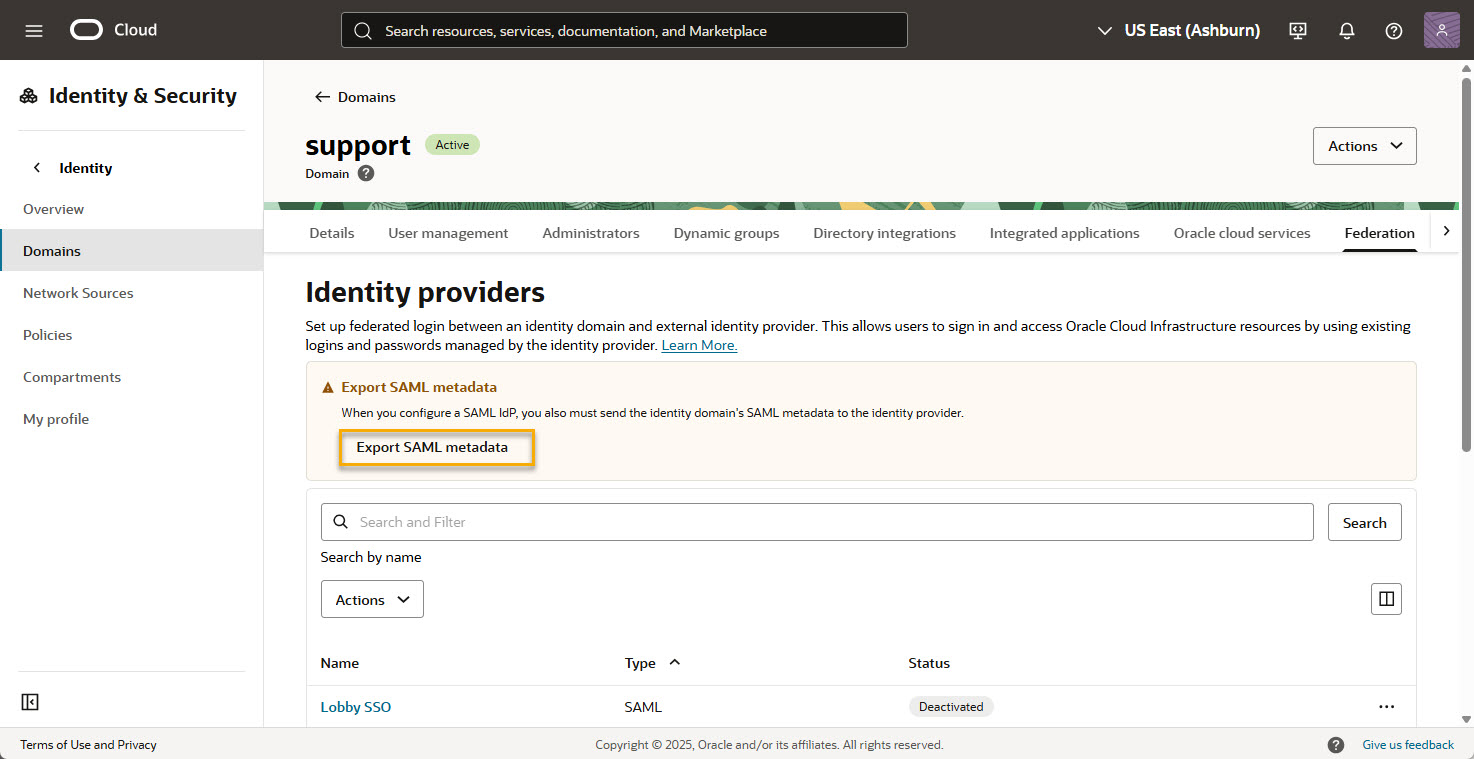
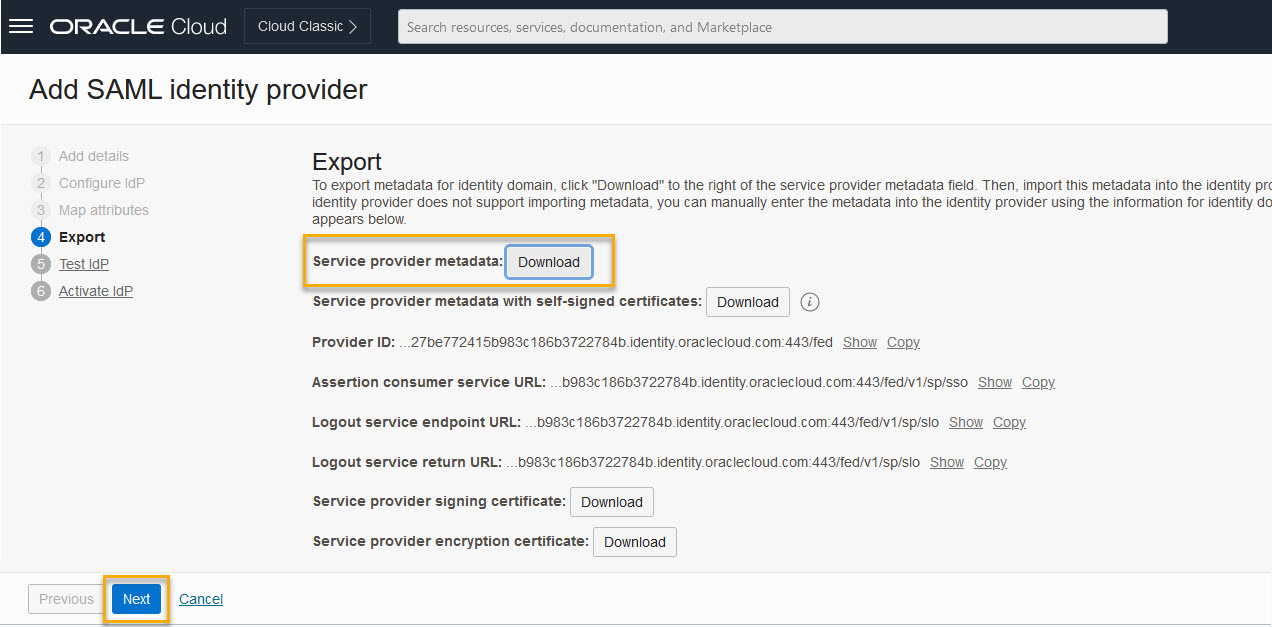
You can now return to the configuration of your IdP service.
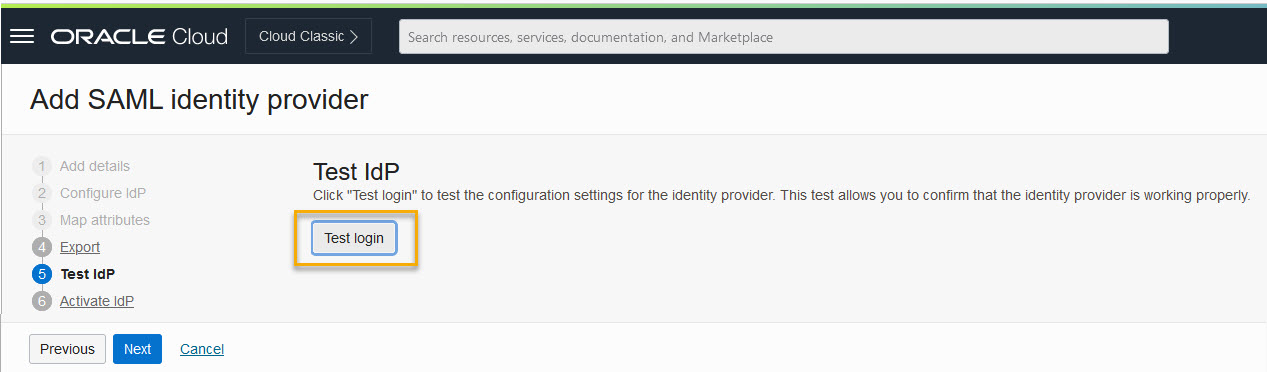
Your connection is successful.
You may close this window and go back to the admin console.
If the test login failed you will see a screen similar to the one below. Please read the error description to amend the setup or create missing data:
Connection failed. Configuration may need to be modified.
No user was returned during the SAML assertion to user mapping via the NameID attribute for partner Azure AD: NamedID poleary@majestic.com, user attribute name userNamed, message: ***See below***.
Show Assertion Details
You may close this window and go back to the admin console.
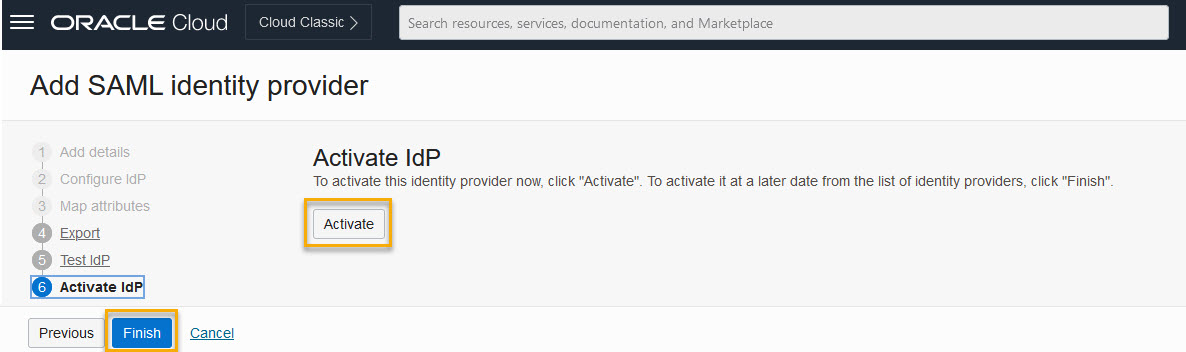
Note: Activating your identity domain will not affect existing Lobby users. They can continue to sign into the Lobby as usual. Only after you create an IdP Policy will users see a change to their sign-in process and be directed to your organization's identity provider.
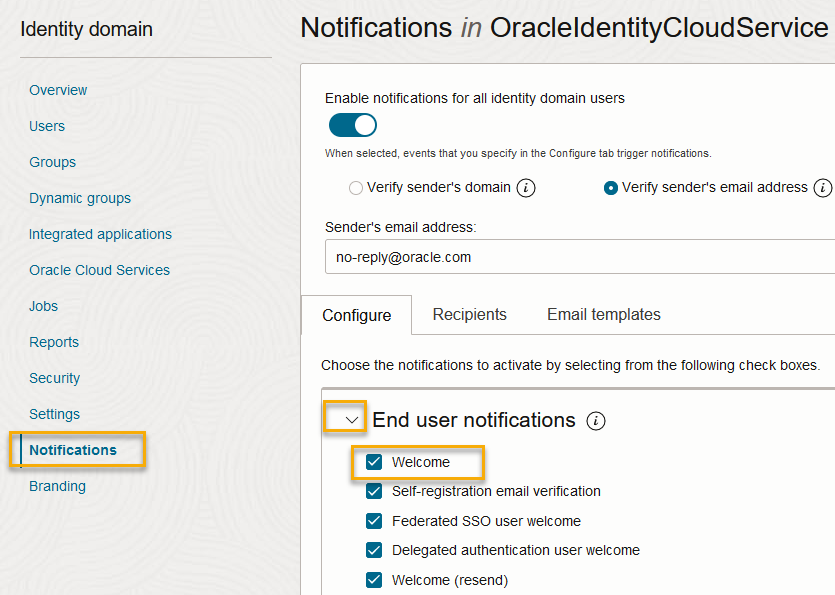
Turn off this setting to prevent users from receiving an Oracle Cloud email asking them to activate their profile. The email does not provide access to Aconex and may cause confusion.
After configuring your Identity Domain you need to provide Oracle with the ID for your Identity Domain.
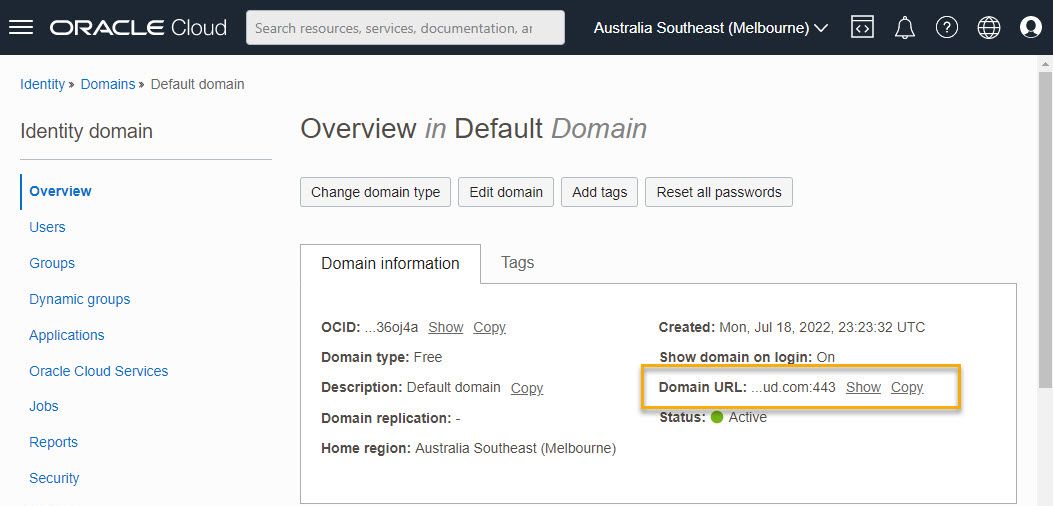
The easiest way to do this is to paste your Domain URL into the ticket. The URL will look something like this: https://idcs-
You can find your Domain URL in the details screen.
You will not be able to create an Identity Provider (IdP) Policy until Oracle confirms the Lobby is configured to use your Identity Domain.
You've successfully configured your Identity Domain.
Next, you need to create an Identity Provider (IdP) Policy. Note: Oracle needs to have confirmed the Lobby is configured to use your Identity Domain before you complete these next steps.