Export test plans

Export test plans and their contents as a zip file for handover, export a test plan as a PDF report, or export the register to Excel.

You can export your test plans as zip file to retain a record of files and evidence or to use as handover documentation. Exported test plans include inspections, attachments and linked documents within the activities.​ You can export up to five test plans at a time. This includes test plans created by your organization, shared with your organization, or those where your organization is a participant.

You can also export one test plan at a time as a PDF report. Choose whether to include photos, file metadata, inspections, linked issues, and reference document metadata.

Export your list of test plans to Excel to get an overall progress report for your ITPs.
Export as a Zip

  1. From the main navigation menu, click Field and select Test Plans.
  2. Search and filter your test plans as required.
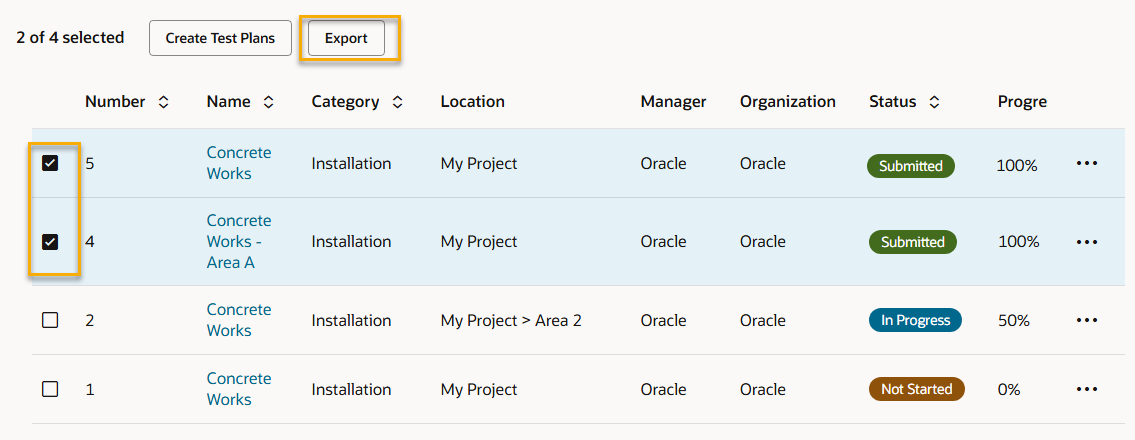
  3. Select up to five Test Plans that need to be exported.
  4. Click Export and select Test Plans (Zip). The export process runs in the background so you can continue working.
  1. You'll receive an email notification that confirms which test plans exported and if any test plans failed to export. Note: Make sure your email notification preference is set correctly. If you turn off email notifications in your user preferences, you will not receive any test plan notifications.
  2. To view the exported file(s) click Documents from the main navigation menu and select Temporary Files. Each test plan is exported as a separate .zip file.
  3. Download and open each zip file to see the contents:
  • An Excel file contains all the details of the test plan and its activities. The name of this file is suffixed with the date and time stamp when the export was generated.
  • The attachments folder contains subfolders for each activity that has attachments. Each activity folder contains subfolders for media (images and videos) and files (any other file type).
  • The inspections folder contains subfolders for each activity that has inspections. The subfolders include an exported PDF of each inspection.
  • The linked documents folder contains subfolders for each activity that has linked documents. The documents are included in the subfolders.

Export to PDF

  1. From the main navigation menu, click Field and select Test Plans.
  2. Search and filter your test plans as required.
  3. Select the Test Plan that needs to be exported.
  4. Click Export and select Test Plan (PDF).

Note

You can export only one PDF at a time. If you select more than one test plan, a message appears advising that only one PDF can be exported at a time.
  1. In the export window, select the information to include in the PDF report. You can include:
  • Photos
  • Files metadata
  • Inspections
  • Linked issues
  • Reference document metadata

Photos, Inspections, and Linked issues are selected by default.

  1. Click Export.
  2. You'll receive an email notification confirming the export. Note: Make sure your email notification preference is set correctly. If you turn off email notifications in your user preferences, you will not receive any test plan notifications.
  3. The export runs in the background, so you can continue working while the PDF is created. To view the exported PDF file click Documents from the main navigation menu and select Temporary Files.
Each test plan is exported as its own PDF report. The report includes test plan details, an activity summary, activity metadata, reference documents, records such as photos and file metadata, reviewer actions, and appendices for supporting evidence, including inspections and linked issues. Internal links let readers move between activities, inspections, and linked issues in the report.
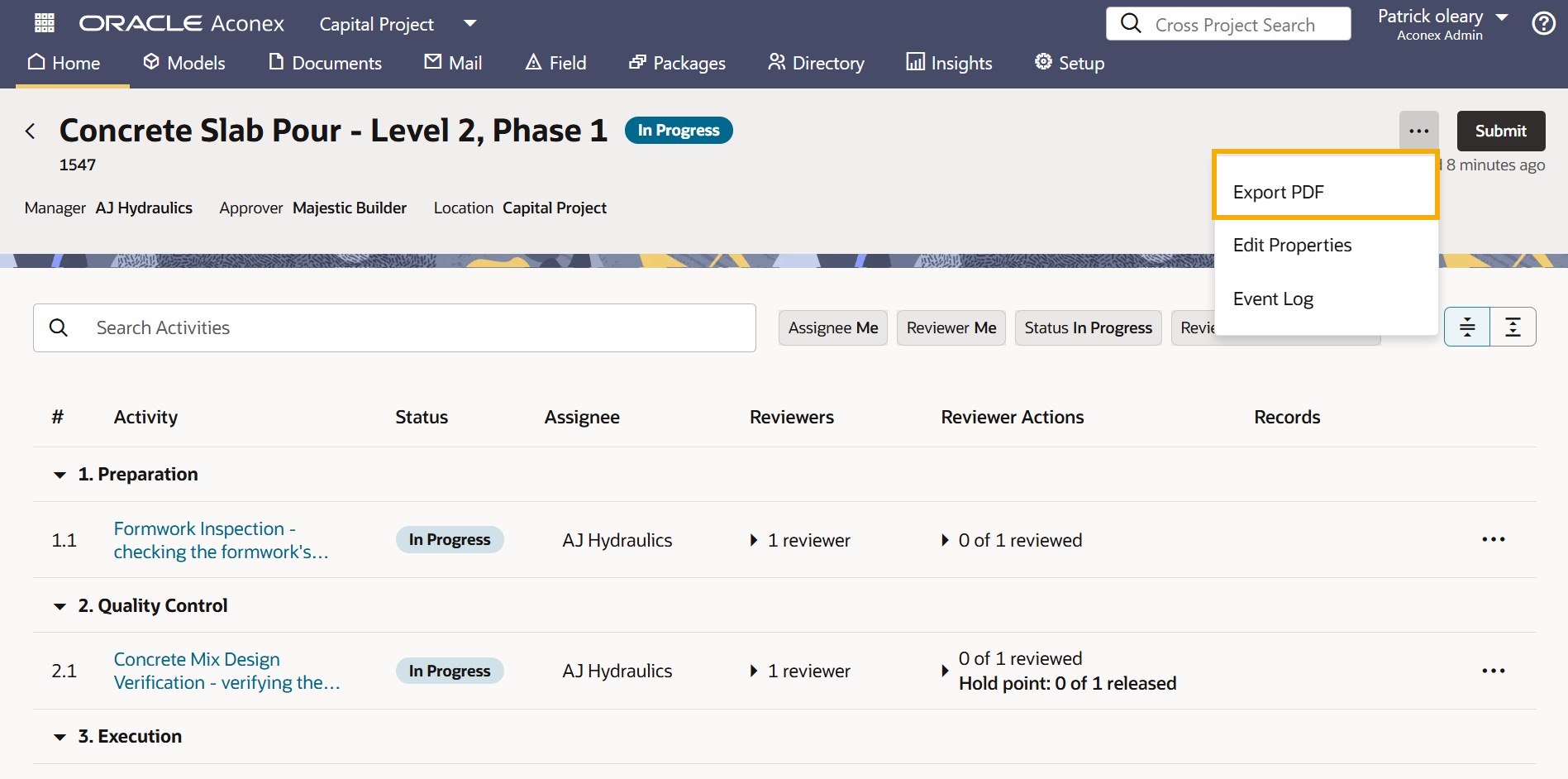
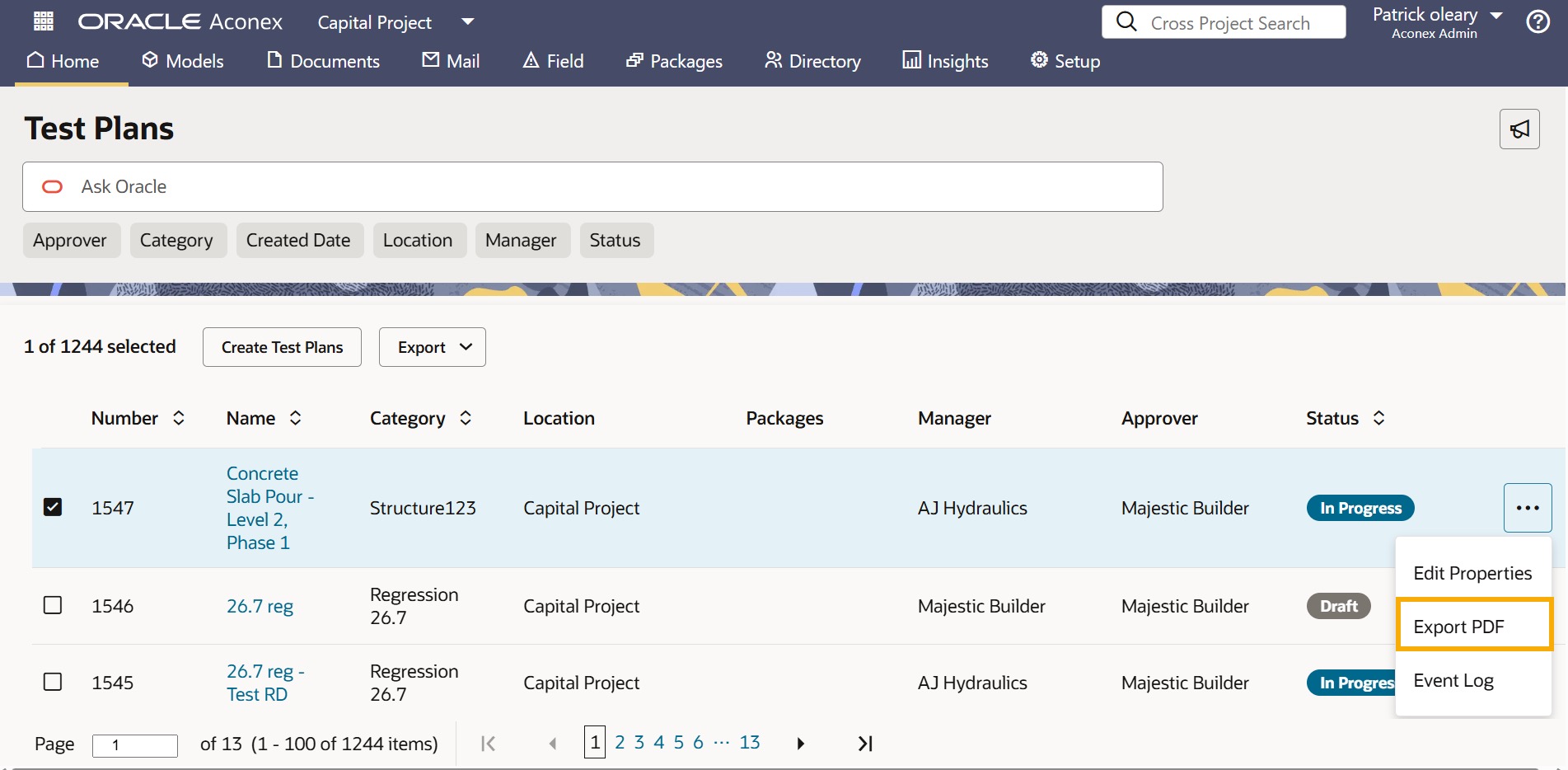
You can also select Export PDF from the overflow menu of an individual test plan on the Test Plans list or test plan details page.

Export to Excel

Export your list of test plans to Excel to get an overall progress report for your ITPs.
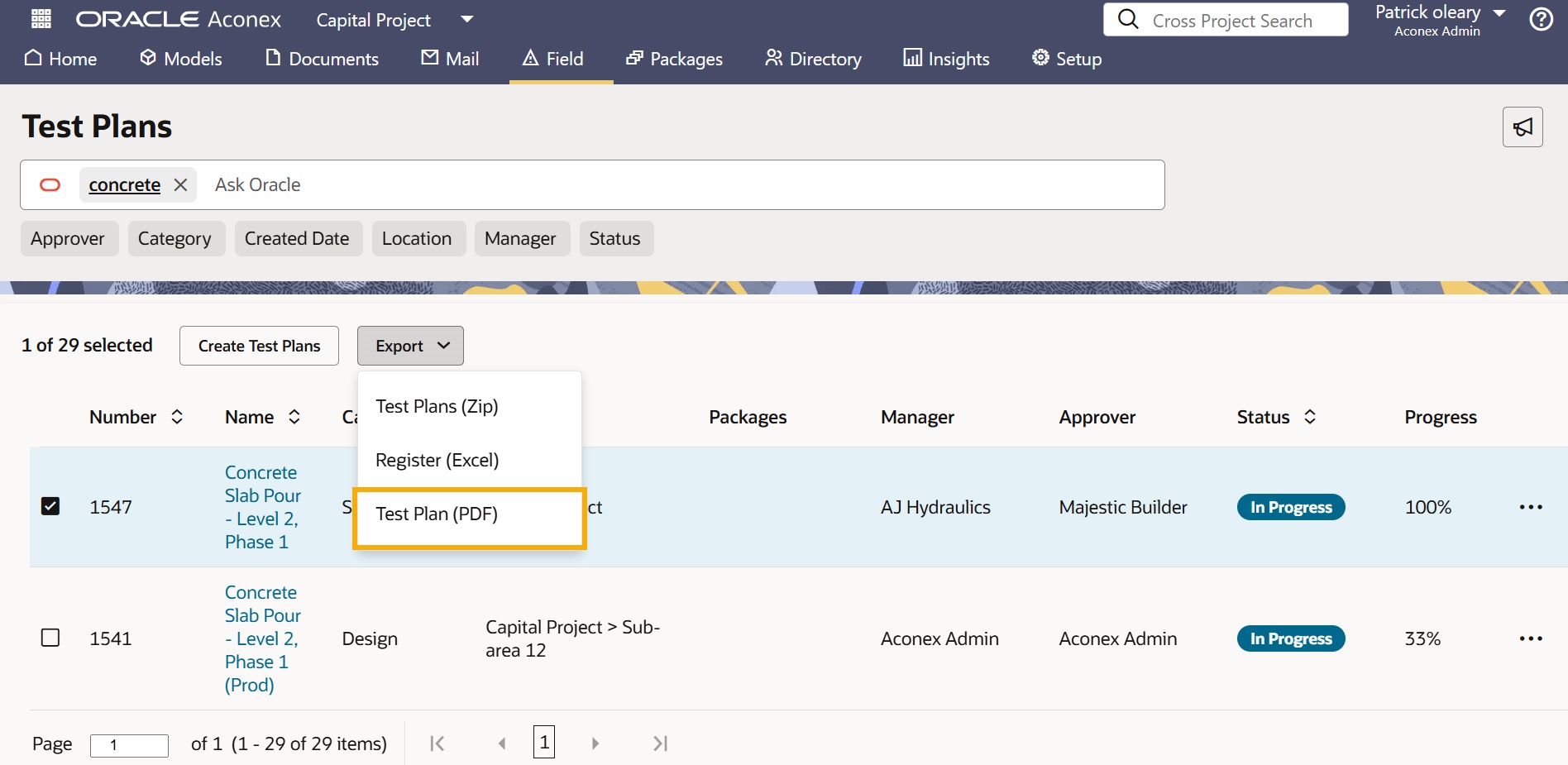
  1. From the main navigation menu, click Field and select Test Plans.
  2. Search and filter your test plans as required.
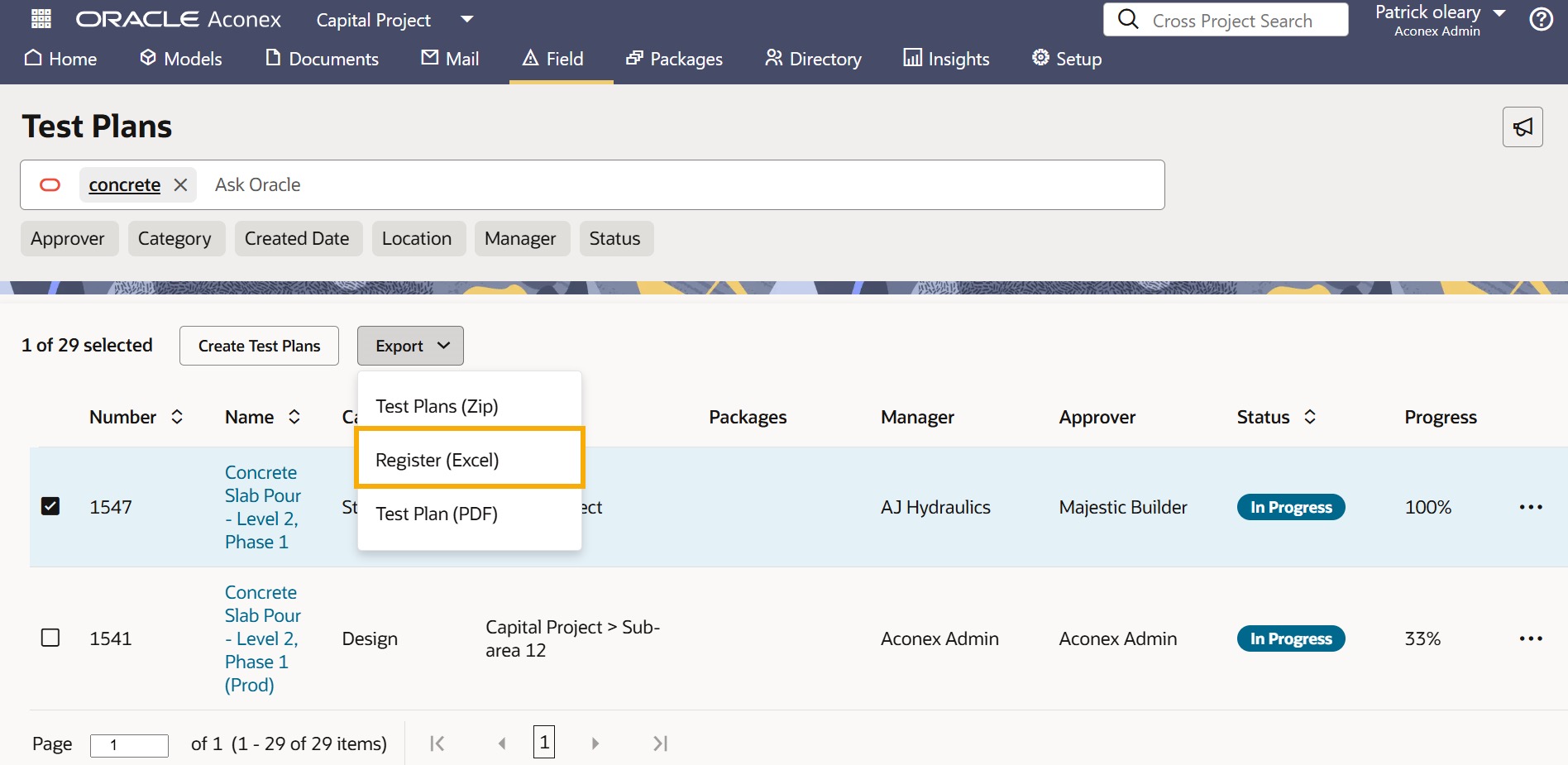
  3. Click Export and select Register (Excel).