Support Central
Obtenez une vision plus claire de la progression de votre projet.
Tableaux de Bord
Rapports basés sur la recherche
Rapports personnalisés
Étape 1 : Définir ses données
Étape 2 : Concevoir une mise en page
Étape 3 : Visualiser, exporter et partager
Mises en page avancées
Rapports imprimables pour les Coûts
Processes configured in Dashboards only apply to the Dashboards. They do not affect other areas of Aconex such as Mail or Documents.
As an example, this scenario may occur if your process is configured to ‘auto close in X days’. This means you'll see the status of Responded when viewing the mail itself. However, in Dashboards the process is 'Closed Out' due to the configuration of that process in Dashboards.
Dashboard configuration does not Close Out the mail itself.
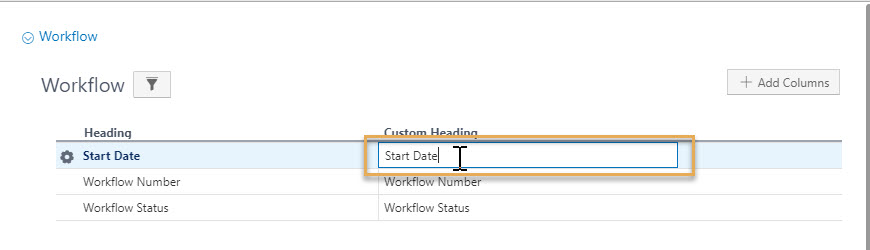
Oui. Dans l'éditeur de modèle de données, après avoir ajouté les domaines et les attributs/colonnes requis, vous verrez l'option Titre personnalisé qui peut être utilisée pour renommer l'étiquette d'un champ de données ou d'un attribut. L'étiquette personnalisée ne s'appliquera que dans la mise en page.
We don't recommend this. While the offline editor allows you to drag and drop attributes from different subject areas (that are not linked) in the same chart, doing so will give you incorrect output.
Yes, using BI Publisher (Plugin) Template Builder in offline RTF layouts. Learn more
Yes. If you are creator of the report that is shared across projects, you can edit it only from the project where you created it.
If you have minimum access permission Create Project Org. Reports, you can also edit (except Share) the report that is shared with all users from your organization across projects, but only from the project the report was created.
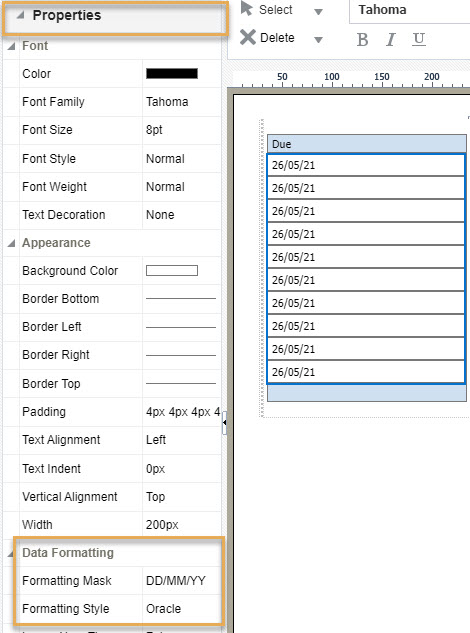
Oui. Dans l'éditeur de mise en page en ligne, vous pouvez sélectionner la rubrique ou la colonne de date dans le tableau, puis sélectionner Propriétés dans le volet gauche. Sous Formatage des données, saisissez le format de date souhaité dans l'option Masque de formatage. Nous vous recommandons également de sélectionner le style de formatage "Oracle".
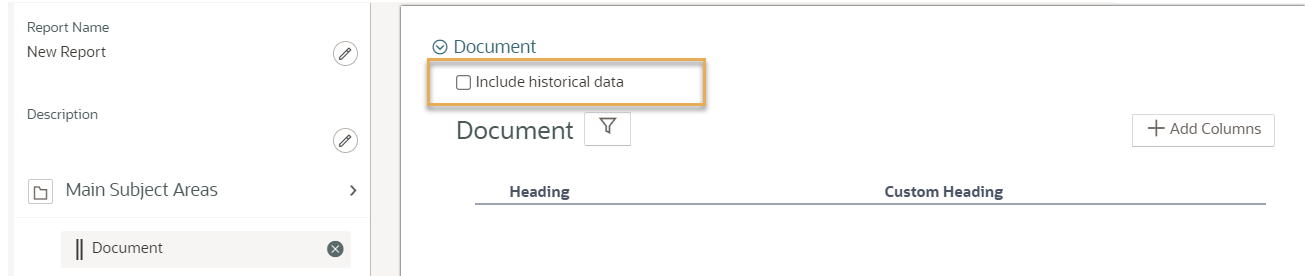
Oui, dans l'éditeur de modèle de données, choisissez Document comme domaine principal. Cochez la case "Inclure les données historiques". Si Document est un domaine secondaire, il renverra les données historiques par défaut.
For Mail you can use the ‘sent month’ attribute. For other subject areas you will need to code your own logic for this. (e.g. 1/1/2001 = Jan, 1/2/2021 = Feb etc.. ). Use the Case-Switch statement to create a chart with an axis showing monthly data.
Oui. Téléchargez le modèle en tant que fichier XPT, puis téléchargez-le en tant que mise en page pour d'autres rapports. Cela fonctionne également pour différents projets. Lire l'article Réutiliser un modèle de rapport (mise en page)
Il est conseillé d'enregistrer sur votre ordinateur les fichiers modèles fréquemment utilisés, afin de pouvoir les ajouter rapidement à votre prochain rapport.
Yes. If you have the required access permission, open the report from the project you created it in, and select to share it across all projects you have access to.
A report you created can only be shared across all projects that you have access to.
No. A user from an organization can view a process in dashboard only if the organization is involved in that specific process. This helps everyone see just what's needed. If an organization on your project can't see a process on their dashboard, it's because they aren't part of that process.
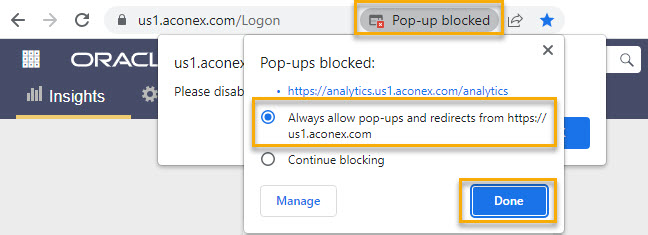
Make sure pop-ups are allowed for the Aconex instance URL (for example us1.aconex.com). Also see Configuring your web browser
Sélectionner le tableau. Développer le panneau Propriétés sur la gauche, puis aller dans Apparence. Utiliser l'option Marge.
Développer le volet Propriétés sur la gauche et localiser Chart Title. Attribuer la valeur True à Visible.
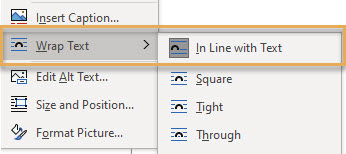
Copy and paste or use the Insert function in MS Word to add an image/logo into the RTF layout. We suggest you use .PNG or .JPEG image types. Make sure you right click on the image(s) and select Wrap Text > In Line with Text.
Switch to web view so you can scroll across the page. This web view is available on the status bar at the bottom of the Word file – it’s called Web Layout.

Dans l'éditeur de modèle, développer le volet Propriétés sur la gauche et faire défiler jusqu'à Chart Plot Area (Zone de tracé du graphique). Définir Data Visible (Données visibles) sur True pour afficher les étiquettes de données dans le graphique. Utiliser les options Data Font Bold/Colour/Italics/Size & Data position pour formater les étiquettes de données.
Use the Image component from the Insert panel at the top and select an image from your computer. We suggest dropping the image into a layout grid for best alignment.
Expand the Properties pane on the left and locate the Total Row or Total Column section. Set the Display option to None which removes totals display for the pivot table.
Dans l'éditeur de modèle de données, cliquer sur Ajouter des colonnes pour afficher la liste des attributs (champs de données) disponibles pour le domaine sélectionné. Dans cette liste, sélectionner ou désélectionner les options selon les besoins, cliquer sur OK, puis enregistrer le modèle de données.
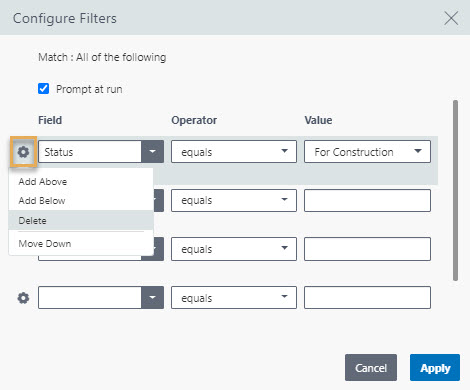
Dans l'éditeur de modèle de données, cliquer sur l'icône Filtre pour afficher et configurer les filtres. Compléter les options Champ, Opérateur et Valeur pour définir le filtre. Pour supprimer un filtre, cliquer sur l'icône en forme de roue dentée, puis sur Supprimer. Cliquer sur Appliquer, puis sur Enregistrer le modèle de données. Pour ajouter d'autres lignes de filtre, cliquer sur l'icône en forme roue dentée et sélectionner l'option Ajouter en dessous/au-dessus.
In the data model editor, select ‘Main subject area’ or ‘Supporting subject area’ to get a pop-up window where you can select or deselect the subject areas.
From the Insert panel at the top, locate Page Elements to add a page number.
Expand the Properties pane on the left and locate the Chart Values section with options for formatting the axis.
Expand the Properties pane on the left. For each section adjust the formatting options for font size, type, and colour. For example, in the Chart Legend section, there are options to adjust the font size, type, and colour of the legend text.
In the layout editor, expand the Properties pane on the left and scroll to Charts. Set the Background Color option as required.
You can also scroll to the Chart Plot Area section in the Properties pane and use the Series Color option to change the graph series color.
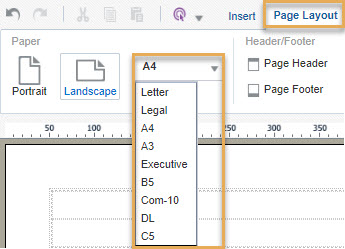
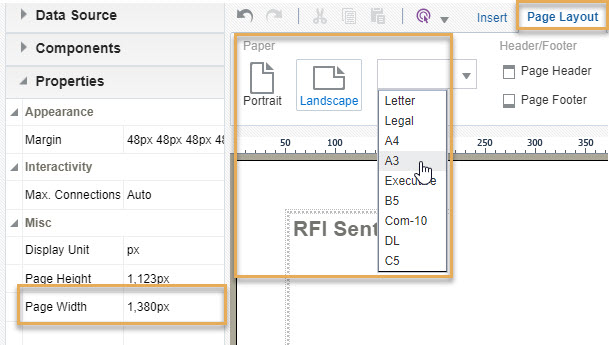
From the Page Layout panel at the top, select the orientation and size (for example, predefined A4, A3, B5) from the Paper section.
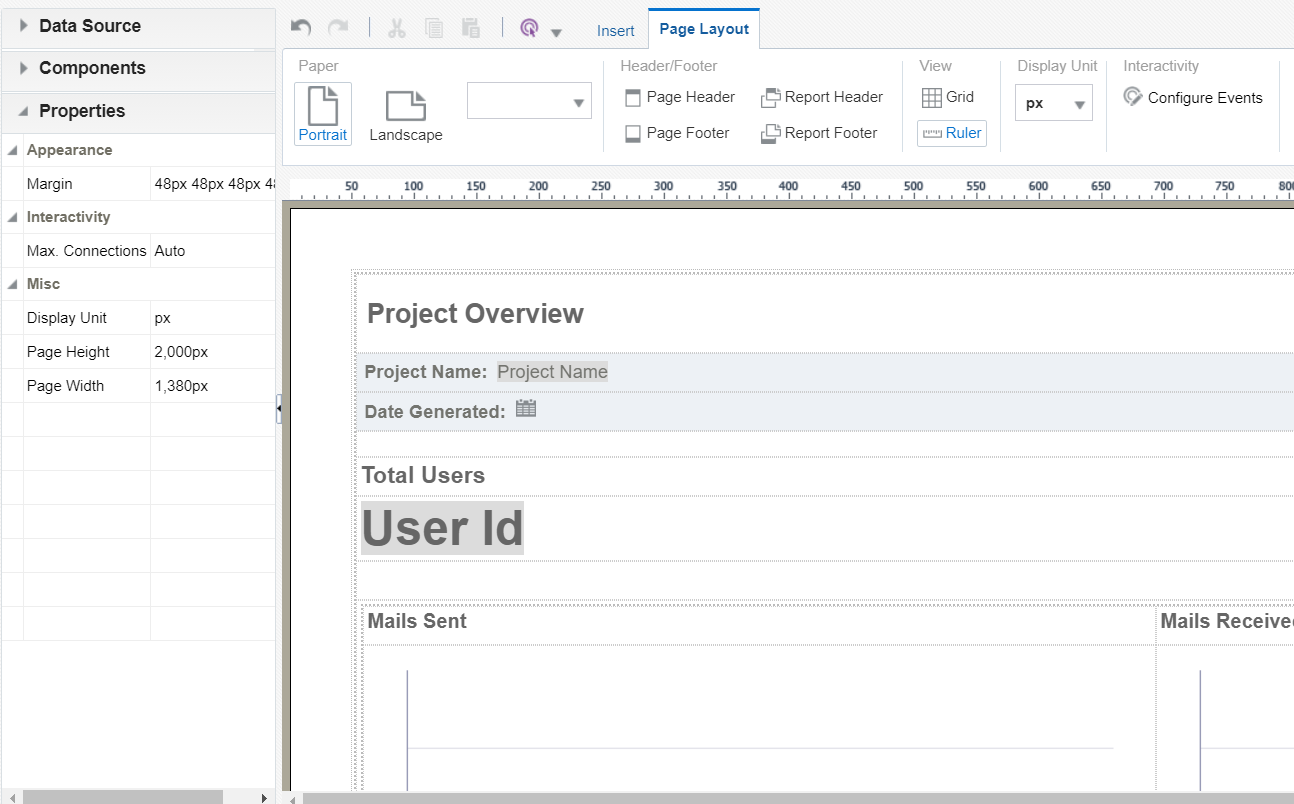
To change the margin size, select the page by clicking on the margin then go to Properties on the left panel. Click the Margin option under Appearance. From here you can also adjust the Page Height and Page Width under the Misc section.
Dans la liste des rapports personnalisés, survoler le nom du rapport jusqu'à ce que vous voyiez le menu ellipse (trois points). Cliquer dessus pour obtenir une liste déroulante et cliquer sur Modifier le modèle de données.
The child or supporting subject area has secondary attributes linked with the selected main subject area. For example, Documents can be attached to mails, therefore the attributes of the documents such as document type, document created by, document discipline, are secondary attributes for mails as the main subject area.
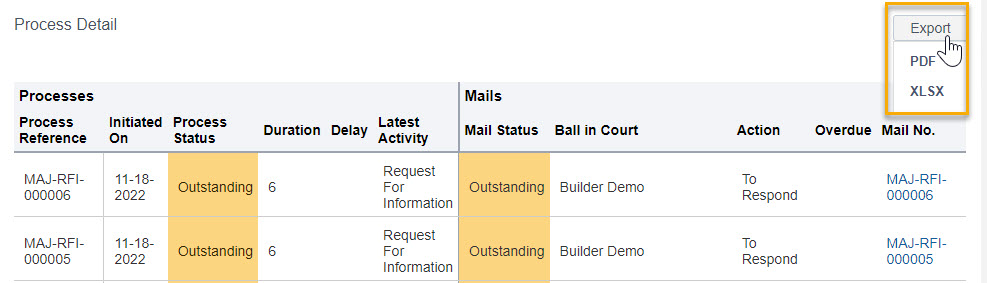
Click Export to download the Process Details table into excel or PDF.
From the table select the column you want to sort. Select the table and click the Column tab at the top. Adjust the Sort option as required.
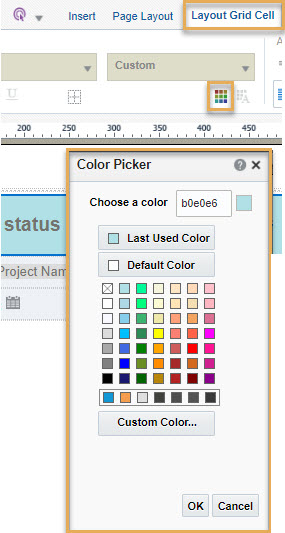
Use a Layout Grid to drop all your components. Select the grid and from the Layout Grid Cell tab at the top, click the Background Colour icon to open the Colour Picker. Choose the required color for the background of the grid.
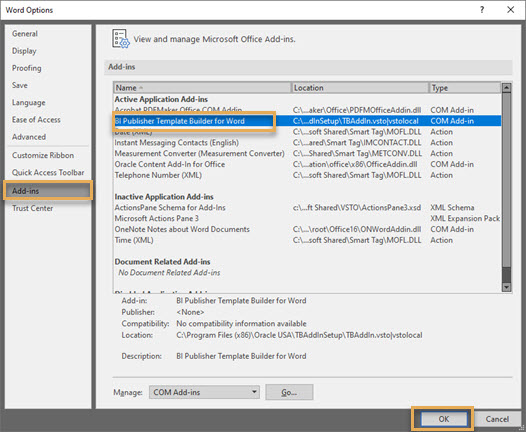
After you have installed the plugin, open Microsoft Word and click File from the menu bar at the top.
Click on Options from the left panel. From the dialog box select Add-ins on the left and select BI Publisher Template Builder for Word from the Add-ins list.
Click OK.
L'actualisation des données du Tableau de bord est différente pour chaque instance. Notez qu'il s'agit de valeurs approximatives.
| Instance | Actualisation approximative des données du Tableau de bord |
| AU1 | 6 heures |
| AU2 | 30 minutes |
| CA1 | 15 minutes |
| ASIA1 | 30 minutes |
| EU1 | 15 minutes |
| ASIA2 | 2 heures |
| KSA1 | 1 heure |
| MEA | 3 heures |
| UK1 | 3 heures |
| US1 | 1 heure |
Note: Votre préférence de fuseau horaire est utilisée pour afficher l'heure d'actualisation.
Si vous n'avez pas défini votre fuseau horaire, le paramètre de l'organisation sera utilisé.
Si votre organisation n'a pas défini de fuseau horaire, c'est le fuseau horaire par défaut de l' instance Aconex qui sera utilisé.
For the report to be available in the new project, you will have to once again share the report across projects after accessing the new project.
If you add a new mail based process or edit an existing one, it appears in the Dashboard only after the next data refresh. See How often is Dashboards data refreshed
Yes, if you edit a report then those changes will apply to that report on all other projects it was shared across.
Office 365 is now certified with the BI Publisher Desktop Template Builder.
See the certification
To install the add-in, download Oracle Business Intelligence 12.2.1.4.0 (the recommended version). Choose the BI Publisher Desktop based on your version of Microsoft Office 32 bit or 64 bit.
Oui. Le nombre d'enregistrements pouvant être demandés pour chaque domaine lors de l'exécution d'un rapport est limité.
Ces limites nous permettent d'assurer une performance élevée lors du traitement des données en temps réel requises pour votre rapport.
Si la limite est atteinte, seuls les enregistrements compris dans cette limite seront disponibles dans votre rapport. Il se peut que vous deviez filtrer votre rapport pour obtenir les données les plus pertinentes dans la limite fixée.
Le tableau ci-dessous indique les limites pour chaque domaine.
|
Domaine |
Nombre maximum d'enregistrements dans votre rapport |
|
Courrier |
10,000 |
|
Étapes de workflow, Workflow |
10,000 |
|
Constats Field, inspections Field |
10,000 |
|
Documents |
50,000 |
There is no limit on the number of columns you can add in a table. To add more columns, you can either:
If you are directed to this page from an error message in Aconex, you can find the error below and find out what to do next.
This error is caused by a temporary issue in Aconex, or a special character in your chosen data.
Confirm if there's a temporary issue in Aconex
Find and remove unsupported special characters
This error is caused by:
Confirm if there's a temporary issue in Aconex
Check the layout matches the data model (using the online editor)
any attribute incorrectly used as a series, label, or value.
the filters applied.
any grouping used on table or pivot charts.
Check the layout matches the data model (using the offline template builder)
Generate a preview when using the MS Word template.
Find and remove invalid characters
Reduce the volume of data requested in the report
If there are no invalid characters, then the report may fail due to the amount of data being requested. Use filters to reduce the amount of data in the report and try again.
If you are still unable to run your report, please raise a request with Oracle Support. Include a HAR file, along with screenshots of your data models, layouts, and filters used in the report.
The report may have exceeded its data limit. Use the prefilter & view report option from the three dots menu to refine the data in the report.
Some special characters are not supported as filter input values. Please check and remove special characters from your filters.
It may be the document version isn’t yet available in your document register. Some organizations are configured to require a manual update of the Document Register using the ‘Update Register’ button. Once your register is updated try the report again. If the issue persists contact Oracle Support.
Tables, Pivot Tables, Conditional formatting, Charts and more are available. View Layout Components in the Offline Template Builder
Available charts include Area, Bar, Bubble, Line, Pie, Funnel, and more.
Change the chart type by clicking on it then clicking the Chart tab at the top. Select a Chart Type as required.
Cela permet d'ajuster les filtres lors de l'exécution du rapport. Cette option doit être activée dans le domaine principal avant de pouvoir être utilisée dans un domaine secondaire.
Si vous supprimez des champs de données ou des attributs utilisés dans une mise en page de rapport, le rapport se chargera mais affichera des cellules ou des graphiques vides à l'endroit où l'attribut supprimé était utilisé.
Le domaine parent ou principal contient tous les attributs directement liés à un champ donné. Par exemple, la rubrique principale Courrier contient des attributs tels que la date d'envoi, la liste des destinataires, le type de courrier, etc. qui sont directement liés aux courriers.
This occurs if the width of the content, chart, or table you added in the layout extends outside the page width. As an example the table may have too many columns.
To resolve this you must increase the page width by following these steps:
TIP: To check the alignment, you can open the Aconex report view page in another tab of your web browser and refresh it. Continue adjusting the page width until you see the alignment is correct.
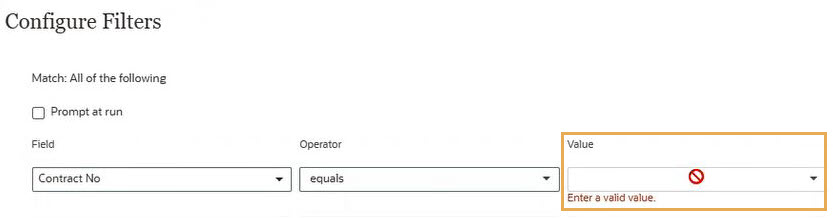
For the contract number filter in the data model editor to list values in the dropdown:
These are the attributes that are available in the project the report was created, but are missing from this project. See Considerations when sharing reports across projects
If it’s not a shared report then check if there are values created and assigned for the given attribute. If yes, and still you are unable to select or view values in those filters then please contact us for troubleshooting.
This could occur for several reasons:
Optionally you can open the report and click Save As to save a copy of the report. You can then edit and share the copy with others (based on your access permissions).
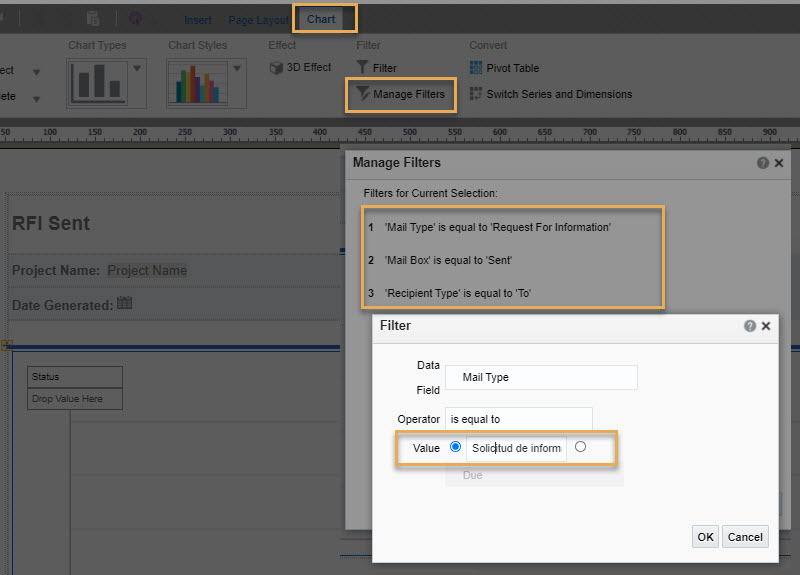
This issue can occur when reports have filters applied in the layout with English values.
As a workaround, try:
1. Run the report.
2. Click Save as to save a copy of the report.
3. Find the saved report in the listing page (custom tab)
4. From the more options (three dots) menu click Add/Edit Layout to open the online layout editor.
5. Click on the chart that isn’t displaying data in the report view page.
6. From the Chart tab click Manage Filters.
7. Click on each filter and enter the appropriate translation for each English value. For example, 'Request for Information' will need to be changed to 'Solicitud de información (RFI)' if your language is Spanish.
8. Save and then run the report again.
If a project is not displayed on your portfolio page:
Les rapports sur les Coûts ne sont disponibles que si vous, votre projet et votre organisation avez accès au module des Coûts. Insights ne prend pas en charge les espaces de travail partagés. Par conséquent, si vous accédez aux données de vos clients via un espace de travail partagé, vous ne verrez pas les rapports sur les Coûts, même si votre client y a accès.
Si vous avez un accès, que vous êtes connecté et que vous ne pouvez pas voir les rapports sur les coûts, nous vous recommandons de :
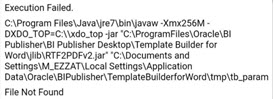
This error happens when you login, load the XML file, pull in a field or two and then run the preview feature. It’s related to the JRE version installed. To fix the issue: