Add other organizations to Field

Assign and share issues and inspections with other organizations.

When adding other organizations to work with, decide if you want to assign or share issues and inspections with them. Those organizations also need to add your organization to work with them and decide if they want to share or assign issues they create to your organization.

For example, if your organization needs to assign issues to the Head Contractor (or Main Contractor) then you’ll need to add them as an organization you work with and check the box to assign issues.
  1. From the main navigation menu, click Setup and select Project Settings.
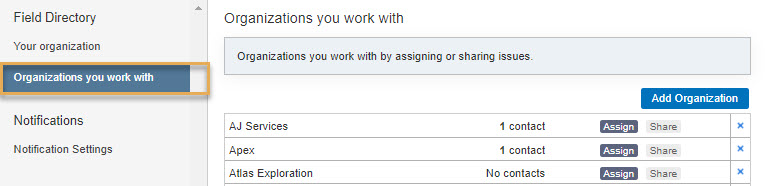
  2. Under Field Settings, click Field Directory, then click Organizations you work with. 
  3. You’ll see a list of external organizations who have been added to Field on the project.

Tip!

You need to be an Inspector Administrator or Project Administrator in either the Issues or Inspections role to see this option. Learn more about Field roles.
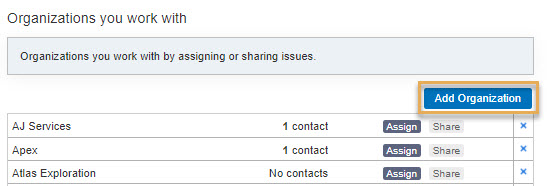
  1. Click Add Organization.
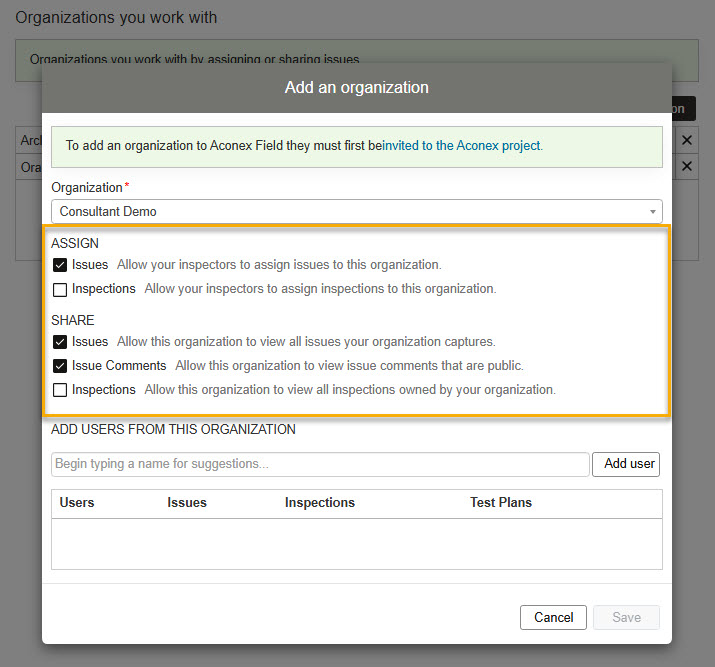
  1. Search and select an organization from the dropdown list. You can type the first few letters of the organization's name and select from the list of suggestions.
  1. Decide how you want to collaborate with the organization by selecting the required options:

Assign:

  • Issues: if you want to allow your inspectors to assign Issues to this organization.
  • Inspections: if you want to allow your inspectors to assign inspections to this organization.

Share:

  • Issues: if you want to allow this organization to view all Issues captured by your organization.
  • Issue Comments: if you want to allow this organization to view issue comments that are public.
  • Inspections: if you want to allow this organization to view all Inspections captured by your organization.
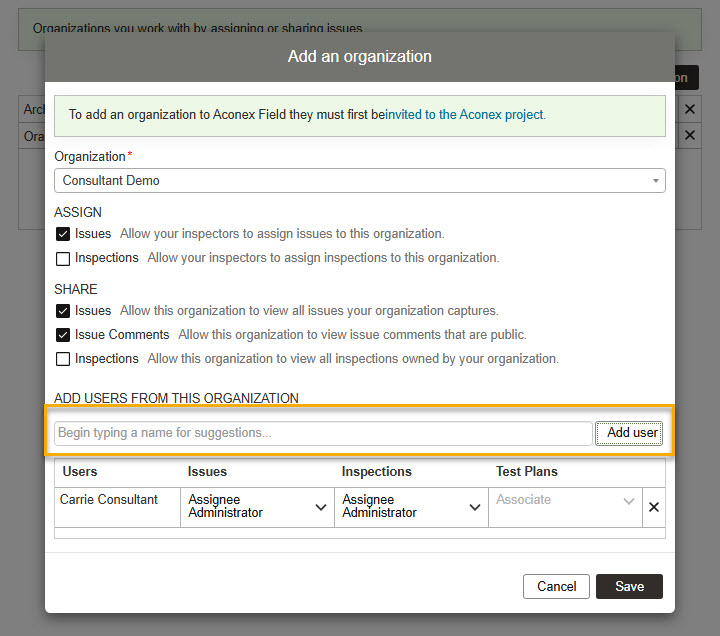
  1. Now add users from the organization. You can type the first few letters of their name and select from the list of suggestions. If you’re not sure of the contact's name click in the text field and press the space bar to see a list of all the names available for this organization.
  2. If you are a Project Administrator for the Issues Role, ​you can assign the Issues Role to users in other organizations. Similary, if you are a Project Administrator for the Inspections Role, you can change the Inspections Role for users in other organizations. Learn more about assigning roles.

Tip!

Can't find the person you're looking for?

If the person you want to invite to your project doesn't appear in the list, you'll need to invite them to your Aconex project first. If you're not sure how to do that, contact your Project Administrator.

Once the person's invited to your Aconex project, they'll appear in your Field project directory, and you can invite them to join your Field project.

  1. Repeat the process to add more names. To remove a contact, click on the X next to the contact’s name. At any time during the project lifecycle, you’re able to add and remove contacts, even after the organizations have been added.
  2. Click Save to save these details to the organization.
  3. You'll see the updated Organizations you work with list, which includes the organization you just added.

Tip!

Some features in Field (such as Checklists, Punchlists, Daily Reports, Test Plans, and Observations) may not be available to newly added organizations.If the added organization sees a message that one of these is not enabled, they can contact Support and request it to be enabled for them.