
Your organization can log in to Oracle Aconex using your existing Single Sign-On (SSO) infrastructure. Aconex uses SAML-based identity federation using Oracle Identity Cloud Service (IDCS).
Yes, API can now support SSO. See Implement OAuth.
No. Oracle Aconex SSO is a service for authentication only. User administration takes place within the Oracle Aconex application.
No. They need to use their own SSO and IDCS for their organization.
Multiple organizations across multiple Aconex instances can use your company SSO service as long as they meet these requirements:
No. One Lobby organization’s users can only be mapped to a single Identity Provider (IdP).
Yes, SSO through IDCS supports SAML 2 integration with Azure AD. See Set Up Federation Trust Between Azure AD and Identity Cloud Service and Azure AD SSO integration with Oracle Cloud Infrastructure Console
An Oracle Cloud Account is required when enabling SSO for your organization. Your technical contact will receive an email with details on how to activate this account.
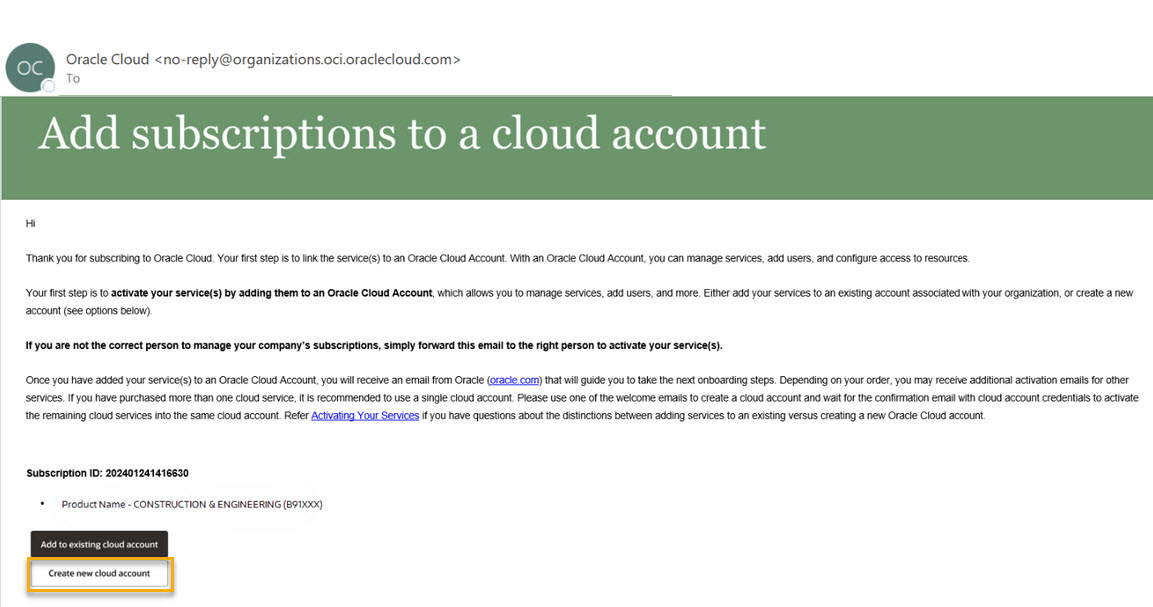
It will be sent from Oracle Cloud <no-reply@organizations.oci.oraclecloud.com> with the subject Action Required: Welcome to New Oracle Cloud Service Subscription(s).
From the email click Create New Cloud Account and you'll see the Activate My Services screen shown in the image below.
Complete the details of the form to activate your account.
Learn more about Creating a New Cloud Account
The region you choose controls the physical location where profiles for user accounts are stored. Generally it's a good idea to choose the same region as your company's identity provider.
For example, if your company uses Azure AD with the data resident in the US, you may choose a US data region. If your Azure AD data residency is in Europe, you may choose a European region for you Identity Domain.
An organization in the Lobby can only link to one Identity Domain, so all the users in a single Home Organization in the Lobby will be stored in the same region.
You can choose from the following regions:
The information displayed on the sign in screen is controlled by a users home organization. Each organization is linked to a single Identity Domain and the configuration of the IdP Policy in the Identity Domain controls how a user signs in.
If a user is not seeing the expected sign in screen, you should check the home organization is correct for that user. As a Lobby Admin you can move the user to the correct home organization.
Some users don't have a home organization. They were imported from the Aconex Global Login service. You should assign the user to the correct home organization to ensure they are signing in following your organization's policies.
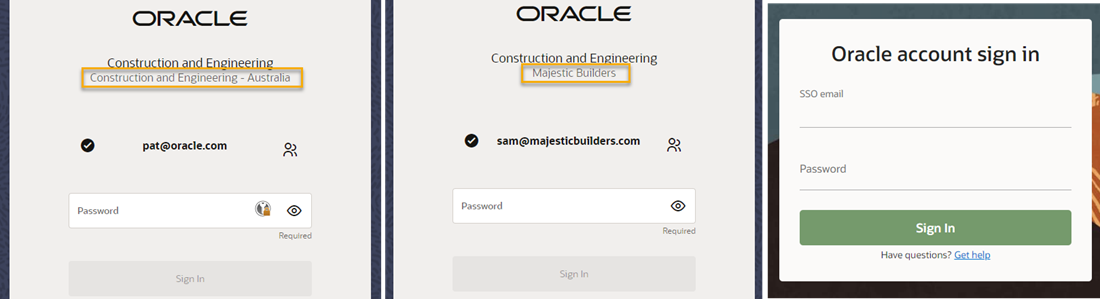
Some examples of different sign in screens are shown in the image below. The first example shows a user who sees a Construction and Engineering region like this. In the second example the organization has their own Identity Domain, so the user sees their organization name. In the third example the organization has enabled SSO, so the user sees their corporate SSO sign in screen.
If your organization has it's own Identity Domain and is not using SSO, you can choose to display your organizations name on the login screen as shown in the second image. You can see the instructions here to do this.