
Support Central
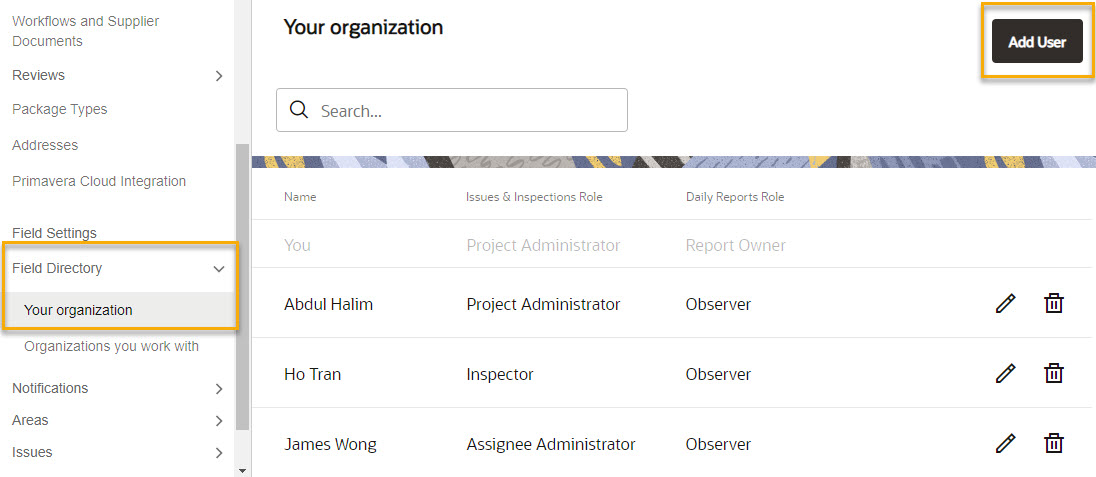
If you have an Administrator role, you can add people to participate in Field.
To add users you need to be assigned an Administrator role for either the Issues or Inspections roles. Learn more about Field roles.
Can't find the person you're looking for?
If the person you want to invite to your project doesn't appear in the list, you'll need to invite them to your Aconex project first. If you're not sure how to do that, contact your Project Administrator.
Once the person's invited to your Aconex project, they'll appear in your Field project directory, and you can invite them to join your Field project.

If you add a person to the project in error, click the bin icon to remove them.



