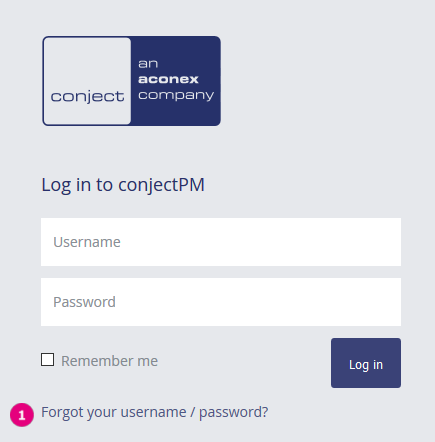
Open the following website. Or click on "Forgot your password?" on the login page.
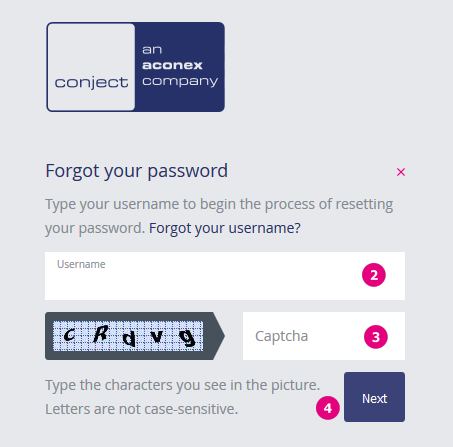
Enter your username in the next window.
Following type in the characters you see in the picture. Letters are not case-sensitive.
Click on "Next". If your username is not accepted proceed with the step Forgot your username.
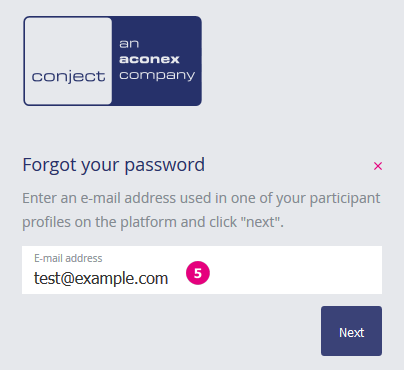
Enter your e-mail address which you specified during the registration or in your personal profile in the following form and proceed with "Next".
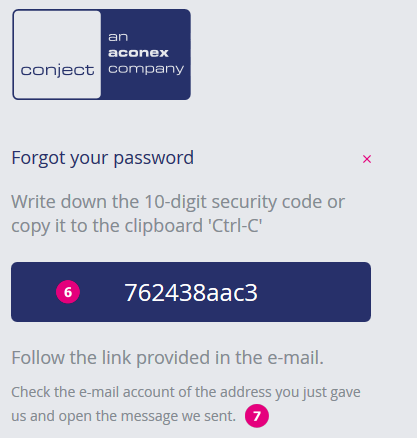
A 10-digit "Security code" is now shown. Note down the "Security code". Note: In order to avoidtyping errors mark the security code, copy it with the shortcut STRG+C and paste it with the shortcut STRG+V in to the input field shown at step 10.
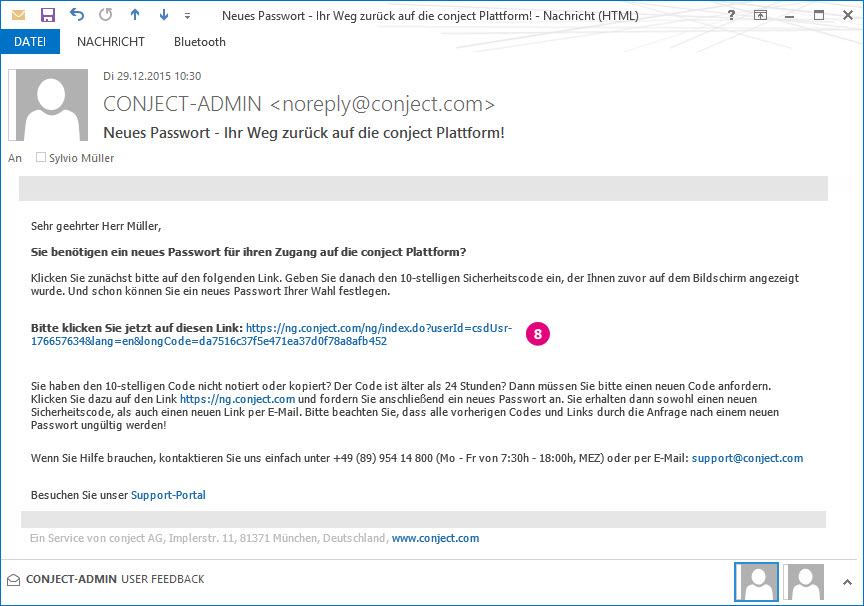
Concurrently you get an e-mail to the address of step 5.
Click on the link which is contained in the e-mail.
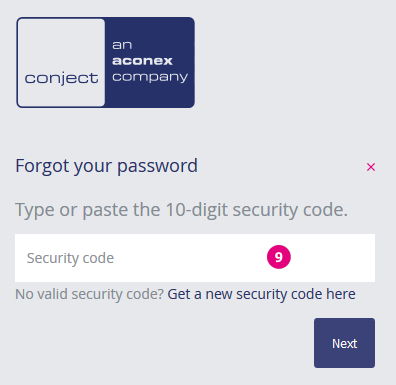
You are directed to a form where you can enter the "Security code". Now enter the "Security code" of step 6 and confirm with "Next".
Define a new password and repeat it in the next form. Pay attention to the notes on the right side. This contains hints for the proper choice of your password.
Click on "Next" and you are directed to your personal "Start page" of conjectPM

 Note: In order to avoidtyping errors mark the security code, copy it with the shortcut STRG+C and paste it with the shortcut STRG+V in to the input field shown at step 10.