Support Central
Update or add contract pay items to contracts that have already been approved.
Contract changes in Cost have a built-in process that controls the submission, review, and approval of the change. When a contract is shared, the downstream can submit a contract change but the upstream controls the assessment and approvals.
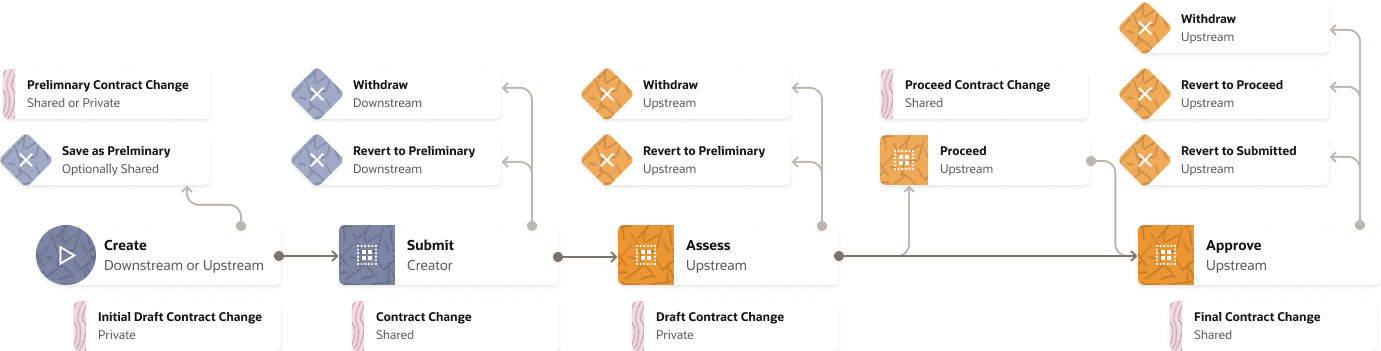
Contract changes go through several steps from creation, submission, assessment, and approval. In some cases, contract changes can be created and approved in one step.
On shared contracts, contract changes can be created by either the downstream or the upstream organization.
New contract changes and the assessment are created as drafts, which remain private until the status is changed. Contract changes can be saved in a preliminary status and shared with the other organization before the submit step. This allows the change to be edited by either organization.
Draft contract changes can be deleted on shared contracts, however once they are submitted or approved, they cannot be deleted. Only the status can be changed.
There are opportunities for the upstream and downstream organizations to revert to preliminary or withdraw a submitted contract change. The upstream organization can revert an approved contract change to proceed, submitted, or withdraw the approval entirely.
On non-shared contracts, your organization can create, edit, update the status, and delete contract changes.
Contract pay items and contract change items are related but not the same. Unlike payment applications, when you create a contract change it does not automatically copy all the contract pay items.
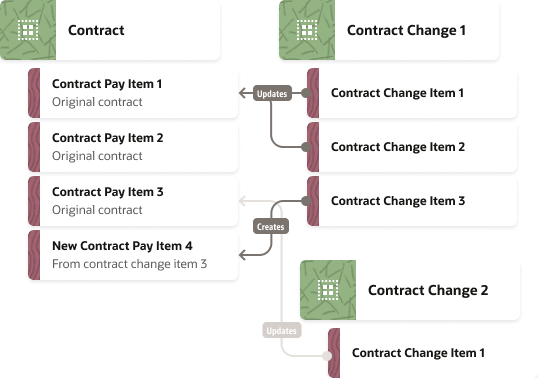
Each contract change has a set of items defined that represent the changes to the contract. Each item on the contract change can either update existing contract pay items or create new ones. Newly created contract pay items behave similarly to original pay items, however the link to the contract change is maintained and displayed in Cost.
Multiple contract change items can link to the same contract pay item (on the same contract change or in different contract changes).
Contract pay items created by a contract change can be modified by other contract changes in the future. If this occurs, you may not be able to delete or withdraw a contract change if it is referred to in a future contract change.
Contract changes have two unique concepts: Cost impact and ETC drawdown.
Cost impact is set for the entire contract change and affects how the contract change value is displayed in other grids while its being prepared (i.e. until the change is proceed or approved).
ETC drawdown is an option that can be set for the entire contract change, however each contract change item inherits the parent value and can be changed. This allows for change items that either drawdown from ETC or don't.
Contract changes can be created for contracts which are in the proceed, approved, and defects & liability status.
Contract changes may be created with no or a single contract change item, and may need additional items to be added. Contract change items can modify existing contract pay items or create new ones.
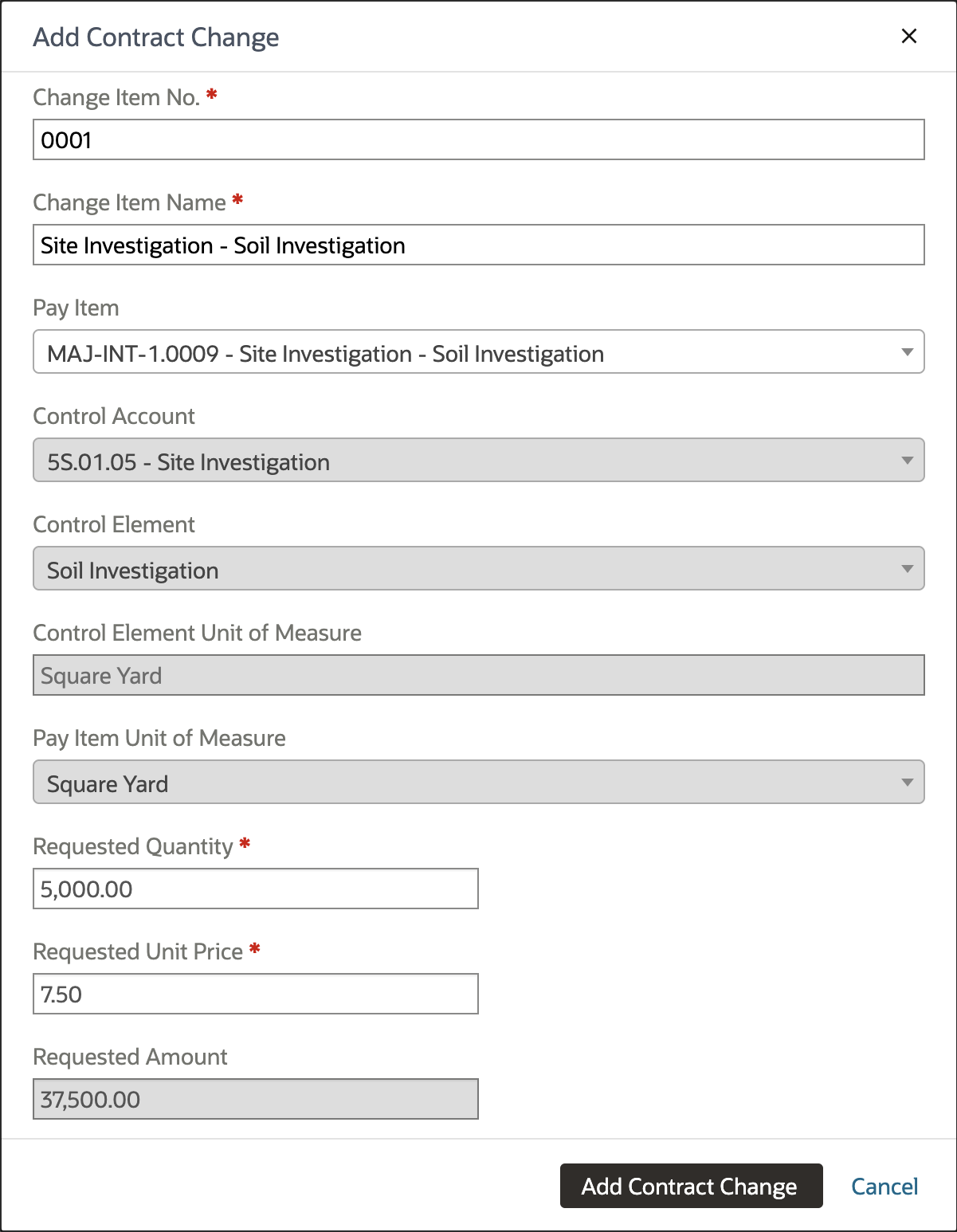
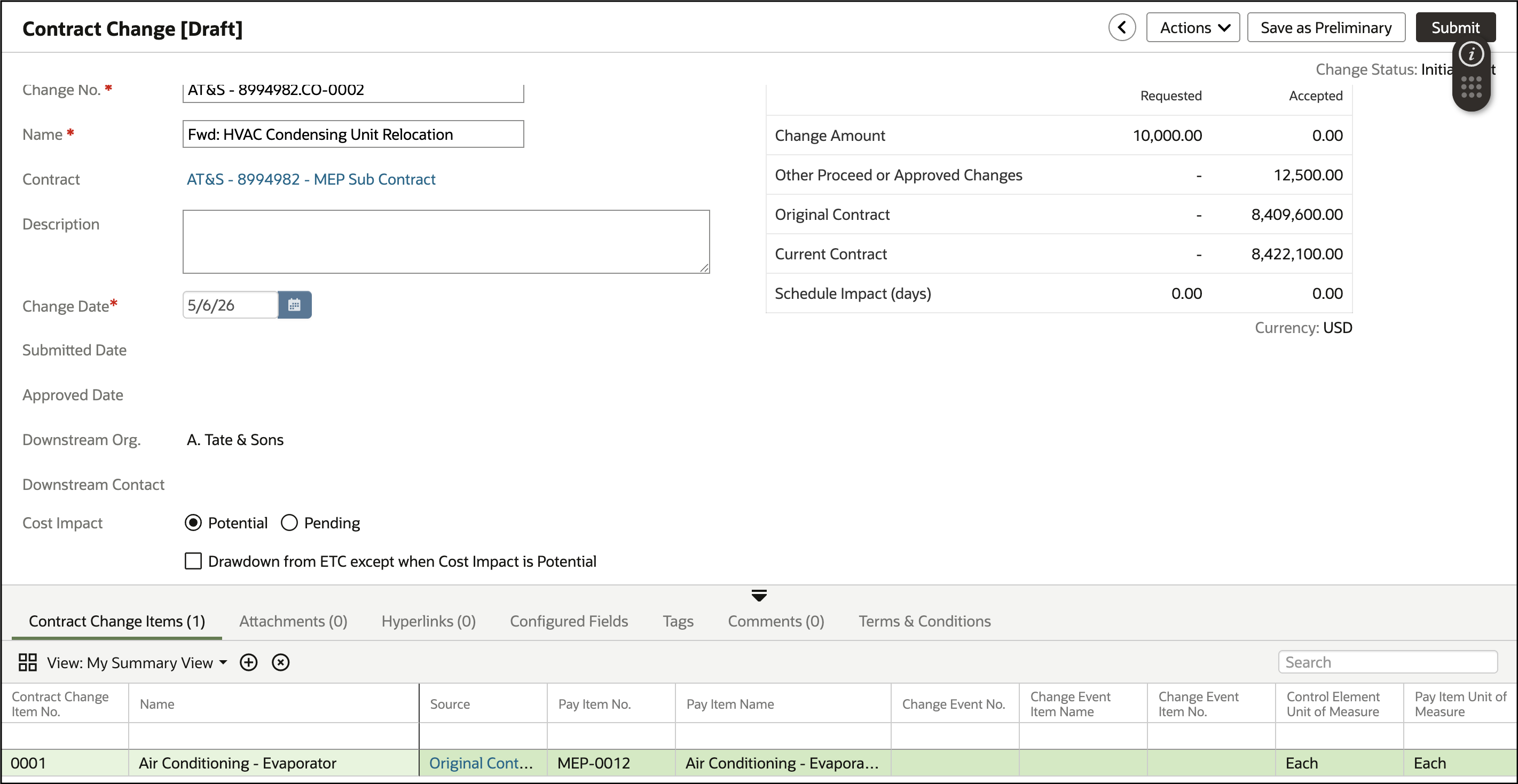
As the upstream, when you receive a submitted contract you can assess the requested amounts and either accept the change as-is or enter a different amount before approval.
On contracts that are not shared, you can still go through this process after creating & submitting the contract change, or you can create and immediately approve the contract change following the steps in the previous section.
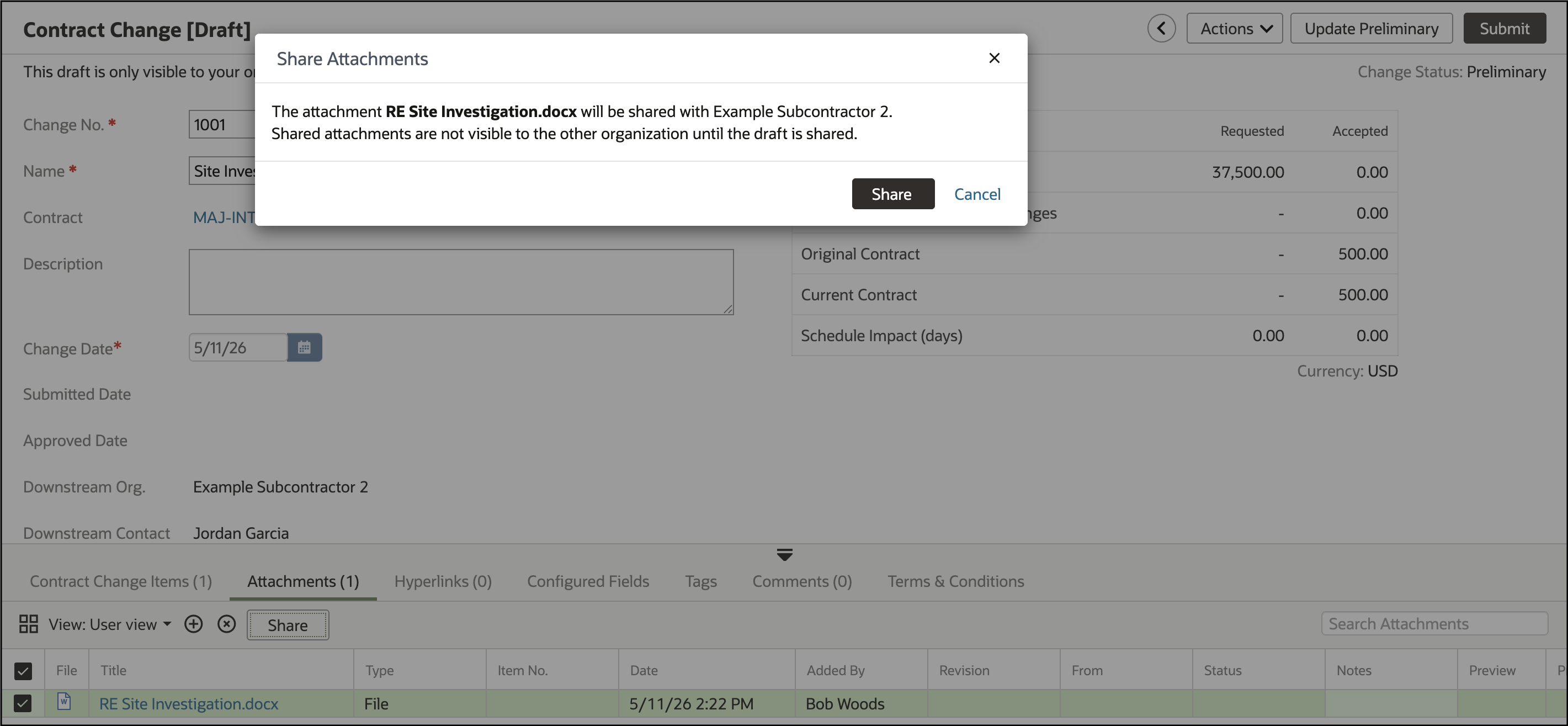
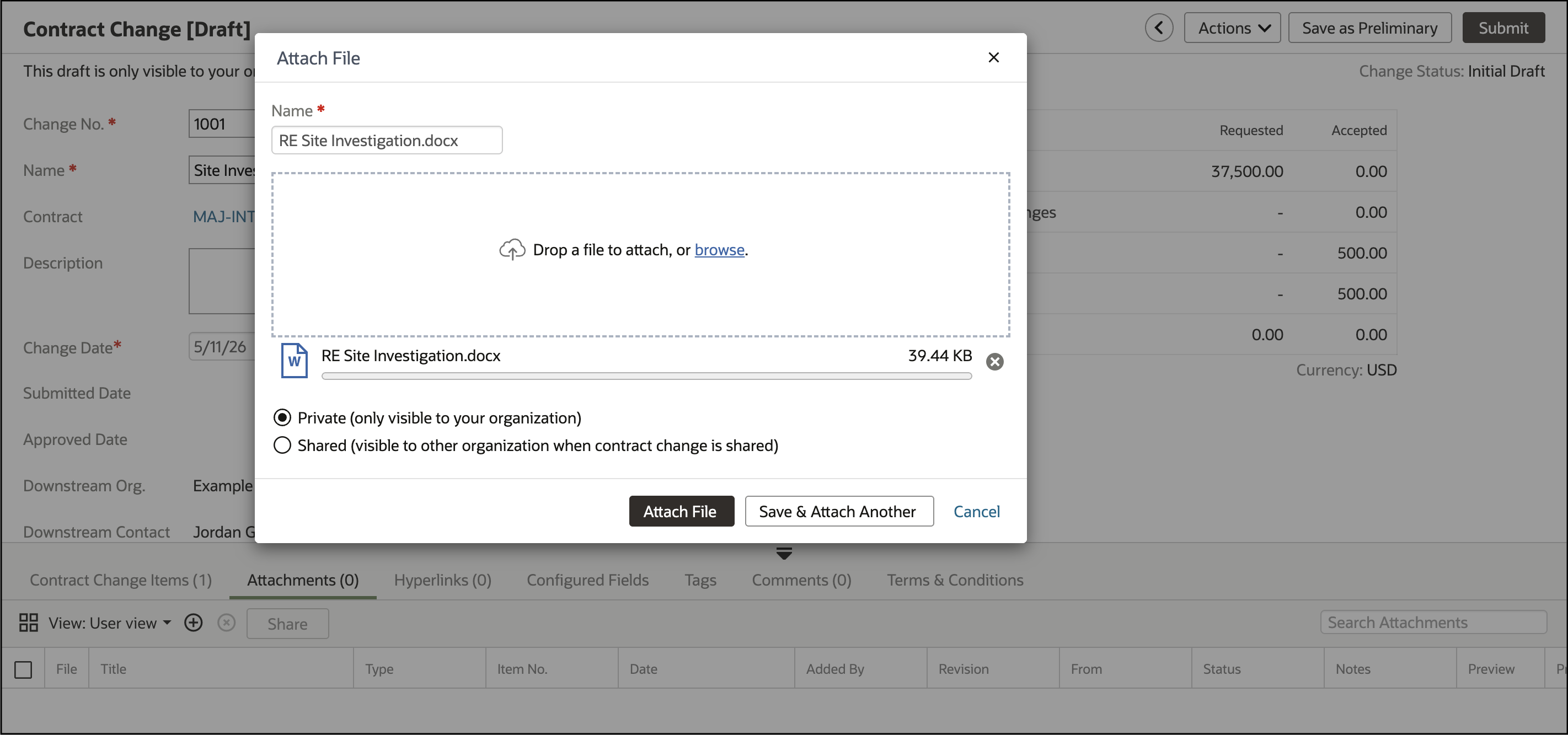
Mail and documents along with photos and other files can all be attached to contract changes. They can be kept private for your own organization or can be shared and visible to other organizations.
Add an attachment:
Share a private attachment: