Get started with unit pricing in Cost

To provide flexibility and visibility, amounts in Cost will now be calculated based on a quantity multiplied by a unit price.

Unit pricing applies across all grids including budgets, contracts, contract changes and any other field where you previously entered or viewed a lump sum amount. By default, Cost comes with a default list of units of measure but you can make changes.

What are the benefits of unit pricing?

Units of measure represent physical quantities like length, mass, area, and volume. They provide consistent and accurate measurement reporting across various data types.

With unit pricing in Cost, you can:

  • Set clear pricing for each unit of work, so all parties are on the same page.
  • Define the scope of work up-front and measure progress. This helps uncover missing items before they become costly issues.
  • Quickly update costs if quantities change during the project, supporting faster change orders.
  • Define units of measure at the organization level, providing consistent pricing across all your projects.
  • Create tailored units of measure for a specific project.

How do I enable unit pricing?

Unit pricing is enabled by an organization across all their projects. It cannot be enabled for a single project. Before you enable it, see Best practices for implementing unit pricing in Cost
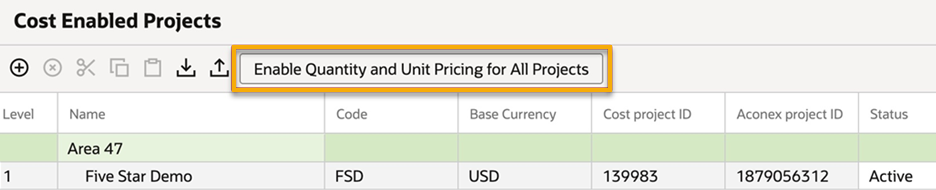
  1. From the Cost menu click Cost Administration and select Projects.
  2. Click Enable Quantity and Unit Pricing for All Projects.

Tip!

After you've enabled unit pricing, all existing data across all your projects will move into the unit pricing system. This action cannot be reversed and affects all existing data throughout Cost (including Direct Actuals, Contract Pay Items, and Change Items).
  1. On larger projects it may take up to an hour for the data to migrate. You can click away from the screen to continue your work (or logout) and let the migration run in the background. All data is read-only until the migration completes.
  2. You'll see a notification on your screen once the migration is completed.
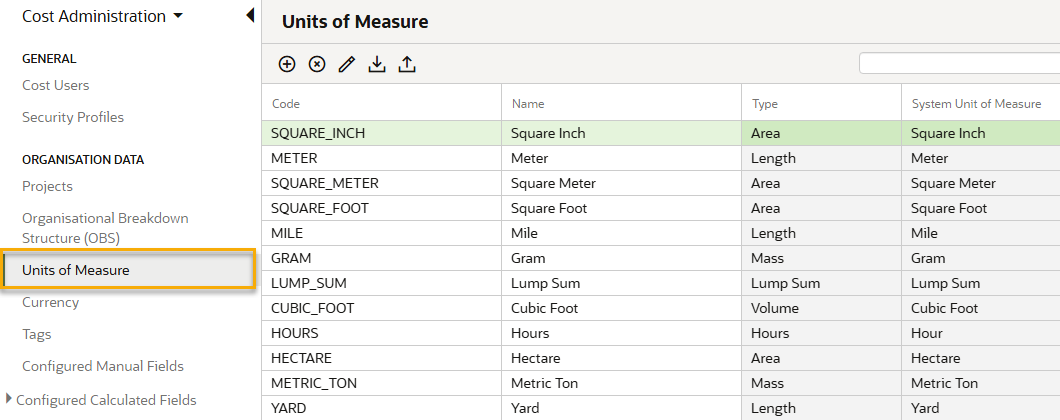
  1. Refresh the Cost Administration screen and you'll see the newly added Units of Measure option.
  1. The changes you'll see throughout Cost include new control element categories and new fields for unit prices and quantities. These changes are described below.

What happens to control element categories?

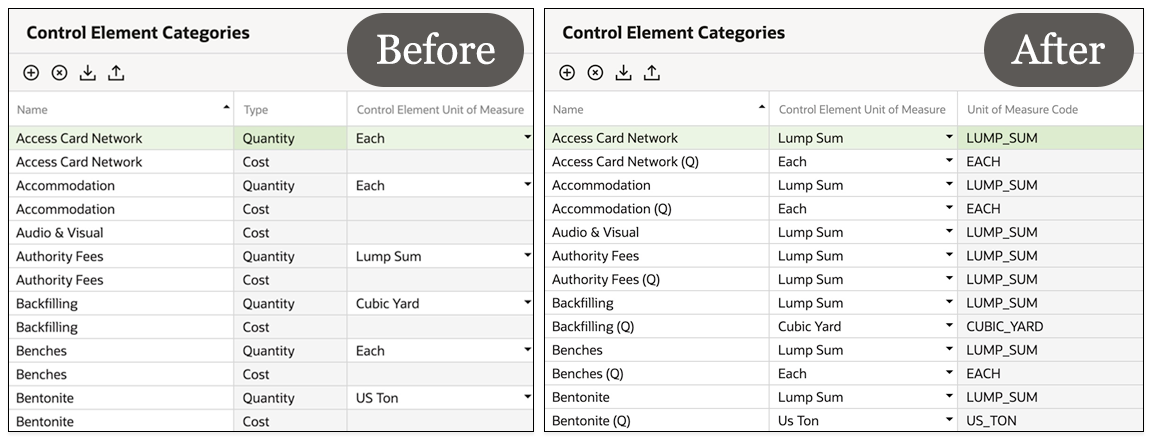
All existing control element categories will move into the new Unit of Measure configuration.

Previously, there were three different types of Control Element Categories (Cost, Hours, and Quantity). These are no longer defined by type, and instead each category will be assigned a unit of measure. 

Your existing Control Element Categories will be updated as follows:

  • Categories of type Cost will be assigned the unit of measure of Lump Sum.
  • Categories of type Hours will be assigned the unit of measure of Hours.
  • Categories of type Quantity will retain the unit of measure currently assigned.

This change impacts all values/amounts entered in Cost using these types.

The image below shows an example of how control element categories are configured on a project before and after unit pricing was enabled.
What happens to values entered as a Cost type?

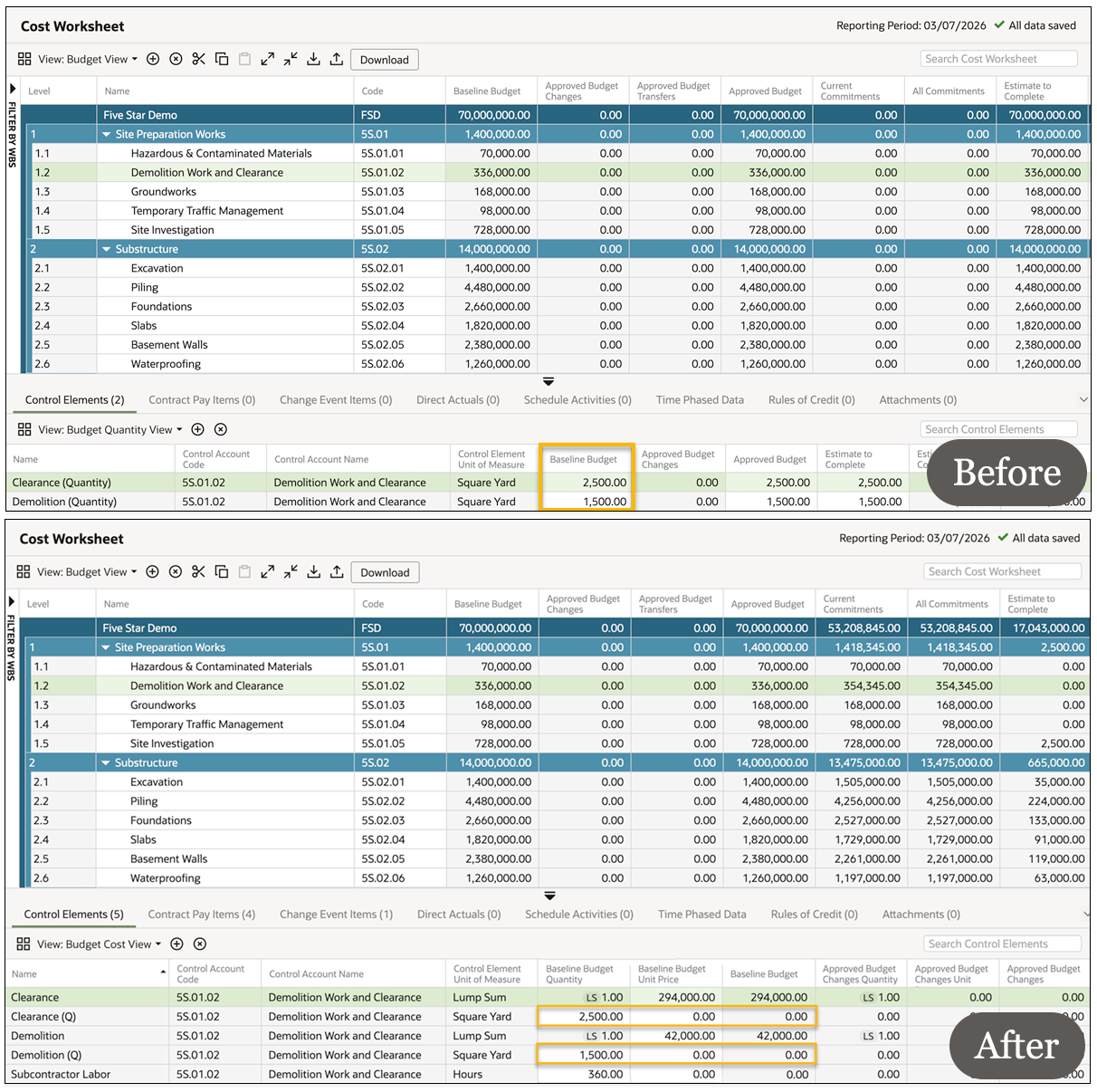
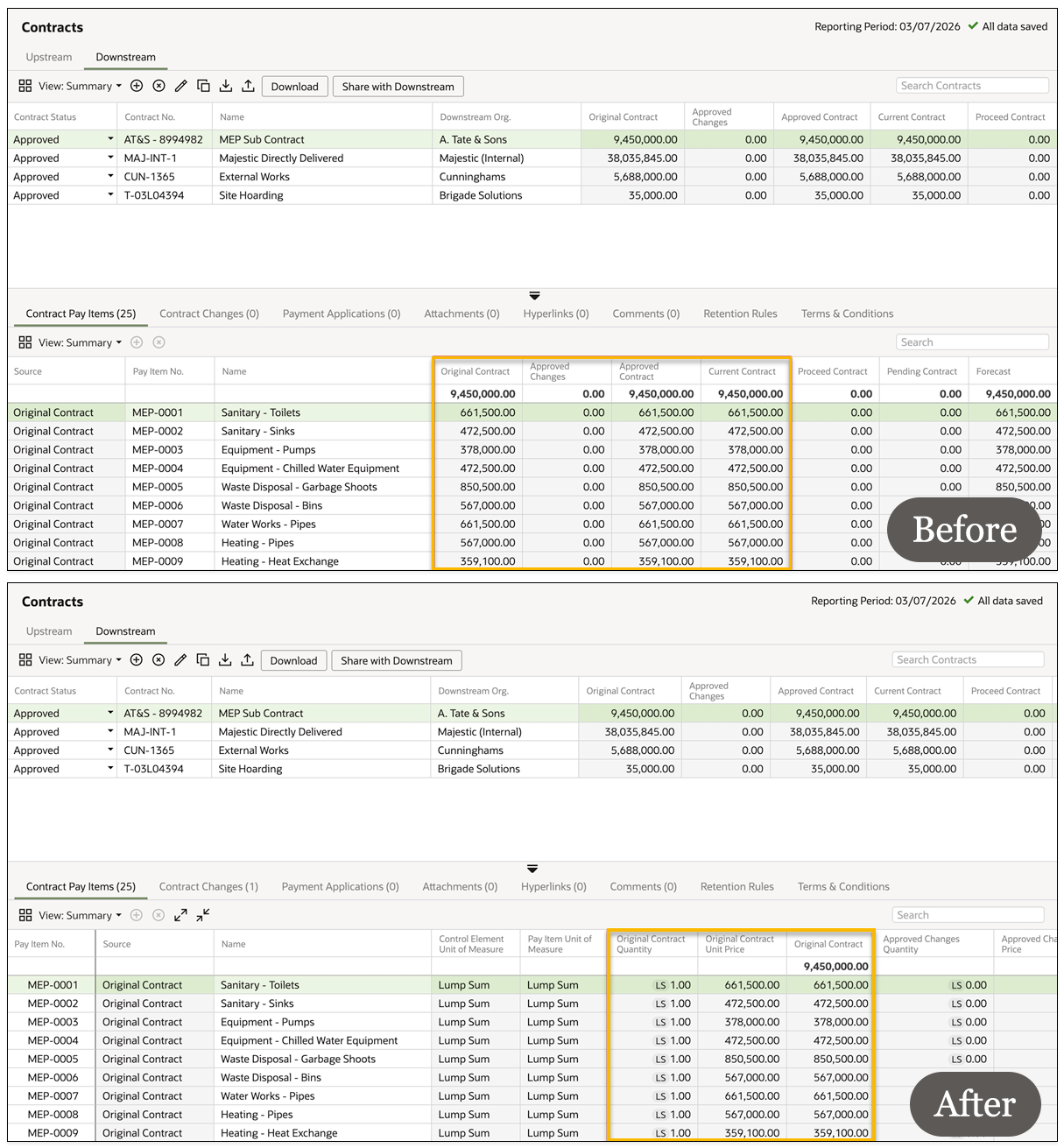
  • Existing lump sum values (of the type Cost) will be set as the Lump Sum unit of measure, with a quantity of one.
  • In every screen and column where a lump sum amount was previously entered or displayed, you'll now see three separate fields showing the quantity, unit price, and the calculated total.  (where the calculated total is the equivalent of the lump sum amount).
  • The unit price fields will automatically be defined as equal to the existing total budget or cost value. The existing total budget or cost value will be retained.
  • You can continue to use lump sum amounts in Cost, by entering the total amount in the unit field, with a fixed quantity of one. 

The image below shows an example of a lump sum amount before and after unit pricing was enabled.
What happens to values entered as an Hours type

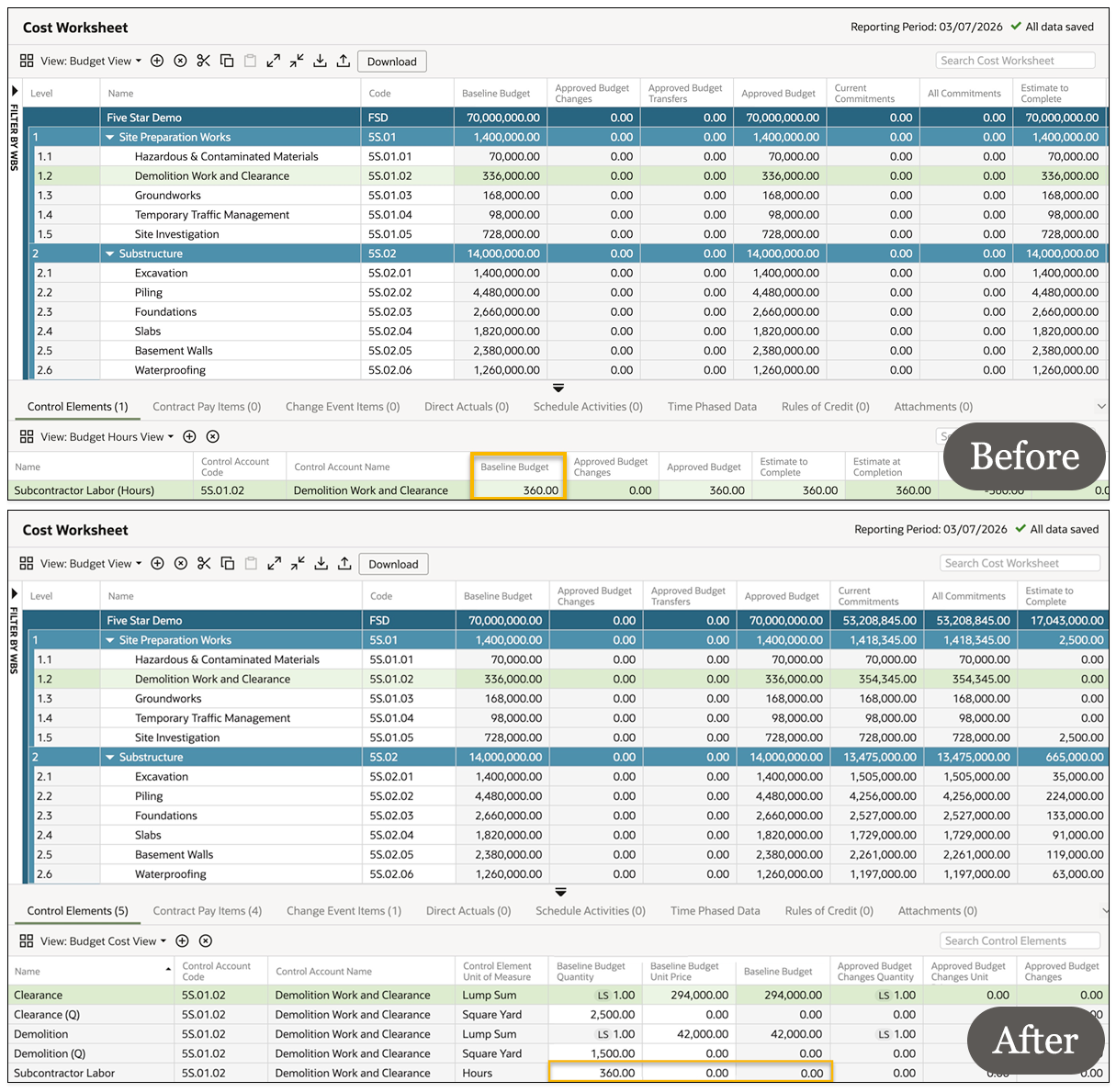
  • The unit of measure of Hours will automatically be defined.
  • The quantity amounts will be retained.
  • The unit price fields will automatically be defined as 0.00.
  • The existing total budget or cost value will be defined as 0.00.

The image below shows an example of an Hours amount before and after unit pricing was enabled.
What happens to values entered as a Quantity type

  • The unit of measure will be retained.
  • The quantity amounts will be retained.
  • The unit price fields will automatically be defined as 0.00.
  • The existing total budget or cost value will be defined as 0.00.

The image below shows an example of a Quantity amount before and after unit pricing was enabled.