
Support Central
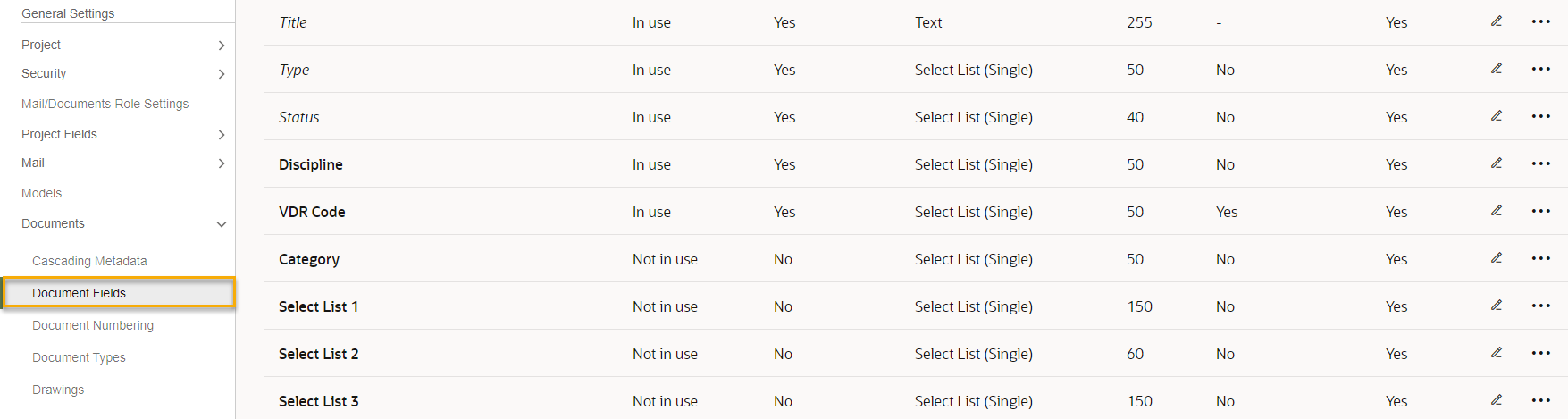
Check the document fields for your project.
Avoid entering special characters such as < or > in your document or project fields. See Invalid characters in Document and Project Fields
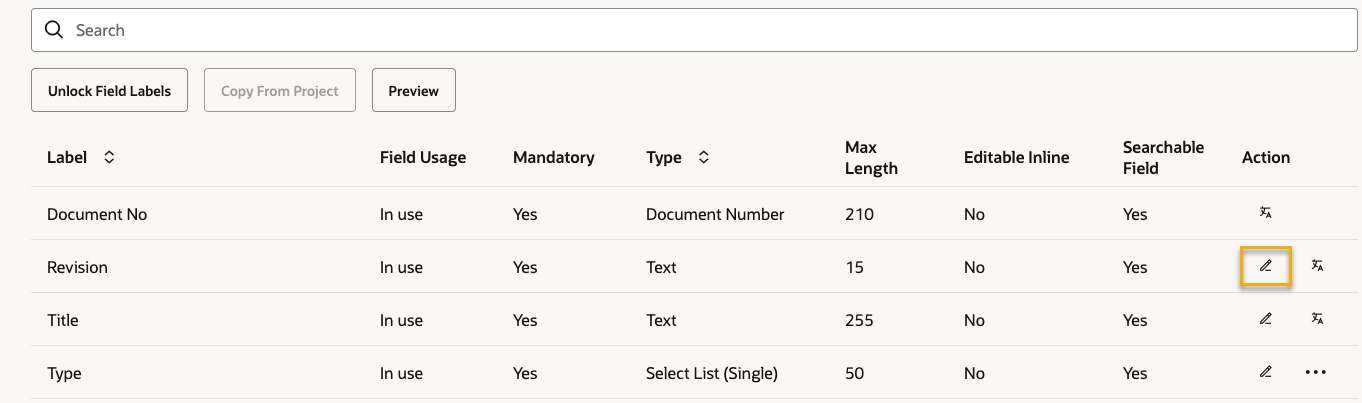
Click the pencil icon in the Action column to make changes, such as making the field In Use or mandatory. Click the tick icon when you've finished editing.
Set a field as In Use to make a field available in your project. Change it to Not In Use it if you do not want to use it on your project.
Some document fields must be included on every project (the are always set as in use) and some are always mandatory. Note you cannot make the Review Source and Review Status fields mandatory but you can set them as not in use.
| Field name | Always set as In Use? | Always set as Mandatory? | Field name can be changed? |
| Document No | Y | Y | N |
| Revision | Y | Y | N |
| Type | Y | Y | N |
| Version | Y | Y | N |
| Date Modified | Y | Y | N |
| Confidential | Y | Y | N |
| Title | Y | N | N |
| Status | Y | N | N |
| Uploaded by | Y | N | N |
| Date Uploaded | Y | N | N |
| File | Y | N | N |
| Planned Submission Date | Y(if Supplier Documents enabled) | N | N |
| Milestone Date | Y (if Supplier Documents enabled) | N | N |
For more flexibility, you may apply project fields or project field hierarchies to your document types.
You can check how your changes will appear to project participants by clicking the Preview button.
When you have confirmed that all document fields are correct for your project, and made any necessary changes, click Save in the top right hand corner.



