Reset your password

Reset your password and get access to Aconex.

  1. Navigate to the login screen and enter you email address.

    Note: Each Aconex instance and associated Lobby has a different login screen. Check the Lobby and Aconex links for your instance to ensure you access the correct login screen.
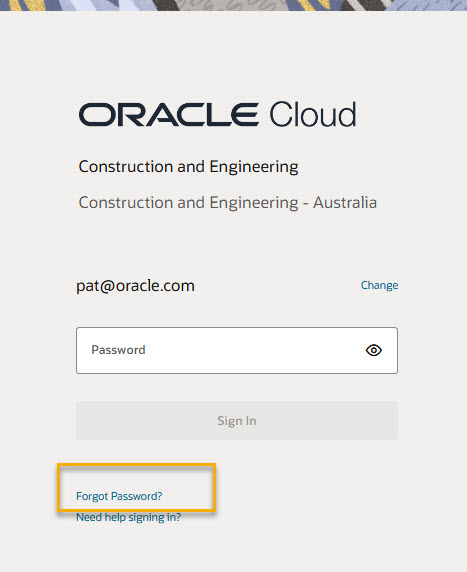
  1. At the password entry screen, click Forgot Password? 
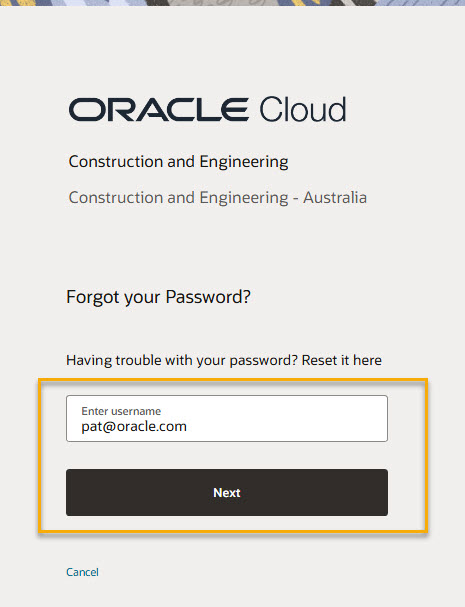
  1. You'll be taken to the password reset screen. Enter your email address and click Next.
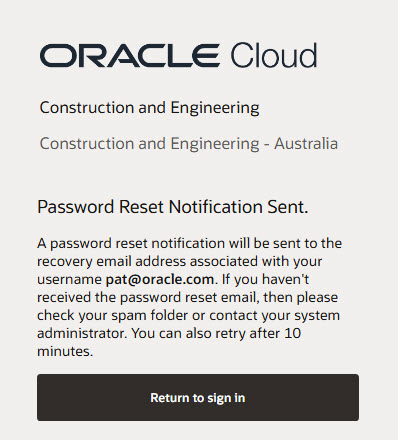
  1. A password reset notification will be sent to your email address.

Tip!

Email didn't arrive? Check your junk or spam folder. You can also retry sending the email after 10 minutes. If it still doesn't arrive, contact your IT administrator.
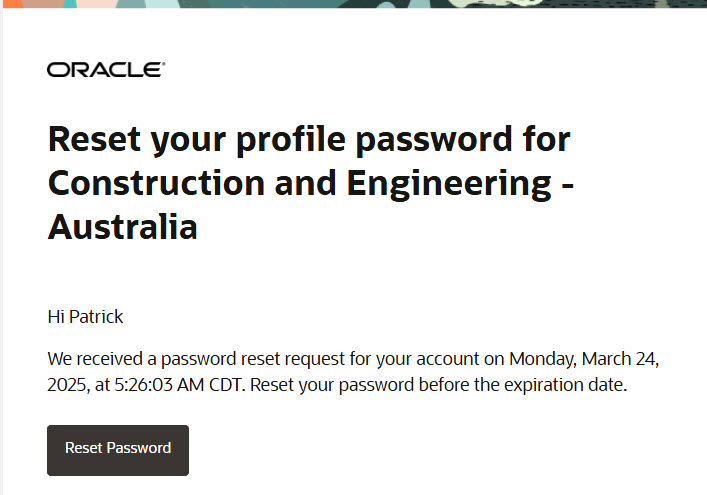
  1. When the email arrives, click the Password Reset button (or the link as directed).
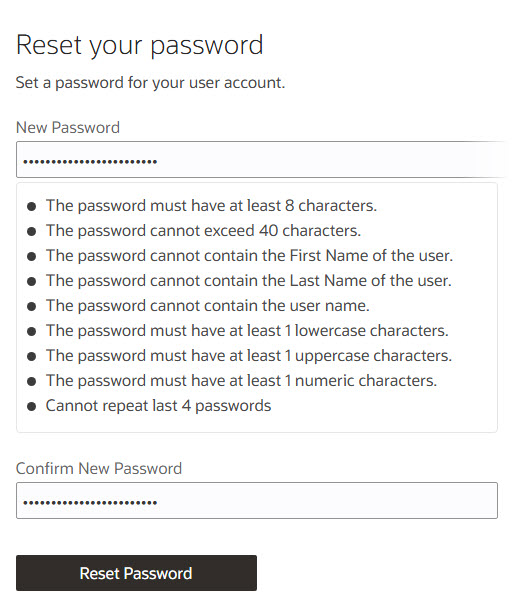
  1. Enter and confirm your new password, then click Reset Password.
  1. Your password has now been reset. You can close the tab to go back to the login page.
  2. Use your new password to log into an Aconex instance directly or you can sign into the Lobby and see all your linked accounts and projects across all instances. We recommend using the Lobby if you are an Organization Administrator or you have multiple Aconex accounts.

Tip!

If you're having trouble accessing Aconex, visit our troubleshooting guide. You can also learn more about password requirements and how often you need to reset your password.

What's next?