
Assign a role to a Field user

Give users appropriate roles on a project.

Permissions in Field are provided to each user by assigning them a role in the Field directory. There are several features in Field, each with their own set of roles. Each role determines what a user can do when using the feature. This allows organizations to manage what people can do in Field. 

Tip!

If you are a Project Administrator for the Issues Role, ​you can change Issues Role assignments for users in other organizations. Similary, if you are a Project Administrator for the Inspections Role, you can change the Inspections Role assignment for users in other organizations.

Assign a role to users in your organization

You must have an Administrator role for Issues or Inspections to access this screen. You can only assign a role that is equal to or below your role. By default, a newly added user is assigned the Observer role.
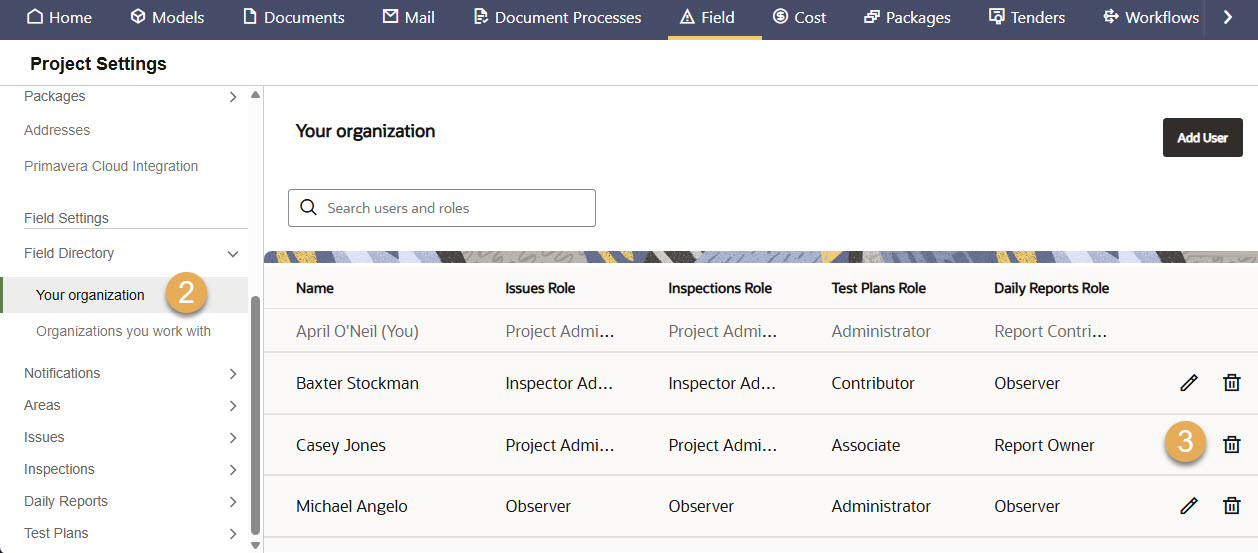
  1. From the main navigation menu, click Setup and select Project Settings.
  2. Under Field Settings, click Field Directory, then click Your organization. You’ll see a list of users added to Field in your organization, and the roles they’ve been assigned.
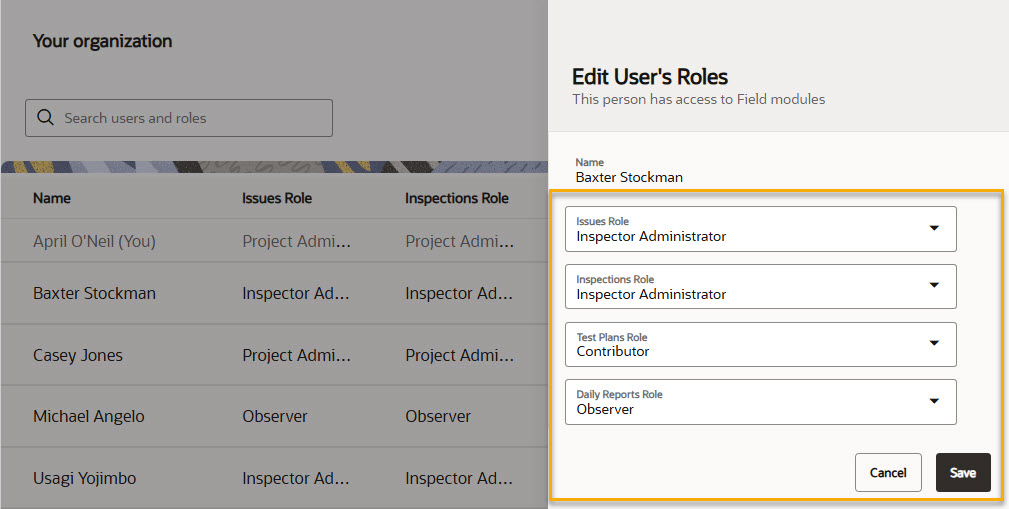
  3. Click on the pencil icon to change the user's roles.
  1. Select the appropriate roles for the user.
  2. Click Save.
  3. The roles list is updated immediately to reflect the newly assigned roles.

Tip!

If a role is greyed out, the user may already have a role that's higher than yours, so you cannot make changes.

Assign a role to users in other organizations

If you are a Project Administrator for the Issues Role, ​you can change Issues Role assignments for users in other organizations. Similarly, if you are a Project Administrator for the Inspections Role, you can change the Inspections Role assignment for users in other organizations.
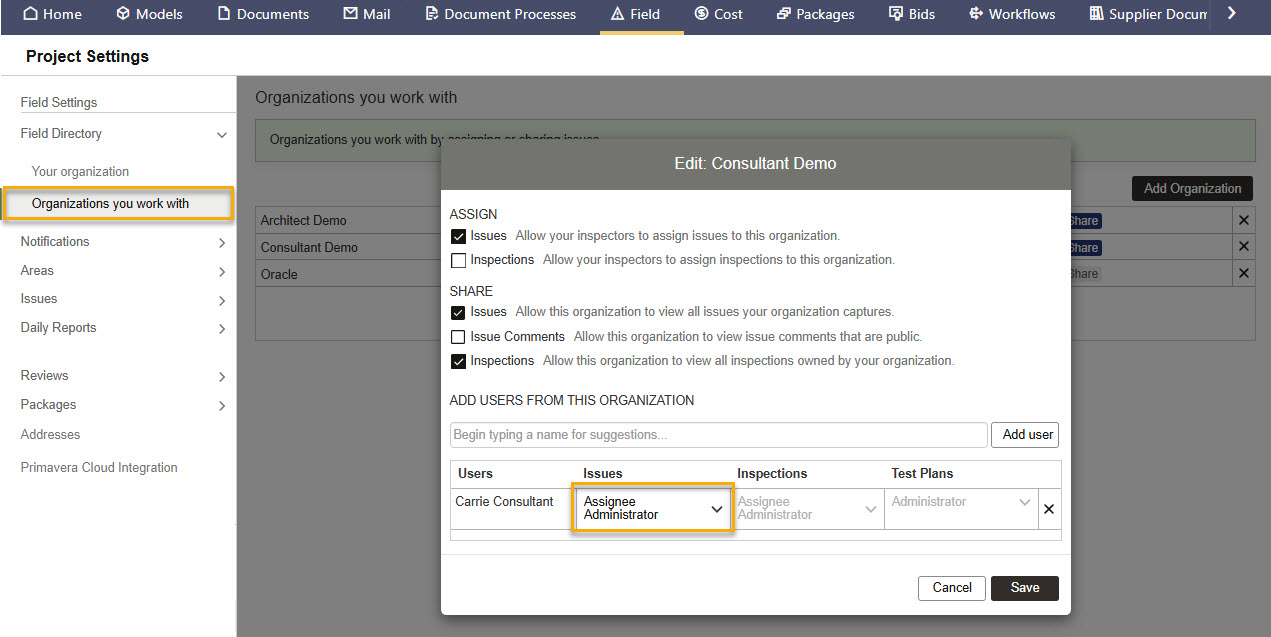
  1. From the main navigation menu, click Setup and select Project Settings.
  2. Under Field Settings, click Field Directory, then click Organizations you work with. 
  3. Click an organization to see the list of users to assign roles to.
  4. Find the user you want to update and click a role to change it.
  5. Click Save.

Tip!

You'll need be a Test Plan Administrator or Associate to edit Test Plan roles in this screen.
