
Support Central
Save and share your Inspection's progress with others.
Log into Aconex in a browser and go to Field/Inspections.
Select your project’s Location using the location selector.
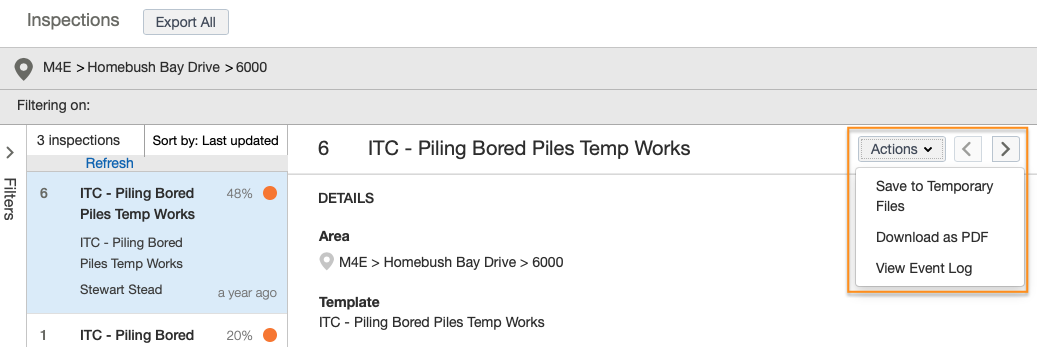
Click on the inspection you want to export.
Click the Actions button at top-right of the inspection panel and select Download as PDF.
Click on the File menu and select Print. Follow your usual printing procedure to print the Inspection.
Now that you've downloaded the Inspection, you can share it with others on your project using Aconex Mail.



