High Compliance Release 26.08.100

This release brings many features and improvements to Oracle Aconex Federal Government (USGOV) and Aconex for Defense (USDOD). These instance will be updated to Release 26.08.

Documents

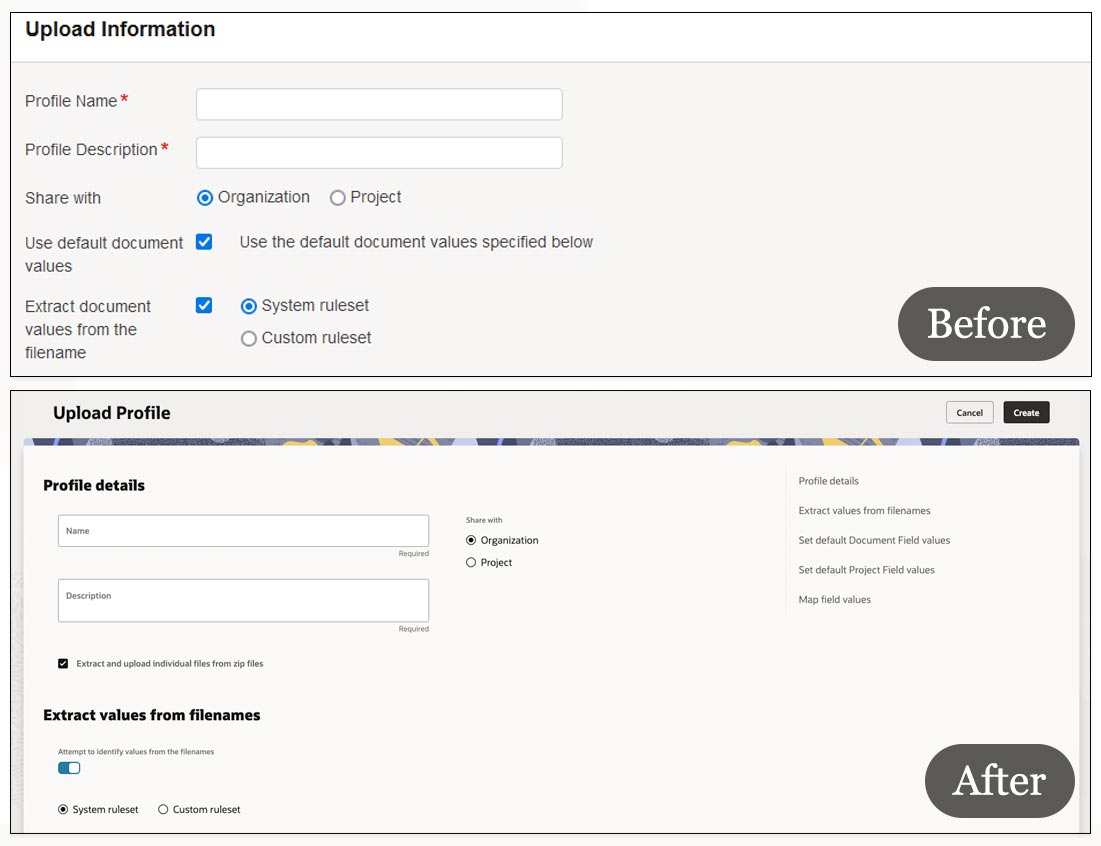
A new improved upload profile

  • Project Fields associated with document types are now available in upload profiles.
  • When a document type is chosen, you'll see all relevant Document Fields and Project Fields associated with that type.
  • Choose default values for Project Fields and Document Fields.
  • We've also given the upload profile screen a new look.

Faster autonumbering, all in one place
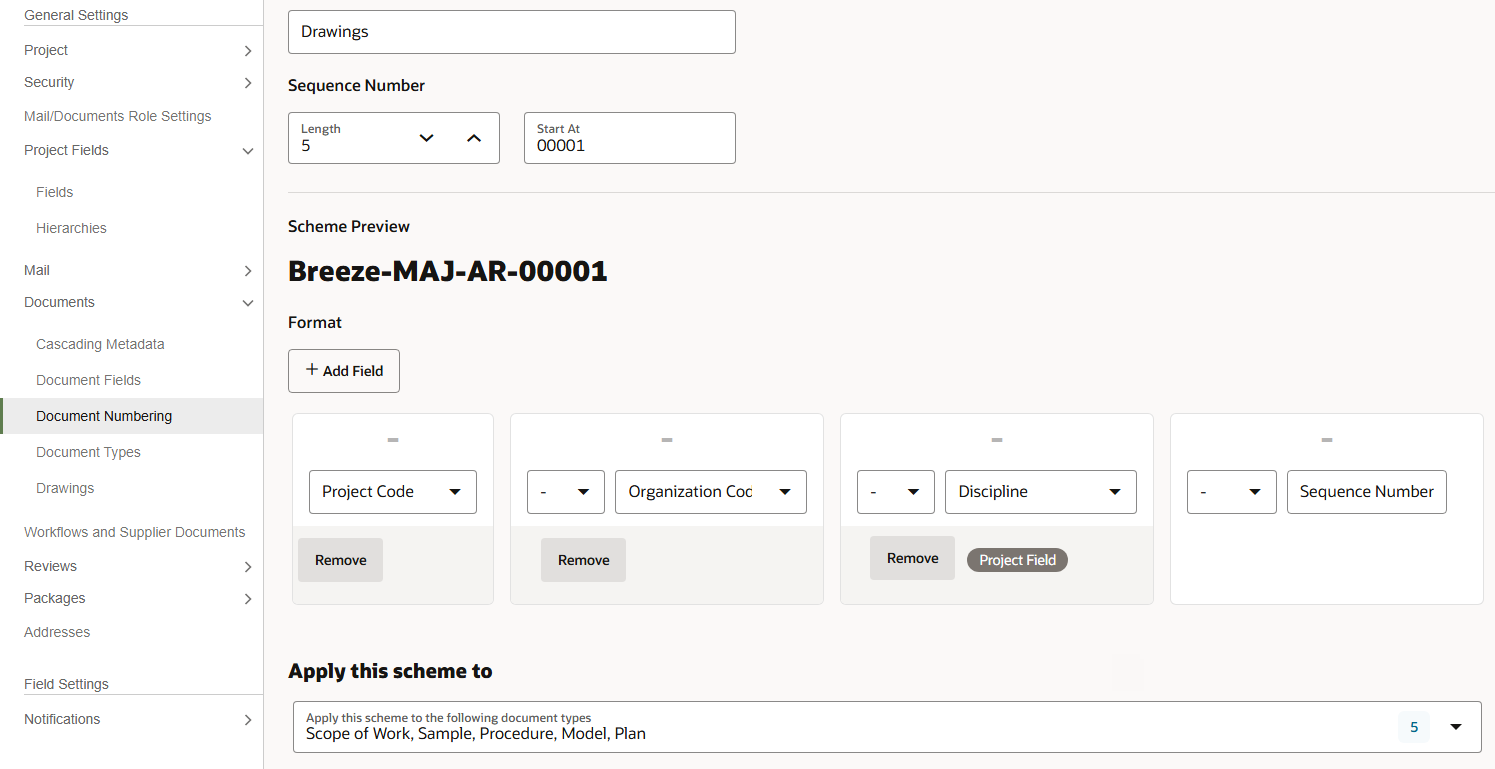
  • Do you create or update autonumbering schemes? This is the update you've been looking for.
  • There's now one place to manage all your document numbering schemes. 
  • We've rebuilt the Document Numbering screen from the ground up, allowing you to create schemes using document fields, project fields, or a combination of both.
  • Drag and drop fields to arrange your scheme, then apply it to multiple document types in one go.
  • You no longer need to apply project field schemes one document type at a time.
  • For consistency, you won't be able to create or update schemes from the Document Types screen, as all autonumbering will be managed from the Document Numbering screen.

A faster way to bulk upload documents
  • We've built a new bulk processing tool to help you add or update hundreds of documents even faster. 
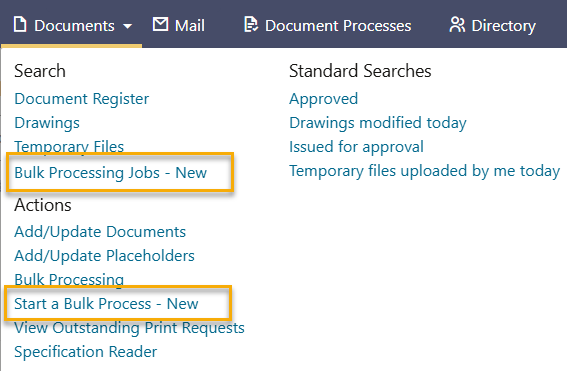
  • Access the new tool from the Documents menu:
    • Under Search, click Bulk Processing Job - New to see previous jobs. You can also start a new job from here.
    • Under Actions, click Start a Bulk Process - New to jump straight in to the new tool. 
  • If you upload files within the new bulk processing flow, we'll pre-fill the metadata template with the filenames for you.
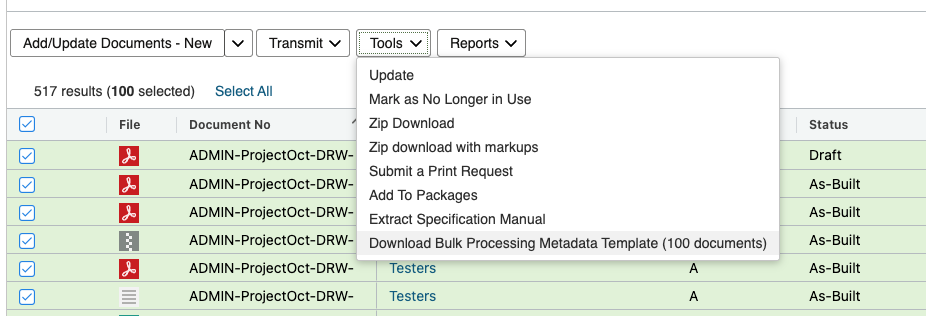
  • To update documents fast you can select up to 5000 documents from the document register and download a pre-filled template. The template will be populated with all the required metadata for the documents. You no longer have to copy and paste metadata from exported reports, saving you time.

A new look for document fields

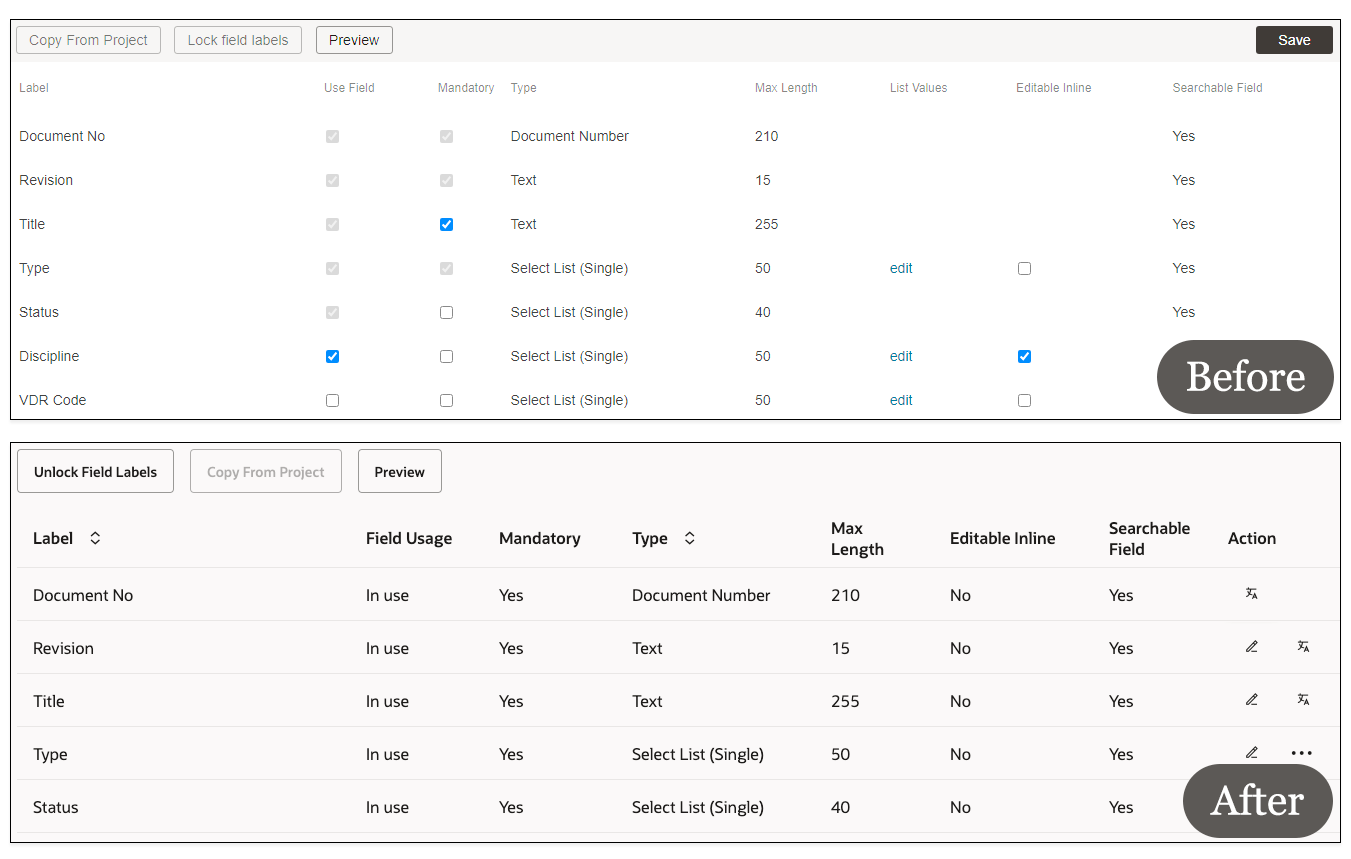
  • The document fields screen has a fresh new look so it's easier to use. 
  • Checkboxes are replaced with labels such as Yes or No to make those settings clearer.
  • Click the pencil icon in the Action column to make changes, such as making the field mandatory. Click the tick icon when you've finished editing.
  • Under the three dots menu you can view translations and tooltips, but as before, you'll need to contact us to make changes to them.  
  • To add select list values and codes click the three dots menu and select Configure select list values.
  • You'll see the existing values in a brand new screen. From here, you can add or remove values or import them in bulk.

Models

Coordinate models

  • Model Coordination features such as measurements, markups, issues, and clash detection are available to all users on all projects.
    • Raise design issues and monitor them from a dedicated dashboard.
    • Identify clashes in the early stages of the design process
    • Perform measurements in the 3D space.
    • Add markups to highlight areas of the model.
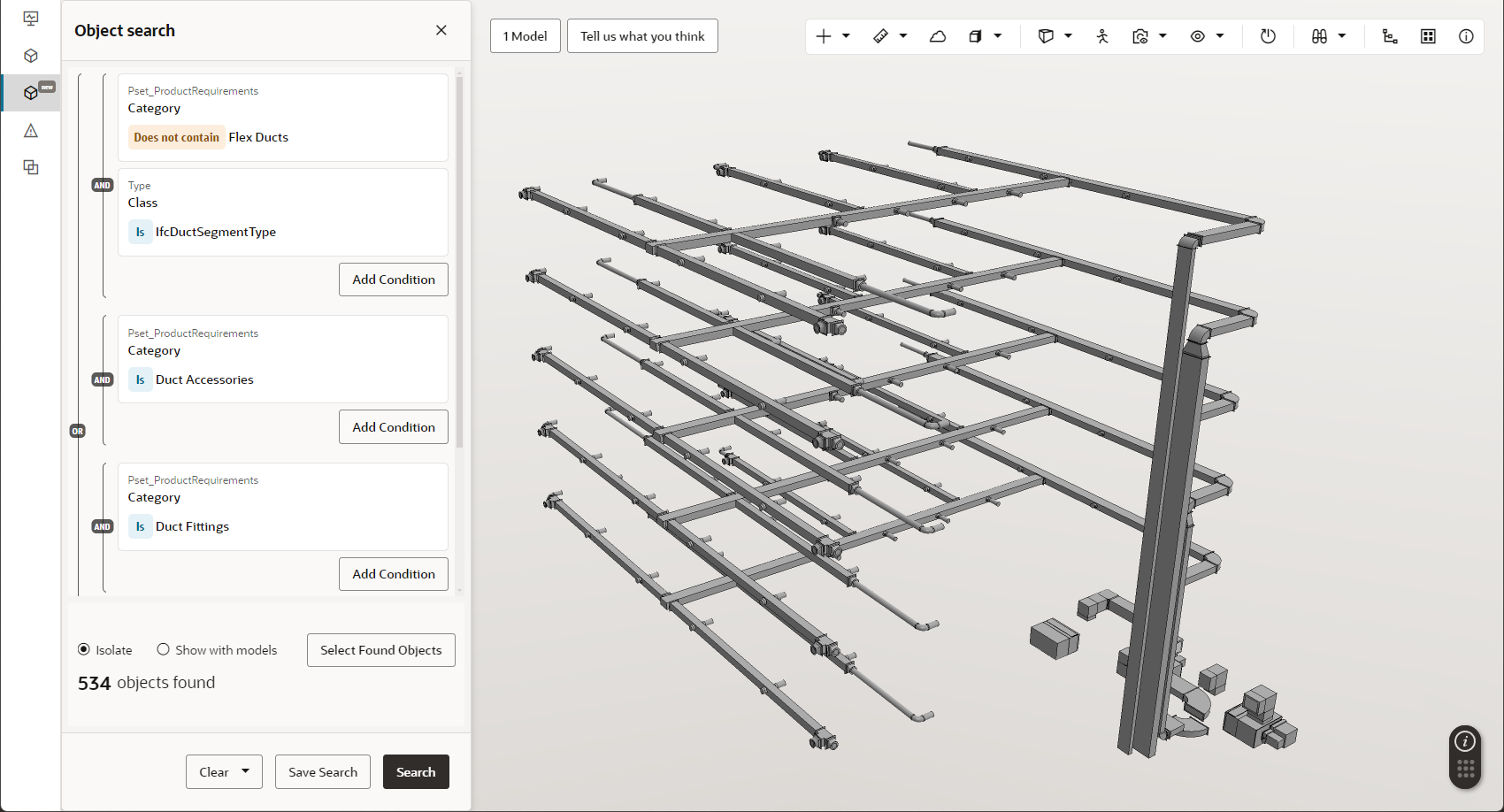
    • Search for objects and use them in your clash tests.
    • Link documents and mail directly to objects for quick reference.

Insights

Create custom reports

  • The report editor makes it easy to create custom reports. In a single flow, you can select columns, apply filters, and configure your report layout.
  • Reports created using the new editor are optimized for Excel output, plus the abilty to report across modules, such as Mail, Documents and Workflows.
  • Learn how to use the new custom report editor.


While we endeavour to keep this information complete and accurate, we advise you to thoroughly test and confirm feature availability before implementing new processes on your project. This information is accurate at the time of publishing and is subject to change without notice.