
Support Central
Export predefined reports on organization details including user details, activity, and user role assignment.
These reports are organization-level and not project-specific. They contain information from all projects your organization is involved in. You can download them from any project that you have access to, and see the same information.
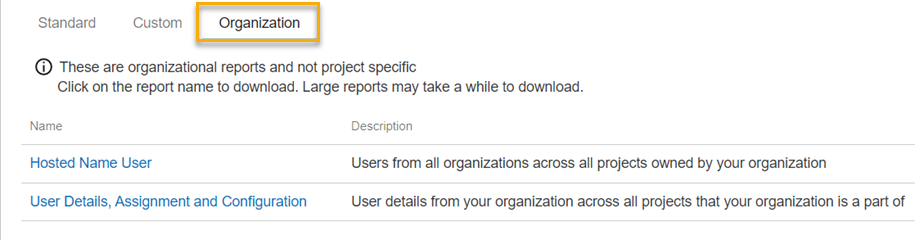
You must have access to at least one organization report for the organization tab to appear. Contact your organization administrator to grant the required permission to your user role.
The following reports show data up to the last 15 minutes: Hosted Name User, User Details, Assignment & Configuration, Distribution Group Members. In the event the reporting application is under heavy load you may need to wait up to 30 minutes for the data refresh. The Project Activity Report refreshes monthly.
Each organization report requires its own separate permission. Your Organization Administrator will need to grant permission to your user role so you can download a report. By default, permission for all reports is granted to the org admin user role.
|
Report Name |
Description |
Required Permission |
|---|---|---|
| Hosted Name User | Lists all unique users from all organizations across all projects owned by your organization. |
Download Hosted Name User Report |
| User Details, Assignment & Configuration | Details of all unique users from your organization across all projects that your organization is part of. It also shows the configuration of security assets for your organization. | Download User Details Report |
| Project Activity Report |
Adoption/activity status from all organizations across projects owned by your organization. Choose the time period and projects to report on. You can select up to 20 projects your organization owns and set the time period up to 1 year. Note: The data volume calculated by the report is an approximate value and might slightly deviate from the exact volume in projects. |
Download Project Activity Report |
| Distribution Group Members | Manage your organization's mailing groups. This report shows you which users have been added to each group, across all projects your organization is invited to. | Download Distribution Group Member Report |
| Project Participant Report | This report is only available to Org Admins and Project Admins to help you manage project participants. It contains details of:
|
Download Project Participant Report Report data also varies depending on the user's role. Please refer to the FAQs below for more information. |
Org admins should carefully grant these permissions. Organization reports are organization-level which means they contain information from all projects your organization is involved in. Users who view these reports may see information from projects they are not invited to.
How are unique users identified in the Hosted Name user report?
A user is considered unique based on their first and last name and their organization's email domain.
Please note that this rule uses the organization's email address configured in Aconex, not the user’s email domain.
Below are a few scenarios with two sample organizations: Oracle and Aconex.
Scenario 1: Both organizations have the same organization email address configured
If the same person exists in both organizations (same first and last name), they are treated as duplicates and counted only once.
Scenario 2: Organizations have different organization email addresses configured
If the same person exists in both organizations, they are not treated as duplicates and will be counted separately because the organization email addresses are different.
Scenario 3: Organization email address is not configured
If an organization does not have an email address configured in the app, the report uses the Organization Trading Name instead.
If neither organization (Oracle & Aconex) has an email address configured and their trading names are the same; then the same person in both organizations is treated as a duplicate and counted once.
Scenario 4: One organization has an email address configured, the other does not
In this case, the same person in both organizations is not treated as a duplicate and will be counted separately.
Which projects are listed in the report?
You'll see projects owned by the logged-in user’s organization.
The following projects are not included:
Which users are listed in the Project Users worksheet?
You see users who are associated with at least one project listed in the report.
The following users are not included:
Why are some role names missing from the 'UserDetailsAndRoleAssignment' worksheet?
The worksheet displays users assigned to at least one role. It does not include unassigned roles.
Why is 'Last Logon' or 'Account Created On' not showing any information?
These fields may be blank if:
How is a Project Admin defined?
A Project Admin is defined as a user from the Aconex project-owning organization who has been granted Edit project settings permission in their assigned organization-level user role. The report does not consider access granted at the project-level user role.
Why does my report have multiple 'UserAndProjects' worksheets?
The report has a limit of 65,000 rows per worksheet. If your report has more than 65,000 users, the data will be displayed on multiple worksheets - each with a maximum of 40,000 users listed.
How is an active organization identified?
Any organization that sent at least one mail or uploaded a document in the reporting period is considered an active organization.
Will the Project Participant Report counts match the Hosted Name User / Hosted Name Project counts?
Not necessarily. The Project Participant Report is designed to help administrators manage participants across projects, rather than for billing purposes. As a result:
No. Report data is displayed based on user roles:
Please note that the report will only be visible to users who have the report specific asset assigned.
Refer to the Report Overview page for more details on user roles and access.



