Support Central
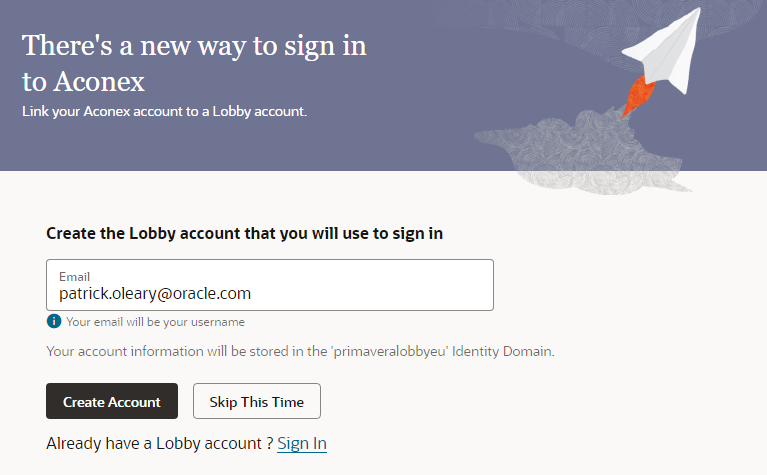
Follow the guided process to create a new Lobby account or link your Aconex account to an existing Lobby account.
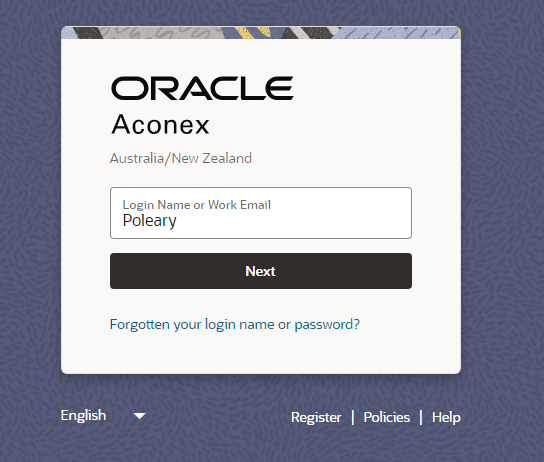
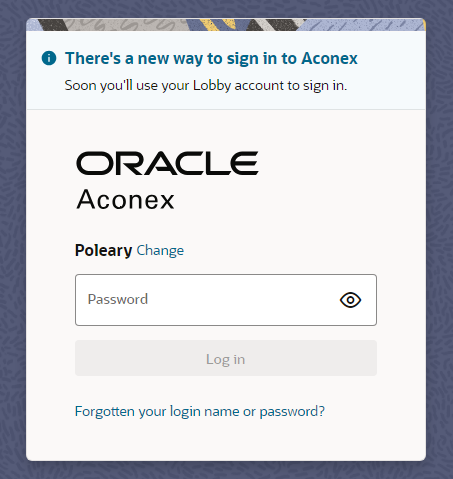
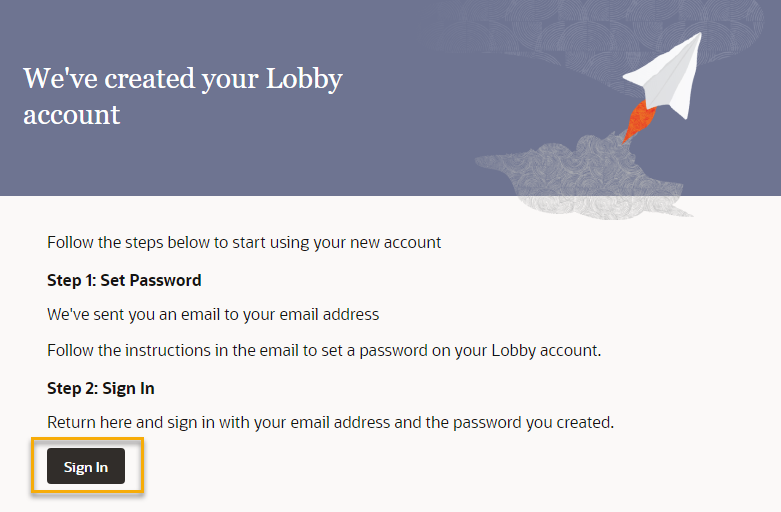
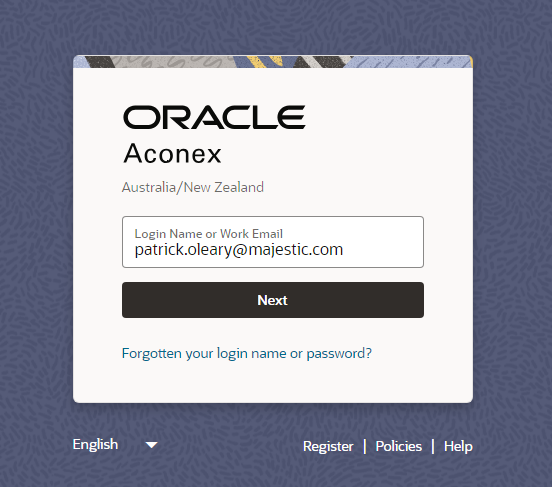
When you log in to Aconex with an Aconex username and password, you will be prompted to create a Lobby account. If you proceed, you will be guided through a process to create the new account. This process is described below.
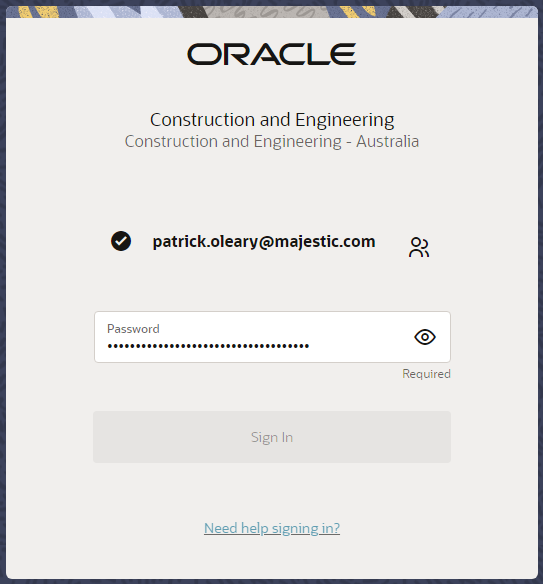
Once you have set the password for your Lobby account, you will use it (and your email address) to sign into Aconex.
You can continue to sign into the Aconex instance directly as you normally would, or sign in to the Lobby to see all the projects for all your linked Aconex accounts. See What are the links for each Aconex instance and Lobby?
If you're having trouble accessing Aconex, see our troubleshooting guide here.
If you already have a Lobby account, you must use it to access Aconex.
If you use multiple High Compliance instances (for example, USGOV and USDOD), you'll need to create a separate Lobby account for each one.
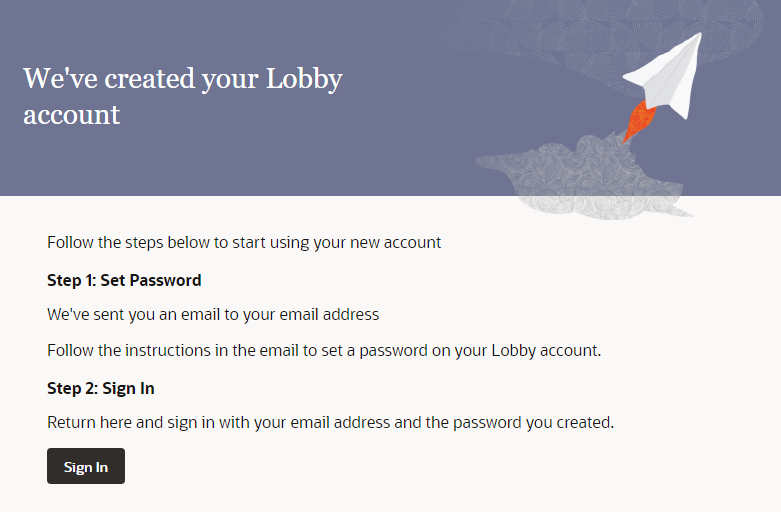
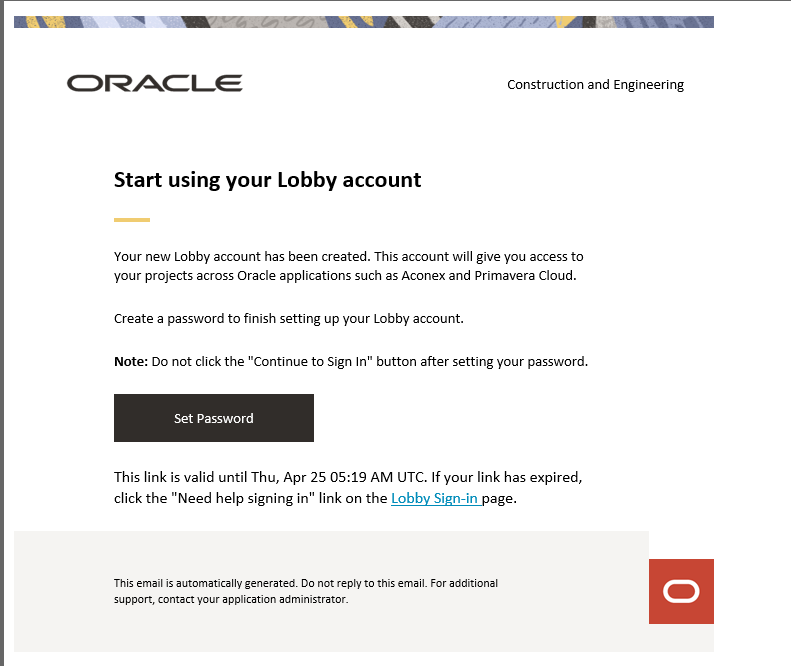
If the email hasn't arrived make sure to check the junk or spam folder. If it still doesn't arrive, contact your IT administrator. They may need to allow emails from the Lobby following these steps.
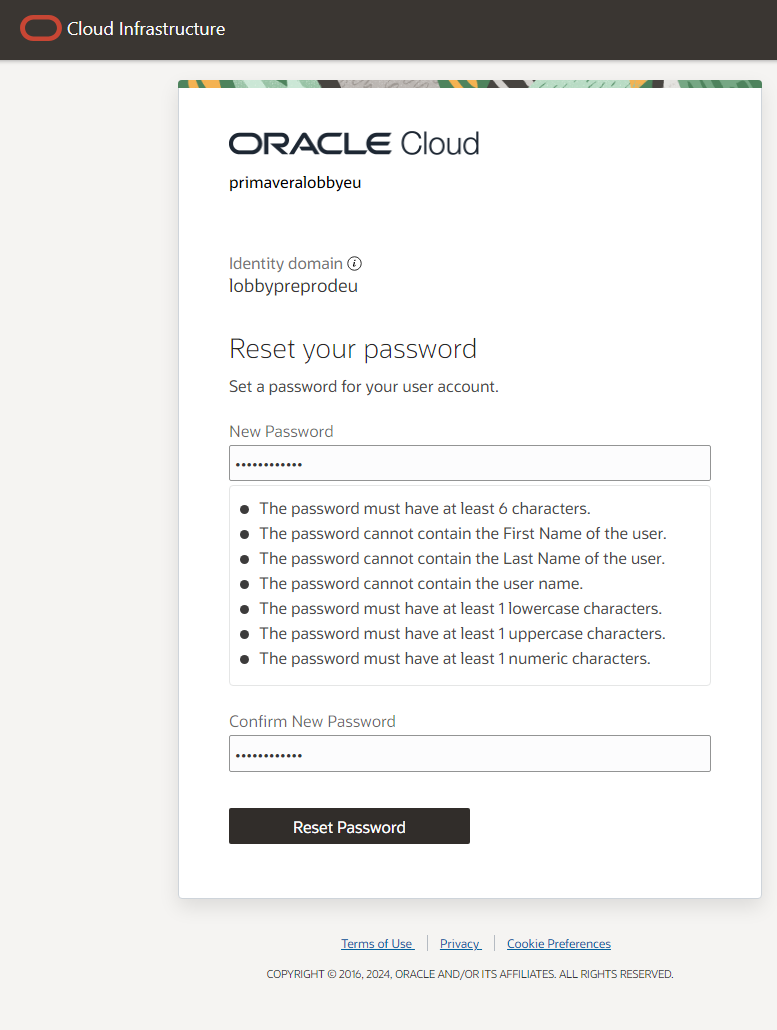
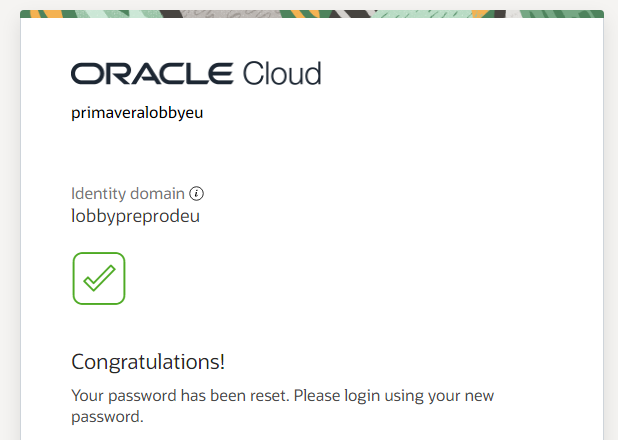
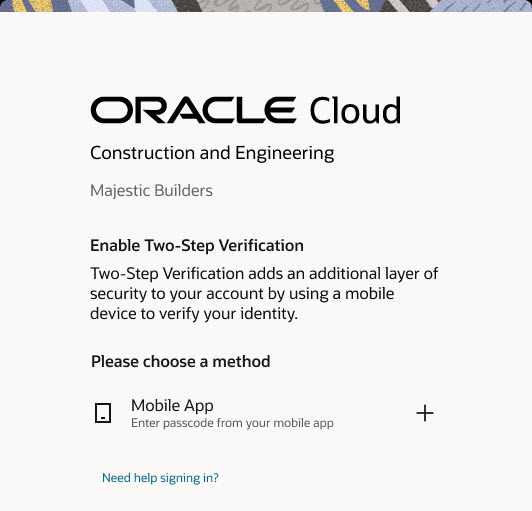
If you're using a High Compliance instance of Aconex, you must enable 2SV for your account.
Why am I asked to link an account? If a Lobby account already exists with the email address you entered, you'll be asked to link your Aconex account to your existing Lobby account. You'll need to sign into your Lobby account and link it. If you can't sign in you need to reset your password.
I have multiple Aconex accounts. What do I need to do? Once you've created your Lobby account, you should link all your Aconex accounts to it. This allows you to access any of your accounts using just your email address. Sign in to the Lobby and link your Aconex account(s) to your existing Lobby account.
Do I need a Lobby account? Yes. Learn more
Do I have to use the Lobby? No. Learn more