
Edit packages

Modify a package's name, number, type, content and metadata.

Only the latest version of a package can be edited.

Each time you edit a package, a new version of the package is created in your organization's package register. You should consider whether or not you need to give the version a new revision number.

If you've sent a previous version of the package to another organization you'll also need to send them the newly created version if you want them to see your changes.

You need to be the package administrator or editor to make changes to a package. Only package administrators can change a package’s type.
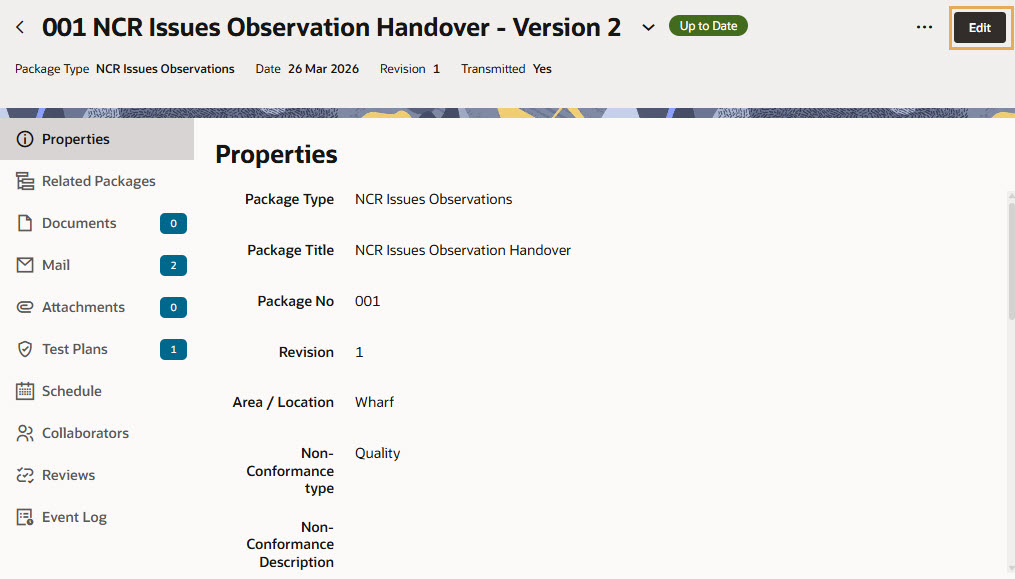
Editing a package

  1. Search your Package Register for the package you want to edit. Only package administrators or editors can edit packages.
  2. Click Edit. This allows you to:
  • Edit the package number, title, and revision, as well as project fields.
  • Change the package type, if you are the package administrator and you are editing a single package.
  • Change or remove the parent package, if you are the package administrator.
  • Add documents.

Tip!

Package administrators and editors can now revert a package number to an earlier number from that package's own version history.

Change the package type

Package administrators can change the package type when editing a single package.

The package types you can select depend on the package family’s transmission history:
  • If the package family has been transmitted, you can only select package types that have matching Mail, Attachments, and Test Plans settings.
  • If the package family has not been transmitted, you can select any package type available to the package.
When you select a different package type, the edit form updates to show the fields and validation rules for that package type. Review and confirm any automatic consequences shown by Aconex before you save your changes.

Change or remove the parent package

If your project is using package hierarchies, you can change or remove the parent package.
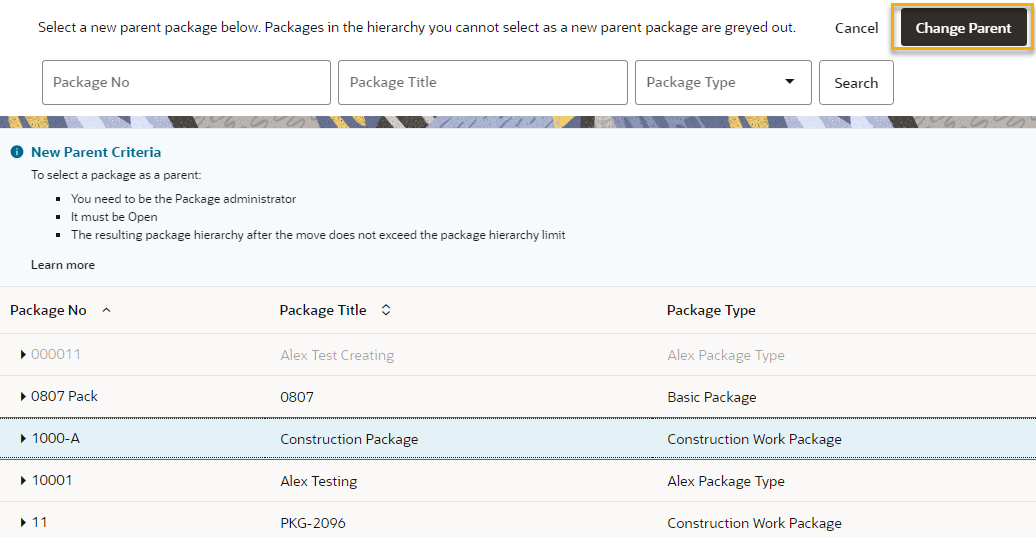
  1. Click the Parent Package tab.
  2. Click Change Parent or Remove Parent
  3. If you are changing the parent package, select the new parent package and click Select Parent. The new parent package will be used.

Add, remove and update documents

You can remove or add documents from the package and modify some of the package metadata. For more information on updating documents see Update documents in a package.

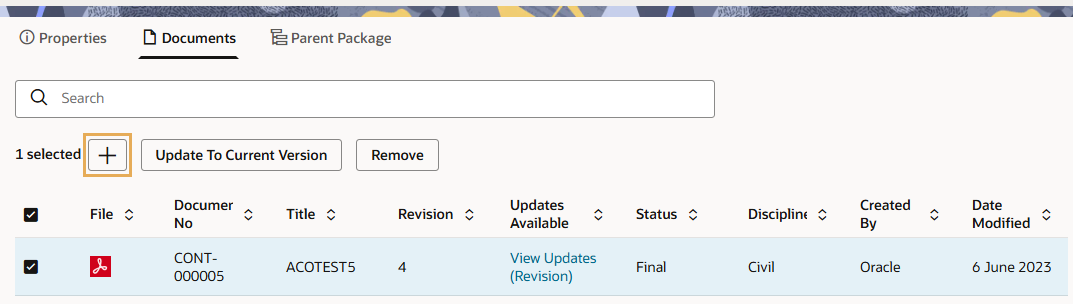
  1. Click the Documents tab.
  2. Select the checkbox beside the document you want to remove and click Remove, or just click the x at the right of the document’s row.
  3. To add a new document, click the plus button.

Note: You can’t add confidential documents directly to a package, however it is possible to make a document confidential after it has been added. In this case, Aconex displays a warning that a confidential document is part of this Package and needs to be removed before the Package can be sent.
Tip!

You can only add one version of a document to a package. Note that the maximum number of documents per package is limited to 3000.

Save the package

After editing the package, click Save. A new version of the package is created and previous versions remain unchanged and appear as read only in the package history.

Edit package properties in bulk

This feature is helpful if you need to update the title, revision, or other fields for lots of packages. Download the Excel template, enter your changes, and upload it to start the update. You'll be familiar with this process if you create packages in bulk.
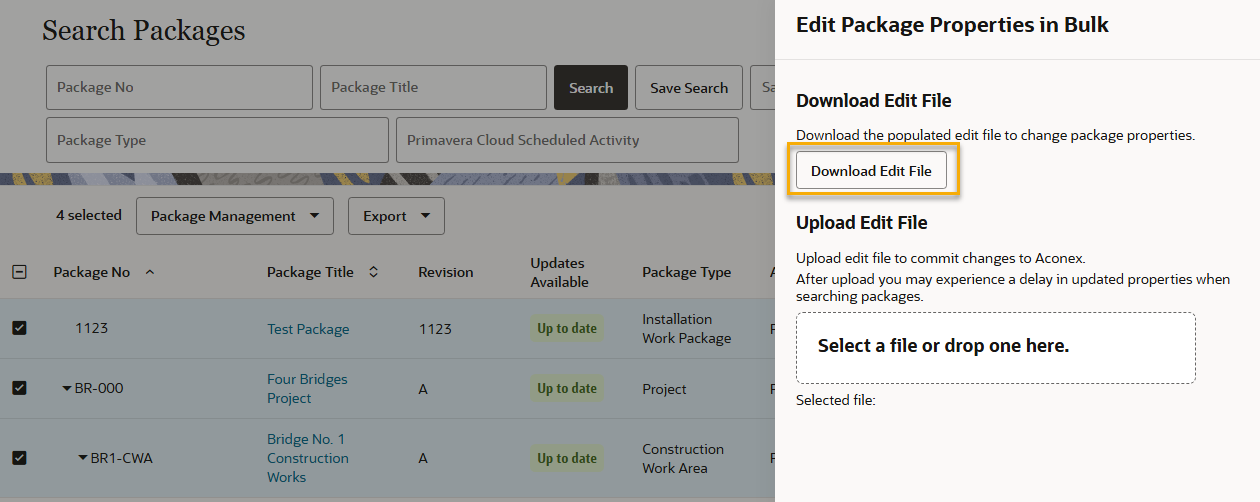
  1. Select the packages you want to edit
  2. Click Package Management, select Edit, then select Package Properties in Bulk.
  3. Click Download Edit File.
  1. Update the details for each package in the Excel edit file.
  • You'll see a separate worksheet for each package type you selected.
  • Mandatory fields are marked in bold.

Tip!

You cannot use the edit file to change the package number, package type, or parent package number, or to create new packages.

If you forget to enter any mandatory information, or if the data is incorrect, or the package contains documents that require registration, are confidential or are access-controlled, Aconex will notify you when you try to update the packages.

  1. Save the edit file to your computer.
  2. Go back to Aconex.
  3. Drag and drop the edit file in the space provided. Alternatively, click Select a file or drop one here and select the edit file you’ve just updated. 
  4. Click Upload.

The packages will be updated, creating a new version of each package. The documents in each package will remain unchanged.

What's next?