Add users to your project

As the Project Administrator of the project-owning organization, you can quickly add users to your project.

Required permissions
Add users
View Project Participants

If you're a Project Administrator, you can add users to your project and also hide (shadow) users in the project directory. If the project invitation mode is set to Explicit, only a Project Admin can invite users to your project.

If you're not a Project Admin (and the invitation method is not Explicit), you can invite users from the directory.

Before you can invite a user to a project, they’ll first need a user account created by their Organization Administrator.

Tip!

If your project is on a High Compliance instance, the project invitation mode is set to Explicit. This means only a Project Admin can add users to the project.
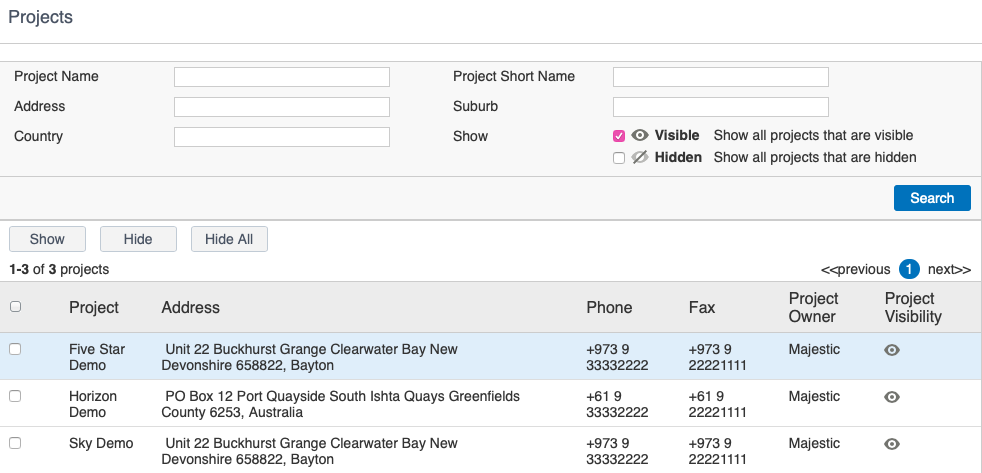
  1. From the main navigation menu, click Setup then select List My Projects.  

Tip!

If you don't see all your projects you may need to unhide them.
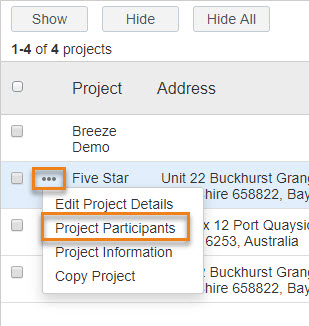
  1. Hover over the row for the project you want to add users to.
  2. When  the three dots icon appears, click it to open the menu. 
  3. Select Project Participants.
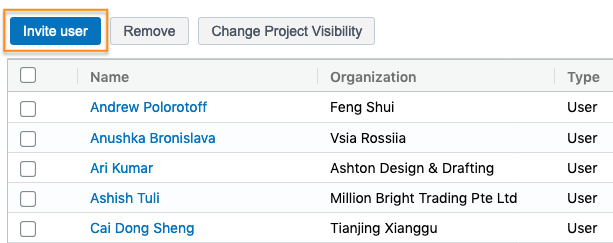
  1. Click Invite User.
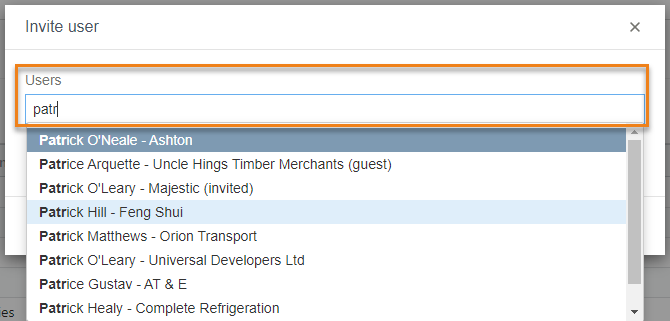
  1. To find users, start entering their name (or company name)
  2. Select the user you wish to invite. Do this for all the users you want to invite.  You can also click Advanced Search to add users in bulk.
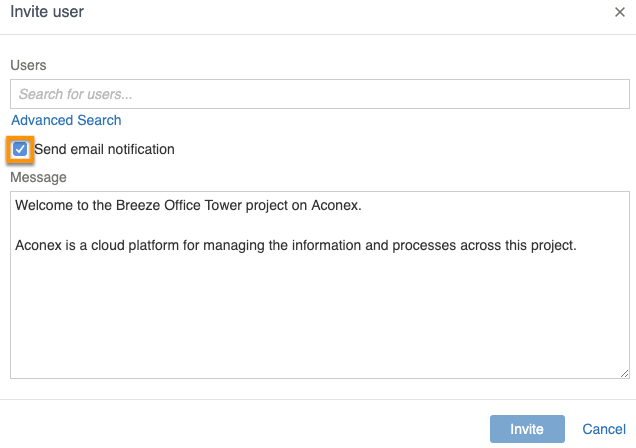
  1. If you want to, tick Send email notification to add a custom message.
  1. Click Invite.
  1. The users will now be added to the project and will receive an automatic email notification (if you chose to), outlining who has added them and to which project.
  2. If required you can change the invited users’ visibility on the project directory.