
Support Central
View, review, and markup documents using the Online Viewer.
The Online Viewer is used to review and markup PDF documents online and works in all modern browsers (Microsoft Edge, Chrome, Firefox) without requiring any third party plugins.
When you select a Workflow to review from the task page, you find yourself in List Mode.
In List Mode you can:
Click a document number or its pencil icon to open Doc Mode to review and markup that document.

This takes you to the Doc Mode screen where you can review your documents in detail, one at a time.
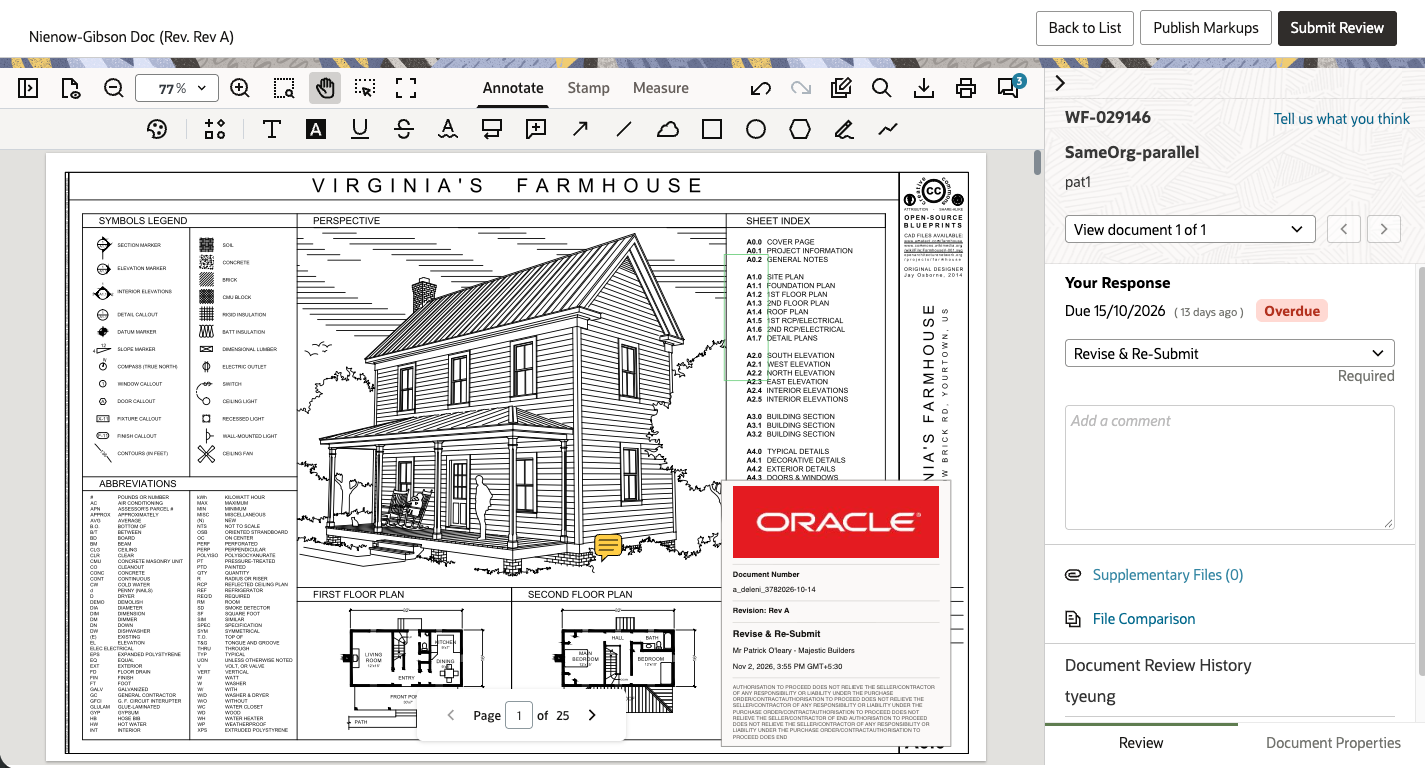
Doc Mode allows you to see all the important information about the workflow and the document under review in one screen.
Documents
Shows the documents that are assigned to you for review as part of the workflow. The selected document number is the document that you are currently reviewing.

Supplementary Files
Lower down in the panel you can see Supplementary Files. If any supplementary files have been attached to the workflow they will be listed here. Click on a supplementary file to download it to your computer for viewing.
You can attach additional supplementary files from the List Mode screen while the workflow is in progress.

Workflow Steps
This section is where you enter your review outcome for a step and any summary comments.
It also provides the broader context of the workflow, like which other steps have been completed and what was their outcome, or which steps are yet to be completed.
Your Response is the current step for you to review.
You can submit your review as soon as you finish reviewing each document, or you can send a batch from the list mode screen once they are all complete (useful if the reviewer needs all documents in order to complete the review).
Note: Sending documents one by one creates a separate transmittal for each document and means the next reviewer will receive each document one at a time.

Document navigation
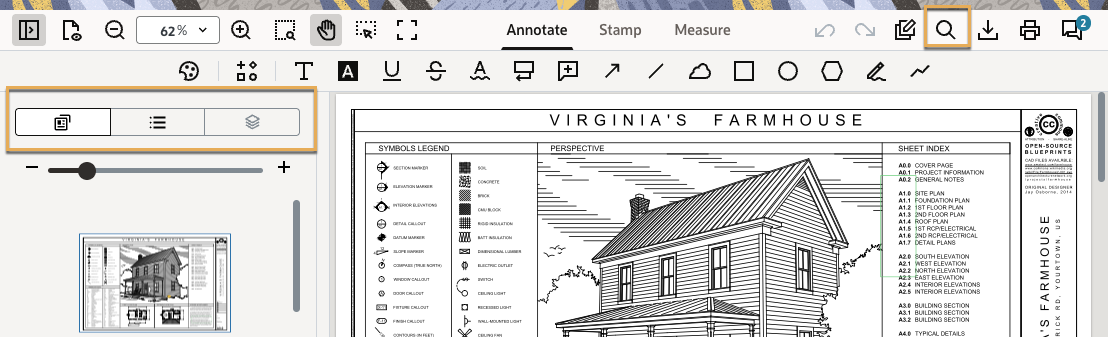
This panel contains optional tools to assist with navigating through multi-page documents. You can choose to navigate by thumbnail, by table of contents (if the document contains one) or via text search if the document contains searchable text.
Document Properties
View document metadata (status, discipline, etc.) of the current document.
File Comparison
Compare the current version of your PDF document with any available previous version of the same document.

These tools allow you to add markups and comments to your documents. They are grouped into three tabs based on their type: Annotations, Stamps, and Measurements. Select each tab to see the available tools.
If you add a markup by mistake, select it and click the trash icon to delete it.
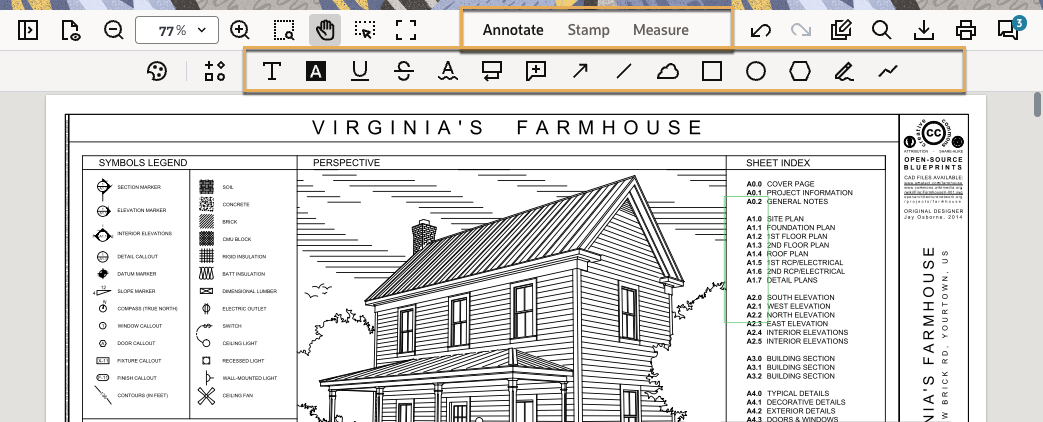
If you can’t select or highlight text in the PDF then it’s likely that the document is a scan or image based document (literally a picture of text).
Markups can be customized with color and size. Style changes you make to each markup tool (eg. text color, size, or stroke), will be remembered on the next document you review - even when you next log in. Learn more
Set a status against each markup to help you manage them.
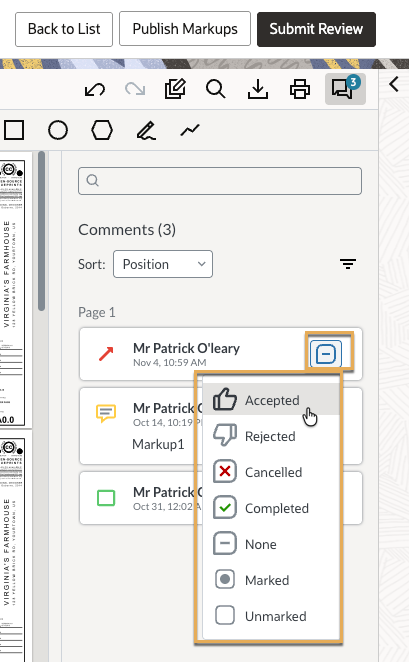
Whenever a markup is added – it will be listed in the collapsible Comments/Notes panel. Click the Notes icon to view it.
Here you can also add extra comments, clarifications or questions to someone else’s markups.
When reviewing your comments/markups or those of other reviewers, you have several options open to you.

If you are using Lead Reviewer style Workflow templates, any reviewer assigned to the final step of the workflow will be able to consolidate the final markups and also:
Note: All of the original markups entered during the workflow are retained in the document register as historical versions of the document.
A lead reviewer is able to edit and delete markups ONLY IF the workflow outcome is decided by the “Final step outcome (Lead reviewer)” and not by the “Lowest of all step outcomes.
When multiple reviewers use either online markups or replacement files within parallel steps, the document being reviewed will be automatically replaced by a zip file containing all of the different reviewers’ marked-up files.
Typically the next step in the workflow will then consolidate those markups to combine them into a single file.
The easiest way to do this is to click the Consolidate Markups link, this will merge all markups from the different reviewers into one file.
Alternatively you can do it by downloading the zip file and manually consolidating the comments into a single file. You will then need to upload the consolidated file back into the workflow.
All markups created using the old viewer (Autovue) were automatically converted as PDFs of the original documents. They are accessible both as single or zip downloads.
Aconex will retain all of the original Autovue markup files so should there be any issues with individual documents which cannot be converted to PDF for any reason, they will still be accessible on request.
Autovue markups which were added to zip files can’t be automatically converted. ie, if the markup was created by opening a zip file in Autovue, then opening one of the contained files and adding a markup to it, these will not be extracted as PDFs. This matches the behavior of the Zip download with Markups feature.


