Need to create reports for your workflows? This is how you do it.
There are three kinds of reports you can apply to your workflows and their related documents:
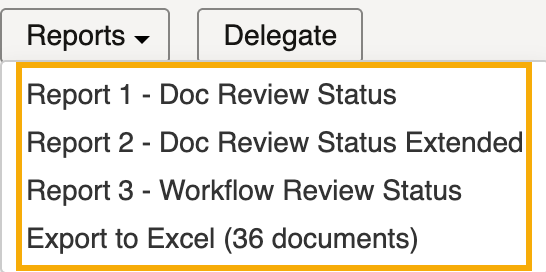
Document Review Status - includes only the columns displayed in your search results.
Document Review Status Extended - includes all available columns.
Workflow Review Status – includes transmittal information, step due dates and days late.
Create a report
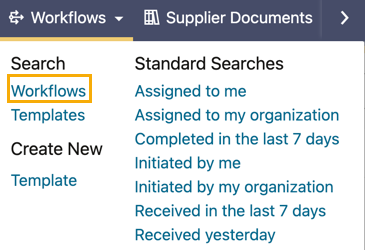
Click Workflows in the Module Menu, then under Search, click Workflows.
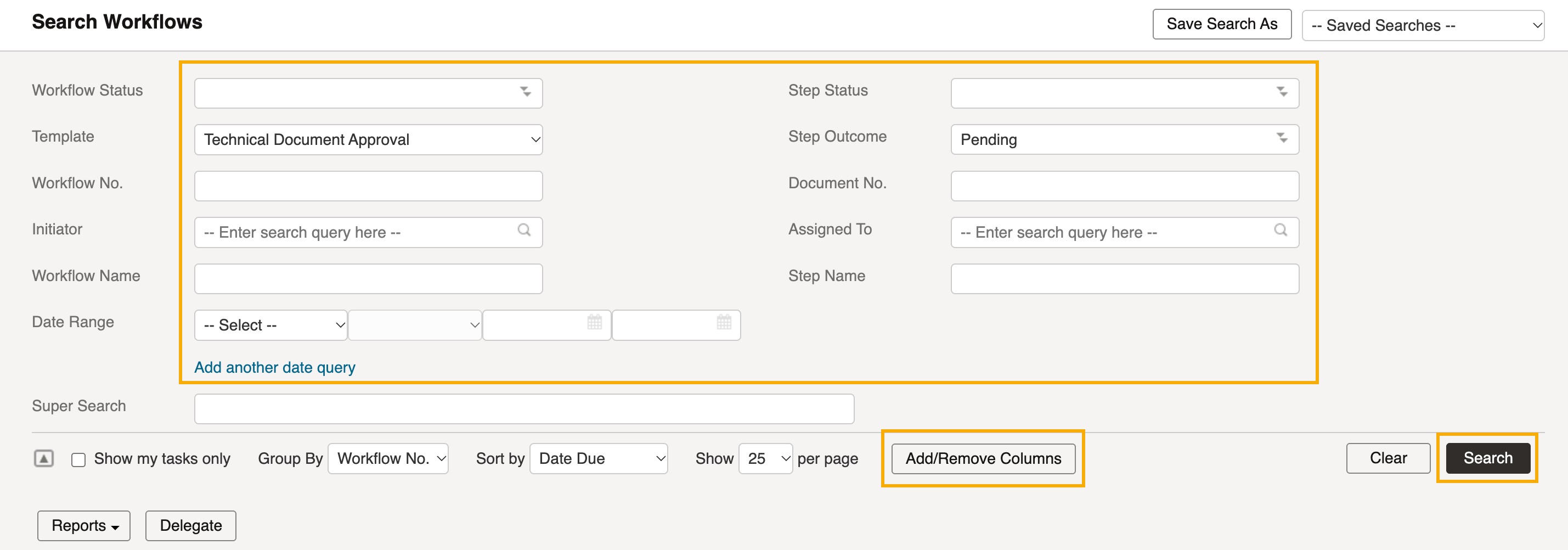
Enter your search criteria and click Search.
To change the columns displayed in the search results, click Add/Remove Columns. These columns are used in the Excel and Document Review Status reports.
Select the workflows you want to include in the report. If you don’t select any, all workflows in the search results are included.
Click Reports, then choose an option.
If prompted, choose a template and click OK. The report opens on screen. From the top-right corner, you can return to the workflow list or click Export to Excel to export the report.
If you selected Export to Excel, a message confirms that the export is in progress. The export may take some time. You’ll receive an email notification when the file is ready.
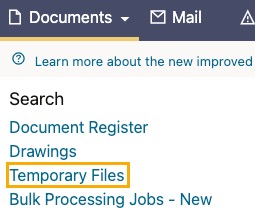
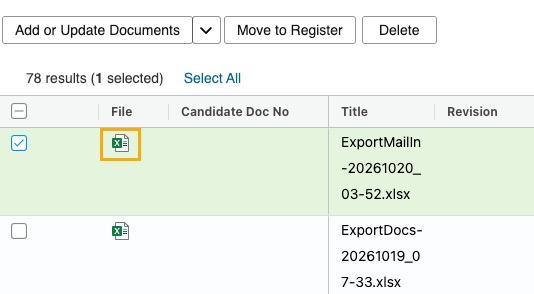
When the export is ready, click Documents in the main navigation menu, then under Search, click Temporary Files.
Sort by Date Uploaded to find the most recent file.
Click the Excel icon in the File column to download the report.
Click Download.
Open the downloaded file in Excel to review, save or print it.