Upload documents from external services
Upload files from supported external services into Aconex without having to download the files to your computer.
Unavailable on these instances
Upload files from supported external services into Aconex without having to download the files to your computer.
Currently, Aconex supports copying files from Dropbox and Box.
If you don’t see the option to upload a document from Dropbox or Box, it means you don’t have permission. Speak to your organization administrator to arrange access.
- From the main navigation menu, click Documents and select Add or Update Documents.
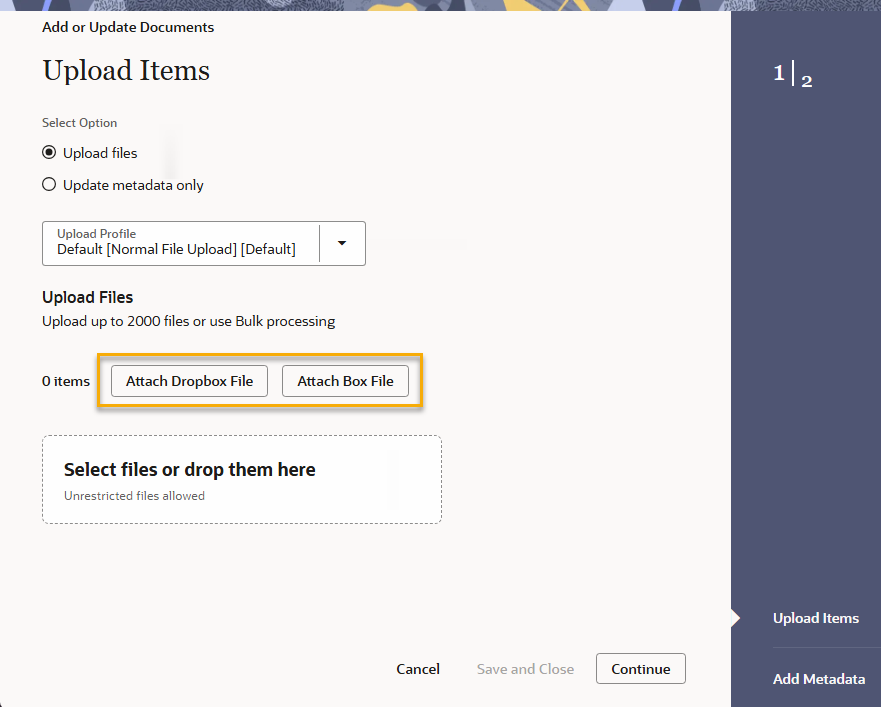
- Click either Attach Dropbox File or Attach Box File depending on the service you use.
- Sign in to your account if necessary.
- Choose the files you wish to copy to Aconex. You can choose multiple files – simply click on all the files you wish to select.
- Click Choose when you have made your selections.
- The files will now appear in the upload screen. You can continue the process to add these documents to your project.
Using the previous upload
- From the main navigation menu, click Documents and select Add/Update Documents.
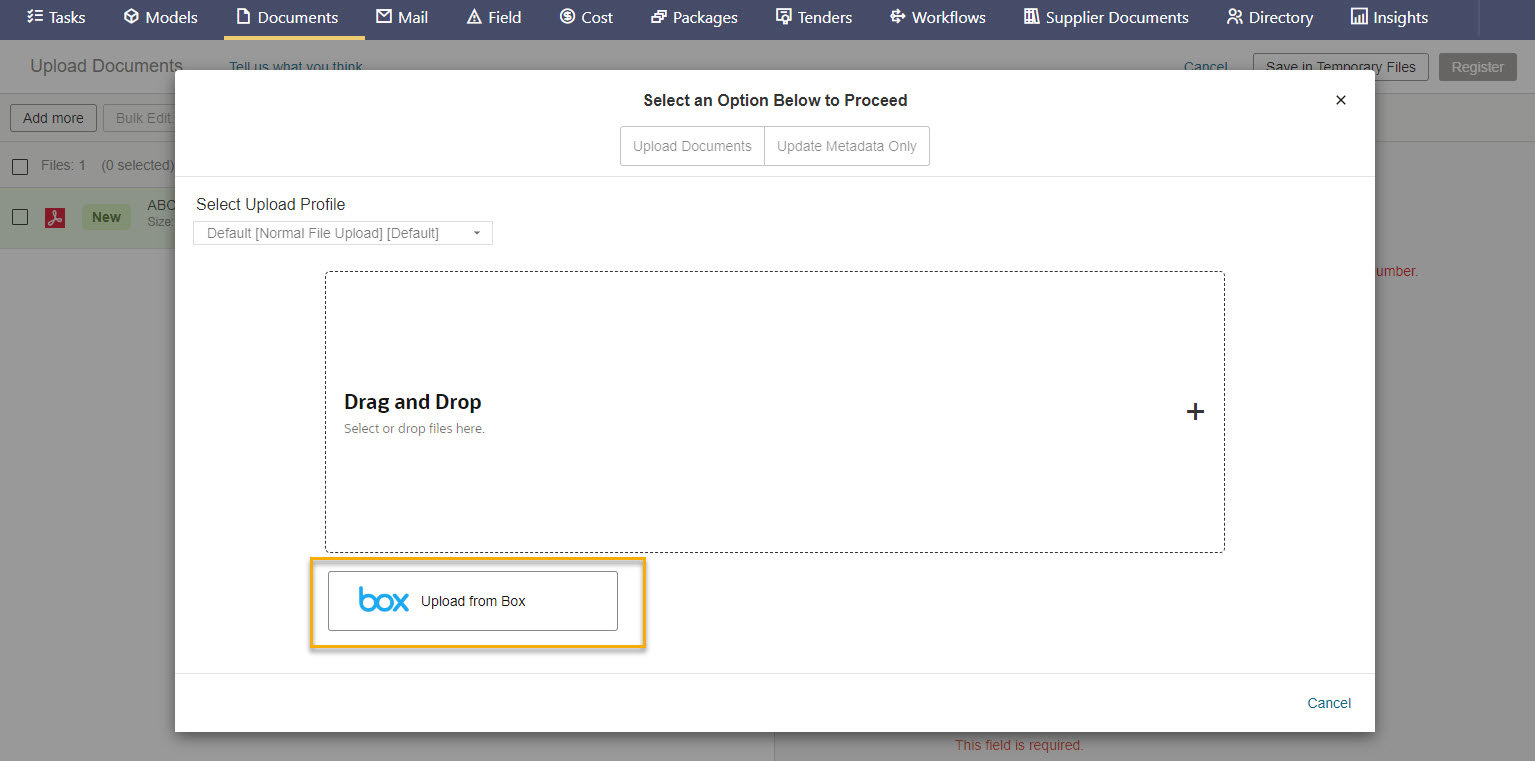
- Click either Upload from Dropbox or Upload from Box depending on the service you use.
Using classic upload
-
Select a project from the Project Selector at the top of the screen.
-
Click Documents and select Multiple File Upload.
- Click either Upload from Dropbox or Upload from Box depending on the service you use.
- Sign in to your account if necessary.
- Choose the files you wish to copy to Aconex. You can choose multiple files – simply click on all the files you wish to select.
- Click Choose when you have made your selections.
- Review the files you’ve selected and click Start Copying when you are ready.
- The files will now copy to the Aconex Temporary Files area.
- Once the files have finished copying, you can choose to view them in the Temporary Files area and move them to the Documents Register if desired.