Use Winauth for two-step verification (2SV) in the Lobby

Some users previously configured WinAuth for 2SV with Aconex. The below instructions guide you to configure WinAuth for Lobby 2SV.

Lobby supports many methods for two-step verification. You can read about them here.

If you don't already have the WinAuth authenticator on your Windows computer you can download WinAuth Version 3.5. If the download link doesn't work you can try the ClickOnce link on the WinAuth download page. If it still doesn't work, you'll need to contact your organization's IT department for help.
  1. Log in to the Lobby at https://constructionandengineering.oraclecloud.com/web
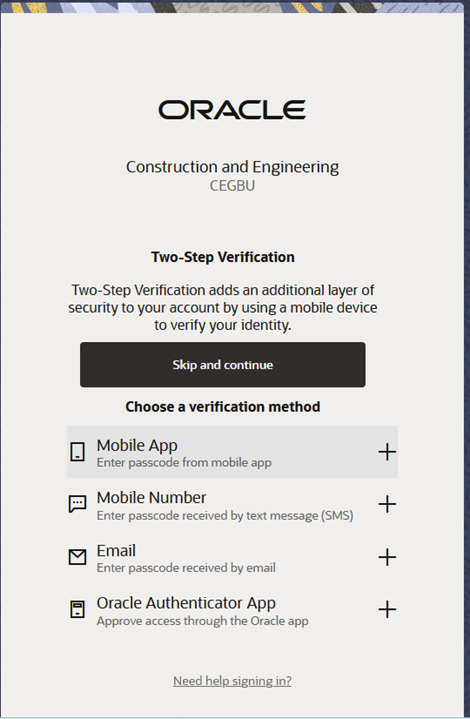
  2. If this is your first time logging in click Skip and continue.
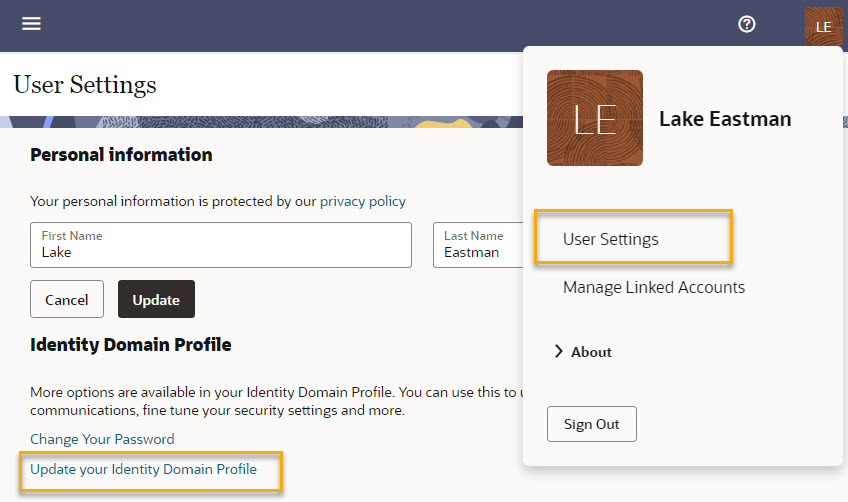
  1. Choose User Settings from the user menu in the top right of the screen.
  2. Click the Update your Identity Cloud Profile link.
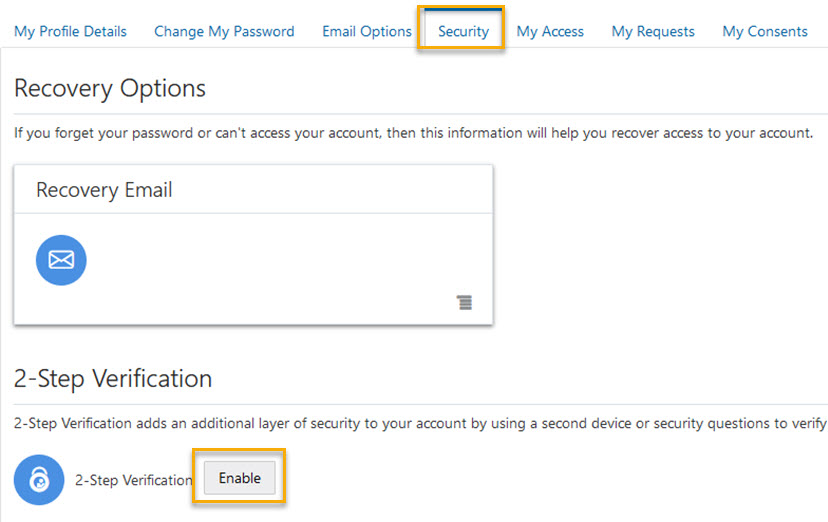
  1. Click the Security tab.
  2. Click the Enable button next to 2-Step Verification.
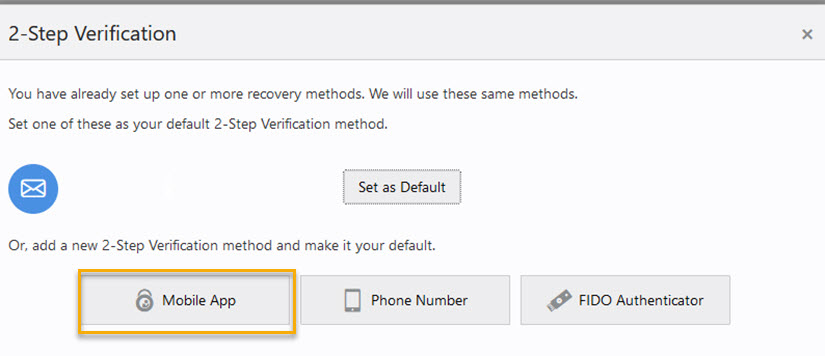
  1. Choose Mobile App
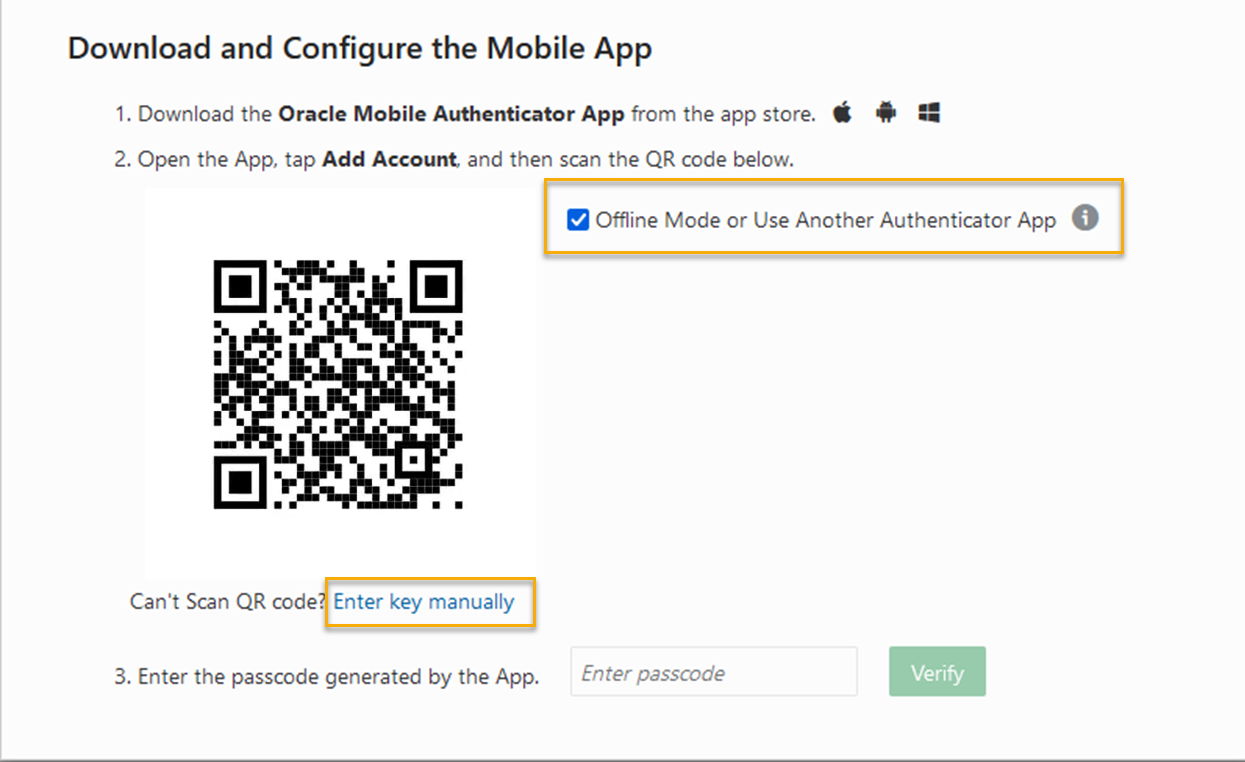
  1. Check the box for Offline mode.
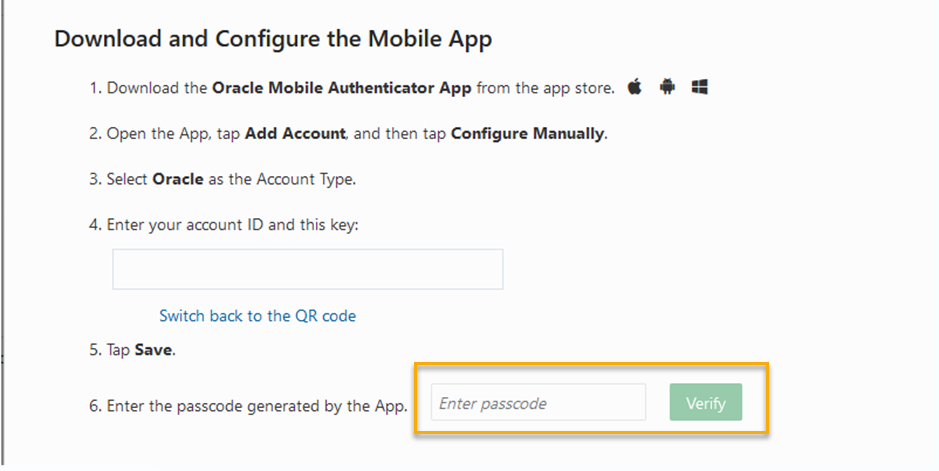
  2. Click the Enter key manually link that appears under the QR code.
  3. Copy the 26-character key that appears here and keep this window open.
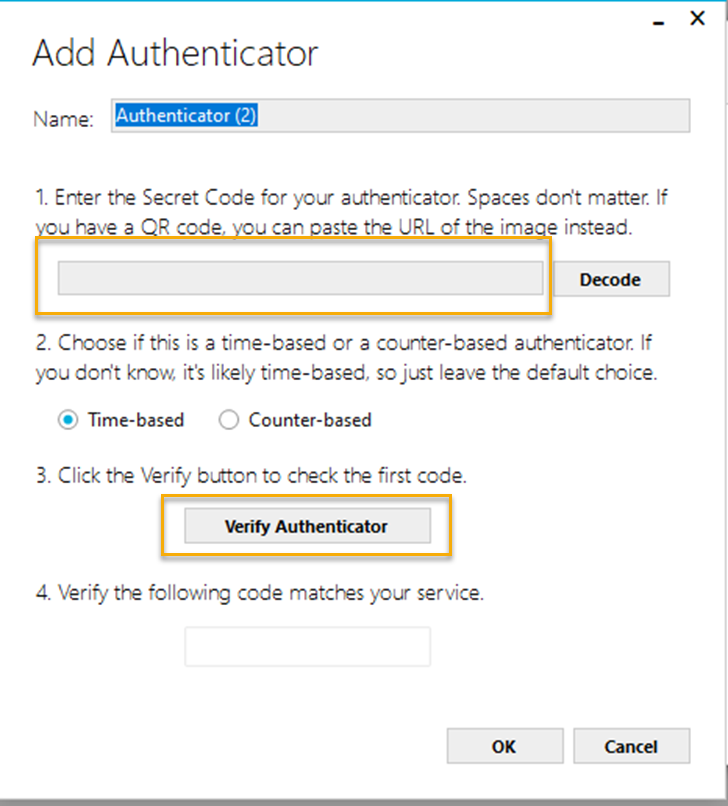
  1. Open WinAuth and click Add.
  2. Choose the Authenticator option.
  3. In the secret code field type or paste the 26-character key from the Oracle screen.
  4. Click Verify Authenticator.
  1. You'll receive a 6-digit passcode. Copy it.
  2. Go back to the Lobby window and enter or paste the 6-digit passcode into the Enter passcode field.
  3. Click Verify
  1. Sign out of the Oracle Identity Cloud screen. You will be returned to the Lobby screen. 
  2. Refresh the page by pressing F5 on your keyboard.
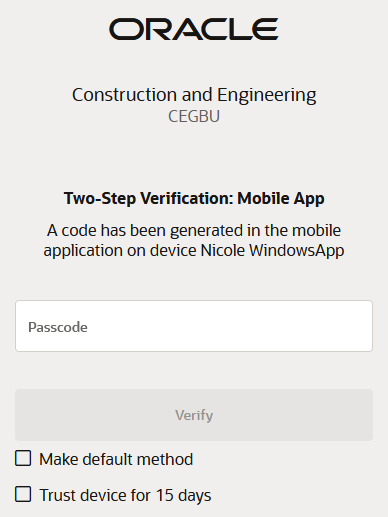
  3. Now, each time you log in to the Lobby or Aconex, you will be prompted to enter a 6-digit passcode.  Open WinAuth to get the 6-digit passcode and enter it in.