Manage package distribution lists

Make sure the right people receive a package and new versions of it.

Create a list of people who will receive a package, and any updates to it, by default.


Things to note:

  • Distribution lists are managed per organization. This means if you make changes to your organization’s package distribution list it will not update the distribution list of other organizations.
  • If you add a users as a Package Administrator or Editor, they will be added to the package distribution list for all organizations. However, if you remove a user as a Package Administrator or Editor, they will only be remain on the distribution list for all organization’s distribution lists.

Edit a distribution list

  1. Double-click Packages to open your Package Register.
  2. Click on the package you want to modify.
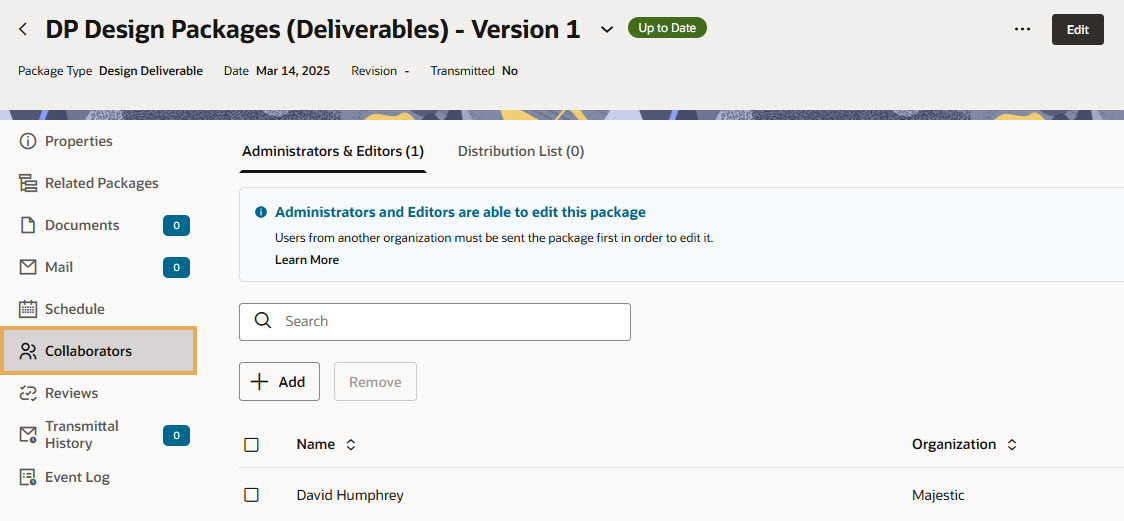
  3. Select Collaborators in the left-hand column.


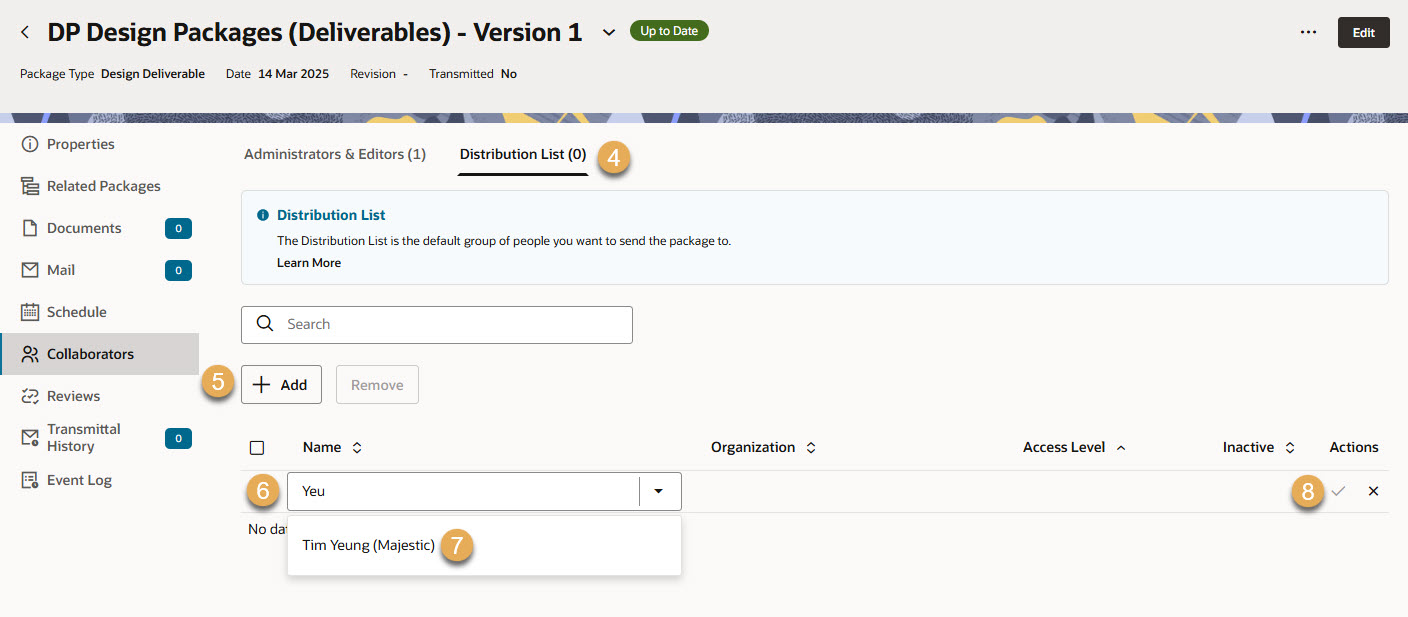
  1. Click the Distribution List tab.
  2. Click Add.
  3. In the Name column, start typing the name of a user or mailing group you want to add to the distribution list.
  4. Select the user or mailing group from the list.
  5. Click the tick icon in the Actions column to save your changes. Repeat these steps to add as many users or mailing groups as you need.
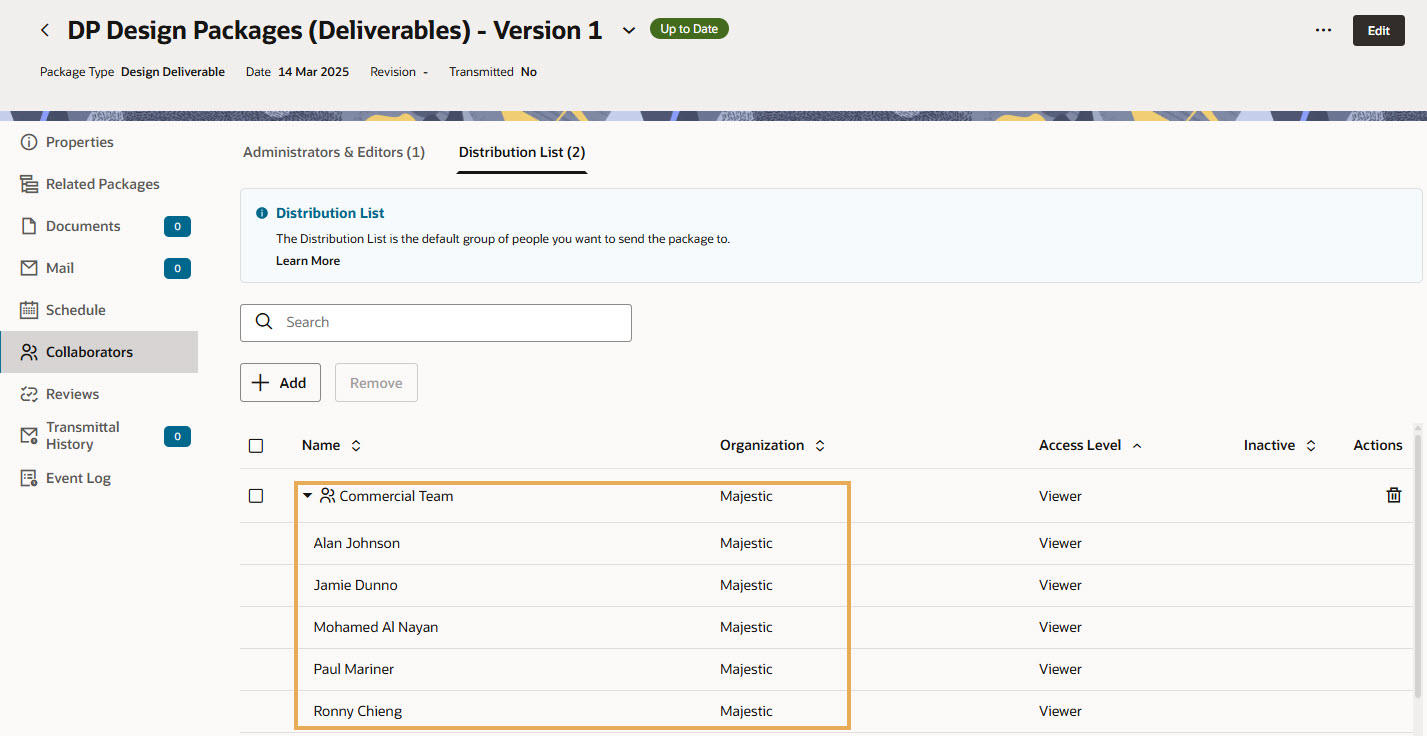
  1. If a Mailing Group has been added to the distribution list, it can be expanded to reveal all the users within it.

Edit distribution lists in bulk

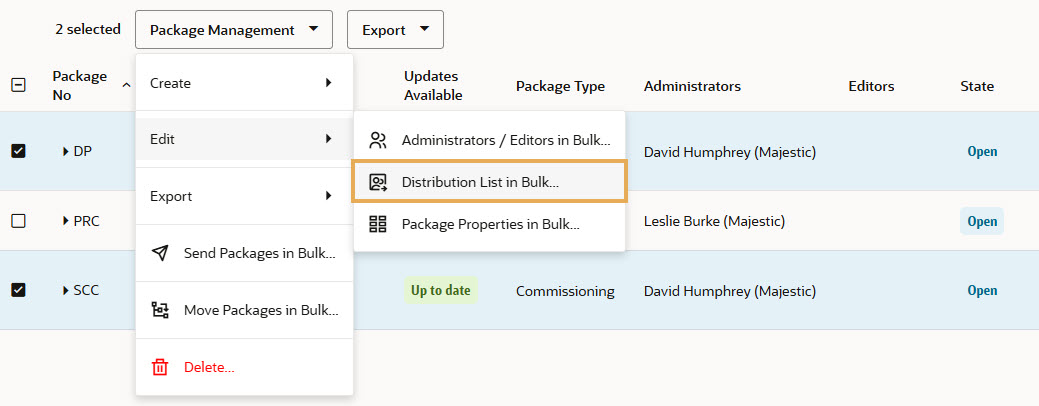
  1. Select the packages you want to update (1000 limit).
  2. Click Package Management, select Edit, and choose Distribution List in Bulk.
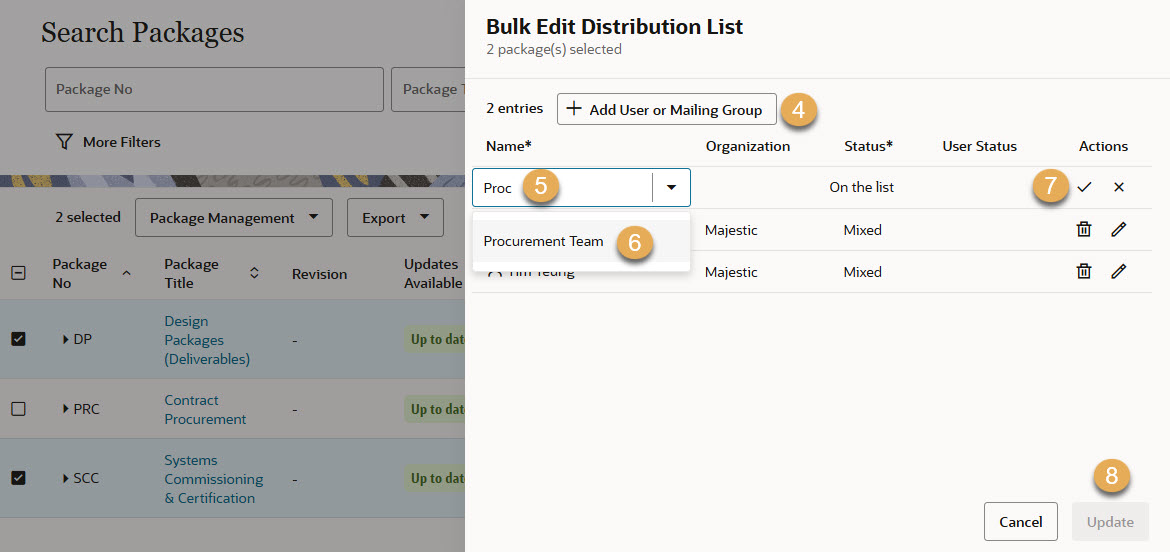
  1. From the bulk edit panel, you can add, edit, or remove users and mailing groups.
  2. Click Add User or Mailing Group.
  3. In the Name column, start typing the name of a user or mailing group.
  4. Select the user or mailing group from the list.
  5. Click the tick icon in the Actions column to save your changes.
  6. Click Update when you have finished making your changes.

Tip!

To edit the status of a user or mailing group, click the pencil icon.

There are two statuses for the distribution: 
  • On the list means the user or group is on the distribution list for all of the selected packages. 
  • Mixed means the user or group is on the distribution list for some of the selected packages. If you change the status to On the list they will be added to all of the selected packages.