Configure the naming convention for uploads and updates

Enable automatic file renaming for uploaded and updated documents on your project.

Project Admins using the new enhanced upload have a project-wide preference to rename files for registered or updated documents. Files uploaded or updated by anyone using the new enhanced upload will be renamed according to the configured convention. This reduces manual renaming, improves consistency for uploaded files, and saves time.

Important guidelines and considerations:
  • Files are only renamed if they are registered or updated using the new enhanced upload.
  • Files are not renamed when saved to temporary files.
  • If a document's metadata is updated, the associated filename will also be updated based on the convention, even if you didn't specifically change the file.
  • If an uploaded file has already been named with the Document Number, Revision, and Title with separators, it won't be renamed, even if the separators are different from the configured convention.
  • If you enable this preference, we recommend you disable the Rename files on download project preference to ensure files retain their naming convention when downloaded.
  • After enabling the preference, it can take up to 30 minutes to take effect.
  • Some renamed files may not appear in search results when using the document search code Filename in a search query.
  • The maximum total length of a filename is 255 characters. Filenames above this limit will be shortened.

Configure the naming convention

  1. From the main navigation click Setup and select preferences.
  2. Click the Project tab
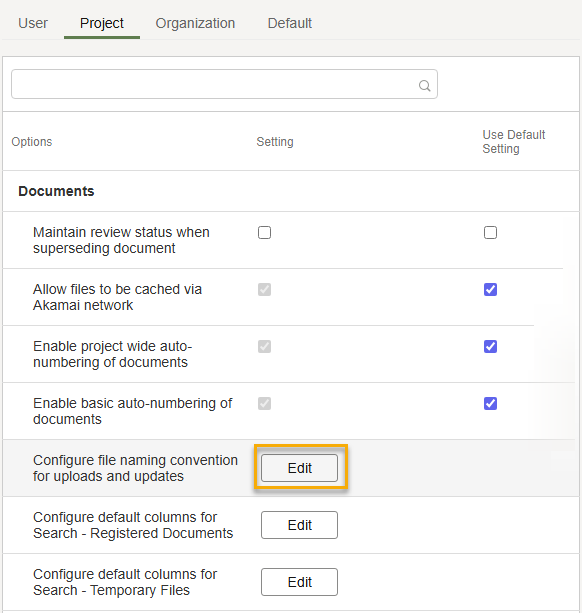
  3. Find the preference named Configure the naming convention for uploads and updates and click Edit.
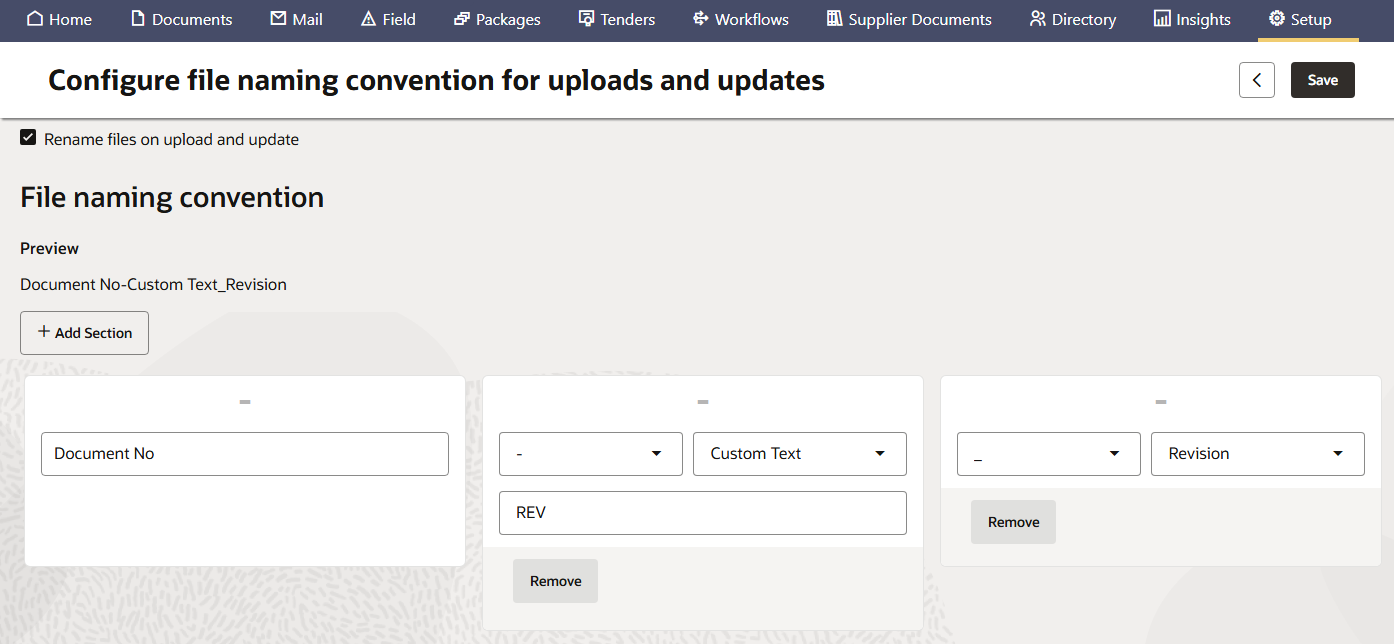
  1. Configure the naming convention by adding, moving, and removing sections as required. Click the dropdowns to choose different separators and field names. 

You can include the following fields within the convention:

  • Document Number. This cannot be removed from the convention, but it can be moved.
  • Revision.
  • Title.
  • Separators: Hyphen, Underscore, Brackets (only for Revision), Space, and No Space.
  • One line of custom text with a maximum of 25 alphanumeric characters.

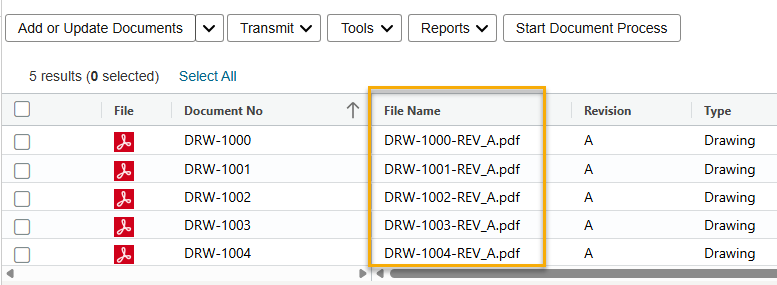
In the example below we've used the Document Number, a hyphen, custom text entered as REV, an underscore, and the Revision. Using this convention, an example uploaded file could be renamed to DRW-1000-REV_A.pdf.
  1. Click Save when you're done. Remember it can take up to 30 minutes for your convention to take effect.

Example upload

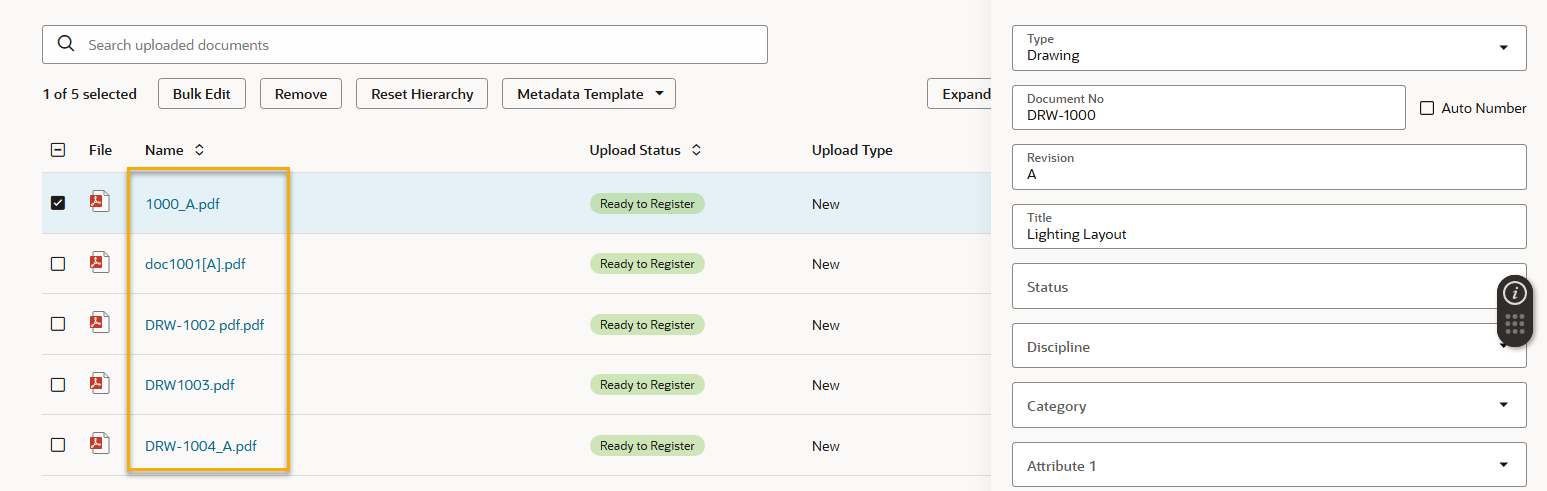
In this example we've uploaded files with various naming formats. 

Note: While you wouldn't name your files this way in practice, it helps to demonstrate the feature.
After entering the appropriate metadata and registering the documents, the files in the document register have been renamed according to the convention.