Support Central
Use secondary files (renditions) to store multiple file formats for a single document, making documents easier to manage, organize, and find.
A rendition is a secondary file associated with a document, allowing multiple file types to be stored under a single document record. This means you no longer need to register native files (such as a .dwg) as separate documents, making it easier to find and manage them.
Each document includes one primary file (recommended as a PDF for most use cases) and can support up to four secondary files, known as renditions. In most cases, we recommend using only one rendition per document.
A document's version and metadata belong to the document record as a whole. This includes the primary and any secondary files. When updating files for a document you must update the primary and any secondary files at the same time. This ensures revisions are kept together for data accuracy.
Renditions are typically used for:
Required permissions
Features supporting primary files only
The following modules and features only support viewing and interacting with primary files. Secondary files are not currently available for these features:
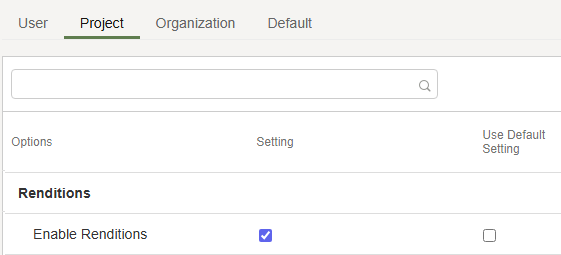
Project Admins can enable Renditions for a specific project from their project preferences.
Important: You cannot switch off Renditions once it's been used. Once a secondary file (rendition) has been added to a document, Renditions cannot be turned off for that project
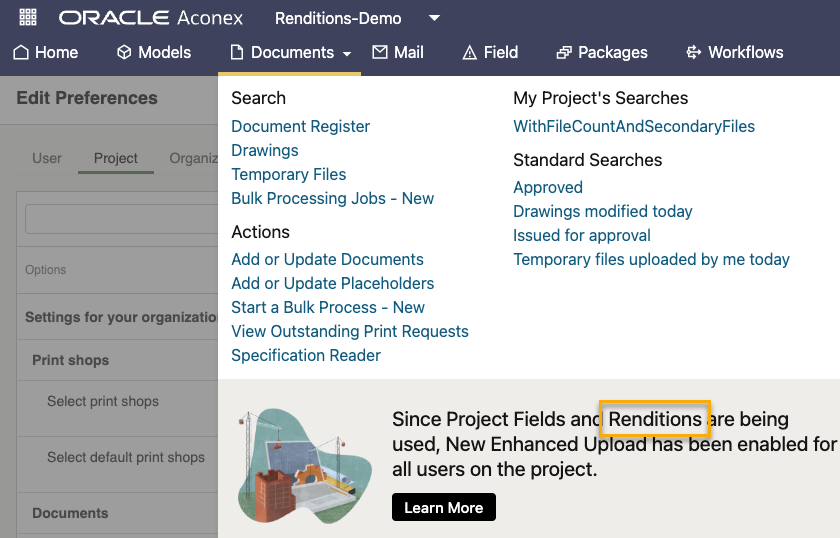
Renditions is disabled by default for all projects created before the September 2026 release. This includes template projects so you can decide whether Renditions should be enabled. You may want to duplicate a template project to have one version with Renditions enabled and another with it disabled. For new projects created from scratch, Renditions is enabled by default. However, it can be switched off before any project activity begins.
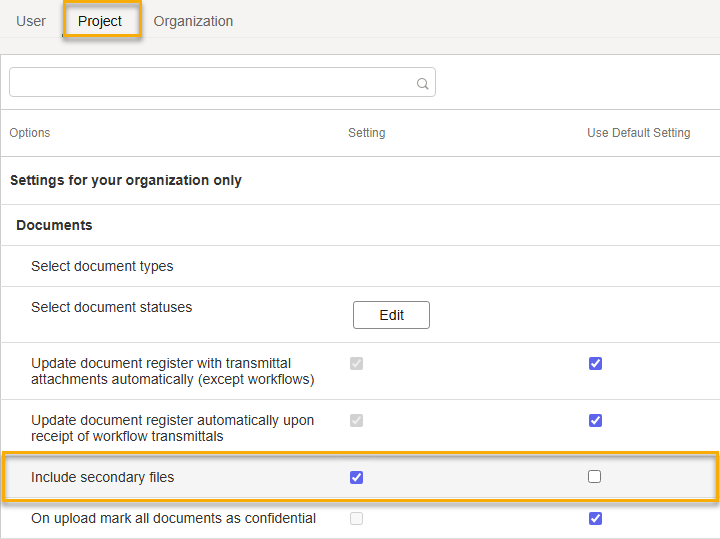
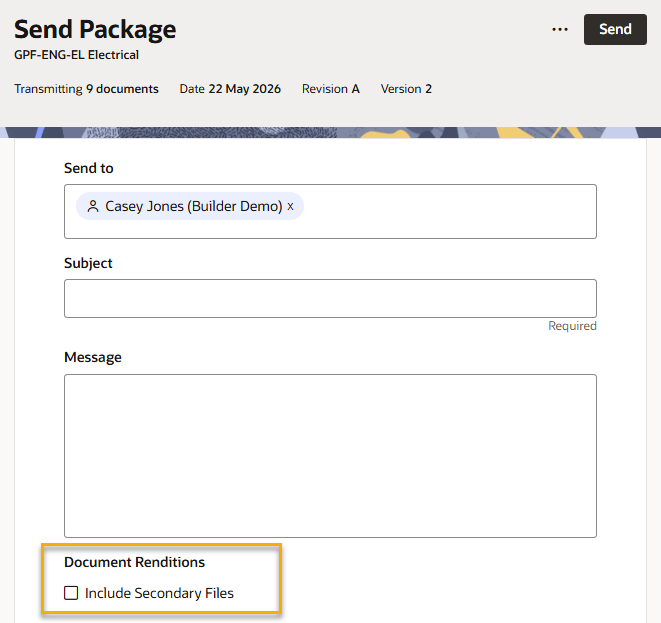
Project Admins or Org Admins can set a project-level preference that controls whether secondary files are included by default when users in their organization send documents. Users can override this setting during the process and choose whether to include secondary files for each document. The default setting is to exclude secondary files.
This applies to transmittals sent from Mail, Packages, Tenders, Supplier Documents, and Workflows.
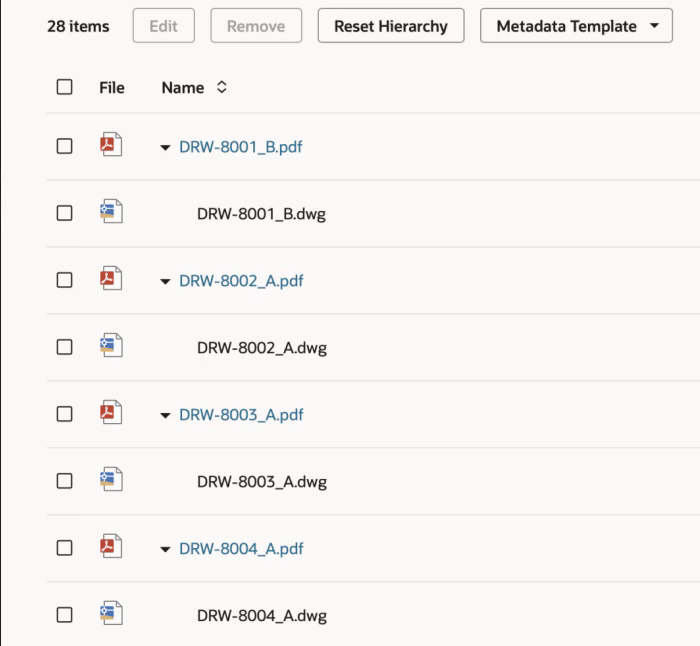
Before you add documents, make sure your primary and secondary file names match (except for the file extension). This helps to group associated files in the upload process. For example, DRW-1000_A.pdf and DRW-1000_A.dwg.
By default, the upload process recognizes a PDF as the primary file for a document. Secondary files are recognized based on their filename and are nested under their primary file. You can change the file hierarchy during the process, but we recommend keeping the PDF as the primary file, as only primary files can be used in review processes.
Metadata applies to the document record as a whole (including both the primary and secondary files). There is no separate metadata or version history for secondary files.
Note: the existing filetype and filename search codes only apply to searching primary files.
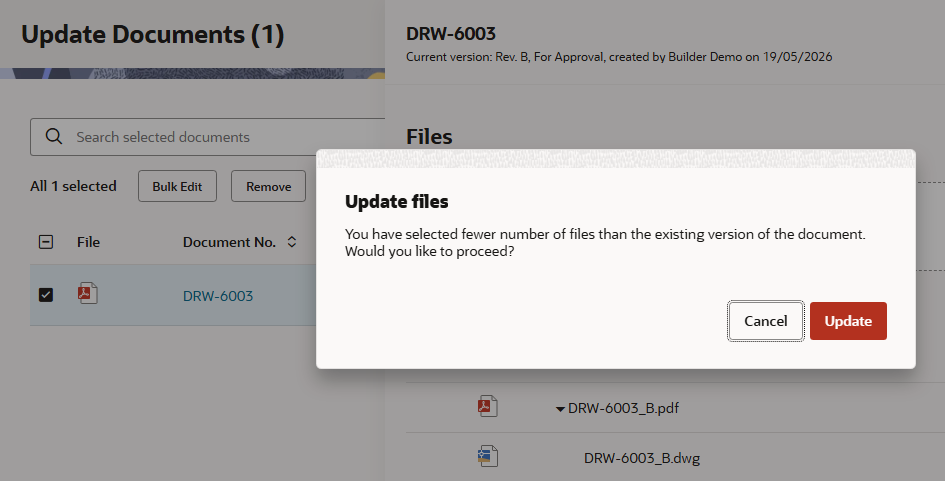
When updating files for a document, you must update the primary file and all secondary files together at the same time. This ensures revisions are kept together for data accuracy.
If you only update a document's metadata, the existing primary and secondary files from the current version of the document will automatically carry forward to the new version. If you upload fewer files than exist in the version being updated, a message will appear to remind you to include all relevant files. For example, you'll see this message if you try to update the secondary file only.
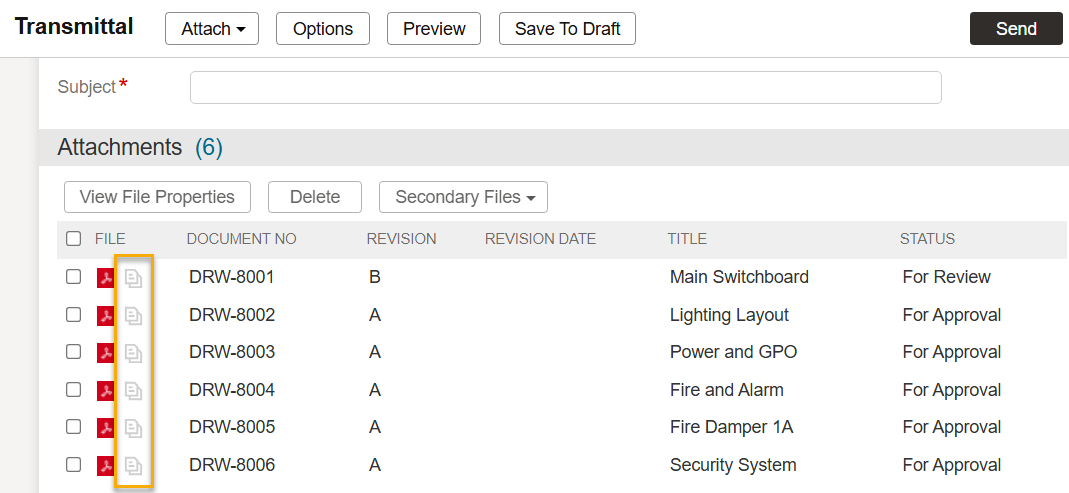
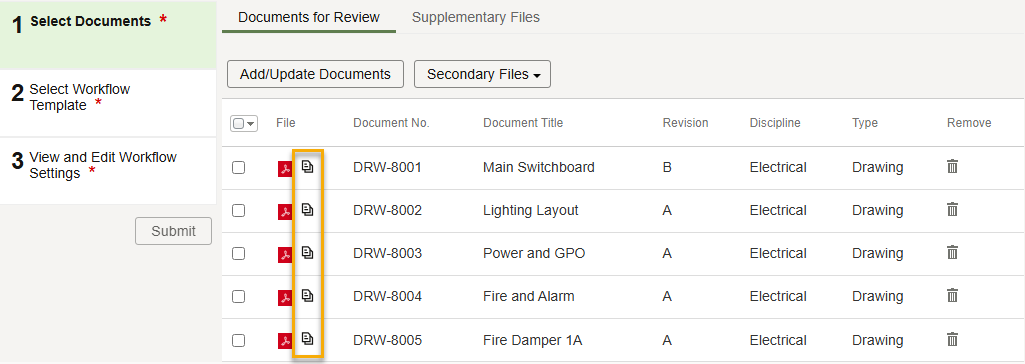
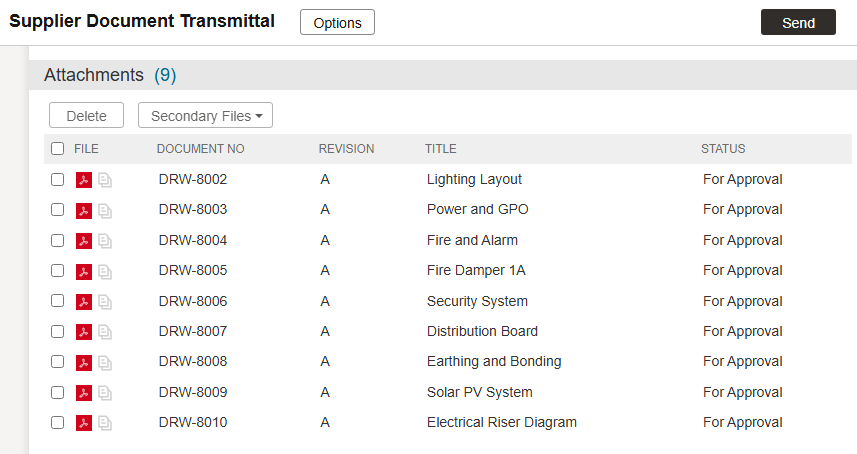
When sending a transmittal, an icon next to each primary file indicates if secondary files will be sent. If the icon is greyed out, the secondary files will not be included for that document. The default behavior is determined by your organization's project preference.
In the example below the icon is greyed out for all documents, meaning secondary files will not be sent.
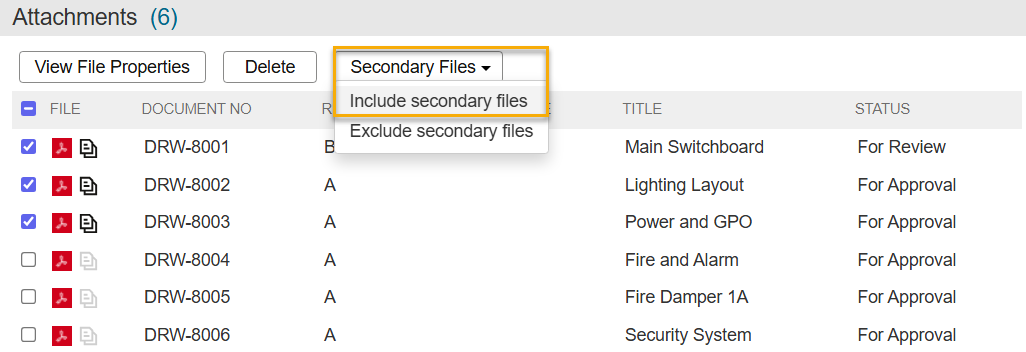
You can choose to include or exclude secondary files for specific documents. To do this, select them, click Secondary Files, and select the appropriate option.
In the example below, we selected the first three documents and chose to include secondary files. Their secondary files icon is solid, indicating that secondary files for these documents will be sent on the transmittal.
Only the primary file can be reviewed, marked up, or replaced. Any included secondary files are sent on the workflow transmittal and made available to recipient organizations to download and view. If a primary file is updated during a workflow, the existing secondary files are carried through to the next version of the document.
As with transmittals, when starting a workflow, an icon next to each primary file indicates if secondary files will be sent. You can choose to include or exclude secondary files for specific documents. To do this, select them, click Secondary Files, and select the appropriate option.
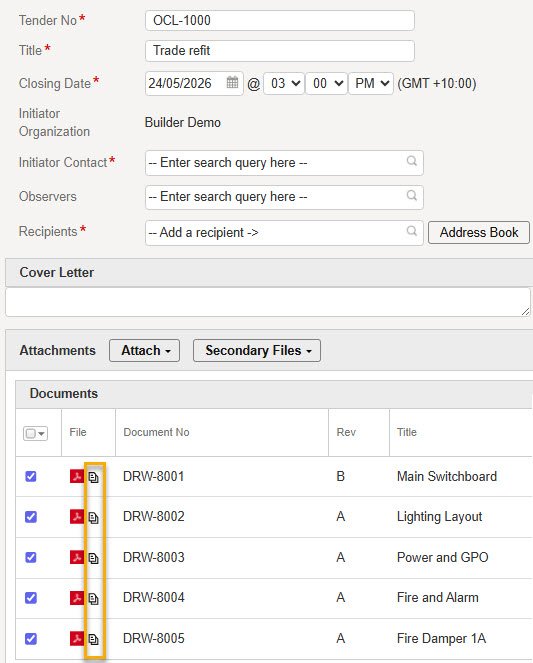
As with transmittals, after attaching documents to a tender invitation, an icon next to each primary file indicates if secondary files will be sent. You can choose to include or exclude secondary files for specific documents. To do this, select them, click Secondary Files, and select the appropriate option.
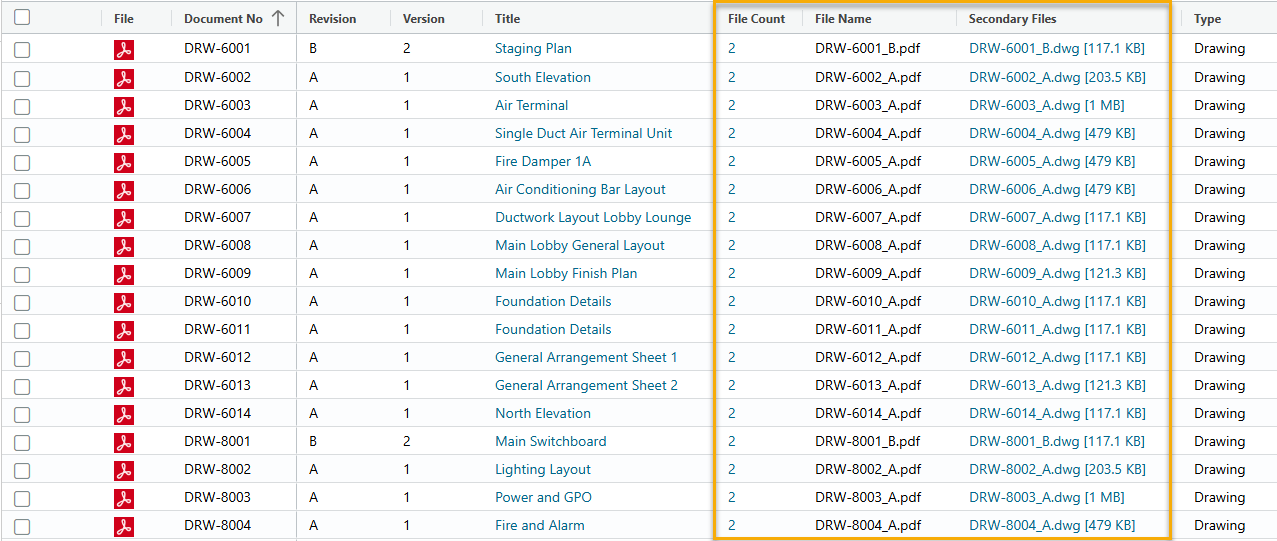
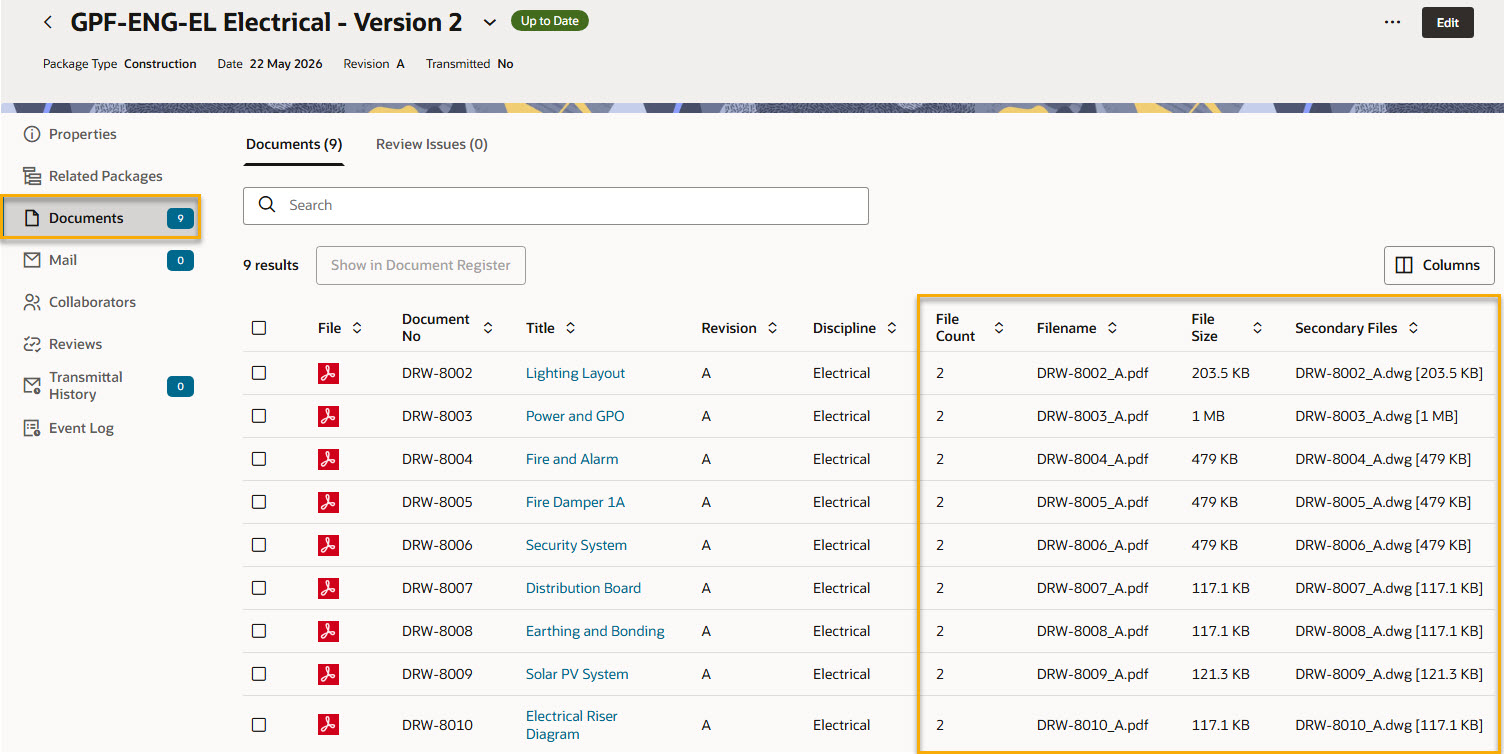
When searching supplier documents, click Add/Remove Columns and add the File Count and Secondary Files columns. The File Count shows the total number of files associated with each document record. The Secondary Files column shows the filename and size of each rendition.
When updating files for a document, you or the supplier must update the primary file and all secondary files together at the same time. This ensures revisions are kept together for data accuracy.
As with transmittals, when sending a supplier document transmittal, an icon next to each primary file indicates if secondary files will be sent. You can choose to include or exclude secondary files for specific documents. To do this, select them, click Secondary Files, and select the appropriate option.
When reviewing submissions an icon next to each primary file indicates if secondary files were received.
Can a secondary file have separate metadata? No. Metadata is the same across all files of a document. This follows document control principles where the same revision is consistent across all files of the same document.
How many secondary files can a document have? Four, but we recommend only using one (for example, a primary PDF and a secondary DWG) to make your documents easy to manage.
Can I replace a secondary file? Yes, you can update a document to replace files, but you must update both the primary and all secondary files together at the same time.
Do PDF and DWG files always need to be uploaded together? When using Renditions, we recommend that PDF and DWG files be uploaded together to ensure all file formats associated with the document reflect the same revision. However, if one format such as the DWG is not yet available, it may be issued later as part of a new document version. In that case, the previously issued PDF must be uploaded again together with the DWG so that both files are included in the same version.
Our consultants don't always issue the PDF and DWG together. Will the files go out of sync? Before Renditions, Aconex required each file format, such as a PDF or DWG, to be registered as a separate document. This allowed each format to be revised independently, but it also meant that the files could become out of sync. Renditions addresses this issue by keeping all file formats associated with a document within the same version. When you update a document:
For example, if Version 1 contains both a PDF and a DWG, and Version 2 is created by uploading only a new PDF, Version 2 will contain only that PDF. The DWG from Version 1 will not be included. This prevents the files from getting out of sync. When the DWG becomes available, it should be uploaded together with the matching PDF as part of a new document version. This ensures that both files represent the same revision.
What happens if I only update the document metadata? If you update only the document metadata, the files from the previous version are automatically carried forward. You do not need to upload them again. For example, if Version 1 contains both a PDF and a DWG, and Version 2 is created by changing only the document status, Version 2 will still contain both files from Version 1.
What happens if I upload only one file when updating a document? When you upload new files, Aconex treats them as the complete set of files for that document version. For example, if Version 1 contains both a PDF and a DWG, and Version 2 is created by uploading only a new PDF, Version 2 will contain only the PDF. The DWG from Version 1 will not be carried forward automatically. This ensures that each document version only contains the files that are valid for that revision.
Why doesn’t Aconex automatically keep the previous DWG? Automatically carrying forward an older file could cause different file formats within the same document version to represent different revisions. For example, the newly uploaded PDF might be Revision C, while the previous DWG is still Revision B. Keeping both files together would make the document version inconsistent. To prevent this, Aconex only includes the uploaded files in the new version.
Does this create more work for consultants? It may require some adjustment to existing working practices, particularly where different file formats have traditionally been managed as separate documents. However, the aim is to reduce the overall document control effort across the project. Instead of maintaining separate records for the PDF, DWG, and other file formats, all representations of the same deliverable are managed together under a single controlled document. This reduces duplication and helps ensure that all file formats remain aligned to the same revision.
Can we use Renditions without switching to the new enhanced upload? No. Renditions is only available in the enhanced upload. We'll retire all other uploads by the end of 2026, so we recommend planning your transition to the new version. Learn more about the enhanced upload and its benefits.