Update document metadata in bulk (new enhanced upload)

Update metadata for multiple documents without changing their files.

Follow this process to update the information for multiple documents in your organizations Document Register.

Updating a document creates a new version for it. The new version will become the current version of the document. All versions of a document are kept in Aconex automatically. If you need to, you can access previous versions of a document.

Before updating, make sure you refresh your Document Register to see the latest documents. To do this click Documents from the top navigation menu and select Document Register. Then click Clear all filters, and click Search.
Update metadata in bulk

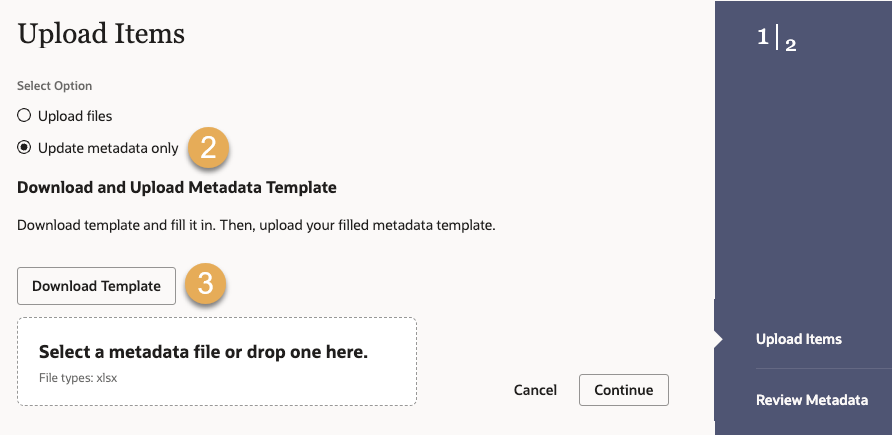
  1. From the top navigation click Documents and select Add or Update Documents.
  2. Choose Update metadata only.
  3. Click Download Template.

Tip!

If you see different menu options or your screen looks different, you may be using an older upload. We recommend you switch to the new enhanced upload.
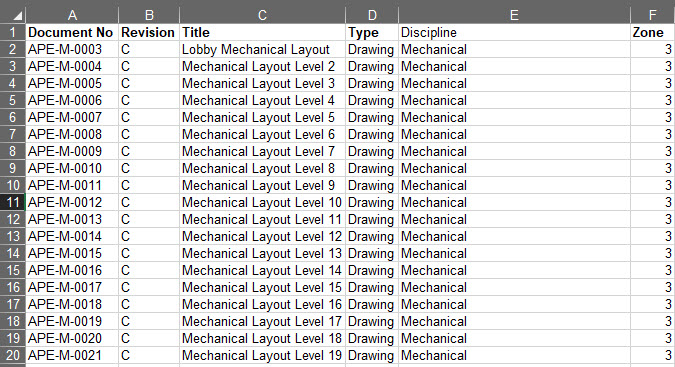
  1. Open the template in Excel and populate the fields as required. Note: fields in bold are mandatory and must be filled.
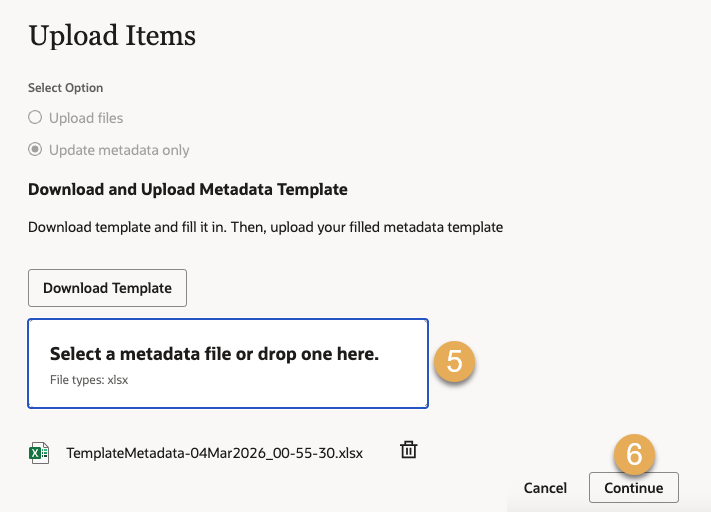
  1. Select or drag and drop your completed metadata template in the area shown.
  2. Click Continue.
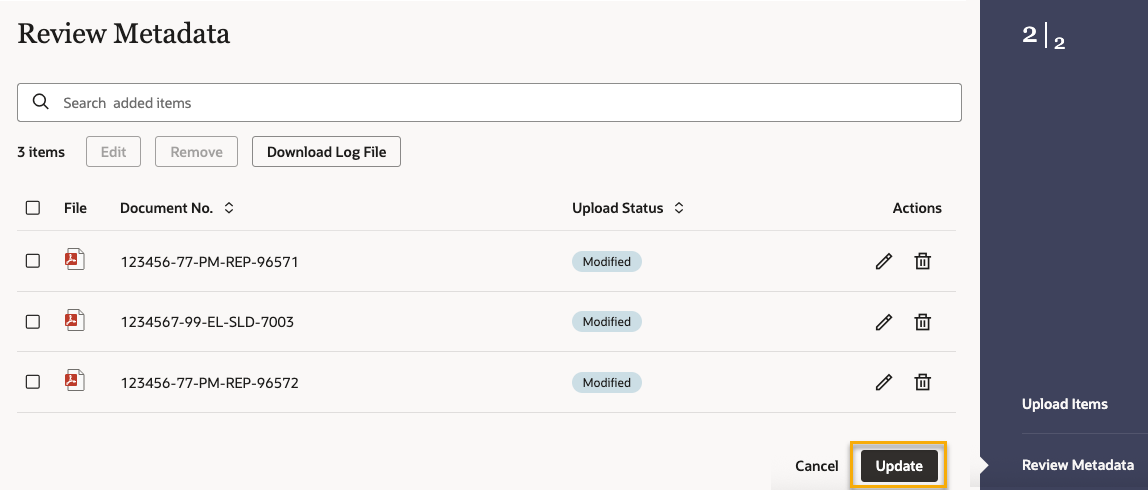
  1. You'll see a preview of the documents you are updating. Review and make any changes as required.

    Note: If your template contains documents that don't have any changes, you'll see a message to remove them from the list. Click See detail to see those documents. Alternatively, update your spreadsheet with the required changes for those documents and try again.
     
  2. Click Update to finish updating the documents.

Tip!

You'll see a prompt that your documents have been updated in your organization's Document Register. Next, you can transmit them so other organizations can access them too.

What's next?