Add an issue on Mobile

Capture a new issue using a mobile device.

Required permissions
Inspector (or above)

Oracle Aconex Mobile gives you a few ways to capture an issue during a site inspection:

The more information you can provide about the issue you're capturing, the easier it will be to find later using the sort, filter, and grouping options.
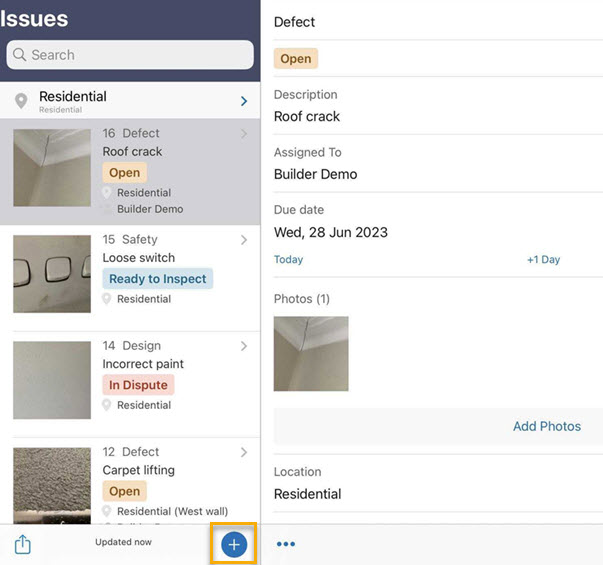
  1. Log into Oracle Aconex Mobile, and select the project you’re inspecting.
  2. Tap Issues.
  3. Tap through the locations to find the one you’re working in, or scan a QR code on the site to select the location
  4. Tap the add icon at the bottom of the screen.

Tip!

Quickly scan your location by long pressing (holding down) the Oracle Aconex app icon from your device's home screen.

If you select the wrong location you can always change it later.
Enter issue details

  1. Enter the details for the new issue. Fields marked with a red indicator are mandatory.
  • Select the issue type. 
  • Add a brief but clear description of the issue. You can use up to 255 characters here.
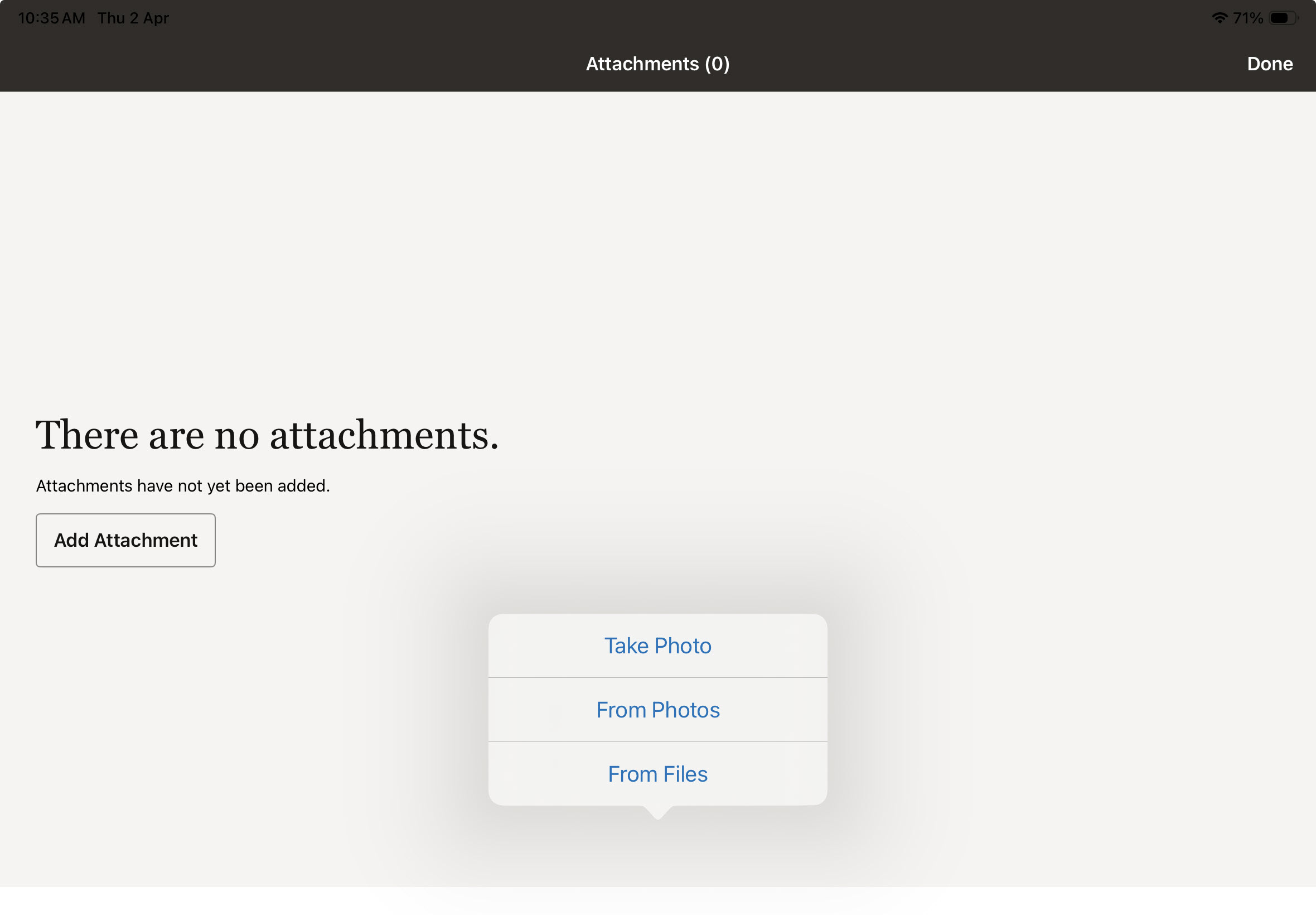
  • Tap Attachments to add photos, documents, or other relevant files from your device, so it's clear what the problem is. 
    • Tap Take Photo to capture a new image using your device’s camera.
    • Tap From Photos to select existing images from your device (up to 15 at a time).
    • Tap From Files to attach other file types.
    Added attachments are displayed on the Attachments screen. 
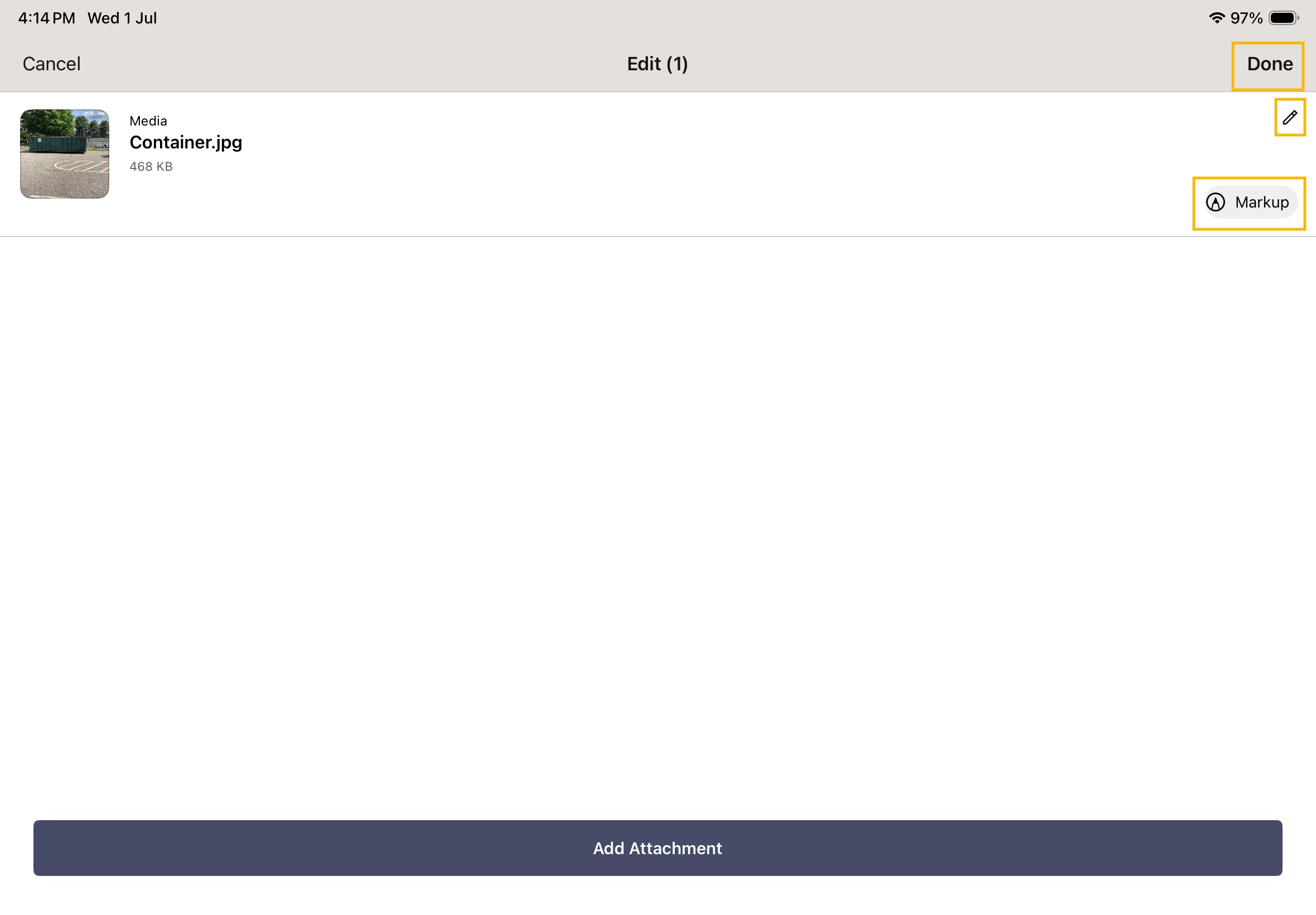
    • Tap the Edit (pen) icon to update the filename or add an optional description (up to 255 characters).
  • Tap the markup icon to annotate images or PDF files.
  • Tap the Delete icon to remove an attachment (before saving the issue).
    Attachments are saved when you save the issue. Once saved:
    • Attachments with a description display a Note icon.
    • Tap a thumbnail to preview it in full screen. The filename and description are shown.
      • Status when added is displayed for image attachments only.
    • Tap the Properties icon to view attachment details. For media files, geo-location information is shown, including coordinates and a map view.
    • Tap the Share icon to share attachments using external apps.
  • After saving the issue, you can’t delete attachments or edit their descriptions.
  • You can attach files up to 100 MB in size.
  • For security reasons, .jar and .exe files can’t be attached.
  • Enter the issue’s location details to make it easier to find.
  • If project fields are configured, complete the required information under Extra details.
  • Select the organization responsible for resolving the issue. If your organization is responsible, you can also assign a person.
  • Select a due date using the calendar.
  • To capture another issue, ensure Continue capturing more issues is selected.
  • Tap Save to add the issue to your issues list.
  • The new issue appears at the top of your list with a default status of Open.
  • The assignee can also see the issue in their open issues list and begin work immediately.
  • Tap the issue to make changes, or add another one.
  1. To capture another issue, ensure Continue capturing more issues is selected.
  2. Tap Save to add the issue to your issues list.
  1. The new issue appears at the top of your issues list. By default its status is Open.
  2. The assignee can find this issue in their open issues too, so they can start work right away.
  3. Tap the issue to make changes, or add another one.

Tip!

Your mobile device doesn't have to be connected to the Internet to capture new issues. Once a connection becomes available, your mobile device will start syncing the captured issues with Aconex automatically. See What happens to my work when I’m offline? for more information.