
Create and manage Service Requests

Service Requests made simple with the Oracle Construction and Engineering Support Portal

With Support Portal, creating, viewing and updating Service Requests is easy. If you don’t want to sign in and use the Support Portal, you can always raise a Service Request directly.

Create a Service Request

  1. Log in to the Support Portal.
  2. Click Create Support Request.
  3. Fill out the form and click Submit.
  4. You’ll see a confirmation screen with your Service Request confirmation number. You’ll also receive a confirmation email.
  5. Update your Service Request via the Support Portal or by replying to your confirmation email.
     

Things to keep in mind:

  • Provide as much detail as you can – more details make it easier for us to help you. Find out what kind of information is helpful.
  • Some fields are marked with an asterisk. That means they’re mandatory. 
  • The form is dynamic, so depending on how you fill out some fields, it will change to suit your request type.
  • The maximum attachment size is 20 MB. If you attach a larger file it may not reach us.

Tip!

It’s important to choose the right severity level for your request. Learn more.

View your Service Requests

  1. Sign in to Support Portal.
  2. Click View Submitted Requests.
  3. Search and filter for SRs as required.
  4. Click on an SR to view the communication history.

Tip!

Your screen will vary slightly depending on whether you’re an admin or basic user. Find out more about user access levels.

Export Service Requests (admins only)

  1. After filtering your SR list click Export.
  2. Depending on your web browser settings, the file will automatically download to your computer, or you'll be prompted to open/save the file. We recommend saving the file when prompted. Note: Choosing to open the file directly may open the file in a plain text editor, which will be difficult to read.
  3. View the CSV in MS Excel or other spreadsheet software.

Tip!

Note: Being an Org Admin in Aconex, does not make you a Support Portal admin. Contact us if you'd like to be an admin for the Support Portal.

Update a Service Request

  1. Click on an SR to open it.
  2. (Optional) Scroll down to view the communication history.
  3. Complete the form and click Submit.


Selecting the right answer for ‘Do you want a response’ field
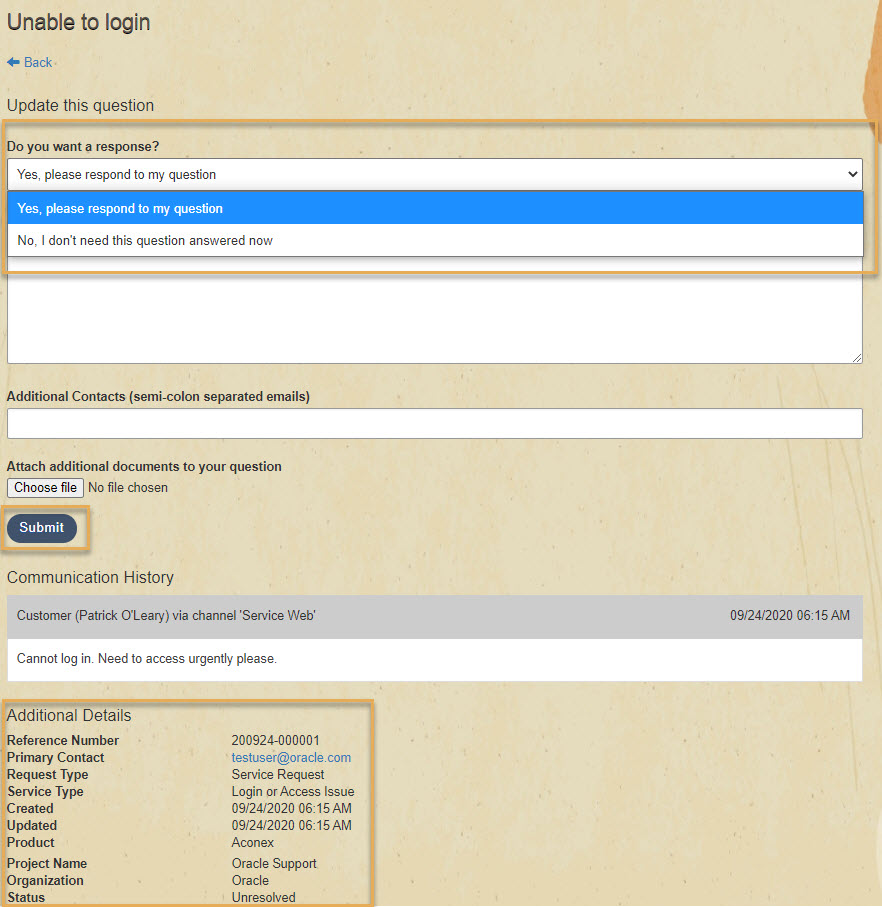
  • Choose Yes, please respond to my question if the issue is ongoing and you’d still want to hear back from us.
  • Choose No, I don’t need this question answered now, if you don’t need further help. This could be because you’re just passing on some additional info or an update and don't need a response, or you want to let us know that we can close the request.

Tip!

Note that the maximum attachment size is 20 MB. If you attach a larger file it may not reach us.
