Review a document in Document Processes

You've received a notification and you're ready to review your document and add comments.

As a reviewer you can pin issues to the document to provide feedback and add markups. You can also raise a general issue (without a pinned location or markups) against the document . You'll see issues raised by other reviewers too and can provide feedback on them as required.

You'll be able to see issues raised by parallel reviewers if issue visibility is enabled for that review. Otherwise, you'll see those issues after the step is completed.

If you're a lead reviewer, you'll choose a review outcome to complete the step.

  1. From the main navigation menu, click Document Processes and select Steps assigned to me.
  2. You'll see all review steps that require your action.
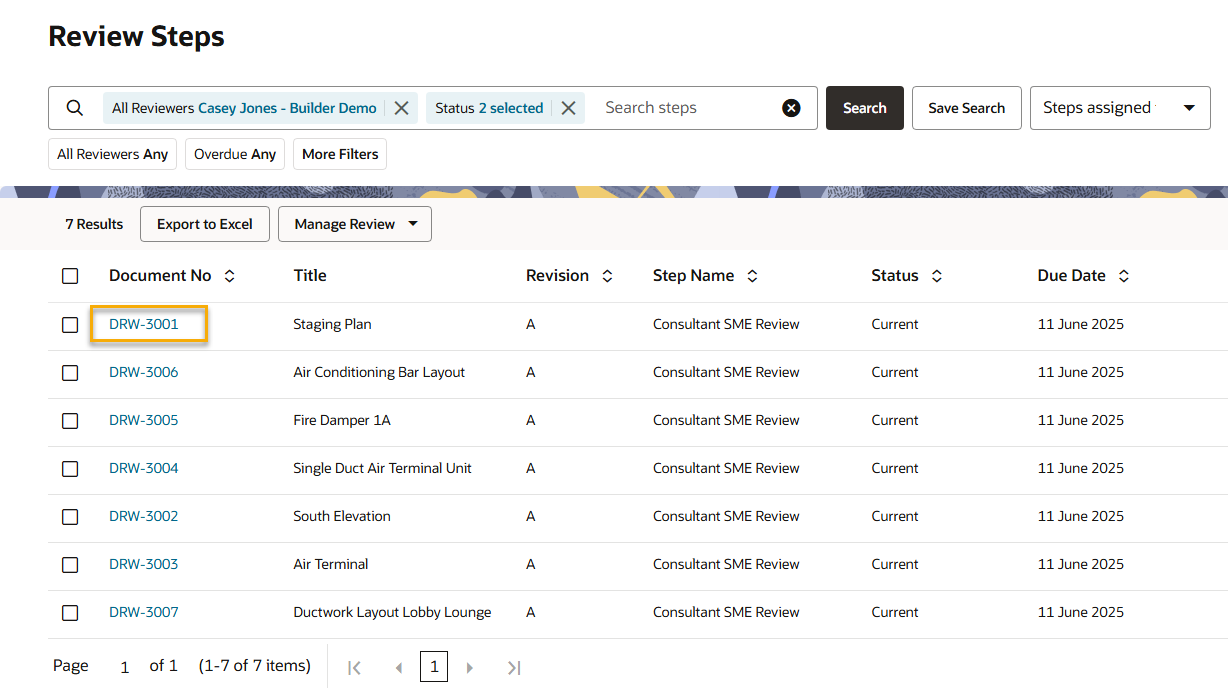
  3. Click on a document's number to review it.

Tip!

You can also access this screen directly from the email notification you received.
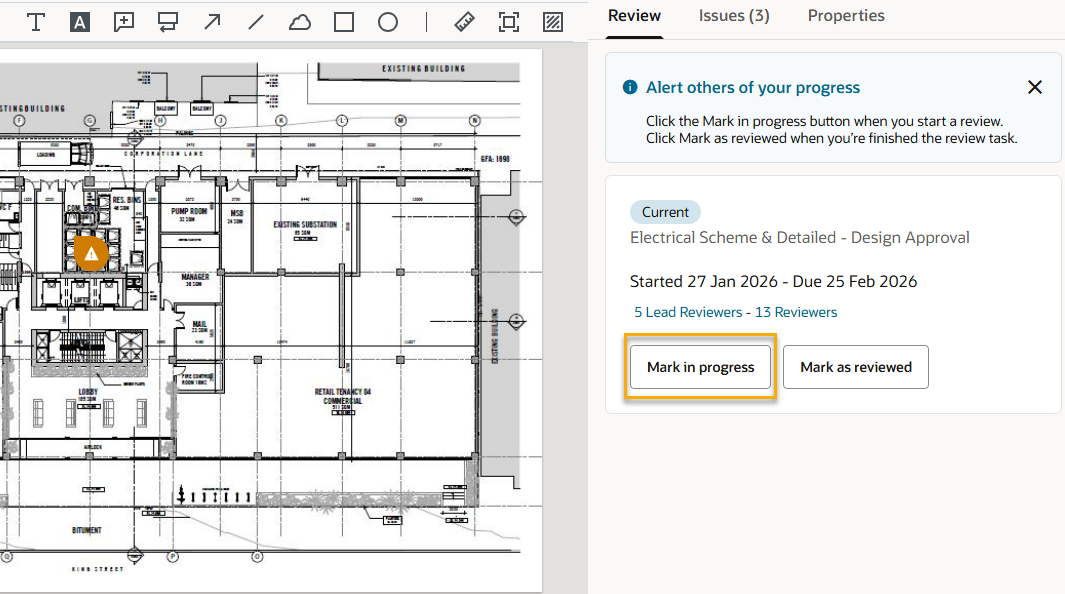
  1. If you are a reviewer, let the lead reviewer know you have started looking at the document by clicking Mark in progress. This helps to prevent the lead reviewer from completing the step before you’ve finished your review.
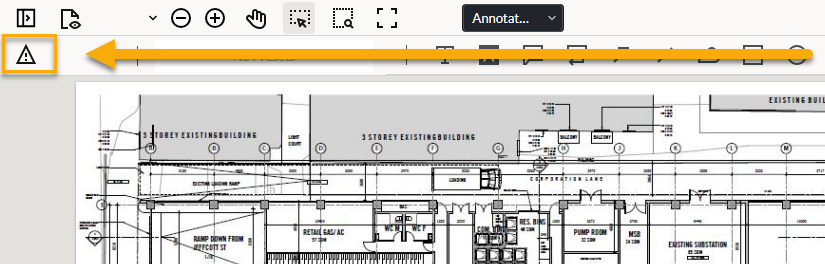
  1. If you want to add markups, you'll need to pin an issue first. Click Add Issue in the viewer toolbar to create an issue pin.
  2. Pin the issue in place on the document and fill out the issue details. You can also add markups to it.

Tip!

Document Processes supports all markup tools in the Online Viewer, except for File Attachment, Signature, Stamps, and File Comparison.
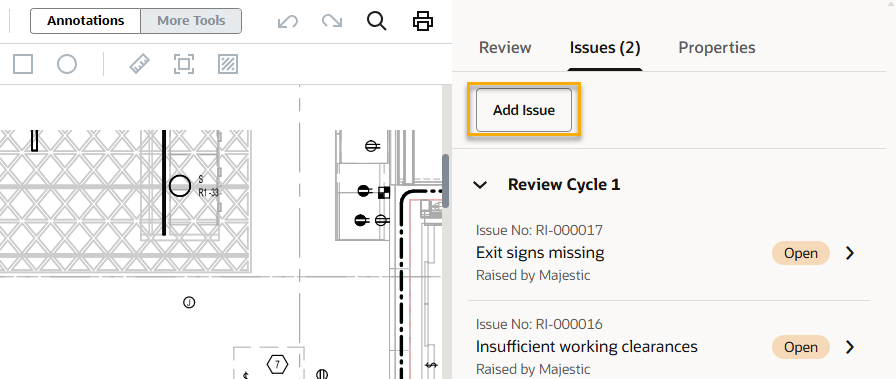
  1. If you prefer to add a general issue (without a pinned location or markups) you can click Add Issue from the Issues tab on the right.

Tip!

You cannot convert a general issue to a pinned issue.
  1. Add as many issues as needed.
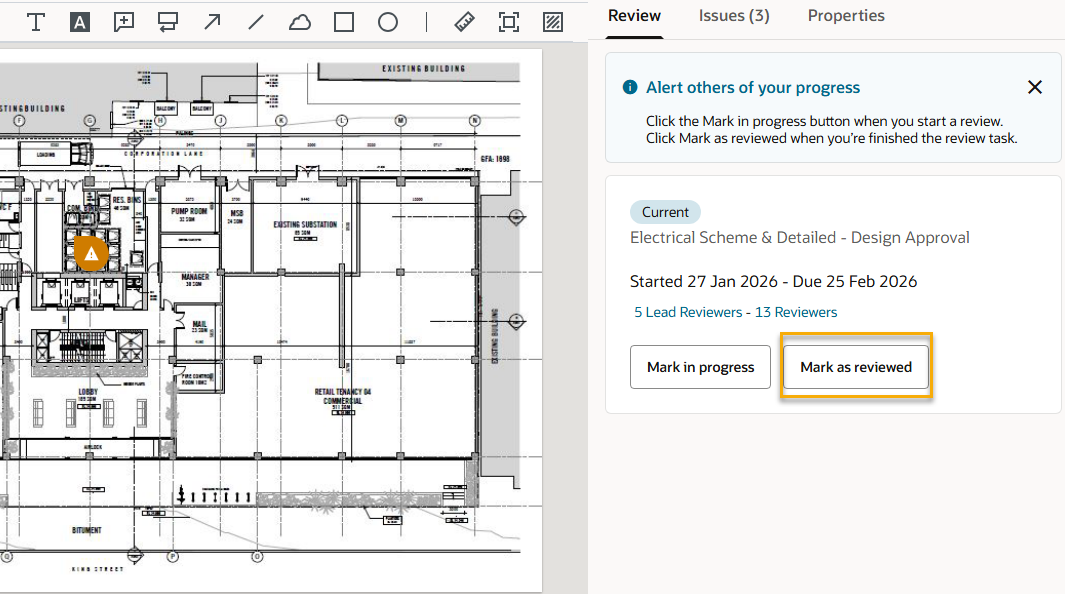
  2. If you are a reviewer and you’ve completed your review, let the lead reviewer know by clicking Mark as reviewed. This keeps the process moving
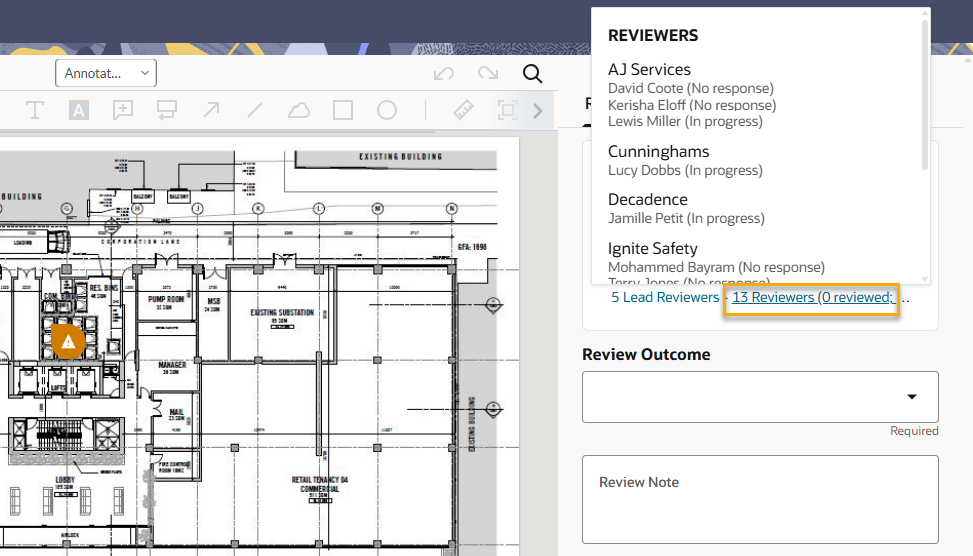
  1. If you are the lead reviewer, you can check the progress of all reviewers by clicking the reviewers link in the step detail
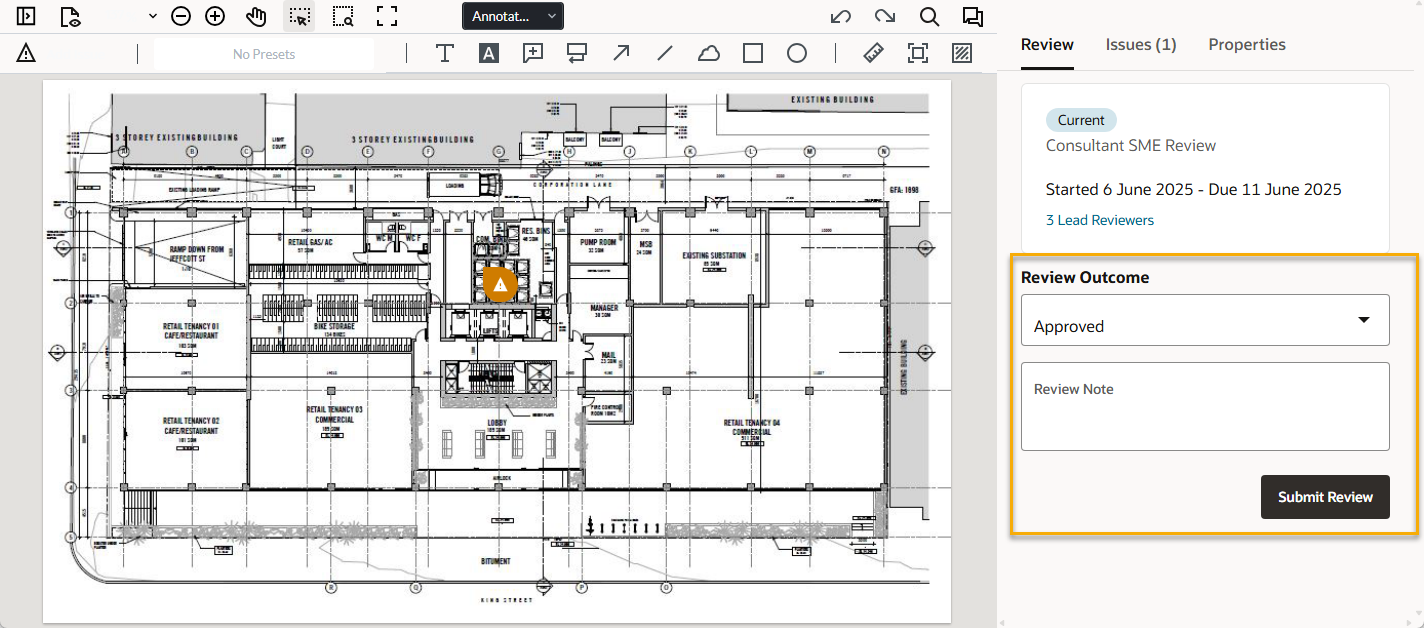
  1. As a lead reviewer, when you’re ready to complete the step select a review outcome from the drop down. You can also add a review note.
  2. Click Submit Review to complete the step.

Tip!

If you submit a review before all reviewers have indicated that they’ve completed their review, you’ll see an alert on screen. This gives you a chance to wait for them and follow up before you complete the step.

  1. Once all steps in a review are completed and the review was configured to assign issues automatically, the issues will be assigned to the originators to respond to. Otherwise, the process owner can manually assign the issues.